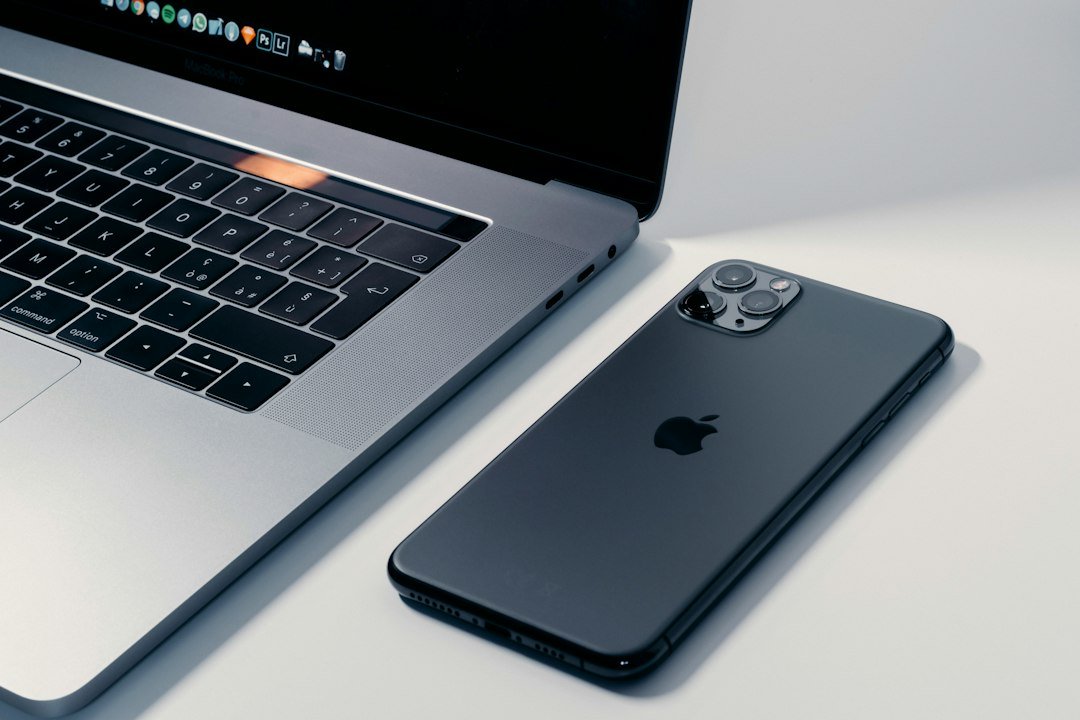
Personal Hotspot is one of those features you only notice when it stops working. Your laptop sees the iPhone but will not connect, the connection drops after a few seconds, or it connects with no internet at all. This often shows up after an iOS update, because an update can reset network settings or carrier profiles in the background.
The steps below go from quick toggles to deeper resets, so you can fix the problem without doing more than necessary. Resetting network settings removes saved WiFi passwords, so that step comes near the end.
Quick Answer
Turn Allow Others to Join off and on, restart the iPhone, toggle Airplane Mode, and turn on Maximize Compatibility. Then update iOS and your carrier settings, forget the hotspot on the connecting device, and reconnect. If it still fails, reset network settings or contact your carrier to confirm that hotspot is included in your plan.
Why Personal Hotspot Stops Working
1. A temporary software glitch after the update
The hotspot service can fail to restart correctly after an update.
Clue: the Personal Hotspot switch is on, but other devices cannot see the network.
2. Hotspot is not enabled on your plan
Some carriers limit or block tethering on certain plans, or the data allowance for hotspot has run out.
Clue: devices connect but have no internet, or the Personal Hotspot option is missing or grayed out.
3. WiFi band or compatibility mismatch
Some older devices work better on the 2.4 GHz band than the faster band the iPhone prefers.
Clue: older laptops, tablets or smart devices cannot find the hotspot, while newer phones can.
4. Corrupted network or carrier settings
Network settings can become inconsistent after an update or SIM change.
Clue: mobile data or calls also act strangely, not just the hotspot.
5. A stale connection on the other device
The laptop or tablet may hold an old saved profile that no longer matches the hotspot.
Clue: the hotspot works with one device but not the one that connected before.
10 Fixes, From Quickest to Most Thorough
Fix 1: Turn Personal Hotspot off and on
Open Settings, then Personal Hotspot, turn Allow Others to Join off, wait a few seconds, and turn it on again. Keep the screen on while you do this.
Test: check whether the other device can see and join the network.
Fix 2: Restart the iPhone
Restart the iPhone fully, then try the hotspot again before opening other apps.
Test: reconnect the other device after the restart.
Fix 3: Toggle Airplane Mode
Turn Airplane Mode on for about 15 seconds, then turn it off. This forces the phone to reconnect to the cellular network.
Test: confirm you have mobile data, then try the hotspot.
Fix 4: Make sure Cellular Data is on and Low Data Mode is off
In Settings, open Cellular and check that Cellular Data is on. Open Cellular Data Options and turn off Low Data Mode if it is enabled.
Test: open a web page on the iPhone first to confirm data works, then try the hotspot.
Fix 5: Turn on Maximize Compatibility
Go to Settings, Personal Hotspot, and turn on Maximize Compatibility. This makes the hotspot use the 2.4 GHz band, which many older devices need. Speeds can be lower, but it is much more compatible.
Test: retry with the device that could not see the network.
Fix 6: Forget the network on the other device and reconnect
On the laptop, tablet or other phone, forget the iPhone’s hotspot network from the WiFi or Bluetooth settings, then connect again and enter the password fresh.
Test: check that the device now gets internet.
Fix 7: Simplify the hotspot name and password
Rename the iPhone in Settings, General, About, Name using plain letters and numbers, and set a hotspot password with plain characters, at least 8 characters long.
Test: reconnect using the new name and password.
Fix 8: Update iOS and carrier settings
Install any available update in Settings, General, Software Update. If a carrier settings prompt appears, accept it. Updates often include fixes for hotspot bugs.
Test: restart after updating and try again.
Fix 9: Reset network settings
Go to Settings, General, Transfer or Reset iPhone, Reset, and choose Reset Network Settings. This removes saved WiFi networks and passwords, VPN settings and Bluetooth pairings, so note down your WiFi passwords first. Your photos, apps and messages stay.
Test: after the iPhone restarts, turn on Personal Hotspot and reconnect your devices.
Fix 10: Check your plan and contact your carrier
If the Personal Hotspot option is missing or devices connect without internet, ask your carrier whether hotspot is included in your plan and whether your hotspot data limit has been reached. Ask them to refresh your provisioning if needed.
Test: after the carrier confirms, restart the iPhone and try again.
Troubleshooting Table
| What you see | Likely cause | Try first |
|---|---|---|
| Hotspot not visible | Compatibility or glitch | Fix 1 and Fix 5 |
| Connects but no internet | Plan limit or cellular issue | Fix 4 and Fix 10 |
| Works on one device only | Stale saved network | Fix 6 |
| Drops every few seconds | Settings or signal problem | Fix 3 and Fix 9 |
| Option missing or grayed out | Carrier or plan | Fix 8 and Fix 10 |
Pro Tips
- Keep the iPhone screen on and close to the device while it connects the first time.
- Use a USB cable for tethering to a computer when WiFi is unreliable.
- Turn on Low Power Mode only if needed, as it can reduce hotspot performance.
- Keep iOS up to date so hotspot bug fixes arrive early.
Common Mistakes
- Resetting network settings before trying the simpler fixes.
- Forgetting to check whether mobile data works on the iPhone itself.
- Using a very long or special-character hotspot password.
- Assuming it is an iPhone fault when the carrier plan blocks tethering.
FAQ
Why did my hotspot stop working after an iOS update?
Updates can reset network or carrier configuration in the background, which interrupts the hotspot service until it is refreshed.
Does Maximize Compatibility use more battery?
It can reduce speed rather than battery life. Use it when older devices fail to connect, and turn it off when not needed.
Will resetting network settings delete my data?
No. It removes saved WiFi networks, passwords, Bluetooth pairings and VPN settings, but not photos, apps or messages.
Why does my laptop connect but show no internet?
The iPhone may have no cellular data, a data limit may be reached, or your plan may restrict tethering.
Can I use a USB cable instead?
Yes. Connecting your iPhone to a computer with a cable and enabling the hotspot is often more stable than WiFi.
Final Thoughts
Most hotspot problems after an update are fixed by toggling the hotspot, enabling Maximize Compatibility, reconnecting the other device, and refreshing network settings. Try the fixes in order and test after each one, so you know which step solved it. If nothing works, ask your carrier about your plan, or send us your iPhone model and iOS version through the contact page.