Free Favicon & App Icon Generator
Upload a logo and get every icon size your website needs: favicon.ico, an Apple touch icon and Android icons. Download the ZIP and paste the code.
- Your image never leaves your browser
- A real multi-size .ico, not a renamed PNG
- Free, with no signup and no watermark
Your icons
Copy this HTML into your site’s <head>
Upload all files from the ZIP to the root folder of your website (the same place as your homepage), so the paths in the code above work. Using WordPress? See the tutorial below.
More tech fixes
Not an icon problem? Browse our troubleshooting guides by category.
Favicon & icon guides
New troubleshooting articles, written and tested by Ahmad Zaman.
-
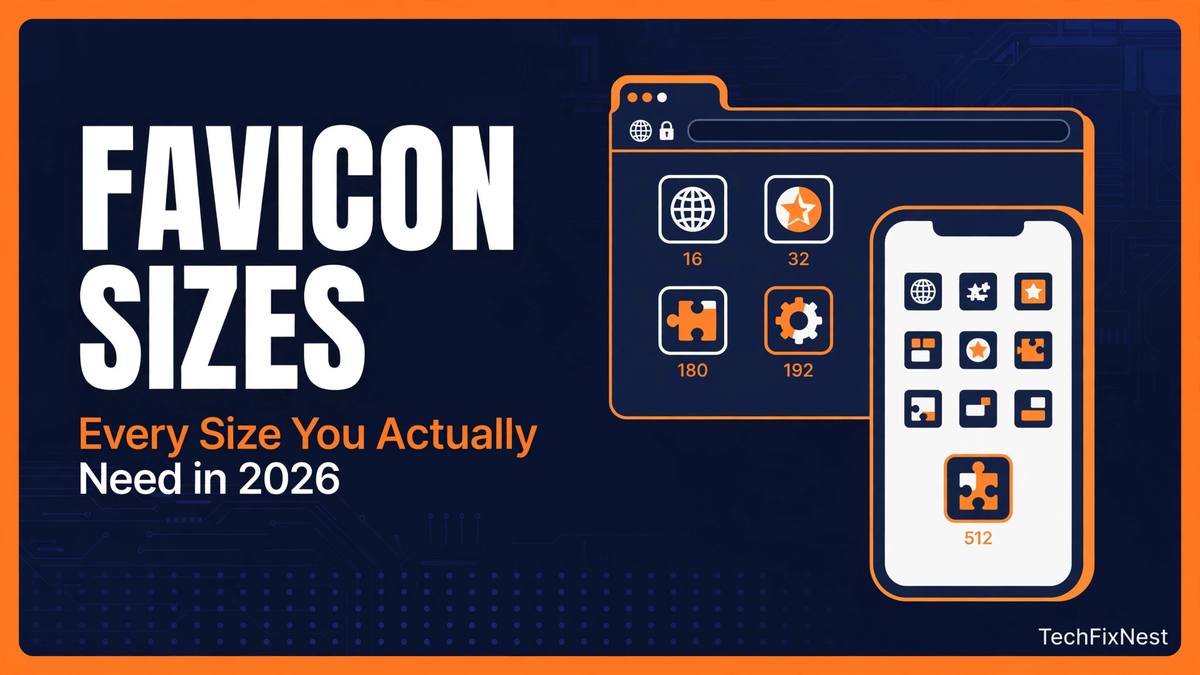
Favicon Sizes Explained: Every Size You Actually Need in 2026
Quick Answer You do not need twenty favicon files. Most sites in 2026 are fully covered with a multi-size favicon.ico file (16,…
-

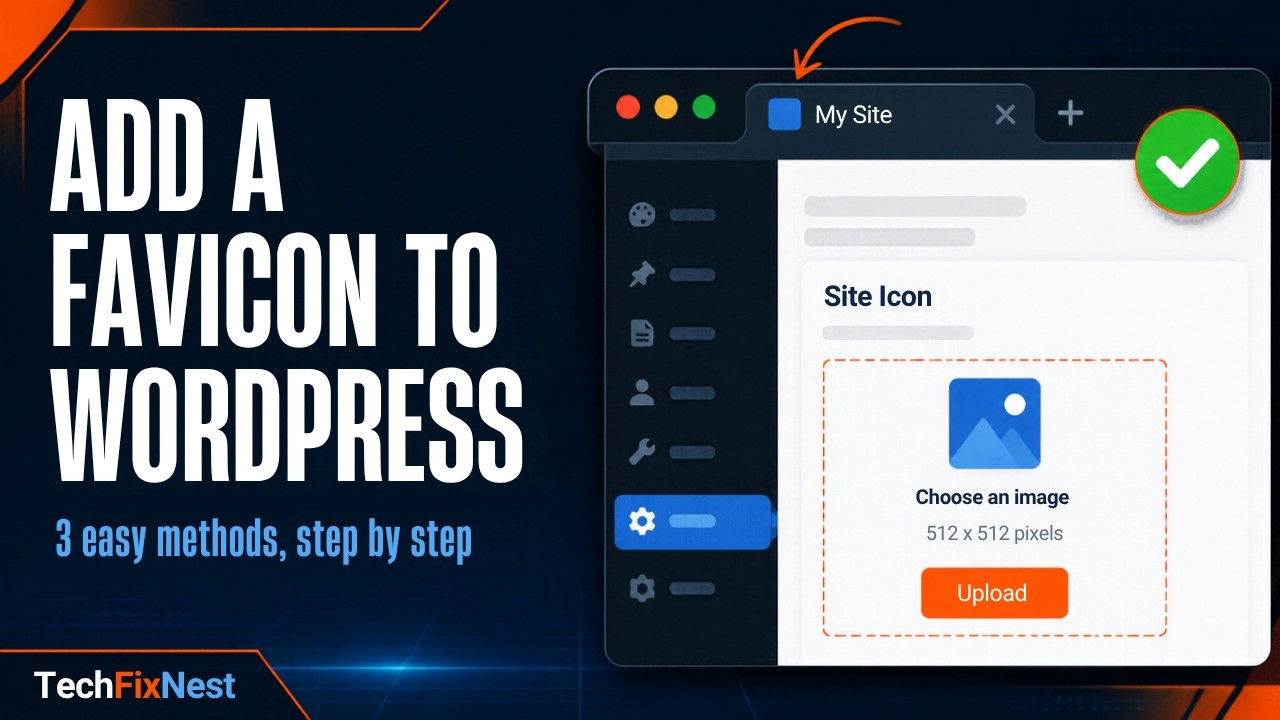
How to Add a Favicon to WordPress (3 Methods, Including Block Themes)
Learn how to add a favicon to WordPress with the Site Icon setting, the Site Editor for block themes, or manual code.…
-
Favicon Not Showing? The Real Reason Your Site Icon Is Missing in WordPress, Chrome and Google
Favicon not showing in WordPress, Chrome or Google? Try these 8 fixes for missing or outdated icons, cache problems and Google recrawl…
How to use the favicon generator
- Upload your logo. Use a square PNG, JPG or WebP. A simple logo with a transparent background works best.
- Adjust the look. Choose contain or crop, add padding, or set a background color. The preview updates instantly.
- Download. Save single files or download the full ZIP.
- Install. Upload the files to your site root and paste the HTML code into your <head>.
How to add the favicon to WordPress
- Easiest: go to Settings > General and choose a Site Icon, or use Appearance > Customize > Site Identity on a classic theme. Upload
android-chrome-512x512.pngand WordPress creates the other sizes. For all three methods, including block themes, see how to add a favicon to WordPress. - Manual: upload the ZIP files to your site root with your host's File Manager or FTP, then add the HTML code with a header-insert plugin such as WPCode.
- Check it. Clear your browser, plugin and CDN caches, then reload. Favicons are cached for a long time. If it still does not show, read why a favicon is not showing.
Favicon sizes: what each file is for
| File | Size | Used for |
|---|---|---|
| favicon.ico | 16, 32, 48 px | Legacy browsers and the default /favicon.ico request |
| favicon-16x16.png | 16×16 | Small browser tab icon |
| favicon-32x32.png | 32×32 | Standard and high-DPI browser tabs, bookmarks |
| favicon-48x48.png | 48×48 | Some desktop and browser contexts |
| apple-touch-icon.png | 180×180 | iPhone and iPad "Add to Home Screen" |
| android-chrome-192x192.png | 192×192 | Android home screen, PWA manifest |
| android-chrome-512x512.png | 512×512 | High-resolution PWA icon, splash screens |
| site.webmanifest | text | Links your Android and PWA icons to your site |
Not every platform needs every file. This pack covers the common cases. Always test on the devices that matter to you.
Frequently asked questions
Is this favicon generator really free?
Yes. There is no signup, watermark or download limit.
Are my images uploaded to a server?
No. The image is processed with your browser's canvas, and the files are created on your device. We do not receive your image.
Is the ICO file a real ICO?
Yes. The generator builds a proper multi-size ICO container (16, 32 and 48 px) instead of renaming a PNG.
Which image should I upload?
A square logo of at least 512×512 px. Simple shapes and bold colors stay readable at 16×16.
Why is my favicon not showing after I changed it?
Browsers and search engines cache favicons. Clear your browser cache, open the favicon URL directly (for example /favicon.ico) to confirm it updated, and give search engines time to recrawl. Our guide on a favicon not showing covers every cache layer.
Can I upload an SVG?
Not in this version. Export your SVG as a PNG (512×512 or larger) and upload that.
Does Google use my favicon in search results?
Google can show a site favicon next to results when it meets its guidelines, such as a stable favicon URL and a square image in multiples of 48 px. Display is decided by Google and is not guaranteed.
How every guide is built
The same three parts every time, so you can find the answer fast.
Clue
A one-line symptom that confirms the cause, so you do not have to guess.
Fix
Steps in order, quickest and safest first, so you never do more than you need.
Test
A check after each fix that tells you whether it worked.