Quick Answer
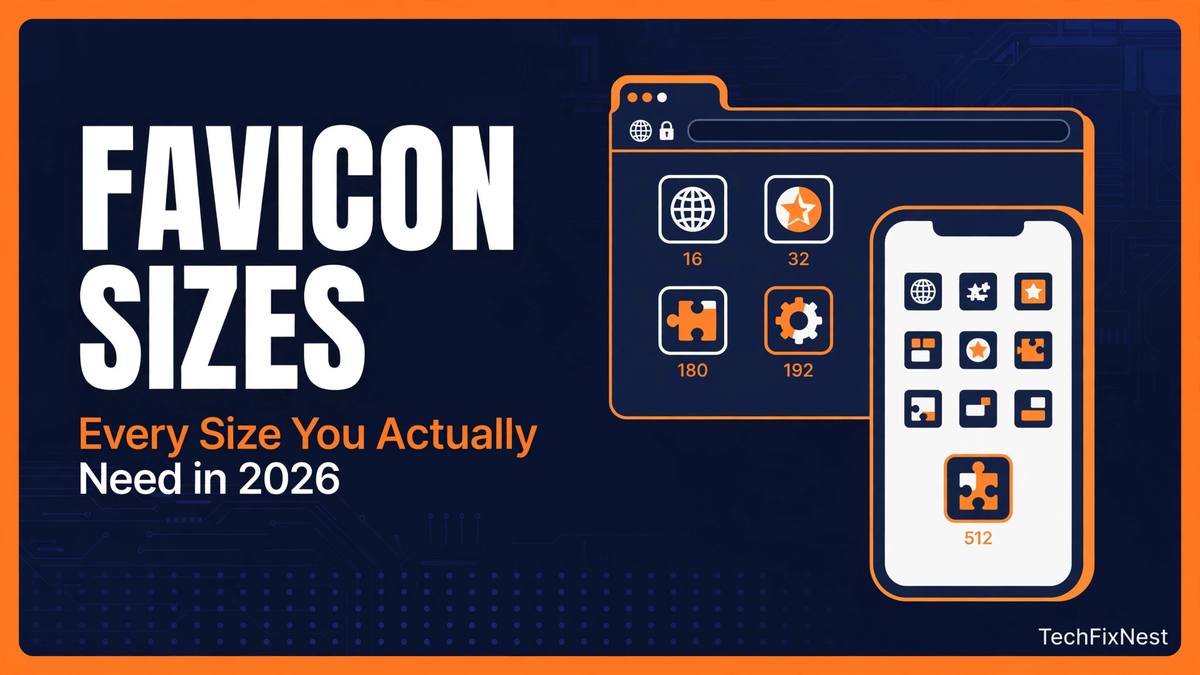
You do not need twenty favicon files. Most sites in 2026 are fully covered with a multi-size favicon.ico file (16, 32 and 48 pixels), a 180×180 Apple touch icon, 192×192 and 512×512 Android icons, and a simple web manifest linking the Android icons. Add those, and your icon should show correctly in browser tabs, bookmarks and phone home screens.
The two common mistakes are uploading only one tiny image, which looks blurry on phones, and generating a huge pack you never upload properly. This guide explains what each size is for, what you can skip, and how to build the set from one good logo.
Why One Size Is Not Enough
A favicon appears in many places: a browser tab, a bookmark list, a phone home screen, a shortcut and, for web apps, a splash screen. Each place asks for a different size. If a size is missing, the browser may stretch a small image, shrink a large one until detail disappears, or show nothing at all.
That is why an icon that looks perfect in a desktop tab can look broken on a phone. The fix is not to design each size separately. Start with one square source image, ideally 512×512 pixels or larger, and generate the smaller sizes from it. Work downwards from large to small, never the other way around.
The Sizes That Matter
16×16: the browser tab
This is the classic favicon size and the first test your icon must pass. It appears in tabs and small bookmark lists. At 16 pixels, thin lines and small text vanish, so a simple, bold mark works best. If your logo does not read at 16 pixels, no other size will save it.
32×32: high-resolution tabs and bookmarks
On modern high-DPI screens, 32 pixels is often the size actually shown in a tab, and it also appears in bookmarks. If you only provide 16 pixels, a sharp screen will stretch it and it will look soft. Providing both sizes is a cheap fix.
48×48: the middle ground
The 48-pixel size appears in some desktop shortcuts and browser menus. You rarely notice it directly, but including it stops a system from upscaling a smaller image for a medium slot. It usually comes free inside a multi-size ICO file.
favicon.ico: one file, three sizes
A favicon.ico file is not a single image with a strange name. It is a container holding several sizes, typically 16, 32 and 48 pixels. When a browser requests /favicon.ico, it opens the container and picks the size that fits.
Do not rename a PNG to .ico and hope it works. A renamed PNG is still PNG data, and some browsers will ignore it. A proper generator builds a real ICO container. The free generator on the TechFixNest homepage does this, so the 16, 32 and 48-pixel question is answered in one file.
180×180: Apple touch icon
When someone saves your site to an iPhone or iPad home screen, Apple looks for a 180×180 touch icon. Two details catch people out. First, it should not be transparent: iOS may fill transparency with black corners. Use a solid background colour. Second, do not bake rounded corners into the image, because iOS rounds them itself. Keep the logo centred with a little padding.
You do not need a dozen older Apple sizes. The 180-pixel icon is the modern standard, and older devices will scale it down if needed.
192×192 and 512×512: Android and web apps
Android uses 192 pixels for home-screen icons and 512 pixels for high-resolution displays and splash screens. If your site works as a progressive web app, these sizes are expected in your web manifest. The 512-pixel image is also the best source size for everything else, which is another reason to start large.
site.webmanifest: the file that connects Android icons
The manifest is a small text file that tells Android your site name, theme colour and which icons to use. Without it, Android may not treat your 192 and 512-pixel icons as app icons at all. It does not need to be complicated, but its file paths must match where you actually uploaded the icons. A manifest pointing to the wrong folder is the same as no manifest.
What You Can Safely Skip
You do not need separate icons for every old device size, such as 57, 72, 114 or 152 pixels. Modern devices handle the 180-pixel Apple icon well, and maintaining that long list adds work without a visible benefit for most sites.
You also do not need separate 16, 32 and 48-pixel PNG files if you already have a proper multi-size ICO file. Add PNG versions only if a specific theme or platform asks for them by name. The rule is simple: cover the modern set, test it on a real phone and desktop browser, and stop.
How to Build the Set, in Order
Step 1: Prepare one square source image. Use a PNG at 512×512 pixels or larger. Remove small text that will disappear at 16 pixels, and keep bold shapes and good contrast.
Step 2: Generate the pack. Upload that image to a favicon generator, such as the one on the TechFixNest homepage, and download the full ZIP. Check it includes a real ICO file, a 180-pixel Apple icon, 192 and 512-pixel Android icons, and a manifest.
Step 3: Upload to the right place. Put the files in your website root folder, the same place as your homepage, unless your theme says otherwise. Keep filenames exactly as generated, because the HTML code and manifest refer to those names.
Step 4: Add the HTML code. Paste the provided code into your site’s head section. For WordPress, the existing TechFixNest guide on adding a favicon to WordPress covers the Site Icon setting, the Site Editor for block themes, and the manual method.
Step 5: Test at every size. Check the desktop tab, a bookmark, and a phone home screen on Android and iPhone if you can. Start with the 16-pixel tab: if it is unreadable, simplify the logo and regenerate, rather than uploading a larger file and hoping.
Step 6: Clear the cache before judging. Favicons are cached aggressively. Open the favicon file directly, hard-refresh, or test in a private window before assuming the upload failed.
Common Mistakes to Avoid
Starting from a small or rectangular logo is the top mistake. A wide banner squeezed into a square looks cramped, and a 100-pixel image stretched to 512 pixels stays soft. Start square and large.
The second mistake is transparency in the wrong place. It is fine for a tab icon, but it causes black corners on Apple home screens. Use a solid background for touch and app icons.
The third mistake is uploading files but forgetting the code, or adding code that points to a different folder. Both parts must match. If your icon does not show, check file paths first.
Frequently Asked Questions
Do I need favicon.ico if I already have PNG icons?
Yes, for best coverage. Some browsers and tools still request favicon.ico by default, and a multi-size ICO file is small.
Is 512×512 enough as a source image?
Yes, for most logos, as long as you export from a clean original. Do not upscale a small logo to 512 pixels and call it a source file.
Why does my favicon work on desktop but not on my phone?
Your desktop tab probably uses the ICO file, while your phone is looking for a touch or manifest icon that is missing, transparent, or in the wrong folder. Check the 180, 192 and 512-pixel files first.
Does Google show my favicon in search results?
Google can show it when it meets its guidelines, including a stable URL and a square image, but display is decided by Google and is not guaranteed.
Conclusion
You do not need a drawer full of icon files. You need the right small set, built from one good square logo, uploaded to the right place and linked correctly. Get the 16-pixel tab readable, include a proper ICO file, add the 180-pixel Apple icon and the 192 and 512-pixel Android icons with a manifest, and test on a real phone. That covers the places visitors actually see your icon, without turning a ten-minute job into a weekend project.