Android not receiving calls? Fix it fast with these proven solutions for Samsung, Xiaomi, Oppo, and all Android brands. Step-by-step guide inside.
Quick Answer
If your Android phone is not receiving calls, the most common fixes are: toggle Airplane Mode on and off, check Do Not Disturb settings, ensure call forwarding is disabled, reinsert your SIM card, and restart your phone. In most cases, one of these five steps will restore incoming calls within two minutes.
Table of Contents
- Why Is My Android Phone Not Receiving Calls?
- Toggle Airplane Mode
- Check Do Not Disturb Mode
- Disable Call Forwarding
- Reinsert or Replace Your SIM Card
- Check Network Signal and Carrier Settings
- Clear Phone App Cache and Data
- Disable Call Barring
- Check Blocked Numbers
- Update Android and Carrier Settings
- Reset Network Settings
- Brand-Specific Fixes (Samsung, Xiaomi, Oppo, Realme)
- Troubleshooting Table
- Pro Tips
- Common Mistakes to Avoid
- Best Practices
- FAQ
- Conclusion
Introduction
You’re expecting an important call, but your Android phone stays completely silent — no ring, no vibration, nothing. Meanwhile, callers on the other end hear it ringing but get no answer. It’s one of the most frustrating phone problems you can face.
This issue affects all Android brands: Samsung Galaxy, Xiaomi Redmi, Oppo, Realme, OnePlus, Motorola, and more. The root cause can be anything from a simple settings glitch to a SIM card problem or a software bug in a recent update.
The good news? In the vast majority of cases, this problem is completely fixable without visiting a repair shop or contacting your carrier.
This guide is written for everyday Android users — no technical background needed. You’ll get clear, step-by-step instructions for every possible cause. By the end, your phone will be receiving calls normally again.
1. Toggle Airplane Mode On and Off
This is the fastest fix and works surprisingly often. Airplane Mode disconnects all wireless connections, and toggling it forces your phone to reconnect to the cellular network fresh.
Steps:
- Swipe down from the top of your screen to open Quick Settings.
- Tap the Airplane Mode icon to turn it ON.
- Wait 10 seconds.
- Tap the icon again to turn it OFF.
- Wait for the signal bars to return.
Now ask someone to call you and check if the issue is resolved. This simple step fixes network registration problems that often prevent incoming calls.
2. Check Do Not Disturb (DND) Mode
Do Not Disturb mode silences all calls and notifications. It’s easy to turn on accidentally — or it may be set on a schedule you forgot about.
Steps:
- Open Settings.
- Search for Do Not Disturb or go to Sound & Vibration > Do Not Disturb.
- Make sure DND is turned OFF.
- Also check Schedules — DND may be set to turn on automatically at certain times.
For Samsung: Go to Settings > Notifications > Do Not Disturb.
For Xiaomi: Go to Settings > Sound & Vibration > Do Not Disturb.
Tip: Even if DND is off, check that your Ringer volume isn’t set to zero. Go to Settings > Sound and drag the ring volume slider up.
3. Disable Call Forwarding
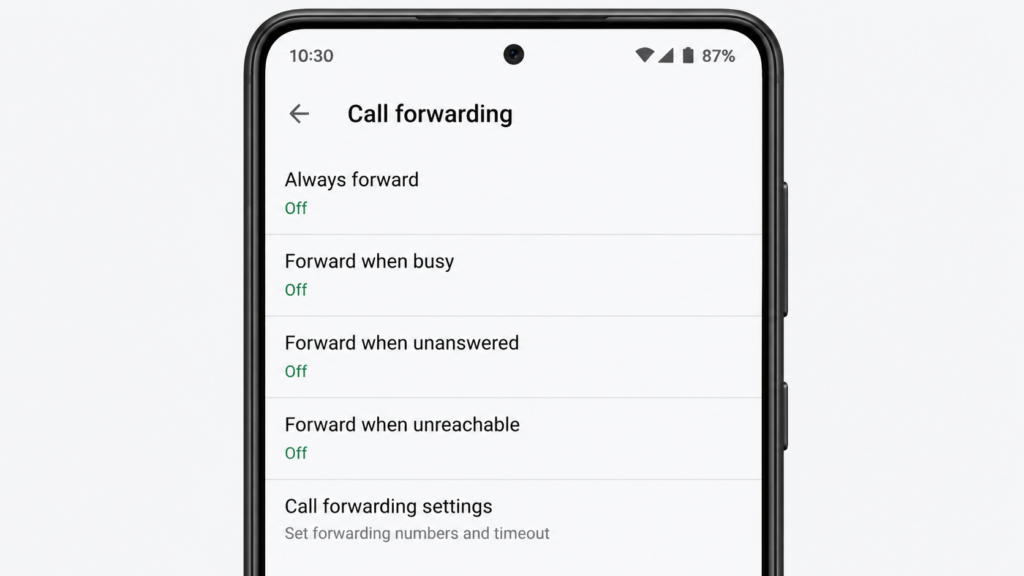
Call forwarding redirects incoming calls to another number. If it was turned on accidentally, all your calls go elsewhere and your phone never rings.
Steps:
- Open your Phone app.
- Tap the three-dot menu (⋮) in the top-right corner.
- Go to Settings > Call Forwarding (or Supplementary Services > Call Forwarding).
- Check all forwarding options: Always Forward, When Busy, When Unanswered, When Unreachable.
- Disable all of them.
This is one of the most overlooked causes. If call forwarding was active, disabling it should immediately restore normal incoming calls.
4. Reinsert or Replace Your SIM Card
A loose or dirty SIM card can interrupt your phone’s connection to the network, preventing calls from getting through.
Steps:
- Power off your phone.
- Use a SIM ejector tool (or a small paperclip) to remove the SIM tray.
- Take out the SIM card.
- Gently clean it with a dry, soft cloth.
- Reinsert the SIM card firmly.
- Power on your phone.
If your SIM card is old or damaged, contact your carrier for a replacement — it’s usually free.
Dual SIM users: If you have two SIM slots, make sure calls are set to arrive on the correct SIM. Go to Settings > SIM Card Manager and check which SIM is set for calls.
5. Check Network Signal and Carrier Settings
No signal means no calls. But sometimes the issue is that your phone is connected to the wrong network type or your carrier settings are outdated.
Check signal strength:
- Look at the signal bars in your status bar. If you see “No Service” or “Emergency Calls Only,” your phone can’t receive calls.
- Move to a different location to rule out a coverage dead zone.
Update carrier settings (important after carrier changes or number ports):
- Go to Settings > About Phone > SIM Status (or similar).
- On some phones: Settings > General Management > Reset > Reset Network Settings automatically applies new carrier settings.
Switch network mode:
- Go to Settings > Connections > Mobile Networks > Network Mode.
- Try switching from 5G/LTE/3G/2G Auto to LTE/3G/2G or just 3G/2G to see if calls stabilize.
- Some users find their phone fails to receive calls on 5G but works fine on LTE.
6. Clear Phone App Cache and Data
A corrupted cache in the Phone app can cause it to behave erratically, including missing incoming calls.
Steps:
- Go to Settings > Apps (or Application Manager).
- Find and tap Phone (the default dialer app).
- Tap Storage.
- Tap Clear Cache.
- If the problem persists, tap Clear Data (this resets app preferences but doesn’t delete contacts).
Also clear the cache for the Call Settings app if it appears separately on your device.
7. Disable Call Barring
Call barring is a carrier feature that blocks specific types of calls — incoming calls, outgoing calls, or international calls. If it was turned on, incoming calls will be blocked at the network level.
Steps:
- Open the Phone app.
- Tap the three-dot menu > Settings > Call Barring (or Supplementary Services).
- Check all options. If any incoming call barring is active, turn it off.
- You’ll need your carrier’s default barring password (usually 0000 or 1234).
If you don’t know the password, call your carrier’s customer support to reset it.
8. Check Blocked Numbers
Your phone may have a blocked numbers list. If the number trying to reach you is on that list, calls will be silently rejected.
Steps:
- Open the Phone app.
- Tap the three-dot menu > Settings > Blocked Numbers.
- Review the list.
- Tap the X next to any number you want to unblock.
For Samsung: Phone > More > Settings > Block Numbers.
For Xiaomi: Phone > More > Harassment filter > Blacklist.
9. Update Android and Carrier Settings
Bugs in Android versions can sometimes cause the phone to miss incoming calls. Updating your software often patches these issues.
Steps:
- Go to Settings > System > Software Update (or About Phone > System Update).
- Tap Download and Install if an update is available.
- Restart your phone after updating.
Also check for carrier-specific updates:
- On some devices, go to Settings > About Phone > Carrier Settings Update.
10. Reset Network Settings
Resetting network settings wipes all Wi-Fi passwords, Bluetooth pairings, VPN settings, and mobile data settings — and forces your phone to re-establish a fresh connection to your carrier.
Warning: Write down your Wi-Fi passwords before doing this.
Steps:
- Go to Settings > General Management > Reset (Samsung) or Settings > System > Reset Options (others).
- Tap Reset Network Settings (or Reset Mobile Network Settings).
- Confirm the reset.
- Restart the phone and reconnect to Wi-Fi.
This step resolves many stubborn network-related call issues that simpler fixes can’t touch.
11. Brand-Specific Fixes
Samsung Galaxy
- Go to Settings > Notifications > Advanced Settings and make sure incoming call notifications are enabled.
- Check Samsung’s Game Mode / Focus Mode — these can block incoming calls.
- Disable Bedtime Mode in Digital Wellbeing.
Xiaomi / Redmi / POCO
- Go to Security App > Permissions > Phone and make sure “Receive incoming calls” permission is granted to the Phone app.
- Disable MIUI Optimization temporarily (Settings > About Phone > tap MIUI Version 7 times > Developer Options > Disable MIUI Optimization).
- Check the Harassment Filter in the Phone dialer and ensure it’s not too aggressive.
Oppo / Realme
- Go to Phone Manager > Privacy Permissions > Phone and verify call permissions.
- Check Digital Wellbeing > Focus Mode and disable it.
- Ensure the Phone app is not restricted in battery settings: Settings > Battery > App Management > Phone > No Restrictions.
OnePlus
- Go to Settings > Apps > Phone > Battery > Allow Background Activity.
- Check Zen Mode (it blocks calls while active).
12. Troubleshooting Table
| Problem | Possible Cause | Solution |
|---|---|---|
| Phone doesn’t ring at all | DND mode or ringer volume zero | Turn off DND, raise ring volume |
| Calls go to voicemail immediately | Call forwarding enabled | Disable call forwarding in Phone settings |
| “No Service” displayed | SIM issue or network outage | Reinsert SIM, check carrier status |
| Specific caller can’t reach you | Number is blocked | Check blocked numbers list |
| Calls work on Wi-Fi only | Cellular network issue | Reset network settings, update carrier |
| Phone rings once and stops | Battery optimization killing Phone app | Exempt Phone app from battery optimization |
| Calls miss during gaming | Game/Focus mode enabled | Disable Gaming Mode or Focus Mode |
| Issue after Android update | Software bug | Clear Phone app cache, wait for patch |
| Dual SIM — wrong SIM receiving calls | SIM settings misconfigured | Set correct SIM for voice calls |
| Problem only on 5G | 5G connectivity issue | Switch network mode to LTE only |
Pro Tips
- Exempt the Phone app from battery optimization. Go to Settings > Battery > Battery Optimization > find Phone app > select “Don’t Optimize.” Aggressive battery saving can kill incoming call alerts.
- Enable caller ID and spam protection through your carrier — some spam filters incorrectly block legitimate calls.
- Test with another SIM card if you have one. If calls work with a different SIM, your original SIM may be damaged or your account may have an issue.
- Check your voicemail settings. If calls divert to voicemail after just one ring, your voicemail forwarding timer is set too low. Call your carrier to adjust it.
- Try Safe Mode to rule out third-party apps. Hold the Power button > long press “Power Off” > tap “Safe Mode.” If calls come through in Safe Mode, a third-party app is the culprit.
- Restart your phone weekly. A regular restart clears temporary glitches before they cause persistent problems.
- Keep your Android version updated. Manufacturers regularly release patches for call-related bugs.
- Check if a VPN is interfering. Some VPN apps affect mobile data and can indirectly impact calls. Temporarily disable your VPN and test.
- Contact your carrier if all else fails. They can check your account status, reset your network profile from their end, or send a provisioning SMS.
- Factory reset as last resort. If nothing works, back up your data and perform a factory reset. This resolves deep software conflicts.
Common Mistakes to Avoid
- Ignoring Do Not Disturb schedules. People turn off DND manually but forget it’s set to turn back on automatically at night.
- Not checking call forwarding after a carrier switch or number port. Porting a number sometimes activates call forwarding as a side effect.
- Blaming the hardware too quickly. The vast majority of “not receiving calls” issues are software or settings problems, not hardware failures.
- Skipping the SIM card check. A slightly loose SIM is invisible to the eye but causes real connectivity issues.
- Clearing the wrong app’s data. Clearing contacts app data, for example, won’t fix call issues — you need to target the Phone dialer app.
- Not checking blocked numbers after sharing a phone. If someone else used your phone, they may have blocked a number without telling you.
- Assuming it’s a network outage without checking. Carrier outages are rare — in most cases the issue is local to your device.
Best Practices
- Review your Do Not Disturb schedule every time you update your phone or reset settings.
- Keep your Android OS and carrier settings updated at all times.
- Periodically review your blocked numbers list to make sure no legitimate contacts are there.
- Exempt critical apps (Phone, Messages) from battery optimization.
- Restart your phone at least once a week to prevent network registration issues from building up.
- If you use dual SIMs, double-check which SIM handles voice calls after every reboot.
FAQ
This usually points to a call forwarding issue, a network registration problem, or Do Not Disturb mode. Your phone can register outbound calls even when incoming routing is broken. Start by disabling call forwarding and toggling Airplane Mode.
Calls divert directly to voicemail when call forwarding is active, when the phone is in Airplane Mode, when the ringer is off, or when your voicemail timer is set too short. Check all four and disable call forwarding if it’s on.
On Samsung, check Settings > Notifications > Do Not Disturb, disable any Focus Mode or Bedtime Mode, ensure the Phone app has notification permissions, and clear the Phone app cache. Also check that no numbers are blocked.
Xiaomi’s aggressive battery management and MIUI’s Harassment Filter are the most common culprits. Go to the Security app, check call permissions, and add the Phone app to the battery whitelist.
Yes. A damaged, dirty, or improperly seated SIM card prevents your phone from registering properly with the carrier’s network, which means incoming calls can’t reach your device.
Call barring is a carrier-level service that blocks types of calls (incoming, outgoing, roaming). It’s found in Phone app > Settings > Call Barring. You’ll need a PIN to disable it — default is usually 0000 or 1234. If unsure, call your carrier.
No. Resetting network settings only removes Wi-Fi passwords, Bluetooth pairings, VPN configurations, and mobile network settings. Your contacts, apps, photos, and personal data are not affected.
Full signal bars indicate radio frequency signal strength, not necessarily a healthy network registration. Your phone can show full bars but be registered incorrectly. Toggling Airplane Mode or resetting network settings forces a fresh registration.
If you can receive calls from some numbers but not others, the issue is likely a blocked number. If no one can reach you, the problem is on your end — a settings or network issue.
Yes. Call blocking apps, VPNs, firewall apps, and certain battery-saving apps can interfere with incoming calls. Boot into Safe Mode to test — if calls work in Safe Mode, a third-party app is the cause.
This is usually caused by battery optimization killing the Phone app in the background. Go to Settings > Battery > Battery Optimization and set the Phone app to “Don’t Optimize.”
Contact your mobile carrier — they can check your account, reprovision your SIM, or send an over-the-air settings update. If the carrier confirms your account is fine, a factory reset is the final software-level solution before considering a hardware repair.
Conclusion
An Android phone that won’t receive calls is disruptive, but the fix is almost always within reach. In most cases, the problem comes down to one of a handful of causes: Do Not Disturb mode, call forwarding, a network registration glitch, a SIM card issue, or an app interfering in the background.
Work through the steps in this guide from top to bottom — start with the quick fixes like Airplane Mode and DND, then move to more involved steps like clearing app cache and resetting network settings. Brand-specific settings (especially on Samsung and Xiaomi) are worth checking early, as MIUI and One UI both have features that can accidentally suppress incoming calls.
If you’ve tried everything here and calls still aren’t coming through, your carrier is the next stop. They can diagnose account-level issues no phone setting can fix. A factory reset resolves nearly every software conflict that survives all other troubleshooting steps.
You should have your phone ringing normally again very soon.