Is your Android phone charging slowly after a software update? Here are 7 common reasons this happens and simple, step-by-step fixes that work.
Quick Answer
Slow charging after an Android update is usually caused by background app optimization, a new adaptive charging or battery-health feature, a reset fast-charging setting, or a software bug. Restart your phone, let background optimization finish, check your charger and cable, and review the new battery settings introduced by the update.
Table of Contents
- Why Charging Speed Changes After a Software Update
- Reason 1: Apps Optimizing in the Background
- Reason 2: Adaptive Battery or Battery Health Charging
- Reason 3: Fast Charging Setting Got Reset
- Reason 4: Incompatible or Faulty Cable and Adapter
- Reason 5: A Software Bug in the New Update
- Reason 6: Phone Overheating After the Update
- Reason 7: Aging Battery or Worn Charging Port
- Troubleshooting Table
- Pro Tips
- Common Mistakes to Avoid
- Best Practices
- FAQs
- Conclusion
Introduction
You install the latest Android update, plug your phone in that night, and wake up to find it’s barely charged. This is one of the most common complaints right after a system update, and it’s rarely a coincidence. Updates often change power management code, introduce new battery-saving features, or temporarily overload your processor with background tasks — all of which can make charging feel painfully slow.
This guide is for any Android user, on any brand, who noticed their phone charging slower right after updating the operating system. You don’t need to be technical to follow along. Below, we’ll walk through the seven most common reasons this happens and exactly how to fix each one, starting with the simplest checks and moving to deeper settings most people never knew existed.
By the end, you’ll know whether the slowdown is temporary, a setting you can switch off, or a sign your battery or charger needs attention.
Why Charging Speed Changes After a Software Update
Android updates don’t just change the look of your phone. They often rewrite parts of the power management system, the battery charging algorithm, and the drivers that talk to your charging chip. A single update can introduce a new “battery protection” feature, change default settings back to factory values, or simply keep your processor busy reindexing apps for several hours. Any of these can make charging look slow even though nothing is actually broken.
Reason 1: Apps Optimizing in the Background
Right after a major update, Android quietly reinstalls app permissions, rebuilds search indexes, and optimizes every app on your phone. This process can run for 30 minutes to a few hours and uses noticeable CPU power, which competes directly with the charging current.
How to fix it:
- Leave your phone plugged in and screen off for at least one hour after updating.
- Check the notification panel for an “Optimizing apps” or “Android is starting” message.
- Avoid opening heavy apps until this process finishes.
- If charging speed returns to normal after this window, the update itself wasn’t the real problem — background optimization was.
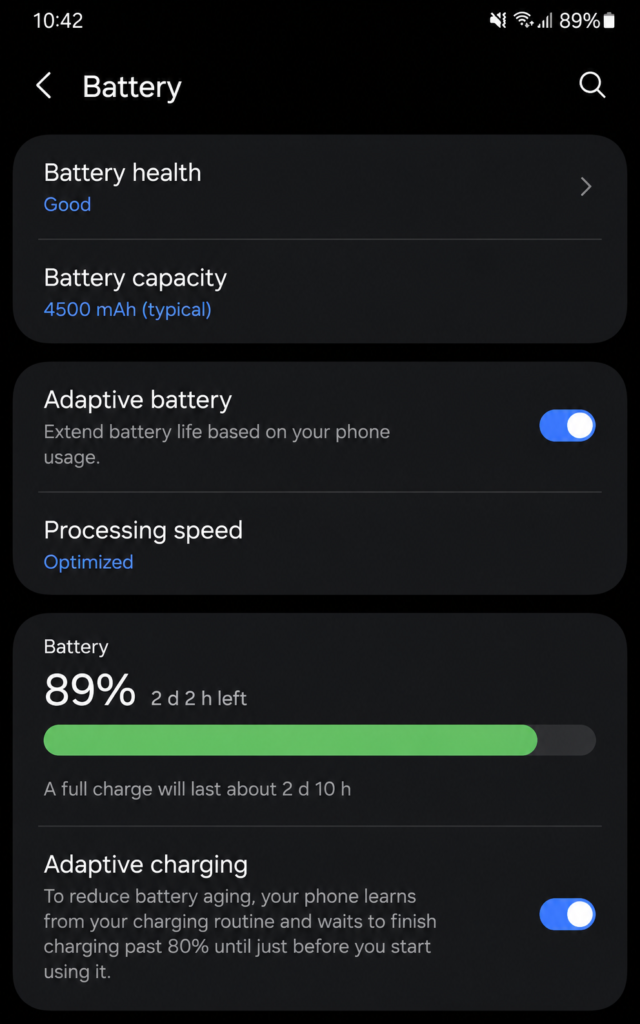
Reason 2: Adaptive Battery or Battery Health Charging
Many updates introduce or strengthen features like Adaptive Charging, Battery Protection, or Optimized Charging. These deliberately slow down charging once your battery reaches 80–90%, or overnight, to reduce long-term battery wear.
How to fix it:
- Open Settings > Battery.
- Look for Battery Health, Adaptive Charging, or Optimized Battery Charging.
- Tap into the feature to see if it’s newly enabled.
- Turn it off temporarily to test charging speed, or keep it on if you prefer better long-term battery health over speed.
Note: This isn’t a fault. It’s an intentional trade-off between charging speed and battery lifespan, and many manufacturers turn it on by default after an update.
Reason 3: Fast Charging Setting Got Reset
Some updates reset charging-related toggles to their default state, accidentally turning off fast charging or USB power settings you had customized.
How to fix it:
- Go to Settings > Battery > Charging (location varies by brand).
- Confirm Fast Charging or Super Fast Charging is switched on.
- On Samsung devices, also check Settings > Battery and device care > More battery settings > Fast charging.
- Restart the phone after changing the toggle so it applies properly.
Reason 4: Incompatible or Faulty Cable and Adapter
If the update changed how your phone negotiates power with a charger (a common side effect of USB Power Delivery driver updates), a cable or adapter that worked fine before may now charge slowly.
How to fix it:
- Use the original cable and adapter that came with your phone.
- Inspect the cable for fraying, bends, or a loose connector.
- Test a different wall adapter rated for your phone’s fast-charging wattage (for example, 25W or 45W).
- Avoid charging through a laptop USB port or a cheap power bank, as both deliver lower current.
Reason 5: A Software Bug in the New Update
Occasionally, an update genuinely contains a bug that affects the charging IC (integrated circuit) or power management drivers. This is more common right after major Android version jumps (for example, moving from Android 14 to Android 15).
How to fix it:
- Check your phone’s settings menu for a follow-up patch — manufacturers often release a quick fix within days.
- Search your phone model plus “charging bug” to see if others reported the same issue.
- If a patch is available, install it.
- If not, report the bug through your manufacturer’s feedback app so it gets fixed faster.
Reason 6: Phone Overheating After the Update
Heavy background activity right after an update — reindexing, syncing, and re-downloading app data — generates extra heat. Android automatically throttles charging speed when the battery gets too warm, as a safety measure.
How to fix it:
- Remove any thick case while charging.
- Charge in a cool, ventilated spot, not under a pillow or in direct sunlight.
- Avoid using the phone heavily (gaming, video calls) while it charges.
- Let the phone cool down for 15–20 minutes if it feels warm, then resume charging.
Reason 7: Aging Battery or Worn Charging Port
Sometimes the update simply coincides with your battery naturally aging or your charging port collecting dust and lint. A new battery management algorithm can be more conservative with an older battery, making the slowdown more noticeable than before.
How to fix it:
- Check Settings > Battery > Battery Health (if available) for the battery’s current capacity percentage.
- Inspect the charging port with a flashlight for lint or debris, and clean it gently with a wooden toothpick or a can of compressed air.
- If the battery health is below 80% and the phone is more than 2–3 years old, a battery replacement may be the real fix.
- Visit an authorized service center if the port itself looks damaged or loose.
Troubleshooting Table
| Problem | Possible Cause | Solution |
|---|---|---|
| Charging slow only right after update | Background app optimization | Wait 1–2 hours, leave phone idle and plugged in |
| Charging stops getting faster after 80% | Adaptive/optimized charging feature | Check Battery Health settings, disable if desired |
| Fast charging icon missing | Fast charging toggle reset | Re-enable in Battery settings, restart phone |
| Works with old charger, not new one | Cable/adapter incompatibility | Use original cable and matching wattage adapter |
| Charges slowly on all chargers | Software bug in update | Check for a follow-up patch, report bug |
| Phone feels hot while charging | Overheating from background tasks | Remove case, charge in cool area, avoid heavy use |
| Slow charging plus reduced battery life | Aging battery or worn port | Check battery health, clean port, consider replacement |
Pro Tips
- Always charge with the cable and adapter rated for your phone’s maximum supported wattage.
- Check for a second, smaller update soon after a major release — manufacturers often patch charging bugs quickly.
- Keep your phone’s software up to date rather than skipping updates, since skipped updates can cause more compatibility issues over time.
- Avoid wireless charging if you need maximum speed, since wired fast charging is almost always quicker.
- Don’t charge your phone inside a thick case if you notice it running warm.
- Restart your phone after any update before judging its charging speed — many temporary slowdowns disappear after one reboot.
- If using a power bank, confirm it supports Power Delivery (PD) or Quick Charge (QC) matching your phone’s standard.
Common Mistakes to Avoid
- Assuming the phone or battery is broken within hours of updating, before background optimization has finished.
- Buying a new charger without checking the wattage your phone actually supports.
- Disabling Adaptive Battery features without understanding they’re protecting long-term battery health.
- Ignoring a warm charging port, which can be an early sign of a hardware issue.
- Using third-party, uncertified cables that don’t support the negotiation protocol the update introduced.
- Factory resetting the phone immediately instead of checking simple settings first.
Best Practices
- Update your phone overnight when you won’t need it, so background optimization doesn’t interfere with daily use.
- Periodically check your charging cable and port for wear, even if you haven’t updated recently.
- Keep at least one set of original or certified-fast-charging accessories on hand.
- Review your battery settings after every major Android update, since manufacturers frequently rename or relocate these options.
- Monitor battery health every few months if your phone supports it, so you catch natural battery aging early.
FAQs
Most often it’s caused by background app optimization, a newly enabled battery protection feature, or a reset fast-charging setting. These usually resolve on their own or with a quick settings check.
Yes, in most cases. Once background optimization finishes and you confirm fast charging is enabled, charging speed typically returns to normal within a day.
Yes. Adaptive Battery and similar battery-health features intentionally slow charging near full capacity to reduce long-term wear, which is a trade-off for battery longevity.
No, a software update cannot physically damage hardware. However, it can reveal an existing hardware issue that was previously masked by different charging behavior.
This isn’t recommended unless the manufacturer officially supports rolling back, since it can cause other stability or security issues. Waiting for a patch is usually safer.
This points to a cable or adapter compatibility issue, often because the update changed how the phone negotiates power delivery with different chargers.
Yes, slow charging itself isn’t a safety risk. However, avoid heavy use if the phone feels unusually hot during charging.
Go to your phone’s Battery settings and look for a Fast Charging or Super Fast Charging toggle. If it’s missing entirely, check your manufacturer’s support page for your model’s supported charging speed.
Background processes like app reindexing and data syncing increase CPU usage right after an update, generating extra heat that can trigger charging throttling.
Clearing cache rarely fixes charging speed directly, but it can reduce background CPU load, which may indirectly help during the post-update optimization period.
Only as a last resort. Try checking settings, cables, and waiting out background optimization first, since a factory reset is time-consuming and usually unnecessary.
If slow charging persists for more than a week, happens with multiple certified chargers, or comes with a battery health below 80%, it’s worth having the port and battery professionally checked.
Conclusion
Slow charging right after an Android update is almost always explainable, and rarely a sign of a broken phone. In most cases, it comes down to background app optimization eating into charging power, a new adaptive charging feature working as intended, or a simple setting that got reset during the update. Faulty cables, software bugs, overheating, and aging batteries make up the rest of the common causes.
Start with the easiest fixes: let the phone finish optimizing, confirm fast charging is enabled, and test your original cable and adapter. If the problem continues after that, check for a follow-up patch or consider whether your battery health and charging port need a closer look. With these seven checks, most users restore their normal charging speed without needing a repair shop at all