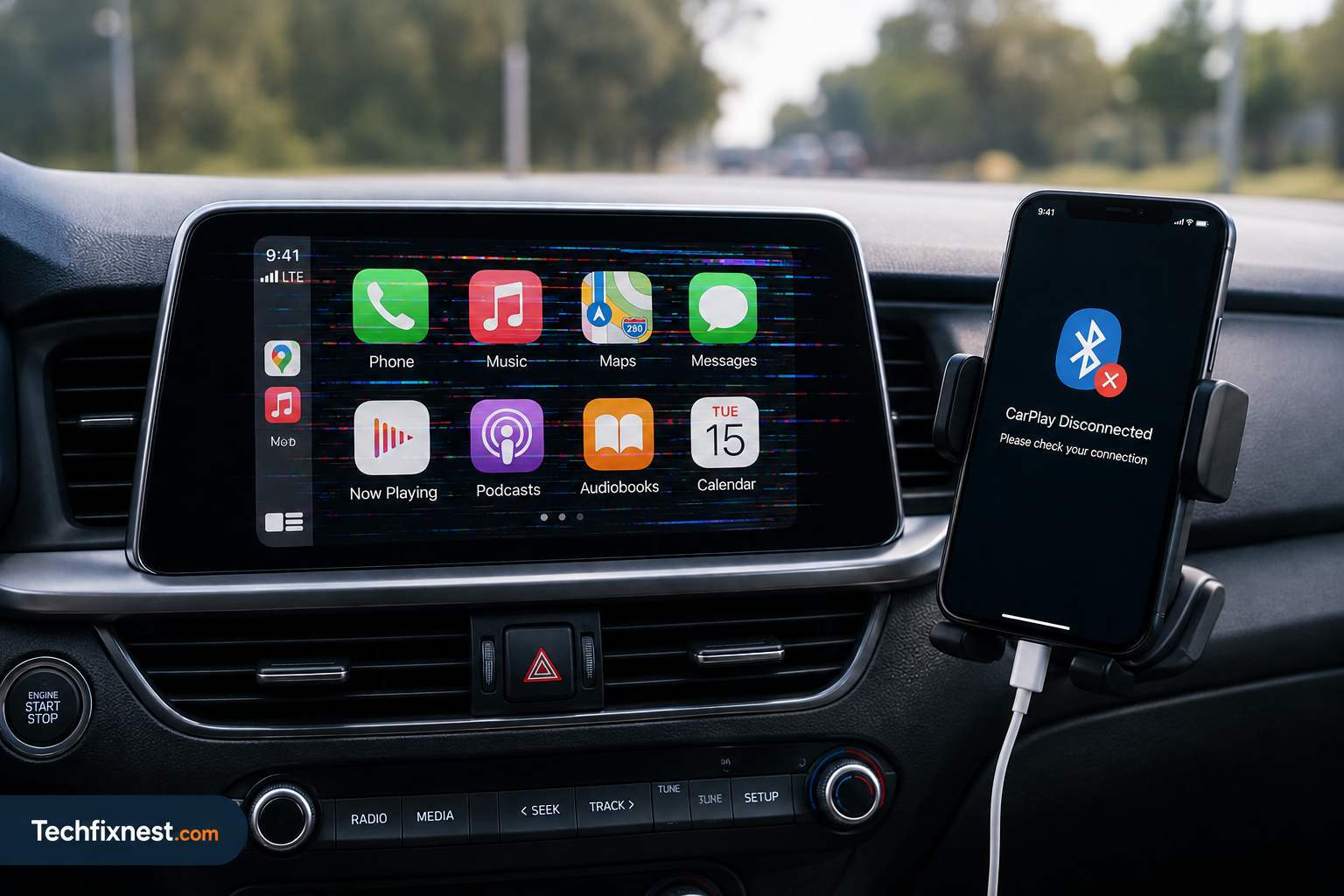
Last week my CarPlay dropped three times on a 20-minute drive to the office right in the middle of a call, and again while Maps was giving directions at a turn I actually needed. I updated to iOS 26 the day before, so I figured that was the trigger. Turns out I wasn’t wrong, and after digging through this for a few days (and fixing it on my own car), I put together everything that actually worked, in the order I’d try them.
If your CarPlay connects fine for a few minutes and then randomly disconnects, reconnects, or just shows a blank screen, this guide covers it.
I’ve seen this reported across a mix of cars too not just older head units. People with 2023 and 2024 model year vehicles are hitting the same issue, which tells me this isn’t purely a “your car is old” problem. It’s mostly on Apple’s side, with a few things on the car and cable side that make it worse. The fixes below go from the quickest, most common fix first, down to the more involved ones you’d only need if the simple stuff doesn’t hold.
Quick Answer
Most post-iOS 26 CarPlay disconnects are caused by a Bluetooth/USB handshake bug that update introduced, a worn or non-MFi Lightning/USB-C cable, or a corrupted network settings profile. Start by forgetting the CarPlay connection in Settings and reconnecting, try a different cable if you’re wired, and reset network settings if the problem continues. Most people are fixed within the first three steps below.
Why This Is Happening
1. iOS 26 Bluetooth stack bug Apple’s iOS 26 update changed how the Bluetooth Low Energy connection handshakes with car head units, and several head unit brands haven’t been fully compatible with it yet.
- Clue: Disconnects happen randomly, not tied to any specific action like a phone call or notification.
- Sign: It started right after you updated to iOS 26, and didn’t happen before on the same car.
2. Faulty or non-certified cable (wired CarPlay) Cheap or worn Lightning/USB-C cables can pass power but fail at sustained data transfer, which is what wired CarPlay depends on.
- Clue: Disconnects get worse when the cable is bent or moved, or only happen when charging at the same time.
- Sign: The cable isn’t Apple-certified (MFi) or is older than a year of daily use.
3. Corrupted CarPlay device pairing Your iPhone stores CarPlay as a saved device profile. After an iOS update, this profile can get corrupted while the rest of your settings update fine.
- Clue: The car shows up in Bluetooth settings but CarPlay specifically won’t launch or keeps kicking you out.
- Sign: Forgetting and re-pairing the device fixes it for a while, then it comes back.
4. Too many Bluetooth devices competing If your AirPods, smartwatch, and car are all trying to hold a Bluetooth connection at once, iOS 26 seems to be less forgiving about managing that queue than earlier versions.
- Clue: Disconnects happen more often when you’re wearing AirPods or an Apple Watch in the car.
- Sign: Turning off other Bluetooth devices before starting the car reduces or stops the issue.
5. Car head unit software is outdated CarPlay is a two-way handshake — even a stable phone can’t hold a good connection to a head unit running old firmware.
- Clue: Other phones or older iPhones on iOS 17/18 also have connection issues on the same car.
- Sign: Your car manufacturer has released a head unit software update you haven’t installed.
6. Low power mode or background app interference Low Power Mode throttles background wireless activity, and CarPlay depends on background processes to keep the connection alive.
- Clue: Disconnects happen more when your battery is under 20% or Low Power Mode is on.
- Sign: Turning off Low Power Mode before driving noticeably improves stability.
Fixes That Work
1. Forget the CarPlay connection and reconnect
Go to Settings > General > CarPlay, tap your car, and select “Forget This Car.” Then reconnect from scratch plug in the cable or reconnect via Bluetooth like a first-time setup. This clears the specific handshake data iOS stored for that car, which is usually what’s corrupted after an update, without touching any other settings on your phone. Test: Drive for 10-15 minutes. If it holds without dropping, this was the fix.
2. Try a different, MFi-certified cable
If you’re using wired CarPlay, swap to a cable you know is Apple-certified ideally the one that came with your iPhone or a well-reviewed MFi cable. Test: Use the new cable for your next 2-3 drives. If disconnects stop, your old cable was the problem.
3. Update your car’s head unit firmware
Check your car manufacturer’s app or dealership guidance for a head unit software update. Many brands (Toyota, Honda, BMW, Hyundai) pushed updates specifically addressing iOS 26 CarPlay issues. Some cars let you check for updates directly from the infotainment settings menu, while others need a dealership visit or a USB update file downloaded from the manufacturer’s site. Test: After updating, reconnect CarPlay and drive normally for a few days.
4. Reset network settings on your iPhone
Go to Settings > General > Transfer or Reset iPhone > Reset > Reset Network Settings. This clears saved Bluetooth and Wi-Fi profiles, including the one causing CarPlay conflicts. You’ll need to re-enter Wi-Fi passwords after. Test: Reconnect CarPlay fresh and monitor for a week of normal driving.
5. Turn off Wi-Fi Assist and Automatic Bluetooth switching temporarily
Some users have found that iOS 26 tries to hand off audio between Bluetooth devices too aggressively. Go to Settings > Bluetooth, tap the “i” next to your car, and turn off “Automatically Connect” temporarily to force a clean, manual reconnect each time. Test: Manually connect for a few drives and see if stability improves versus automatic connection.
6. Disable Low Power Mode while driving
Open Control Center and turn off Low Power Mode before you start your drive, or disable it from Settings > Battery. Test: Compare a drive with Low Power Mode off against a previous drive where it was on.
7. Reduce competing Bluetooth connections
Turn off Bluetooth on your Apple Watch or disconnect AirPods before starting CarPlay, especially if your car doesn’t support simultaneous multi-device audio well. Test: Drive with only your iPhone connected via CarPlay and no other Bluetooth devices active.
8. Update to the latest iOS 26 point release
Apple has pushed multiple point updates addressing CarPlay stability bugs. Go to Settings > General > Software Update and install anything available. Test: After updating, do a full test drive and check if the disconnect frequency drops.
9. Reset all settings (last resort before a full restore)
Go to Settings > General > Transfer or Reset iPhone > Reset > Reset All Settings. This doesn’t delete your data or apps, but it resets every system preference, including CarPlay and Bluetooth configurations, to default. Test: Set up CarPlay again from scratch and monitor over several days of normal use.
Troubleshooting Table
| Symptom | Likely Cause | Fix to Try First |
|---|---|---|
| Disconnects randomly, no pattern | iOS 26 Bluetooth bug | Fix #1, Fix #8 |
| Only happens on wired connection | Bad cable | Fix #2 |
| Screen goes blank but audio stays | Corrupted pairing profile | Fix #1, Fix #9 |
| Worse with AirPods/Watch connected | Bluetooth device conflict | Fix #7 |
| Worse when battery is low | Low Power Mode throttling | Fix #6 |
| Other phones also drop on same car | Outdated head unit firmware | Fix #3 |
| Happens right after any iOS update | Fresh pairing conflict | Fix #4, Fix #9 |
Pro Tips
- Keep a spare MFi-certified cable in your car specifically for CarPlay — don’t rotate it with your daily charging cable, since that’s what wears them out fastest.
- Check your car manufacturer’s app monthly for head unit updates; most brands don’t push notifications for these the way Apple does for iOS.
- If you drive the same car daily, avoid connecting a new Bluetooth accessory (like a new pair of headphones) on the same day you’re testing CarPlay stability — it makes it harder to isolate the actual cause.
- Keep a short log for a week: date, whether it was wired or wireless, and whether the disconnect happened at startup or mid-drive. This makes it much easier to spot a pattern instead of guessing after the fact.
- If you’re testing a new cable, buy from a listing that clearly states MFi certification and check reviews for CarPlay-specific feedback, not just charging speed a cable can charge perfectly fine while still failing at CarPlay’s data requirements.
Common Mistakes
- Jumping straight to a full Reset All Settings before trying the simpler Forget This Car step, which fixes most cases on its own.
- Assuming it’s always the iPhone’s fault when outdated car head unit firmware is behind a large share of post-update CarPlay issues.
- Using a cheap or damage cable for wired CarPlay just because it still charges the phone — charging and stable data transfer are not the same thing.
- Not checking for iOS point updates, since Apple has quietly fixed several CarPlay bugs in 26.x releases without major announcements.
FAQ
iOS 26 changed part of the Bluetooth connection handshake process, which has caused compatibility issues with some car head units that haven’t been updated to match. This is the single most common cause reported since the update.
Generally yes, since wired connections aren’t affected by Bluetooth interference or range issues. But a faulty cable can cause wired CarPlay to disconnect just as often, if not more, than a stable wireless connection.
Apple has already released point updates (26.x) addressing some CarPlay stability issues, and typically continues refining Bluetooth and CarPlay behavior over several months after a major iOS release.
If updating your iPhone and trying a new cable doesn’t help, check your car manufacturer’s app for head unit updates first, since that’s a common overlooked cause. If the issue persists on multiple phones with the same car, it’s more likely a head unit problem than an iPhone problem.
No. Reset Network Settings only clears Wi-Fi passwords, Bluetooth pairings, VPN configurations, and cellular settings. Your photos, apps, messages, and other data stay untouched.
Wireless CarPlay depends on both Bluetooth and Wi-Fi working together, which gives it more points of failure than a direct wired connection. If you’re having frequent issues on wireless CarPlay, switching to a cable is often the fastest way to get a stable connection while you wait for a software fix.
For most people, the fix ends up being one of the first three steps — forgetting and re-pairing the car, swapping to a certified cable, or updating the head unit firmware. If you’ve gone through the full list and it’s still dropping, it’s worth documenting exactly when it happens and reaching out to Apple Support directly, since widespread reports like this usually get addressed in a future point release.