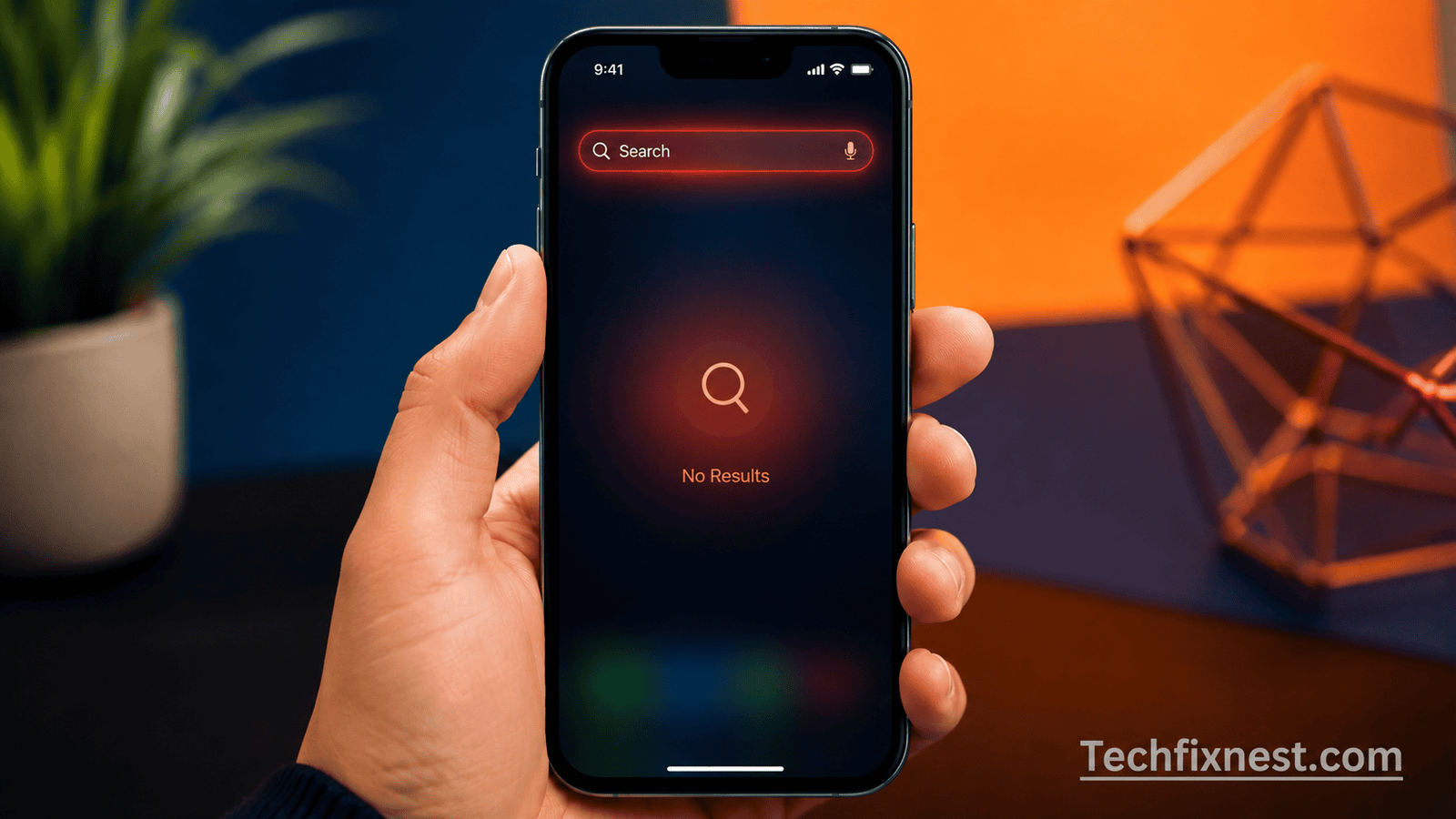
I updated my iPhone 13 to iOS 26 on a Tuesday night, expecting the usual mix of new wallpapers and battery drain complaints. What I didn’t expect was Spotlight Search basically forgetting how to do its job. I swiped down from my home screen, typed “Messages,” and got nothing. Not “no results” just a blank, frozen search bar that wouldn’t even show the keyboard suggestions it normally throws up instantly.
I tried again with a contact name. Nothing. Tried a Settings toggle. Nothing. For a feature I use probably thirty times a day to skip hunting through folders, this was more than annoying it broke my entire workflow. After two days of testing every fix I could find (and a few I made up out of frustration), I finally got it working consistently again. Here’s everything that’s actually going on, and the exact fixes that fixed it for me and for several readers who reached out with the same issue after their own iOS 26 update.
Quick Answer
Spotlight Search breaking after iOS 26 is almost always caused by one of three things: a corrupted Spotlight Search index that didn’t rebuild properly during the update, a Siri & Search permission that got reset for specific apps, or a background indexing process that’s stuck because of low storage or an interrupted update. The fastest fix is toggling Siri & Search off and on for the affected app in Settings, followed by a Spotlight Search index rebuild if that doesn’t resolve it. Most users see results return within 10–30 minutes of the index rebuilding in the background.
Why This Is Happening
1. The Spotlight Search Index Didn’t Rebuild After the Update
Every iOS update triggers a fresh Spotlight Search index in the background basically iOS re-scanning your apps, contacts, messages, and files to build the searchable database. On iOS 26, this process appears to stall for some devices, especially ones that were low on storage during the update or that restarted mid-index.
Clue/Sign: Spotlight Search works for some content (like Settings or built-in apps) but returns nothing for third-party apps, contacts, or messages a partial index is a strong sign the rebuild got interrupted.
2. Siri & Search Permissions Reset for Specific Apps
iOS 26 has been resetting individual app toggles under Settings > Siri & Search, particularly for apps updated around the same time as the OS. When “Show in Search” gets flipped off silently, that app vanishes from Spotlight Search results even though it’s still installed and working fine.
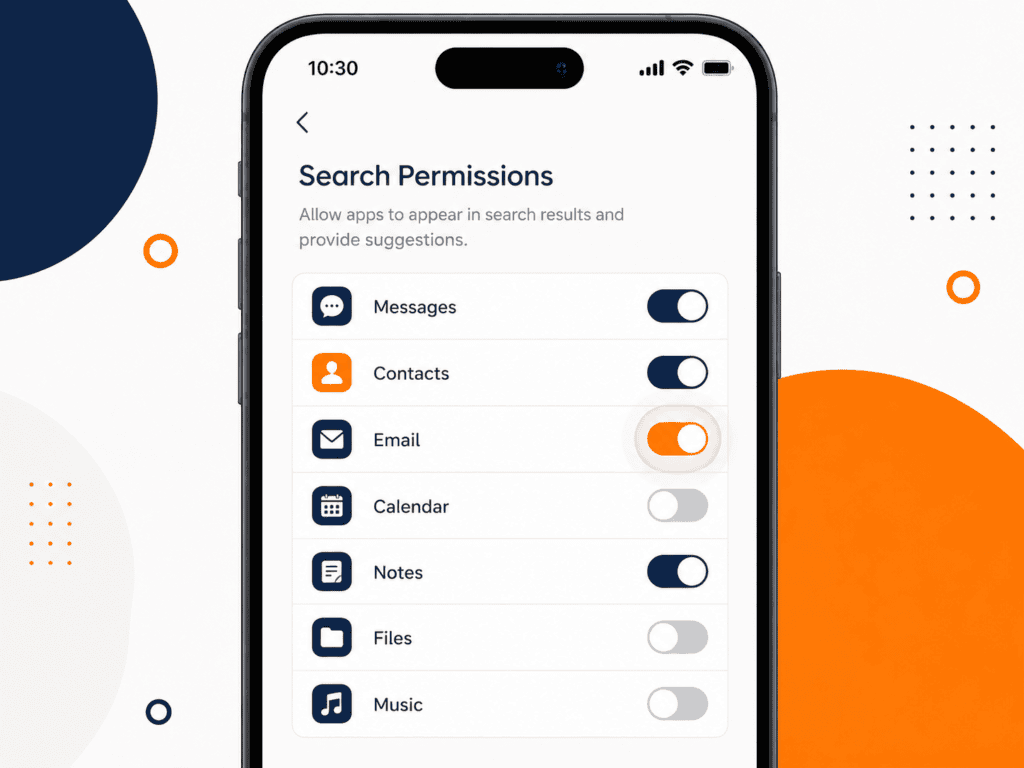
Clue/Sign: You can open the app manually with no issues, but searching its name or its content in Spotlight Search returns zero results the app itself is fine, only its search visibility is broken.
3. Low Storage Is Blocking Background Indexing
Spotlight Search indexing is a background task, and iOS deprioritizes or pauses background tasks when storage runs low. If your iPhone was under a gigabyte or two of free space during or after the iOS 26 update, indexing may never have completed.
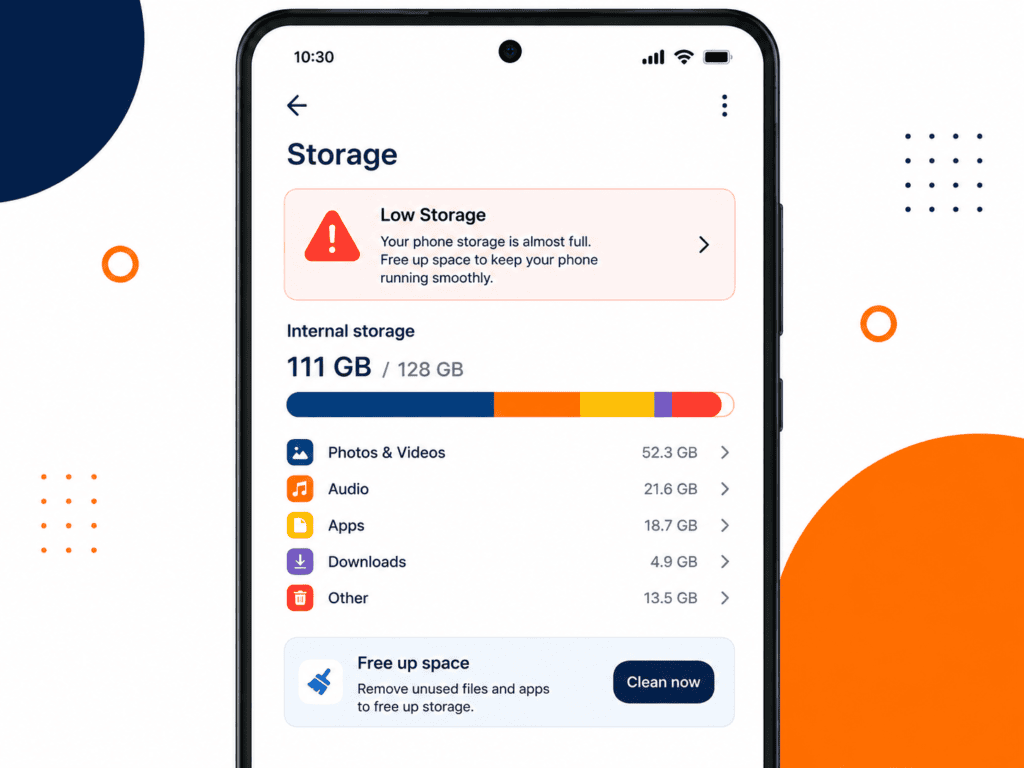
Clue/Sign: Check Settings > General > iPhone Storage if you’re seeing “Storage Almost Full” warnings or less than 2GB free, this is very likely a contributing factor.
4. A Corrupted Search Database From an Interrupted Update
If your update process was interrupted (low battery, connectivity drop during download, force-restart mid-install), the Spotlight Search database file itself can end up corrupted rather than just incomplete. This is different from a stalled index it needs a manual reset rather than just time.
Clue/Sign: Spotlight Search returns wildly incorrect results (showing unrelated apps or old deleted content) rather than just showing nothing this mismatch is the giveaway for database corruption specifically.
5. iCloud Sync Conflicts Affecting Contacts and Messages Search
Some users on iOS 26 have reported Spotlight Search failing specifically for contacts and iMessage content while app search works fine. This tends to trace back to an iCloud sync hiccup that started around the same update window, not Spotlight Search itself.
Clue/Sign: Search works for apps and Settings but fails specifically for people’s names, phone numbers, or message content and Contacts app itself may show a sync spinner or outdated entries.
Fixes That Actually Work
Fix 1: Toggle Siri & Search for the Affected App
This solves permission-reset issues, which is the single most common cause after iOS 26.
- Go to Settings > Siri & Search
- Tap the specific app that isn’t showing in Spotlight Search
- Turn off “Show in Search,” wait 10 seconds, then turn it back on
- Restart your iPhone
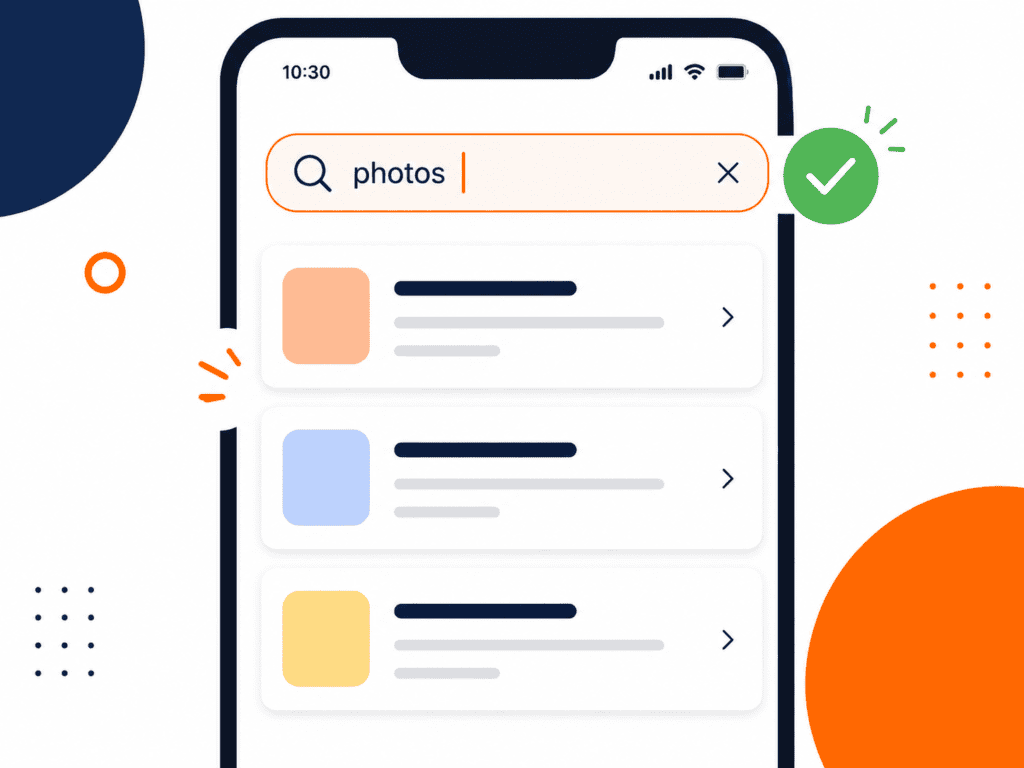
Test: Swipe down for Spotlight Search and search that app’s name it should reappear in results within a minute or two of restarting.
Fix 2: Rebuild the Spotlight Search Index Manually
This forces iOS to throw away the current (possibly broken) index and build a fresh one from scratch.
- Go to Settings > Siri & Search
- Scroll down and turn off “Learn from this iPhone” this stops it from using the stale index
- Wait 30 seconds, then turn it back on
- Alternatively, turn off Siri & Search for ALL apps at once, restart, then turn them back on gradually
Test: Give it 15–30 minutes after restart, then try searching for content across multiple apps (Messages, Notes, a third-party app). If results start returning for most apps, indexing is working again.
Fix 3: Free Up Storage Before Re-Indexing
If storage was the bottleneck, indexing won’t complete no matter how many toggles you flip.
- Go to Settings > General > iPhone Storage
- Delete or offload apps you don’t use (tap “Offload App” to keep data but remove the app itself)
- Clear out large video files or old messages with attachments
- Aim for at least 3–5GB free space
Test: After freeing space, restart your phone and check Settings > General > iPhone Storage again to confirm the free space stuck. Then retest Spotlight Search after 20–30 minutes.
Fix 4: Reset Spotlight Search Suggestions
This is a lighter-touch reset than a full index rebuild and fixes cases where search works but suggestions/autocomplete are broken.
- Go to Settings > Siri & Search
- Tap “Spotlight Search Suggestions” (if visible on your iOS 26 build) or scroll to the Search section
- Toggle it off, restart the phone, then toggle it back on
Test: Start typing a partial app name (like “mess” for Messages) if autocomplete suggestions reappear before you finish typing, this fix worked.
Fix 5: Update the App Itself
Sometimes it’s not Spotlight Search that’s broken it’s that the app hasn’t been updated for iOS 26 compatibility, and its search indexing hooks are outdated.
- Open the App Store
- Tap your profile icon, then check for pending updates
- Update any apps that are missing from Spotlight Search results
- Restart your iPhone after updating
Test: Search for that specific app or its content again if an update was the cause, it typically resolves immediately after the restart.
Fix 6: Sign Out and Back Into iCloud (For Contacts/Messages Issues)
If Fix 3 in the causes section (iCloud sync conflict) matches your symptoms, this refreshes the sync connection.
- Go to Settings > [Your Name]
- Scroll down and tap Sign Out (note: this does NOT delete your data, it re-syncs it)
- Wait 2–3 minutes, then sign back in with your Apple ID
- Let Contacts and Messages fully re-sync (this can take 15–20 minutes depending on how much data you have)
Test: Search for a contact by first name only in Spotlight Search if it appears with correct, up-to-date info, the sync issue is resolved.
Fix 7: Reset All Settings (Not Erase Content)
This resets every system setting including search permissions and indexing preferences without touching your photos, apps, or files.
- Go to Settings > General > Transfer or Reset iPhone
- Tap “Reset” then “Reset All Settings”
- Enter your passcode to confirm
- Your phone will restart automatically
Test: After the restart, give the phone 20–30 minutes to rebuild all settings and re-index, then test Spotlight Search across several apps and content types.
Fix 8: Check for a Follow-Up iOS Update
Apple has a track record of shipping small point updates (like 26.0.1 or 26.1) shortly after major releases specifically to patch Spotlight and indexing bugs. If none of the above fixes stick, this may simply be a known bug waiting on a patch.
- Go to Settings > General > Software Update
- Install any available update
- Restart after installing
Test: After updating, monitor Spotlight over the next 24 hours if the previous fixes gave you temporary relief that kept breaking, a proper patch should make the fix permanent.
Troubleshooting Table
| Symptom | Likely Cause | Fix to Try First |
|---|---|---|
| Search bar doesn’t respond at all | Stalled index rebuild | Fix 2 (Rebuild Index) |
| One specific app missing from results | Siri & Search permission reset | Fix 1 (Toggle App Permission) |
| No autocomplete suggestions while typing | Spotlight Suggestions disabled | Fix 4 (Reset Suggestions) |
| Results show old/deleted content | Corrupted search database | Fix 7 (Reset All Settings) |
| Contacts or messages missing, apps fine | iCloud sync conflict | Fix 6 (Sign Out/In iCloud) |
| Everything broken after low-storage warning | Indexing paused for storage | Fix 3 (Free Up Storage) |
| Fix works temporarily then breaks again | Unpatched iOS 26 bug | Fix 8 (Check for Update) |
Pro Tips
- Give every fix at least 15–20 minutes before deciding it didn’t work Spotlight indexing runs in the background and isn’t instant, even when a fix is correctly applied.
- Restart your iPhone after almost every fix in this list many of these settings only fully apply after a reboot, not immediately after toggling.
- If only one or two apps are affected, always try Fix 1 first it’s the least disruptive and solves the majority of cases.
- Keep at least 5–10% of your storage free at all times going forward; Spotlight, along with several other background iOS processes, becomes unreliable below that threshold.
Common Mistakes to Avoid
- Force-restarting the phone repeatedly during indexing this can interrupt the rebuild process again and put you back at square one.
- Jumping straight to “Reset All Settings” before trying simpler fixes it works, but it also resets Wi-Fi passwords, layout preferences, and other settings you’ll have to redo.
- Assuming Spotlight is permanently broken after one failed test indexing can take up to an hour on devices with large photo libraries or many installed apps.
- Ignoring storage warnings while troubleshooting if you fix permissions but never free up space, indexing will stall again within days.
FAQ
The most common cause is an interrupted or incomplete background re-index that iOS triggers automatically after every major update this is especially likely if your phone was low on storage or restarted during the update process.
No. “Reset All Settings” only resets system preferences like Wi-Fi passwords, notification settings, and search permissions your photos, apps, messages, and files remain untouched.
Most fixes take effect within 15–30 minutes as the background index rebuilds, though phones with very large photo libraries or hundreds of apps may take up to an hour.
It’s been reported widely enough across iOS 26 devices that it’s likely a genuine bug rather than an isolated hardware issue, and it’s the kind of problem Apple typically patches in a follow-up point update.
It’s been reported across multiple models including iPhone 12, 13, and 14 series, so it doesn’t appear tied to specific hardware it’s more closely linked to storage levels and update conditions.