
I updated my Pixel to Android 17 last month, and something strange started happening almost immediately. The status bar would show 5G for about ten seconds, then quietly drop back to LTE over and over again. In some spots it wouldn’t show a 5G icon at all, even though my old phone (still running Android 15) had full 5G bars in the exact same room.
At first I blamed my carrier. Then I blamed the nearest tower. I even swapped my SIM into my brother’s phone just to rule myself out as the problem. It turned out there wasn’t one single cause it was a mix of small settings that Android 17 changed under the hood, most of which nobody warns you about in the update notes.
The Short Version
If you don’t want to read the whole thing: turn off Battery Saver, reset your network settings, and manually check for a carrier settings update. Those three alone solved the Android 17 5G to LTE switching problem for most people I talked to about this. If your phone is still dropping to LTE after that, the rest of this guide covers seven more things worth trying, roughly in the order I’d try them myself.
What’s Actually Causing It
There isn’t one single reason your phone keeps switching from 5G to LTE on Android 17. It’s usually two or three small things stacking on top of each other.
The biggest one is Android 17’s new network selection algorithm, which leans much harder toward battery efficiency than signal strength ever did before. Practically speaking, the system will drop you to LTE the second it decides 5G isn’t “worth” the extra power draw even if your 5G signal is perfectly usable.
Beyond that, a few other things tend to be involved:
- Weak or inconsistent 5G reception in your specific area
- An old carrier network profile that never got refreshed during the update
- Corrupted network preference files carried over from a previous Android version
- A SIM card that doesn’t fully support your carrier’s newer 5G bands
- Early firmware bugs in the first Android 17 release around 5G-to-LTE handover
Almost all of these live on the software side, which is good news it means you can usually fix this yourself without touching hardware at all. I spent about a week testing different combinations before I found the pattern behind my own Android 17 5G to LTE switching, and honestly, it was almost never just one setting. It was usually Battery Saver plus a stale carrier profile, working against each other at the same time.
Quick way to tell which one applies to you
If the drop happens only in one room or building, it’s probably a coverage issue, not your phone. If it happens everywhere, all day, right after the update that’s a settings problem, and the fixes below should sort it out. nothing below works and the phone loses signal randomly even on Wi-Fi calling, skip ahead to the hardware section near the end.
Fixing It: Start Here
Restart the phone first. This sounds too simple to matter, but a full reboot clears the network stack completely, and background services love to hang onto stale configuration data right after a major OS update. Press and hold the power button, tap Restart, and give it a minute to fully boot. If 5G holds for at least an hour afterward, you’re on the right track. If it drops again within minutes, a restart alone isn’t going to cut it keep reading.
Toggle Airplane Mode next. Swipe down, tap the airplane icon, wait about 15 seconds, then turn it off again. This forces the phone to disconnect and reconnect to the nearest tower from scratch, which matters because phones sometimes get “stuck” locked onto a weaker LTE band and won’t switch back on their own. Do this after moving between rooms, buildings, or cities just not mid-call or mid-download, since it’ll cut the connection instantly.
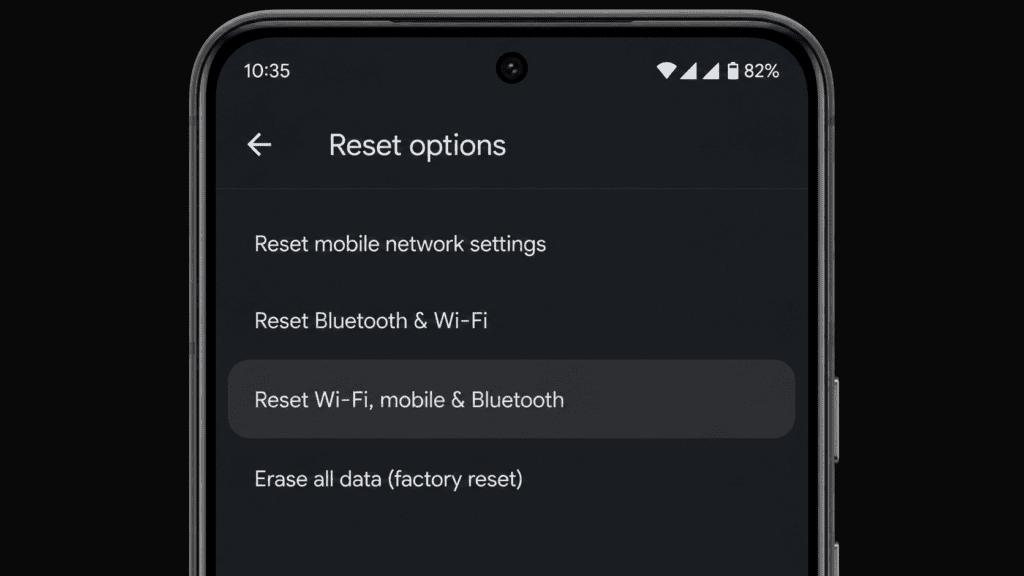
If neither of those helped, reset your network settings. Go to Settings → System → Reset options → Reset Wi-Fi, mobile & Bluetooth. Network profiles carried over from Android 16 sometimes get corrupted during the jump to 17, and resetting wipes that broken profile so the phone builds a fresh one straight from your carrier. One catch: this also erases every saved Wi-Fi password and Bluetooth pairing, so skip it if you’re traveling and don’t have those saved anywhere else. Most people see 5G come back within a minute of doing this.
The Fixes That Take a Bit More Digging
Check your carrier’s actual coverage map
Sometimes the problem genuinely isn’t your phone at all carriers adjust, downgrade, or quietly shut down 5G towers, especially mid-band ones, without much public notice. Pull up your carrier’s coverage map online and type in your ZIP code. This is worth doing specifically if the drop only happens at home or at work but nowhere else; if it’s happening everywhere, this step won’t tell you much.
Force a carrier settings update
Go to Settings → About phone → SIM status, tap your SIM, and wait many phones will quietly show a “carrier update available” prompt you’d otherwise miss. Carriers push profile updates that Android 17 doesn’t always grab automatically on its own, so checking manually forces it. This one’s especially worth doing right after any major Android update, though it doesn’t do much on prepaid or third-party SIMs.
Turn off Battery Saver — this one’s the big one
Settings → Battery → Battery Saver → Off. Android 17’s power management is noticeably more aggressive than previous versions, and Battery Saver (along with Adaptive Battery quietly running in the background) will actively force your connection down to LTE to conserve power. Leave it off whenever your battery’s above 30% and you actually need speed; just don’t forget to flip it back on when you’re running low.
Lock the network type to 5G manually
Settings → Network & internet → SIMs → Preferred network type → 5G (instead of the default 5G/LTE/3G auto option). Auto mode hands the decision to Android, and Android 17’s algorithm leans toward LTE more than it should. Locking it stops the phone from downshifting unless it genuinely has no other choice. This only makes sense in areas with solid 5G coverage do this in a rural area and you might end up with no signal at all.
Install whatever Android 17 patch is waiting
Settings → System → Software update. Google has shipped more than one patch since Android 17 launched specifically targeting 5G handover bugs my own phone stopped dropping connection entirely after the November security patch went through. Don’t put this off, though it’s smart to have at least 40% battery before you start, since it’ll need a restart.
What I’d Actually Try First, If I Were You
Ranked roughly by how often each one turns out to be the culprit:
- Battery Saver / Adaptive Battery check this before anything else
- A network settings reset
- A pending carrier settings update
- An Android 17 patch you haven’t installed yet
- Everything else on the list above, if the first four didn’t fix it
Does This Vary by Carrier?
A little, yes. Larger carriers with more mid-band and mmWave towers tend to be more forgiving even when Android 17’s power management drops you to LTE, you’ll usually pick 5G back up within seconds once you’re near a stronger signal. Smaller or regional carriers, and MVNOs riding on someone else’s network, tend to show the Android 17 5G to LTE switching problem more often and more stubbornly, mostly because their coverage is patchier to begin with, so the OS has more excuses to downshift. If you’re on an MVNO, the carrier settings update step matters even more than usual, since those profiles get pushed less consistently than they do on the big three.
When It’s Not a Software Problem
Every fix above assumes the issue is software, and most of the time it is. But two things point to hardware instead: a SIM card that’s three or four years old and may not fully support newer bands like n41 or n77 (ask your carrier for a free replacement, most will do it without hassle), or a cracked antenna from a drop or a bend, which usually shows up as Wi-Fi trouble too, not just cellular. If you’ve worked through every fix above and 5G still won’t hold for more than a few seconds, it’s worth booking a service check antenna repairs are typically covered under warranty.
Keeping It From Coming Back
A few habits made the difference for me long-term, more than any single fix did: restarting the phone weekly instead of letting uptime stretch for weeks, leaving Battery Saver off during the day, rechecking carrier settings every couple of months since profiles shift more often than people assume, staying away from cheap third-party SIM adapters, installing security patches as soon as they land instead of waiting, and skipping metal or magnetic phone cases, which can genuinely interfere with antenna performance.
A couple of things to avoid doing, too. Don’t assume it’s automatically the carrier’s fault before checking Battery Saver and your own settings first. Don’t reset network settings mid-trip without your Wi-Fi passwords backed up somewhere else. Do not lock the phone to 5G-only in a low-coverage area you’ll end up worse off, not better. And don’t rush to replace the phone or the SIM before ruling out the software side entirely; in most cases, that’s overkill.
Questions People Keep Asking
Why does my Android 17 phone show 5G and then switch back to LTE? This Android 17 5G to LTE switching happens because the OS uses a noticeably more aggressive power management system than before it drops to LTE the moment the 5G signal isn’t strong enough, or automatically whenever Battery Saver is active. A network settings reset or manually locking to 5G usually resolves it, though sometimes it really is just a change on your carrier’s end.
Is 5G actually worse on Android 17 than it was on 15? Not worse, just different Android 17 prioritizes battery life more heavily, so 5G disconnects more often on paper. Once you adjust a few settings, real-world speeds end up about the same as before.
Does resetting network settings wipe my data? No. It only clears saved Wi-Fi networks, Bluetooth pairings, and mobile preferences. Photos, apps, messages, and accounts are completely untouched you’ll just need to re-enter Wi-Fi passwords afterward.
Does Battery Saver really turn off 5G? Yes, in most cases. With it active, Android 17 forces the connection down to LTE, saving roughly 10-15% battery per hour of heavy use at the cost of noticeably slower speeds. Turn it off any time you actually need the speed.
Can a bad SIM card cause this too? Absolutely older SIM cards aren’t always compatible with newer bands like n41 or n77. Most carriers will swap yours for free if it’s over three years old, and that alone often solves it.
Why won’t 5G work indoors at home? Mid-band 5G in particular doesn’t pass through walls easily thick concrete, metal roofing, and low-emissivity windows all block it. Standing closer to a window helps, or switch to Wi-Fi calling when you’re deep inside a building.
Bottom Line
Fixing the Android 17 5G to LTE switching issue isn’t complicated, it just takes a bit of patience start with a restart, then work down the list one fix at a time instead of changing everything at once. For me personally, updating carrier settings and turning off Battery Saver made the real difference; once I did both, 5G stopped dropping completely. Test things individually and don’t skip the small steps, because sometimes the smallest setting is what actually fixes it.
For more on this from Google directly, Android’s own support documentation covers network and connectivity settings in more depth. And if you’re also running into call issues on the same device, our guide on Android Phone Not Receiving Calls walks through a related but separate set of fixes.