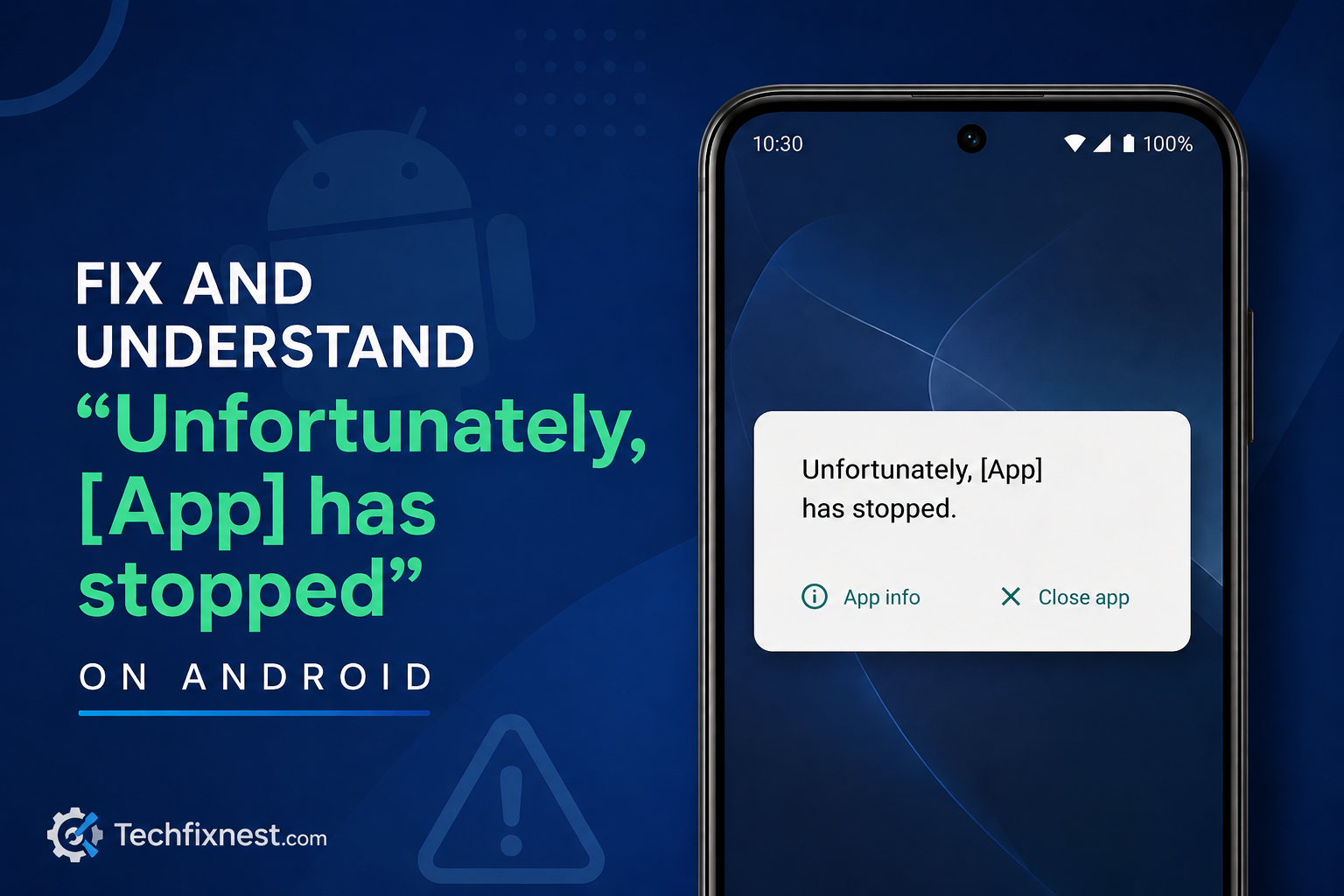
Getting the “Unfortunately, app has stopped” error on Android? Follow these 12 proven fixes to resolve it instantly — no factory reset needed. Works on all Android devices in 2026.
Quick Answer
The “Unfortunately, app has stopped” error is caused by corrupted app cache, outdated software, insufficient memory, or conflicting data. To fix it immediately: clear the app’s cache and data, force stop it, then relaunch. If that fails, update the app or reinstall it. No factory reset required.
Table of Contents
- What Does “Unfortunately, App Has Stopped” Mean?
- Common Causes of the Error
- Fix 1: Force Stop the App
- Fix 2: Clear App Cache
- Fix 3: Clear App Data
- Fix 4: Restart Your Android Device
- Fix 5: Update the App
- Fix 6: Update Android System
- Fix 7: Free Up Storage Space
- Fix 8: Check App Permissions
- Fix 9: Uninstall and Reinstall the App
- Fix 10: Clear Google Play Store Cache
- Fix 11: Check for Conflicting Apps
- Fix 12: Reset App Preferences
- Troubleshooting Table
- Pro Tips
- Common Mistakes to Avoid
- Best Practices
- FAQ
- Conclusion
What Does “Unfortunately, App Has Stopped” Mean?
You tap on your favorite app, and a pop-up appears: “Unfortunately, [App Name] has stopped.” It’s frustrating, especially when it keeps coming back no matter how many times you dismiss it.
This error is Android‘s way of telling you that an app has crashed — meaning it failed to run properly and the system had to shut it down. It can happen to any app: Instagram, WhatsApp, Google Chrome, the camera, your phone dialer, or any third-party app.
The good news? You almost never need a factory reset to fix it. In most cases, the problem is minor and can be resolved in just a few minutes.
This guide covers every proven fix, starting with the simplest solutions and moving to more advanced ones. By the time you reach the end, your app should be working perfectly again.
Whether you’re on a Samsung, Xiaomi, OnePlus, Motorola, or stock Android device, these fixes work across all Android versions in 2026.
Common Causes of the Error
Before you start fixing the problem, it helps to understand why it happens. Here are the most common reasons:
- Corrupted cache files — Temporary data stored by the app gets damaged over time.
- Outdated app version — An old version may have bugs that were already fixed in newer releases.
- Insufficient storage space — Android apps need free space to run and write temporary files.
- Outdated Android OS — Your system software may conflict with newer app requirements.
- Corrupted app data — Saved settings or account data within the app gets corrupted.
- Conflicting apps — Another app, often a cleaner or battery optimizer, may be interfering.
- Insufficient RAM — Too many apps running at once can cause crashes.
- Missing or denied permissions — The app can’t access the hardware or data it needs to function.
- Incompatible app update — A recent update may have introduced new bugs.
Fix 1: Force Stop the App
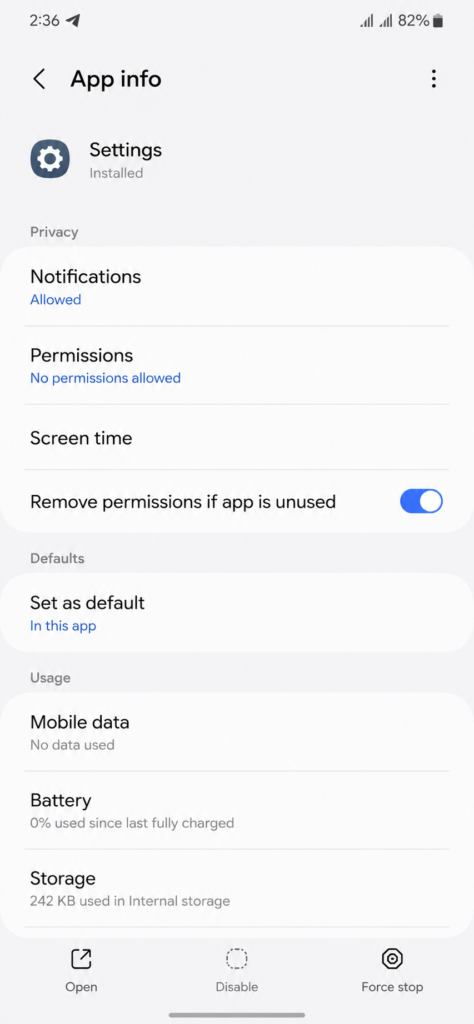
The simplest first step is to fully stop the app and relaunch it. This clears any stuck processes.
Steps:
- Open Settings on your Android device.
- Tap Apps (or Application Manager on some devices).
- Find and tap the problematic app.
- Tap Force Stop.
- Confirm by tapping OK.
- Relaunch the app.
Note: Force stopping is safe and won’t delete any of your data. It simply ends all running processes for that app.
Fix 2: Clear App Cache
Cached data speeds things up, but when it becomes corrupted, it causes crashes. Clearing the cache is one of the most effective fixes.
Steps:
- Go to Settings > Apps.
- Select the problematic app.
- Tap Storage (or Storage & Cache).
- Tap Clear Cache.
- Relaunch the app and check if the error is gone.
Tip: Clearing cache doesn’t delete your account data, saved progress, or files. It only removes temporary files.
Fix 3: Clear App Data
If clearing the cache didn’t help, clearing the app’s full data is the next step. This is more thorough but will reset the app to its default state, as if freshly installed.
Steps:
- Go to Settings > Apps.
- Select the problematic app.
- Tap Storage.
- Tap Clear Data (or Clear Storage).
- Confirm by tapping OK.
- Relaunch the app and sign back in.
Warning: Clearing data will log you out of the app and delete locally saved settings. You’ll need to sign in again and reconfigure your preferences.
Fix 4: Restart Your Android Device
A simple restart clears the RAM, ends background processes, and refreshes the system. Many crashes disappear after a quick reboot.
Steps:
- Press and hold the Power button.
- Select Restart (or Reboot).
- Wait for the device to fully restart.
- Open the app again.
Tip: If your device is frozen and won’t respond, press and hold the Power + Volume Down buttons for 10 seconds to force restart.
Fix 5: Update the App
Developers constantly release updates to fix bugs and improve stability. If your app is outdated, updating it often resolves the crash.
Steps:
- Open the Google Play Store.
- Tap your Profile icon in the top-right corner.
- Go to Manage apps & device.
- Find the problematic app and tap Update.
- Alternatively, tap Update All to update everything at once.
Note: Make sure you’re connected to Wi-Fi before updating to avoid using your mobile data.
Fix 6: Update Android System
Sometimes the problem isn’t the app — it’s your Android OS. System updates fix compatibility issues, security vulnerabilities, and bugs that cause apps to crash.
Steps:
- Go to Settings > About Phone (or About Device).
- Tap Software Update (or System Update).
- Tap Check for Updates.
- If an update is available, download and install it.
- Restart your device and test the app.
Tip: On Samsung devices, go to Settings > Software Update > Download and Install.
Fix 7: Free Up Storage Space
Android apps need free storage to create temporary files and run smoothly. If your device storage is nearly full, apps start crashing.
Steps:
- Go to Settings > Storage.
- Check how much free space is available.
- If less than 1–2 GB is free, start deleting files.
- Delete unused apps, old photos, and large video files.
- Use Google Files or your device’s built-in cleaner to find junk files.
Best Practice: Always keep at least 10–15% of your total storage free to ensure smooth performance.
Fix 8: Check App Permissions
Apps need specific permissions to function — like access to your camera, microphone, contacts, or location. If a required permission is denied, the app can crash when it tries to use that feature.
Steps:
- Go to Settings > Apps.
- Select the problematic app.
- Tap Permissions.
- Review all listed permissions.
- Enable any permissions that the app needs to function.
- Relaunch the app.
Example: If your camera app keeps crashing, check that it has permission to access the camera, microphone, and storage.
Fix 9: Uninstall and Reinstall the App
If nothing else has worked so far, a fresh installation usually solves the problem. This removes all corrupted files and gives the app a clean start.
Steps:
- Press and hold the app icon on your home screen.
- Tap Uninstall (or go to Settings > Apps > Uninstall).
- Confirm the uninstall.
- Open Google Play Store.
- Search for the app and tap Install.
- Sign in and configure your settings again.
Note: For system apps (like Phone or Messages) that can’t be uninstalled, you can disable and re-enable them instead. Go to Settings > Apps, select the app, and tap Disable, then Enable.
Fix 10: Clear Google Play Store Cache
A corrupted Play Store cache can cause issues with apps installed through it. Clearing it often resolves crashes in apps that rely on Play Services.
Steps:
- Go to Settings > Apps.
- Find and tap Google Play Store.
- Tap Storage.
- Tap Clear Cache.
- Repeat the same steps for Google Play Services.
- Restart your device and test the app.
Fix 11: Check for Conflicting Apps
Third-party battery savers, RAM cleaners, and task killers often interfere with other apps — especially ones that run in the background.
Steps:
- Think about any apps you installed recently before the problem started.
- Try temporarily disabling or uninstalling battery optimizer or RAM cleaner apps.
- Restart your device.
- Test if the problematic app runs without crashing.
Common culprits: DU Speed Booster, Clean Master, Advanced Task Killer, and similar utility apps are known to force-close apps in ways that cause instability.
Fix 12: Reset App Preferences
Android stores preferences for all your apps — default apps, permissions, notification settings, and more. Resetting these preferences can fix crashes caused by misconfigured settings.
Steps:
- Go to Settings > Apps.
- Tap the three-dot menu (⋮) in the top-right corner.
- Select Reset App Preferences.
- Confirm by tapping Reset Apps.
- Test the problematic app again.
Note: This resets permissions and defaults for ALL apps, not just the one causing trouble. You may need to reconfigure default apps (browser, launcher, etc.) afterward.
Troubleshooting Table
| Problem | Possible Cause | Solution |
|---|---|---|
| Error appears every time app is opened | Corrupted cache or data | Clear cache, then clear data |
| Error after Android update | OS compatibility issue | Update the app or wait for a patch |
| Error after app update | Buggy new version | Uninstall update or reinstall the app |
| Error only on one feature | Missing permission | Check and enable app permissions |
| Multiple apps crashing | Low storage or RAM | Free storage, restart device |
| System app crashing (e.g., Phone) | Corrupted system data | Disable and re-enable the app |
| Error after installing a new app | App conflict | Remove recently installed apps |
| Play Store-related app crashing | Play Store cache issue | Clear Play Store and Play Services cache |
| Error on only one Wi-Fi network | Network restriction | Try on mobile data or another network |
| Persistent crash after all fixes | Deep software corruption | Consider an OS reset (last resort) |
Pro Tips
- Start with the simplest fix first. Force stopping and relaunching the app resolves the issue in many cases without any deeper troubleshooting.
- Clear cache regularly. Make it a habit to clear cache for heavily used apps every few weeks to prevent buildup of corrupted data.
- Keep your apps updated automatically. Enable auto-updates in the Play Store so you always have the latest bug fixes.
- Monitor your storage. Set a reminder to check your available storage once a month. Keeping it above 15% prevents a lot of common crash issues.
- Avoid task killers. Third-party RAM cleaners do more harm than good on modern Android. Android manages memory efficiently on its own.
- Check the app’s reviews and community forums. If many users report the same crash, it’s likely a developer-side bug. Wait for an update rather than spending time on fixes that won’t help.
- Use Safe Mode to isolate the problem. Boot into Android Safe Mode (hold Power, long-press the “Power Off” option). If the app works fine in Safe Mode, a third-party app is causing the conflict.
- Check logcat if you’re technical. If you have developer options enabled, crash logs can tell you exactly what caused the error.
- Don’t clear data for banking or finance apps carelessly. Always ensure you know your login credentials before clearing data from sensitive apps.
- Report crashes to the developer. Most apps have a “Send Feedback” option in the crash dialog. Using it helps developers find and fix bugs faster.
Common Mistakes to Avoid
- Jumping straight to a factory reset. This is almost never necessary for a single app crash. Try all 12 fixes first.
- Clearing data before trying the cache. Always clear cache first — it’s less disruptive and often enough on its own.
- Ignoring storage warnings. Running Android with less than 500 MB of free space is a guaranteed path to constant crashes.
- Skipping Android system updates. Many users delay updates, not realizing that outdated OS versions are a major cause of app instability.
- Installing APKs from unknown sources. Sideloaded apps bypass Google’s security checks and are far more likely to crash or cause system conflicts.
- Dismissing the error and doing nothing. A recurring “App Has Stopped” error is a warning sign. Ignoring it can lead to data loss if the app’s database becomes further corrupted.
- Disabling too many permissions. Overly restricting app permissions in the name of privacy can cause apps to crash when they try to access blocked features.
Best Practices
Follow these habits to prevent the “Unfortunately, app has stopped” error from coming back:
- Update apps regularly. Enable auto-update in the Play Store so you always have the most stable version.
- Keep your Android OS up to date. System updates improve compatibility between Android and your installed apps.
- Maintain adequate free storage. Always keep at least 1–2 GB of free storage space available.
- Avoid installing too many apps. Unused apps consume background resources and can interfere with other apps.
- Use the official Play Store. Download apps only from Google Play to ensure they’re verified and compatible with your device.
- Restart your device weekly. A weekly restart clears RAM and refreshes background services.
- Back up your data regularly. Use Google Backup or a third-party solution so you can restore your data if you ever need to reinstall an app.
- Monitor battery optimizer settings. If you use a battery saver app, whitelist important apps so they aren’t killed in the background.
FAQ
This error occurs when an app crashes unexpectedly. The most common reasons are corrupted cache or app data, an outdated app version, insufficient storage space, missing permissions, or a conflict with another app. Clearing the app cache and data usually resolves it.
Start by force stopping the app, then clear its cache. If that doesn’t work, clear the app data, restart your device, and update the app from the Play Store. In most cases, one of these steps will fix the problem.
Yes. Clearing the cache does not delete your data. Clearing the app data will reset the app to its default state, but your account data stored on the server (like game progress synced online or messages stored in the cloud) will still be available after you sign back in.
If only one app crashes while others work fine, the problem is almost certainly with that specific app — corrupted data, an outdated version, or a missing permission. Try clearing its cache, updating it, or reinstalling it.
If several unrelated apps are crashing, the cause is usually at the system level — low storage space, an Android OS bug, or a corrupted system component. Free up storage, update your Android version, and restart your device.
No. Clearing app data only deletes the app’s internal database, saved settings, and login session. Photos, videos, and files stored in your device’s gallery or file manager are not affected.
System apps can’t be uninstalled, but you can disable and re-enable them. Go to Settings > Apps, find the app, tap Disable, then Enable again. You can also clear the cache and data for system apps the same way as regular apps.
In most cases, no — a factory reset is not needed. The 12 fixes in this guide resolve the vast majority of cases. Reserve a factory reset as an absolute last resort if every other method fails.
A major Android OS update can sometimes break compatibility with older app versions. Wait for the app developer to release a compatibility update, or check if rolling back to a previous Android version is possible on your device.
A new app update may contain bugs. You can uninstall the update by going to Settings > Apps > [App Name] > three-dot menu > Uninstall Updates. This restores the last stable version.
No, it is not a virus. It is a standard Android error message for app crashes. However, if you installed an app from outside the Play Store and started seeing widespread crashes, that sideloaded app could be malicious. Remove it and run a security scan.
Camera crashes are often caused by a corrupted cache, insufficient storage, or a missing permission. Clear the camera app’s cache and data, then check that it has permission to access the camera, microphone, and storage. Restarting the device also helps.
Conclusion
The “Unfortunately, app has stopped” error is one of the most common Android problems — but it’s rarely serious. In the vast majority of cases, it can be fixed in minutes without touching your data or performing a factory reset.
Start with the basics: force stop the app and clear its cache. If that doesn’t work, move on to clearing app data, restarting your device, and updating the app. For stubborn cases, check your storage, permissions, and whether a conflicting app is interfering.
The 12 fixes in this guide cover every known cause of this error. Follow them in order and you’ll almost certainly resolve the issue before reaching the end of the list.
If one app keeps crashing even after trying everything, the problem may be a bug in that specific app’s latest version. In that case, report the crash to the developer and wait for an update — it’s their job to fix it.
Your Android phone is working fine. You’ve got this.