Face ID stopped working after the iOS 26 update on your iPhone 13? Here are 7 proven fixes to get it working again — fast, easy, and no data loss required.
Quick Answer If Face ID stopped working after updating to iOS 26, the most reliable fixes are: restarting your iPhone, resetting Face ID and re-enrolling your face, and checking that TrueDepth camera permissions haven’t been disrupted. Most users resolve the issue within 5 minutes using one of these steps.
Table of Contents
- Introduction
- Why Does Face ID Break After an iOS Update?
- Fix 1 — Restart Your iPhone 13
- Fix 2 — Check Face ID Settings and App Permissions
- Fix 3 — Reset and Re-Enroll Face ID
- Fix 4 — Update or Re-Install Problem Apps
- Fix 5 — Check for a Follow-Up iOS Update
- Fix 6 — Reset All Settings (No Data Loss)
- Fix 7 — Contact Apple Support or Visit an Apple Store
- Troubleshooting Table
- Pro Tips
- Common Mistakes to Avoid
- Best Practices
- FAQ
- Conclusion
Introduction
Few things are more frustrating than unlocking your phone taking three times as long as it should — especially when it worked perfectly the day before. If your Face ID stopped working right after installing iOS 26 on your iPhone 13, you are definitely not alone.
iOS updates sometimes shuffle system permissions, reset sensor calibration, or introduce minor software bugs that interrupt the TrueDepth camera system that powers Face ID. The good news is that this is almost always a software problem, not a hardware failure. That means you can fix it yourself, usually in under 10 minutes.
This guide is written for everyday iPhone users — no tech background required. Whether Face ID is completely unresponsive, failing inconsistently, or asking you to enter your passcode every single time, one of these seven fixes will almost certainly get you back on track.
By the end of this article, you will know exactly why iOS updates affect Face ID, how to diagnose the problem, and how to resolve it step by step — without losing any of your data.
Why Does Face ID Break After an iOS Update?
Understanding the cause helps you pick the right fix faster. Here are the most common reasons Face ID misbehaves after an iOS 26 update on iPhone 13:
- Permission resets: iOS updates can quietly reset app-level permissions, including those needed for Face ID to authenticate within specific apps like banking or password managers.
- Software conflicts: New iOS builds sometimes conflict with existing Face ID enrollment data, causing the system to fail recognition.
- TrueDepth camera calibration disruption: The update process can temporarily affect how the TrueDepth sensor reads and maps your face.
- Background processes still running: The phone may still be finishing post-update background tasks that interfere with biometric authentication.
- Corrupted system preferences: In rare cases, the update leaves behind corrupted preference files that prevent Face ID from initializing correctly.
None of these require a hardware repair. Let’s fix it.
Fix 1 — Restart Your iPhone 13
Why This Works
A fresh restart clears background processes, reloads system services, and gives the TrueDepth camera a clean slate. Many users find this alone resolves Face ID after an update.
Steps
- Press and hold the Side button and either Volume button simultaneously until the power slider appears.
- Drag the slider to the right to turn off your iPhone.
- Wait 30 full seconds — do not rush this step.
- Press and hold the Side button again until the Apple logo appears.
- Once the phone is back on, try Face ID.
Tip: A simple lock-screen restart (not a force restart) is usually enough. Save the force restart for Fix 6 if needed.
Fix 2 — Check Face ID Settings and App Permissions
Why This Works
iOS 26 may have toggled off Face ID for certain uses or third-party apps during the update. This is one of the most common causes and takes 60 seconds to check.
Steps
- Open Settings.
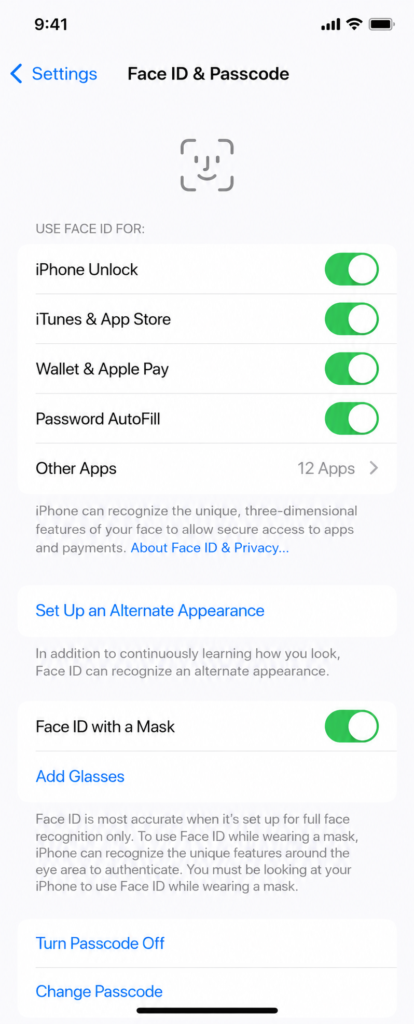
- Tap Face ID & Passcode.
- Enter your passcode when prompted.
- Make sure the following toggles are enabled (green):
- iPhone Unlock
- Apple Pay
- iTunes & App Store
- Password AutoFill
- Scroll down to Use Face ID For and check that your preferred apps have Face ID enabled.
Also Check
- Go to Settings > Privacy & Security > Face ID and confirm no unusual restrictions are active.
- If a specific app (like your bank) stopped recognizing Face ID, open that app’s own settings and re-enable biometric login.
Fix 3 — Reset and Re-Enroll Face ID
Why This Works
When iOS 26 changes low-level camera or security frameworks, your existing Face ID enrollment data can become out of sync. Deleting it and starting fresh forces the system to create a clean, compatible facial map.
Steps
- Open Settings > Face ID & Passcode.
- Enter your passcode.
- Tap Reset Face ID and confirm.
- Tap Set Up Face ID.
- Follow the on-screen instructions — move your head slowly in a full circle twice.
- Tap Done when the setup is complete.
- Optionally, tap Set Up an Alternate Appearance to enroll a second look (useful for glasses, hats, or different lighting conditions).
Note: You can also add an Alternate Appearance without resetting. This sometimes helps if Face ID partially recognizes you but fails under certain lighting.
Fix 4 — Update or Re-Install Problem Apps
Why This Works
Third-party apps that use Face ID for authentication must be updated to support new iOS security APIs. If a banking, password manager, or shopping app hasn’t pushed its iOS 26 compatibility update yet, Face ID will fail inside that app specifically.
Steps
- Open the App Store.
- Tap your profile icon in the top right.
- Scroll down and tap Update All, or update specific apps individually.
- If an app still has issues after updating, try deleting and re-installing it.
- Re-enable Face ID within the app’s own settings after reinstalling.
Warning: Re-installing an app may log you out. Make sure you know your login credentials before deleting anything.
Fix 5 — Check for a Follow-Up iOS Update
Why This Works
Apple frequently releases rapid follow-up patches — called point releases — within days of a major update to fix widespread bugs. iOS 26.0.1 or later may already contain a direct fix for the Face ID issue you’re experiencing.
Steps
- Connect your iPhone to Wi-Fi.
- Open Settings > General > Software Update.
- If an update is available, tap Download and Install.
- Keep your iPhone plugged in and wait for the update to complete.
- After the restart, test Face ID again.
Tip: Enable Automatic Updates under Settings > General > Software Update so future patches install overnight without interrupting your day.
Fix 6 — Reset All Settings (No Data Loss)
Why This Works
This option wipes all system preference files — including any corrupted ones left behind by the iOS 26 update — and restores them to factory defaults. Crucially, it does not delete your photos, apps, messages, or personal data.
What Gets Reset
- Wi-Fi passwords (you’ll need to reconnect)
- Wallpaper
- Privacy settings
- Face ID and Touch ID data
- Keyboard and accessibility settings
Steps
- Open Settings > General > Transfer or Reset iPhone.
- Tap Reset.
- Choose Reset All Settings.
- Enter your passcode and confirm.
- Your iPhone will restart. This takes 1–3 minutes.
- After the restart, go back to Settings > Face ID & Passcode and re-enroll your face (see Fix 3).
Fix 7 — Contact Apple Support or Visit an Apple Store
When to Use This Fix
If none of the above fixes resolved the issue after trying all six steps, there is a chance the iOS 26 update exposed a pre-existing hardware fault with the TrueDepth camera system. This is uncommon on iPhone 13, but it does happen — especially on devices that have experienced prior drops or water exposure.
Steps
- Visit support.apple.com and start a chat or phone session.
- Or schedule a Genius Bar appointment at your nearest Apple Store.
- Before your visit, check whether your device is still under AppleCare+ coverage, which may reduce or eliminate repair costs.
- Apple’s diagnostics can confirm whether the TrueDepth camera system is functioning correctly.
Note: Apple has historically offered free repairs for Face ID issues traced to software updates. Always mention the iOS 26 update as the trigger when speaking with support.
Troubleshooting Table
| Problem | Possible Cause | Solution |
|---|---|---|
| Face ID completely unresponsive | Post-update software conflict | Restart iPhone (Fix 1), then Reset Face ID (Fix 3) |
| Face ID fails in one specific app | App not updated for iOS 26 APIs | Update or reinstall the app (Fix 4) |
| Face ID asks for passcode constantly | Enrollment data out of sync | Reset and re-enroll Face ID (Fix 3) |
| Face ID doesn’t recognize you in certain lighting | Enrollment done under limited lighting | Add Alternate Appearance (Fix 3) |
| Face ID toggles turned off in Settings | iOS update reset permissions | Re-enable toggles in Face ID & Passcode (Fix 2) |
| Face ID works, then fails randomly | Corrupted system preferences | Reset All Settings (Fix 6) |
| Face ID unavailable message on screen | System process still initializing | Wait 5 minutes, then restart (Fix 1) |
| None of the above fixes work | Possible TrueDepth hardware issue | Contact Apple Support (Fix 7) |
Pro Tips
- Enroll in good lighting. When re-setting up Face ID, do it in a well-lit room with natural or consistent overhead light. Avoid extremely bright backlighting.
- Hold your phone at face height. Face ID is calibrated for the natural angle at which you hold your phone — roughly 25–50 cm from your face, not looking down at a flat desk.
- Remove screen protectors if they cover the sensor. Thick or poorly fitted screen protectors can block the infrared sensor array that powers Face ID. Verify your protector is TrueDepth compatible.
- Keep iOS updated automatically. Apple patches Face ID bugs quickly after major releases. Enabling automatic updates means you benefit from fixes the moment they’re available.
- Add an alternate appearance. If you regularly wear glasses, hats, or look significantly different with or without makeup, set up an alternate appearance under Face ID & Passcode for smoother recognition.
- Don’t cover the TrueDepth camera with your finger. It sounds obvious, but cases with unusually high lip edges or certain hand grips can partially obscure the sensor cluster at the top of the iPhone 13.
- Back up before any reset. Before doing Fix 6 (Reset All Settings), back up to iCloud or your Mac so your data is secure. While this fix doesn’t erase personal data, it’s always smart practice.
- Report the bug to Apple. Go to Settings > Privacy & Security > Analytics & Improvements > Analytics Data to help Apple identify Face ID issues tied to iOS 26 faster.
Common Mistakes to Avoid
- Factory resetting immediately. Many users jump straight to “Erase All Content and Settings” when a simple restart or Face ID re-enrollment would have done the job. Always work through the fixes in order.
- Skipping the app update check. If Face ID fails only in certain apps, those apps are the problem — not Face ID itself. Always check app updates first before resetting system settings.
- Setting up Face ID in poor conditions. Re-enrolling in a dark room, with sunglasses on, or at an unusual angle leads to unreliable recognition. Take 60 seconds to set up properly.
- Not waiting after a restart. iOS needs a minute or two to fully initialize all services after a reboot. Testing Face ID within 10 seconds of startup can give a false negative.
- Ignoring iOS point releases. Apple often ships fixes within 48–72 hours of a major release. Not checking for 26.0.1 or later could mean you’re sitting on a resolved bug.
- Assuming it’s a hardware problem too early. The TrueDepth system on iPhone 13 is durable. Post-update Face ID failures are overwhelmingly software-related. Exhaust all software fixes before considering a repair.
Best Practices
Following these habits will help you avoid Face ID disruptions after any future iOS update:
- Back up your device before updating iOS. This gives you a restore point and also ensures iCloud sync is current before system changes occur.
- Install major iOS updates when you have 30 minutes free. Post-update background tasks take time. Allowing the phone to settle before testing Face ID prevents false alarms.
- Restart your iPhone the day after a major update. A clean reboot after background tasks finish resolves the majority of minor post-update glitches.
- Keep third-party apps updated regularly. Apps that lag behind iOS API changes are a recurring cause of Face ID failures in specific contexts.
- Store your passcode securely. Face ID relies on your passcode as a fallback. Knowing it — and having it saved securely — means you’re never locked out.
FAQ
iOS 26 introduced updated security frameworks and TrueDepth camera APIs. In some cases, these changes cause Face ID enrollment data to become incompatible or system permissions to reset, resulting in authentication failures. This is a software issue and is almost always fixable without visiting Apple.
No. Resetting Face ID only removes the stored facial map used for biometric authentication. Your photos, apps, messages, and all other personal data are completely unaffected.
No. “Reset All Settings” only clears system preferences — things like Wi-Fi passwords, wallpaper, and privacy settings. Your personal content is never touched. It is different from “Erase All Content and Settings,” which does wipe everything.
App-specific Face ID failures usually mean the app hasn’t been updated to support iOS 26’s new authentication APIs. Update the app through the App Store, and if needed, re-enable Face ID in the app’s own settings.
About 60 seconds. The setup process walks you through two slow circular head movements, and you’re done. You can optionally add an alternate appearance in another 60 seconds.
No. Each new enrollment creates a fresh encrypted facial map stored in the Secure Enclave — Apple’s dedicated security chip on iPhone 13. It is just as secure as the original setup.
Possibly, if the crack extends near or over the TrueDepth camera cluster at the top of the screen. The sensors require a clear line of sight. However, if Face ID worked before the update and the screen crack predates it, software is the more likely culprit.
This usually means iOS is still completing post-update background processes that involve the Secure Enclave. Wait 5–10 minutes, restart your iPhone, and try again. If the message persists after a restart, proceed with Fix 3 (Reset Face ID).
Yes, some users across iPhone 12, 14, and 15 series have reported similar issues. The fixes in this guide apply to all Face ID-equipped iPhones, not just iPhone 13.
Yes. Your passcode remains fully functional at all times. Apple requires this as a fallback. You will not be locked out of your device.
Almost certainly. Apple monitors widespread post-update issues closely. A point release (e.g., iOS 26.0.1) addressing Face ID issues is typically released within 1–2 weeks of a major update where such bugs surface. Check Settings > General > Software Update regularly.
Apple offers paid out-of-warranty repairs for TrueDepth camera system issues. Costs vary by country, but AppleCare+ (if you have it) covers biometric hardware at a reduced fee. Getting an official diagnosis first is always the best step.
Conclusion
A Face ID failure after an iOS update feels like a big problem, but it almost always has a straightforward solution. The root cause is nearly always software — disrupted permissions, mismatched enrollment data, or incomplete background processes — rather than a hardware fault with your iPhone 13.
Start with the simplest fix: restart your phone and check Face ID settings. If that doesn’t work, reset and re-enroll your face from scratch — this resolves the issue for the majority of users. From there, work through the remaining fixes in order: update your apps, check for an iOS point release, or reset system settings.
Only after exhausting all seven fixes should you consider a hardware diagnosis. And even then, Apple’s support team is equipped to help quickly.
The bottom line: you will almost certainly have Face ID working again before the end of the day. Follow the steps, be patient, and don’t skip ahead. Your iPhone 13 is in good shape — it just needs a little reconfiguration after the update.