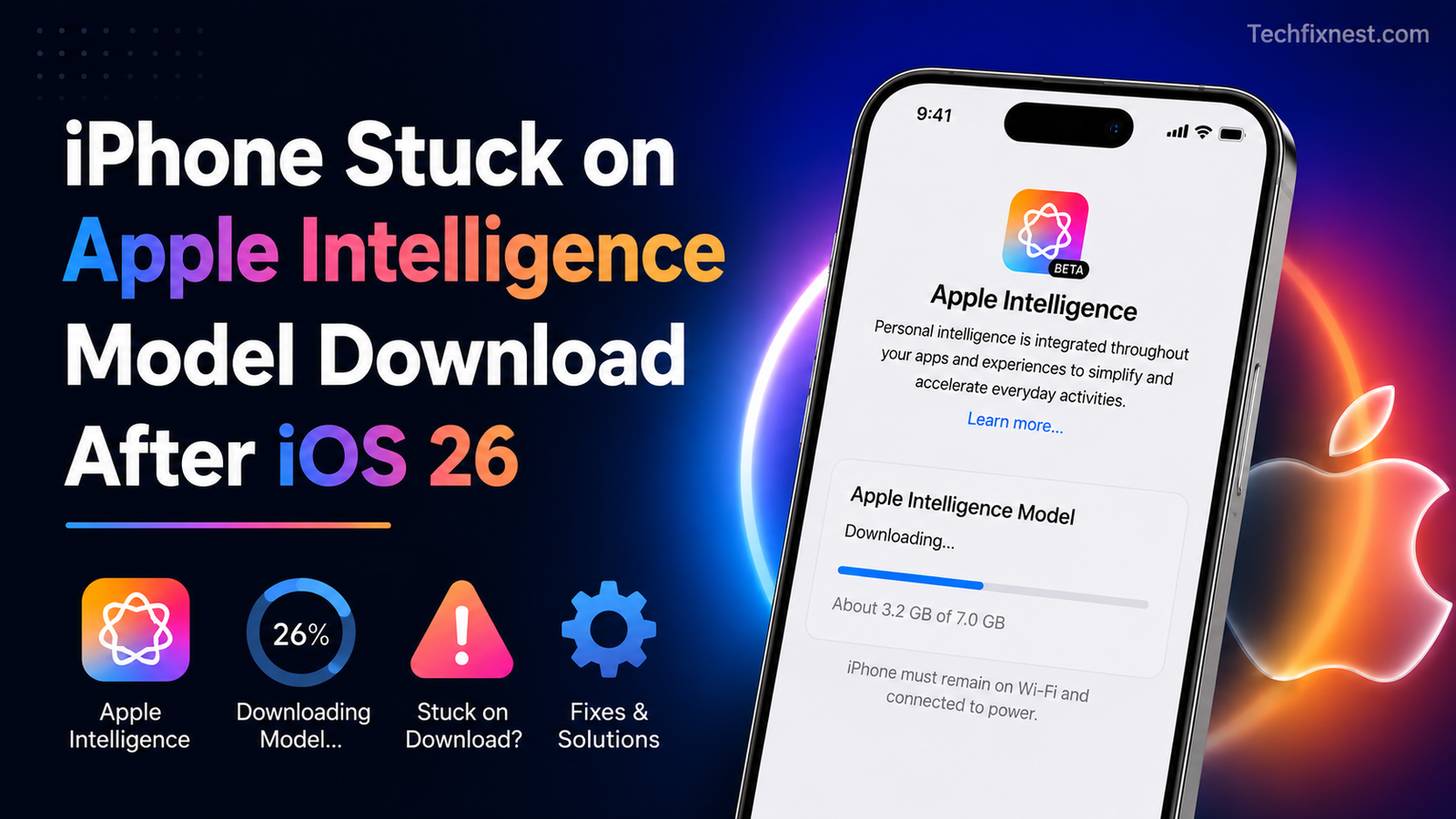
iPhone stuck on Apple Intelligence model download after iOS 26? Try these 9 proven fixes for stuck “Preparing” or “Downloading” screens.
Quick Answer
If your iPhone is stuck downloading the Apple Intelligence model after updating to iOS 26, first free up at least 10 GB of storage, then keep the device unlocked, charging, and on stable Wi‑Fi (not a VPN or captive network) for at least two hours. If it’s still stuck, toggle Apple Intelligence off and back on in Settings, or reset network settings.
Table of Contents
- Introduction
- Why the Apple Intelligence Model Gets Stuck
- Fix 1: Check Your Device Is Actually Eligible
- Fix 2: Free Up Storage Space
- Fix 3: Stay Charging, Unlocked, and On Wi-Fi
- Fix 4: Disable VPN and Private Relay
- Fix 5: Toggle Apple Intelligence Off and On
- Fix 6: Restart Your iPhone
- Fix 7: Reset Network Settings
- Fix 8: Update to the Latest iOS 26.x Version
- Fix 9: Erase and Set Up as New
- Troubleshooting Table
- Pro Tips
- Common Mistakes to Avoid
- Best Practices
- FAQ
- Conclusion
Introduction
After updating to iOS 26, plenty of iPhone owners have opened Settings expecting Apple Intelligence to be ready to go, only to find the model download stuck on “Preparing” or frozen partway through “Downloading.” The screen just sits there, sometimes for hours, sometimes for days, without ever finishing.
This happens because Apple Intelligence isn’t a simple feature toggle. It requires downloading a multi-gigabyte on-device model package, verifying your Apple Account entitlement, and syncing with Apple’s servers, all while your phone stays connected, charged, and has enough free space. If any single piece of that chain breaks, the download can stall indefinitely.
This guide is for anyone on a supported iPhone (iPhone 15 Pro or later) running iOS 26 who can’t get the Apple Intelligence model to finish downloading. You’ll learn why it happens and walk through nine fixes, starting with the quickest and moving to the more involved ones, so you can get Apple Intelligence working without losing any data.
Why the Apple Intelligence Model Gets Stuck
A few different issues can interrupt the download, and it’s often more than one at a time:
- Incomplete background download: The initial model download can be interrupted by Low Power Mode, cellular-only connections, or an active VPN.
- Low storage: A model download won’t resume on a device that’s nearly full, even if Settings reports it as available.
- Account sync issues: After signing out and back into your Apple Account, or restoring from a backup, the entitlement that unlocks the feature can fail to refresh properly.
- Server-side throttling: Apple’s servers occasionally rate-limit requests during high-traffic periods, which can stall or slow the download.
- Managed or restricted profiles: Work or school devices with configuration profiles sometimes block generative AI features entirely at the management level.
- Region or language mismatch: Apple Intelligence is tied to specific supported languages and regions, and changing your Siri language mid-setup can pause the download until it re-syncs.
Working through the fixes below in order clears the issue for most people well before reaching the last-resort options.
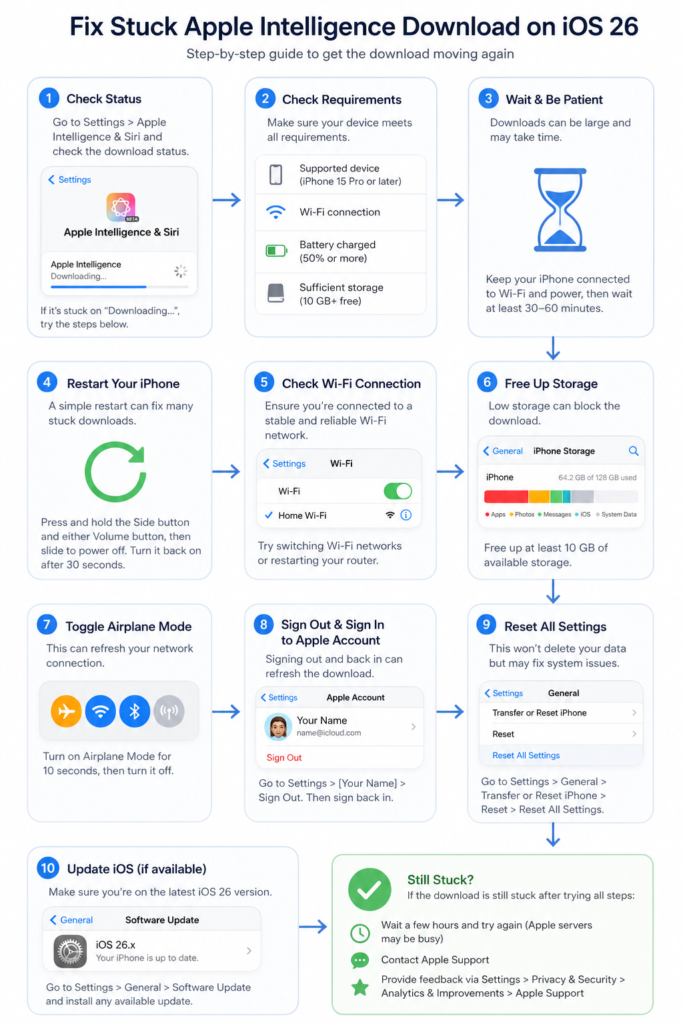
Fix 1: Check Your Device Is Actually Eligible
Before troubleshooting further, confirm your hardware and software actually support Apple Intelligence.
- Go to Settings > General > About and confirm your model.
- Apple Intelligence requires an iPhone 15 Pro, iPhone 15 Pro Max, or any iPhone 16 or 17 model.
- Confirm you’re on iOS 26 or later under Settings > General > Software Update.
- Check that your Apple Account region and Siri language are on Apple’s supported list — availability varies by language and region, and features can behave differently outside supported areas.
If your device doesn’t meet these requirements, the download will never complete, no matter what else you try.
Fix 2: Free Up Storage Space
The Apple Intelligence model package needs meaningful free space to download, unpack, and install, plus extra temporary space during the process.
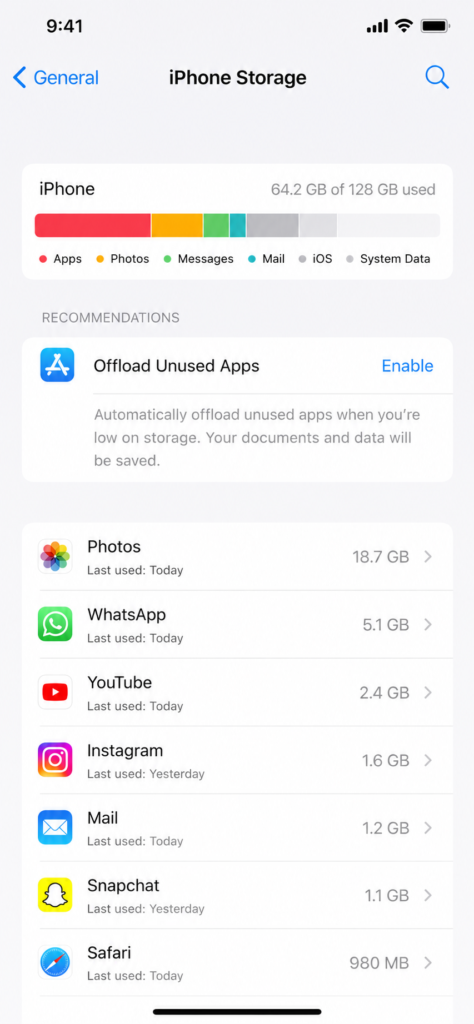
- Go to Settings > General > iPhone Storage.
- Aim for at least 10 GB free.
- Delete unused apps or tap Offload App to remove the app while keeping its data.
- Clear out large videos and photos, and empty the Recently Deleted album, since those files still count against your storage until permanently removed.
Even if the download appears to be paused rather than failed, low storage is one of the most common silent causes.
Fix 3: Stay Charging, Unlocked, and On Wi-Fi
The model download only progresses reliably under specific conditions:
- Connected to stable, unmetered Wi-Fi (avoid public or captive-portal networks that require re-login)
- Plugged in and charging
- Unlocked or actively in use rather than sitting idle in Low Power Mode
- Left alone for at least two hours before assuming it’s truly stuck
Switching from cellular data to Wi-Fi, or vice versa, has fixed the download for some users, since the system can get confused about which connection to use mid-download.
Fix 4: Disable VPN and Private Relay
Apple Intelligence relies on Private Cloud Compute for some requests, and certain VPN configurations or iCloud Private Relay settings can interfere with those connections.
- Turn off any active VPN app.
- Go to Settings > [your name] > iCloud > Private Relay and toggle it off temporarily.
- Retry the download.
- Once it completes, you can re-enable your VPN or Private Relay.
Some users have found that toggling a VPN off and back on — rather than leaving it off — is what actually kicks the download loose.
Fix 5: Toggle Apple Intelligence Off and On
This forces the system to re-request the model package from Apple’s servers rather than trying to resume a broken download.
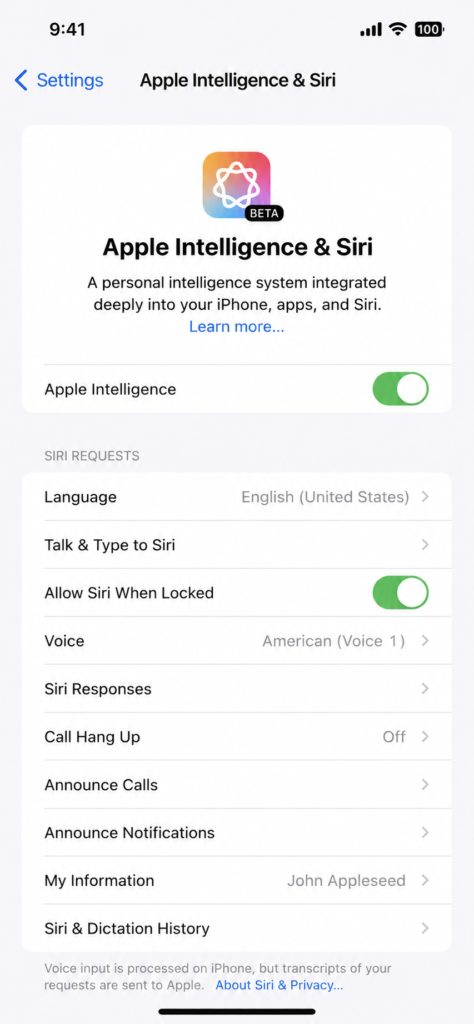
- Go to Settings > Apple Intelligence & Siri.
- Switch Apple Intelligence off.
- Restart your iPhone.
- Re-enable Apple Intelligence and let it re-download.
This single step has resolved stuck downloads that had been sitting at “Preparing” for days for a number of users.
Fix 6: Restart Your iPhone
A basic restart clears background processes and temporary glitches that may be quietly blocking the download.
- Press and hold the Side button and a Volume button until the power slider appears.
- Slide to power off.
- Wait about 30 seconds.
- Press and hold the Side button until the Apple logo appears.
It sounds too simple to matter, but a clean restart resolves this for a meaningful share of users on its own.
Fix 7: Reset Network Settings
Old network profiles, saved Wi-Fi passwords, and DNS cache entries can interfere with Apple’s update servers.
- Go to Settings > General > Transfer or Reset iPhone > Reset.
- Tap Reset Network Settings (this doesn’t erase personal data, but you’ll need to re-enter Wi-Fi passwords).
- Reconnect to Wi-Fi.
- Retry the Apple Intelligence download.
Note: This is different from a full “Reset All Settings,” which is a more aggressive option covered in Fix 9.
Fix 8: Update to the Latest iOS 26.x Version
Minor point releases have addressed some of the early Apple Intelligence bugs. Users on later 26.x builds have generally reported smoother setup than those still on the initial iOS 26.0 release.
- Go to Settings > General > Software Update.
- Install any available update.
- Restart, then retry the Apple Intelligence download.
If a specific feature (like Photos Clean Up) isn’t showing up, double-check it may require a slightly newer point release than you’re currently running.
Fix 9: Erase and Set Up as New
If nothing else has worked, this is the last resort before contacting Apple Support directly.
- Back up your iPhone to iCloud or a computer first.
- Go to Settings > General > Transfer or Reset iPhone > Erase All Content and Settings.
- Set the device up as new rather than restoring from backup, since a broken entitlement state can sometimes carry over in a restore.
- Sign back into iCloud and enable Apple Intelligence from a clean state.
- Once everything is confirmed working, you can restore your apps and data from your backup separately if needed.
Troubleshooting Table
| Problem | Possible Cause | Solution |
|---|---|---|
| Stuck on “Preparing” for hours | Waitlist/entitlement sync delay | Wait 2+ hours on Wi-Fi and charger; toggle off/on if it persists |
| Stuck at a fixed percentage | Low storage or VPN interference | Free up 10 GB+; disable VPN/Private Relay |
| Toggle missing from Settings | Unsupported device or region | Confirm iPhone 15 Pro or later and supported region/language |
| Works on one device, not another | Account entitlement not synced | Sign out/in of Apple Account on the affected device; restart |
| Restarts download from 0% repeatedly | Network drops or weak Wi-Fi | Switch networks; reset network settings |
| Fails only on cellular | Carrier restrictions | Switch to Wi-Fi and retry |
| Persistent failure after all fixes | Deeper software bug | Update to latest iOS 26.x point release, or erase and set up as new |
Pro Tips
- Let the download run overnight while charging — many stuck downloads simply need uninterrupted time.
- Avoid switching networks mid-download; pick one stable Wi-Fi connection and stick with it.
- If you use a family or work Apple Account with Screen Time or MDM restrictions, check for content restrictions blocking AI features first.
- Keep at least 15–20% battery buffer during the process — some devices pause background downloads at low battery even while plugged in.
- If Siri’s language differs from your device language, match them before troubleshooting further.
- Check Apple’s System Status page to rule out a server-side outage before assuming it’s your device.
- Try airplane mode on, wait 15 seconds, then off — this forces a fresh network handshake.
- If you recently migrated from another iPhone, give the entitlement sync a few hours before troubleshooting aggressively.
Common Mistakes to Avoid
- Repeatedly toggling Apple Intelligence on and off in quick succession — this can confuse the download state further instead of resetting it.
- Assuming it’s broken after only 15–20 minutes — the initial model download can legitimately take a couple of hours.
- Restoring from a backup made while the download was already stuck — this can carry the broken state forward.
- Ignoring storage warnings — a device reporting “available” storage can still be too tight for the temporary files needed during installation.
- Downloading on a weak or public Wi-Fi network — captive portals and unstable connections are a frequent hidden cause.
- Skipping the restart step — it’s simple, but it resolves a surprising share of cases.
Best Practices
- Always install major iOS updates while connected to Wi-Fi, not cellular data.
- Keep at least 10–15 GB of free storage as a general habit, not just during updates.
- Restart your iPhone periodically to clear background clutter before it becomes a problem.
- Update to new point releases (like iOS 26.1, 26.2, etc.) promptly, since Apple Intelligence bugs are actively being patched.
- If you rely on a VPN daily, know how to quickly toggle it off for troubleshooting future Apple updates.
FAQ
This usually points to low storage, an unstable Wi-Fi connection, or a VPN interfering with Apple’s servers. Free up space, connect to reliable Wi-Fi, and disable any VPN before retrying.
It varies by network speed and device, but most downloads complete within one to two hours under good conditions. If it’s stuck at the same point for more than 24–48 hours, treat it as genuinely stuck.
Earlier iOS 18-era rollouts used a waitlist system, but iOS 26 does not gate access this way for supported, eligible devices in supported regions. A stuck “Preparing” screen on iOS 26 is more likely a download or sync issue than a waitlist delay.
Apple has cited roughly 7 GB of free space required for the on-device models, though it’s safest to have at least 10 GB free to account for temporary installation files.
No, but it does remove the on-device models from your iPhone, which you’ll need to re-download if you turn the feature back on.
Yes. Some VPN configurations interfere with the Private Cloud Compute requests Apple Intelligence relies on for certain features, which can stall the download or make features behave inconsistently.
Availability depends on both your Apple Account region and your device’s language settings. Check Apple’s official Apple Intelligence availability page for the current list of supported regions and languages.
This is typically an entitlement sync issue. Signing out and back into your Apple Account on the affected device, then restarting, usually resolves it.
Start with resetting network settings, since it’s less disruptive. Only move to a full “Reset All Settings” or an erase-and-set-up-as-new if the network reset doesn’t help.
Some newer features, like certain Photos tools, require iOS 26.1 or later. If a specific feature seems missing rather than just slow to download, check your exact iOS version first.
This usually means either your device isn’t eligible, or your region/language combination isn’t currently supported. Confirm both before assuming it’s a bug.
Reach out if the toggle is missing on an eligible device, the download has been stuck at the same point for more than 48 hours despite trying the fixes above, or the feature works on one of your devices but not another that meets all requirements.
Conclusion
A stuck Apple Intelligence model download after iOS 26 is frustrating, but it’s rarely a sign of a deeper hardware problem. In most cases, it comes down to storage space, network stability, or a VPN quietly interfering with the download — all things you can fix yourself in a few minutes.
Start with the basics: free up storage, connect to solid Wi-Fi, and let the phone charge undisturbed for a couple of hours. If that doesn’t move things along, toggling Apple Intelligence off and back on, restarting your device, or resetting network settings resolves the issue for the vast majority of people. Save erasing your iPhone for last, and always back up first.
Once it’s downloaded, take a few minutes to explore what Apple Intelligence actually offers — the writing tools, Siri upgrades, and visual intelligence features are worth the wait.