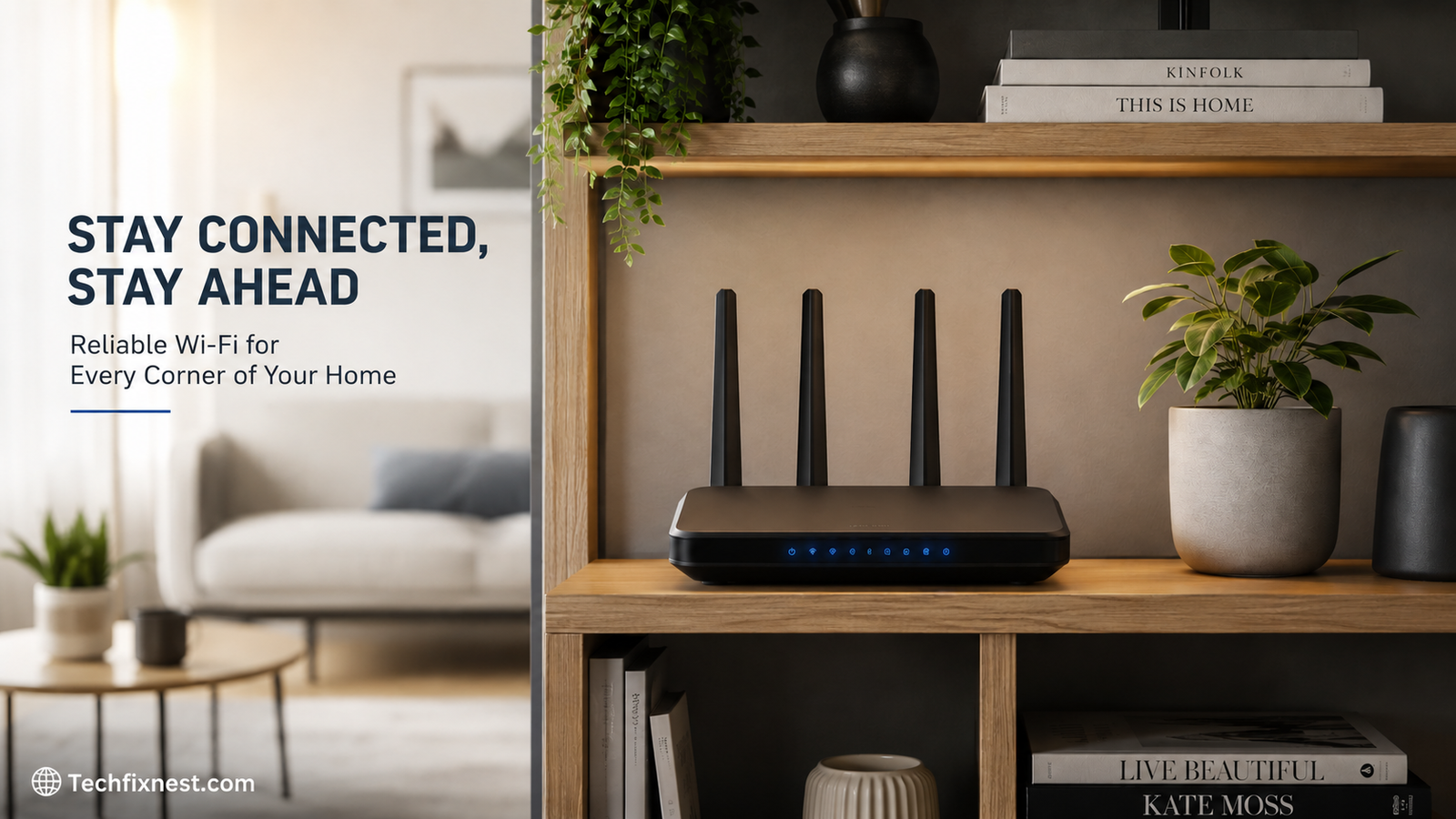
Struggling with weak WiFi? Discover 8 proven ways to boost your home WiFi signal in 2026, from router placement to mesh systems and Wi-Fi 7 upgrades.
Quick Answer
To boost your home WiFi signal, place your router in a central, elevated, open spot away from thick walls and appliances, update its firmware, switch to a less congested channel, and add a mesh system or wired access point for dead zones. Upgrading to a modern Wi-Fi 6 or Wi-Fi 7 router also helps handle more devices with less interference.
Table of Contents
- Why Your WiFi Signal Is Weak
- 1. Reposition Your Router for Maximum Coverage
- 2. Update Your Router’s Firmware
- 3. Switch to a Less Crowded Channel
- 4. Reduce Physical and Electronic Interference
- 5. Add a Mesh WiFi System
- 6. Use Wired Backhaul Where Possible
- 7. Upgrade to Wi-Fi 6 or Wi-Fi 7
- 8. Fine-Tune Your Network Settings
- Troubleshooting Table
- Pro Tips
- Common Mistakes to Avoid
- Best Practices
- FAQ
- Conclusion
Introduction
If you’ve ever stood in your kitchen watching a video buffer while the WiFi bars on your phone barely register, you know how frustrating a weak signal can be. It’s one of the most common tech complaints in modern homes, and it usually isn’t your internet plan’s fault. It’s your network setup.
Weak WiFi happens for a handful of predictable reasons: your router is in the wrong spot, your walls and appliances are blocking the signal, too many devices are competing for bandwidth, or your hardware is simply outdated. The good news is that most of these problems are fixable without hiring a technician or replacing your entire setup.
This guide is for anyone dealing with slow speeds, dead zones, or dropped connections at home, whether you’re renting an apartment, working from home, or managing a house full of streaming devices, smart gadgets, and gamers. You’ll learn eight proven, practical fixes that range from free five-minute adjustments to smarter hardware upgrades worth considering in 2026. By the end, you’ll know exactly which fixes to try first and how to keep your WiFi signal strong for the long run.
Why Your WiFi Signal Is Weak
Before jumping into fixes, it helps to understand what’s actually happening. WiFi signals are radio waves, and like any radio wave, they weaken with distance and get blocked or scattered by physical objects. Common culprits include:
- Distance and walls — Concrete, brick, and metal studs absorb signal far more than drywall or wood.
- Interference — Microwaves, baby monitors, cordless phones, and neighboring WiFi networks all compete for the same airwaves.
- Router placement — A router tucked in a closet or behind the TV console is fighting an uphill battle.
- Too many connected devices — The average household now has around 20-25 connected devices, all pulling bandwidth from the same router.
- Outdated hardware — Older routers use less efficient WiFi standards and can’t handle modern household demand.
Once you know the cause, the fix usually becomes obvious. Let’s go through the eight most effective solutions.
1. Reposition Your Router for Maximum Coverage
This is the single most impactful, completely free fix, and most people never do it.
Why it matters: WiFi signal spreads out from your router in all directions, like ripples in a pond. If your router is stuck in a corner, half of that signal is being wasted outside your home.
How to fix it:
- Move your router to a central location in your home, not a corner or a far edge.
- Elevate it — place it on a shelf or mounted on a wall rather than the floor.
- Keep it in an open area, away from cabinets, closets, or behind furniture.
- Avoid placing it near metal objects, mirrors, or aquariums, which reflect or absorb signal.
- If you have a multi-story home, a central spot on the middle floor gives the most even coverage.
Real-world example: Moving a router from a basement corner to the main floor’s central hallway can turn a weak second-floor bedroom signal into a strong, reliable one.
2. Update Your Router’s Firmware
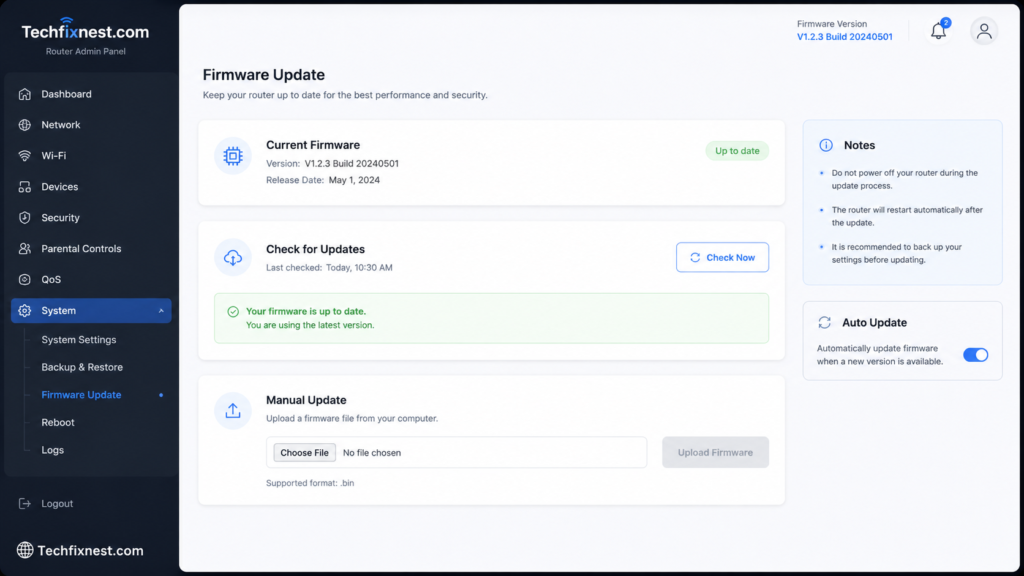
Why it matters: Firmware is the software that runs your router. Manufacturers regularly release updates that fix bugs, patch security holes, and often improve performance and stability.
How to fix it:
- Log into your router’s admin panel (usually via an app or a browser at an address like 192.168.1.1).
- Look for a “Firmware Update” or “System Update” section.
- Install any available updates and restart the router.
- Turn on automatic updates if your router supports them.
Warning: Never interrupt a firmware update mid-process; it can corrupt the router’s software and require a factory reset.
3. Switch to a Less Crowded Channel
Why it matters: WiFi operates on specific channels within the 2.4GHz and 5GHz bands. In apartment buildings or dense neighborhoods, many routers end up broadcasting on the same channel, causing interference similar to too many people talking over each other.
How to fix it:
- Download a WiFi analyzer app (available for Android and desktop; iPhone has limited options).
- Check which channels your neighbors’ networks are using.
- Log into your router settings and manually select a less congested channel — typically 1, 6, or 11 on the 2.4GHz band.
- On 5GHz, most modern routers auto-select a clean channel, but you can adjust manually if congestion persists.
Tip: If your router supports “Auto Channel Selection,” enabling it lets the router periodically choose the clearest channel for you.
4. Reduce Physical and Electronic Interference
Why it matters: Everyday household electronics can quietly sabotage your WiFi, especially on the 2.4GHz band.
Common interference sources:
- Microwave ovens
- Baby monitors and cordless phones
- Bluetooth speakers and smart home hubs
- Fish tanks and large mirrors
- Thick walls, especially brick, concrete, or plaster with metal lath
How to fix it:
- Keep your router at least a few feet away from microwaves and cordless phone bases.
- Switch bandwidth-hungry devices like laptops and smart TVs to the 5GHz band, which is less prone to interference (though it has shorter range).
- Reposition the router away from large metal appliances or reflective surfaces.
5. Add a Mesh WiFi System
Why it matters: A single router, no matter how powerful, has a physical coverage limit — typically 1,500 to 2,500 square feet depending on your home’s layout. Larger homes, multi-story layouts, or homes with brick and concrete walls often need more than one access point.
Mesh systems solve this by using multiple coordinated nodes placed throughout your home, all working together as one seamless network so your devices automatically connect to the strongest node as you move around.
How to set it up:
- Measure your home’s size and construction type. As a rough guide, use one node per 1,500-2,000 sq ft for wood-frame homes, or one node per 1,000-1,500 sq ft for brick or concrete construction.
- Place the main node near your modem, and satellite nodes in areas with weak signal, keeping them within range of each other.
- Use the manufacturer’s app to check signal strength between nodes and adjust placement if needed.
- Start with a 2-pack and expand with additional nodes if dead zones remain.
Comparison Note: Mesh systems are more convenient to set up than extenders, and unlike traditional extenders, they don’t typically create a separate network name you have to manually switch between.
6. Use Wired Backhaul Where Possible
Why it matters: “Backhaul” refers to how mesh nodes communicate with each other. Wireless backhaul is easier to set up, but wired backhaul (running an ethernet cable between nodes) can deliver roughly double the throughput at satellite locations compared to wireless-only setups, according to independent testing of current mesh systems.
How to fix it:
- If you can run an ethernet cable between your main router location and a satellite node, do it — even one wired connection dramatically improves performance in that zone.
- If running cable isn’t practical, look for mesh systems with dedicated wireless backhaul bands (often a separate 6GHz band) so backhaul traffic doesn’t compete with your regular devices for bandwidth.
- For difficult layouts, powerline adapters (which use your home’s electrical wiring) can be a decent middle ground between fully wired and fully wireless backhaul.
7. Upgrade to Wi-Fi 6 or Wi-Fi 7
Why it matters: If your router is more than five years old, it’s likely running on an older WiFi standard that wasn’t built for today’s device-heavy households.
Wi-Fi 6 introduced features like OFDMA and Target Wake Time, which help routers handle many connected devices more efficiently and improve battery life on smart home gadgets. Wi-Fi 7, the newest standard, adds Multi-Link Operation (MLO), which lets a single device send and receive data across multiple frequency bands at once, meaningfully reducing latency and improving stability, particularly for gaming and video calls.
Should you upgrade in 2026?
- If your current network is stable, has good coverage, and you’re not using multi-gig internet or latency-sensitive applications, you can reasonably wait.
- If you have 15 or more devices, a fast fiber connection, or plan to keep your router for several years, Wi-Fi 7 is a worthwhile investment, with tri-band models now commonly available in the $200-$350 range.
- Note that you need both a Wi-Fi 7 router and Wi-Fi 7-capable devices to see the full benefit; most flagship phones and laptops released in the past year or two support it, but many smart home devices and older gadgets do not.
Tip: All modern routers are backward compatible, so older devices will keep working fine even after you upgrade.
8. Fine-Tune Your Network Settings
Why it matters: Beyond hardware, several settings inside your router can meaningfully improve day-to-day performance.
How to fix it:
- Enable Quality of Service (QoS): Prioritize bandwidth for video calls, gaming, or streaming over background downloads.
- Set up a guest network: Keep visitors and smart home devices separate from your main network to reduce congestion and improve security.
- Limit connected devices: Periodically review and remove old or unused devices from your network.
- Adjust transmit power: Some routers let you increase broadcast power for larger homes (check your router’s advanced settings).
- Restart your router regularly: A simple reboot every week or two clears memory buildup and can resolve minor slowdowns.
Troubleshooting Table
| Problem | Possible Cause | Solution |
|---|---|---|
| Weak signal in one room | Router too far away or blocked by walls | Reposition router or add a mesh node |
| Signal drops randomly | Channel interference from neighbors | Switch to a less crowded channel |
| Slow speeds despite full bars | Too many devices on one band | Move devices to 5GHz or upgrade router |
| WiFi works but no internet | Modem or ISP issue | Restart modem, contact ISP if it persists |
| Devices disconnect near microwave | 2.4GHz interference | Switch device to 5GHz band |
| Uneven speeds between nodes | Wireless backhaul overloaded | Use wired backhaul or a dedicated backhaul band |
| Old devices can’t connect | Outdated WiFi standard or security setting | Check compatibility mode in router settings |
| Signal fine but laggy in games/calls | High latency, no MLO or QoS | Enable QoS or consider a Wi-Fi 7 router |
Pro Tips
- Angle external antennas vertically for horizontal coverage and horizontally for vertical (multi-floor) coverage.
- Use a WiFi analyzer app before buying new hardware — you might just need to reposition your router.
- Keep your router’s software and connected device drivers updated together for best compatibility.
- If you live in an apartment, check how many neighboring networks are visible; dense buildings almost always benefit from 5GHz prioritization.
- Label devices in your router’s app so it’s easy to spot unfamiliar connections.
- Test speeds at different times of day — evening congestion is common in shared internet plans.
- If using an extender, place it roughly halfway between your router and the dead zone, not right at the edge of the dead zone itself.
- Don’t hide your router inside an entertainment console or cabinet, even a decorative one — enclosed spaces trap and block signal.
Common Mistakes to Avoid
- Hiding the router for aesthetics — Coverage should come before appearance.
- Buying a mesh system without measuring your home first — Oversized or undersized systems waste money or leave dead zones.
- Ignoring firmware updates — Skipping updates leaves both performance and security gains on the table.
- Assuming a stronger router alone fixes everything — Poor placement or interference can undermine even premium hardware.
- Overcrowding the 2.4GHz band — Putting every device on the same band creates unnecessary congestion.
- Never rebooting the router — Routers, like any device, benefit from an occasional restart.
Best Practices
- Reassess your router placement whenever you rearrange furniture or move.
- Review connected devices and firmware every few months.
- Choose hardware sized appropriately for your home’s square footage and construction, not just the biggest number on the box.
- Prioritize wired connections for stationary, bandwidth-heavy devices like desktop PCs, smart TVs, or gaming consoles when possible.
- Plan your network around your actual usage today, while leaving some headroom for the devices you’ll likely add over the next few years.
FAQ
Physical obstructions like walls, mirrors, or electronics can weaken the signal even at short range. Interference from nearby networks or devices operating on the same channel can also be the culprit.
It can redirect signal in one direction using a makeshift reflector behind the router, but the effect is inconsistent and often does more harm than good by blocking coverage elsewhere. A proper repositioning or mesh node is far more reliable.
2.4GHz travels farther and penetrates walls better, but is slower and more prone to interference. 5GHz is faster but has shorter range. Most modern routers can automatically manage both bands together, or you can manually assign devices for the best results.
As a general guide, plan for one node per 1,500-2,000 square feet in a typical wood-frame home, and one node per 1,000-1,500 square feet in a home with brick or concrete construction.
Not necessarily. A weak signal is usually a hardware or placement issue, not an internet speed issue. Upgrading your plan won’t help if the signal isn’t reaching your devices in the first place.
It’s worthwhile if you have many connected devices, a fast internet plan, or plan to keep your router for several years. If your current setup performs well, waiting for prices to drop further is also reasonable.
Yes, if placed too far from the router or too close to the dead zone. Extenders rebroadcast a signal they’ve already received, so placing them in a weak spot passes along a weak signal.
Evening hours are typically peak usage times for your household and your ISP’s broader network, leading to more congestion on shared bandwidth.
Yes. Many smart home devices stay constantly connected and can add to network congestion, especially if they’re all on the 2.4GHz band. Keeping them on their own guest network can help.
No, routers are designed to run continuously. Occasional restarts, however, help clear minor performance issues.
An extender rebroadcasts your existing signal but usually creates a separate network name and can add latency. A mesh system uses multiple coordinated nodes under one unified network name, generally offering more seamless coverage.
Indoor WiFi signal is largely unaffected by weather, though extreme humidity or storms that affect your ISP’s outdoor infrastructure can indirectly impact your internet connection.
Conclusion
A weak WiFi signal is almost always fixable without a full network overhaul. Start with the free adjustments — repositioning your router, updating firmware, and switching to a clearer channel — since these alone resolve a large share of connectivity issues. If you’re still dealing with dead zones or an overloaded network, a mesh system, wired backhaul, or an upgrade to Wi-Fi 6 or Wi-Fi 7 hardware can make a lasting difference, especially as more devices join your home network each year.
The key takeaway is that strong WiFi is less about buying the most expensive router and more about matching the right setup to your home’s layout and how you actually use your connection. Work through these eight fixes in order, and you’ll likely notice a real improvement well before you reach the last one. A little time spent tuning your network now means fewer buffering screens and dropped calls later.