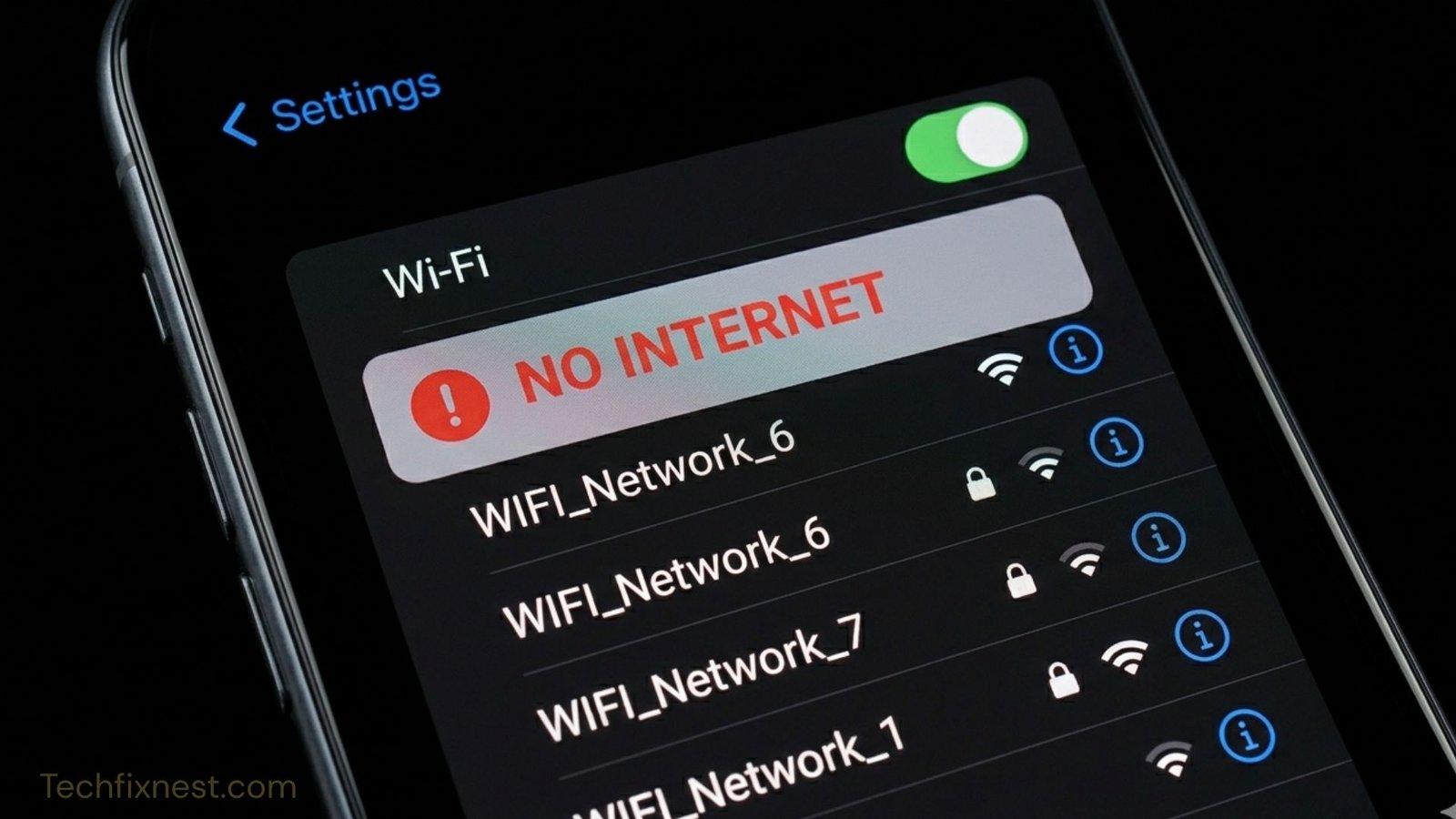
WiFi Connected But No Internet on Android? Discover 7 proven fixes to restore your connection fast no tech skills needed. Works on all Android devices in 2026.
Quick Answer
If your Android phone says “Connected” but has no internet, the most common causes are router issues, incorrect DNS settings, or a temporary software glitch. Start by toggling Airplane Mode on and off, then restart your router. If that fails, forget and reconnect to the WiFi network.
Table of Contents
- Introduction
- Why Does This Happen?
- Fix 1: Toggle Airplane Mode
- Fix 2: Restart Your Router and Modem
- Fix 3: Forget and Reconnect to WiFi
- Fix 4: Change Your DNS Settings
- Fix 5: Clear Network Settings
- Fix 6: Check for Android System Updates
- Fix 7: Reset Network Settings
- Troubleshooting Table
- Pro Tips
- Common Mistakes to Avoid
- Best Practices
- FAQ
- Conclusion
Introduction
You sit down to browse the web, open YouTube, or check your email — and nothing loads. Your Android phone clearly shows it’s connected to WiFi, yet the internet simply isn’t working. Sound familiar?
This is one of the most frustrating tech problems Android users face. The good news? It’s almost always fixable in a few minutes without calling your internet provider or visiting a repair shop.
The issue can happen on any Android device — whether you’re using a Samsung Galaxy, Google Pixel, OnePlus, Xiaomi, or any other brand. It affects people running Android 12, 13, 14, and even the latest Android 15 in 2026.
In this guide, you’ll learn exactly why Android shows “WiFi connected but no internet” and walk through 7 proven fixes — ranked from quickest to more thorough. By the end, you’ll know how to troubleshoot this problem yourself, every time.
This guide is written for everyday users. No technical background needed.
Why Does This Happen?
Before jumping into fixes, it helps to understand the root cause. Your phone connects to your router via WiFi — but the router also needs to connect to the internet through your ISP (Internet Service Provider). If any link in that chain breaks, you get the dreaded “connected, no internet” message.
Common causes include:
- Router or modem glitch — the device is on but not routing traffic properly
- IP address conflict — two devices on the network were assigned the same address
- DNS failure — your phone can’t translate website names into IP addresses
- Captive portal — the network requires a login (common on hotel or public WiFi)
- Android software bug — a temporary glitch in the network stack
- Outdated firmware — router or Android OS needs an update
- ISP outage — the problem is on your provider’s end, not yours
Now let’s fix it.
Fix 1: Toggle Airplane Mode
Time to try: 30 seconds Difficulty: Very easy
This is the fastest fix and works surprisingly often. Toggling Airplane Mode forces your phone to drop all wireless connections and restart them fresh.
Steps:
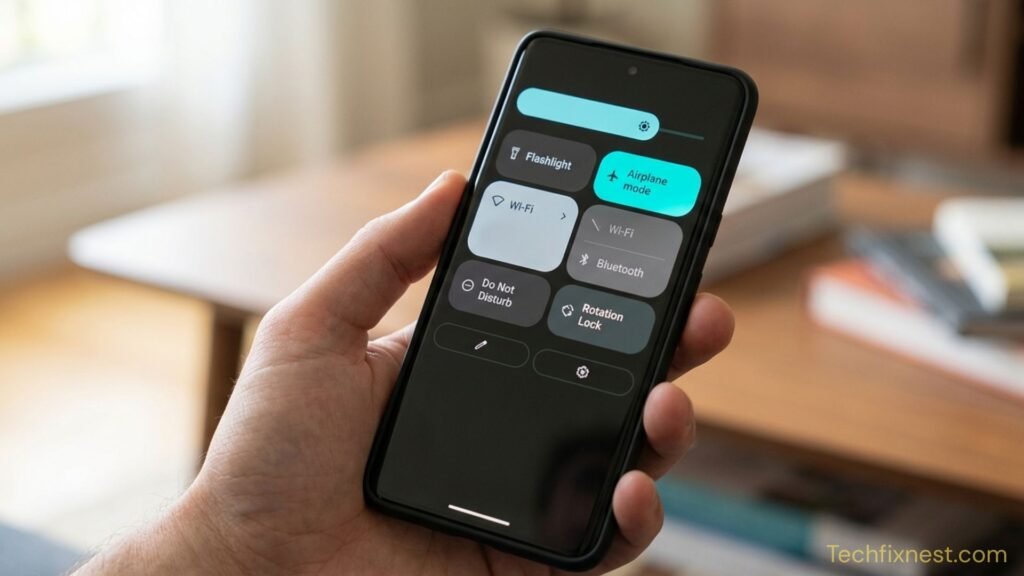
- Swipe down from the top of your screen to open the Quick Settings panel.
- Tap the Airplane Mode icon to turn it ON.
- Wait 10 seconds.
- Tap Airplane Mode again to turn it OFF.
- Wait for your phone to reconnect to WiFi.
- Open a browser and test the connection.
Why it works: This resets your phone’s network adapter software without restarting the device. It clears minor connection glitches in seconds.
Tip: If you don’t see Airplane Mode in Quick Settings, go to Settings > Connections > Airplane Mode.
Fix 2: Restart Your Router and Modem
Time to try: 2–3 minutes Difficulty: Very easy
If toggling Airplane Mode didn’t help, the problem may be with your router rather than your phone. A simple restart clears memory, refreshes the IP lease, and reconnects to your ISP.
Steps:
- Locate your router and modem (they may be the same device or separate).
- Unplug the power cable from the back of both devices.
- Wait 60 full seconds — don’t skip this step.
- Plug the modem back in first. Wait for its lights to stabilize (about 30 seconds).
- Plug the router back in. Wait another 30–60 seconds.
- Reconnect your Android phone to WiFi and test.
Why it works: Routers accumulate errors over time. A cold reboot clears the internal state, reassigns IP addresses, and re-establishes the connection to your ISP.
Note: If other devices on the same WiFi network (like a laptop or tablet) also have no internet, the problem is definitely the router or ISP — not your phone.
Fix 3: Forget and Reconnect to WiFi
Time to try: 1–2 minutes Difficulty: Easy
Sometimes the saved WiFi profile on your Android device becomes corrupted or outdated. Forgetting the network and reconnecting from scratch fixes this.
Steps:
- Go to Settings > WiFi (or Settings > Connections > WiFi on Samsung).
- Tap the name of the WiFi network you’re connected to.
- Tap Forget or the gear icon, then Forget Network.
- Wait 10 seconds.
- Tap the network name again from the list.
- Enter your WiFi password and connect.
- Test the internet connection.
Why it works: Forgetting the network deletes cached credentials and settings. Reconnecting forces your phone to get a fresh IP address and negotiate a clean connection.
Warning: Make sure you know your WiFi password before forgetting the network. It’s usually on the bottom of your router or in your ISP’s paperwork.
Fix 4: Change Your DNS Settings
Time to try: 3–5 minutes Difficulty: Moderate
DNS (Domain Name System) is like a phone book for the internet. It translates website names (like google.com) into IP addresses. If your default DNS server is slow or failing, websites won’t load even though your connection is active.
Switching to Google’s public DNS (8.8.8.8) or Cloudflare’s DNS (1.1.1.1) often resolves this instantly.
Steps (Android 9 and later):
- Go to Settings > Network & Internet > Private DNS (may vary by device).
- Tap Private DNS provider hostname.
- Type
one.one.one.one(Cloudflare) ordns.google(Google). - Tap Save.
- Test your internet connection.
Alternative method (change DNS per network):
- Go to Settings > WiFi.
- Long-press your connected network and tap Modify Network.
- Enable Show Advanced Options.
- Change IP Settings from DHCP to Static.
- Scroll down to DNS 1 and enter
8.8.8.8. - Enter
8.8.4.4in DNS 2. - Tap Save.
Why it works: Public DNS servers from Google and Cloudflare are faster and more reliable than most ISP-provided DNS servers.
Fix 5: Clear Network Settings
Time to try: 2 minutes Difficulty: Easy
Android stores network configuration data that can occasionally become corrupted. Clearing cached network data refreshes this without affecting your personal files.
Steps:
- Go to Settings > Apps (or Application Manager).
- Tap the three-dot menu (⋮) in the top-right corner.
- Select Show System Apps.
- Find and tap WiFi or Network Manager (name varies by device).
- Tap Storage > Clear Cache.
- Restart your phone and reconnect to WiFi.
On Samsung Galaxy devices:
- Go to Settings > Apps.
- Search for SmartThings or Connection Optimizer.
- Tap Storage > Clear Cache.
Why it works: Clearing cached network data removes stale configuration entries that can interfere with proper routing.
Fix 6: Check for Android System Updates
Time to try: 5–15 minutes Difficulty: Easy
Known bugs in Android’s WiFi stack — the software that manages wireless connections — are regularly fixed through system updates. If you’re running an outdated version, a bug may be causing your problem.
Steps:
- Go to Settings > About Phone > Software Updates (or System > System Update on stock Android).
- Tap Check for Updates.
- If an update is available, download and install it.
- After the update completes and your phone restarts, test your WiFi connection.
Why it works: Android updates frequently include network stability improvements and bug fixes. Many users have reported that a routine system update resolved persistent WiFi issues.
Tip: Connect to mobile data before checking for updates, since your WiFi isn’t working.
Fix 7: Reset Network Settings
Time to try: 5 minutes Difficulty: Moderate
If nothing else has worked, resetting all network settings returns your phone’s WiFi, Bluetooth, and mobile data settings to factory defaults. This wipes all saved networks, VPN configurations, and paired Bluetooth devices — so use this as a last resort.
Steps:
- Go to Settings > General Management > Reset (Samsung) or Settings > System > Reset Options (stock Android).
- Tap Reset Network Settings or Reset WiFi, Mobile & Bluetooth.
- Confirm when prompted (you may need to enter your PIN).
- After the reset, reconnect to your WiFi and test the connection.
Why it works: A network reset clears all stored configurations that might be causing conflicts, giving your phone a completely clean networking environment.
Note: This does NOT delete your photos, apps, or personal data. Only network-related settings are erased.
Troubleshooting Table
| Problem | Possible Cause | Solution |
|---|---|---|
| WiFi connected, no internet on all devices | Router or ISP outage | Restart router; check ISP status |
| Only my Android has no internet | Phone software glitch | Toggle Airplane Mode; restart phone |
| No internet after changing location | IP address conflict | Forget and reconnect to WiFi |
| Websites load slowly or not at all | DNS failure | Switch to Google or Cloudflare DNS |
| Public WiFi shows connected, no internet | Captive portal login required | Open browser and complete login |
| No internet after Android update | Software bug introduced | Clear network cache; check for patch update |
| WiFi drops frequently | Router channel congestion | Change router frequency to 5GHz |
| VPN active but no internet | VPN misconfiguration | Disconnect VPN and reconnect |
| Time/date wrong on Android | System clock error (blocks HTTPS) | Set date/time to automatic |
| No internet after factory reset | Missing APN or DNS settings | Re-enter network credentials manually |
Pro Tips
Here are expert recommendations to keep your Android connected and avoid future headaches:
- Use 5GHz WiFi when possible. The 5GHz band is faster and less congested than 2.4GHz. On dual-band routers, connect to the 5GHz network for better reliability.
- Set a static IP for your phone. IP address conflicts are a hidden cause of internet problems. Assigning your phone a static IP in your router’s settings eliminates this risk.
- Keep your router firmware updated. Router manufacturers release firmware updates that fix stability and security issues. Check your router’s admin panel monthly.
- Use Private DNS. Android’s built-in Private DNS feature (Settings > Network & Internet > Private DNS) lets you use encrypted DNS for better speed and security.
- Avoid connecting to too many WiFi networks. Your Android stores credentials for every network you’ve ever joined. Periodically forget old networks you no longer use.
- Reboot your router monthly. A monthly reboot keeps router memory fresh and prevents connection degradation over time.
- Check your ISP status before troubleshooting your phone. Most ISPs have a status page or app. A 30-second check could save you 20 minutes of troubleshooting.
- Disable WiFi Assist or Smart Network Switching. Some Android devices automatically switch to mobile data when WiFi is “weak.” This can cause confusion. Disable it under Settings > Connections > WiFi > Advanced.
- Check your router’s DHCP lease table. If too many devices are connected, your router may run out of available IP addresses. Most routers allow 50–254 devices by default.
- Test with a different DNS app. Apps like 1.1.1.1 by Cloudflare or DNS Changer let you switch DNS servers instantly without entering settings manually.
Common Mistakes to Avoid
- Restarting your phone instead of the router. Most people restart their phone first — but if the problem is with the router, this won’t help. Always check the router first.
- Entering the wrong WiFi password. After forgetting a network, it’s easy to mistype the password. Double-check it before assuming there’s a deeper problem.
- Ignoring other devices on the network. Check if the problem affects only your phone or all devices. This one test tells you whether the issue is the phone or the router.
- Using a VPN while troubleshooting. A misconfigured VPN can block internet access entirely. Disable any active VPN before running through these fixes.
- Assuming the ISP is always fine. ISP outages happen. Always visit your ISP’s status page or call their support line before spending an hour troubleshooting your own device.
- Skipping the full 60-second router reboot. Many people unplug and immediately replug the router. The full 60-second wait is needed for the capacitors to fully discharge and the device to completely reset.
- Performing a factory reset too early. A full factory reset should be an absolute last resort. Most WiFi problems are resolved with the 7 fixes above.
Best Practices
Prevention is better than cure. Follow these habits to avoid the “WiFi connected but no internet” problem in the future:
- Reboot your router at least once a month. Schedule it on the first day of each month so you don’t forget.
- Keep Android updated. System updates fix known bugs. Enable automatic updates under Settings > System > Advanced > Automatic System Updates.
- Use a quality router. Budget routers often have unstable firmware. Investing in a reliable router (TP-Link, ASUS, Netgear) significantly reduces connection problems.
- Limit the number of connected devices. Every device on your network shares bandwidth. If your household has 20+ connected devices, consider upgrading your router or internet plan.
- Use a WiFi analyzer app. Apps like WiFi Analyzer (Android) help you identify channel congestion and choose the least crowded channel for your router.
- Position your router centrally. Place your router in the center of your home, away from walls and other electronics, to maximize signal strength and stability.
- Protect your network. A neighbor using your WiFi without permission can saturate your bandwidth. Use WPA3 encryption and a strong password.
FAQ
Your phone connects to the router successfully, but the router may not have an active internet connection from your ISP, or a software glitch on your phone is preventing proper routing. Start by checking if other devices on the same network have internet — this tells you whether the issue is the phone or the router.
Toggle Airplane Mode on and off. This resets your phone’s wireless connection in under 30 seconds without requiring a full restart.
Your router likely lost its connection to the ISP, or your phone’s IP address expired or conflicted with another device. Restart the router first, then forget and reconnect to the WiFi network
No. Resetting network settings only removes WiFi passwords, Bluetooth pairings, and VPN configurations. Your photos, apps, contacts, and personal data are completely unaffected.
That network may require a captive portal login (common in hotels, airports, and cafes). Open a browser immediately after connecting — a login page should appear automatically.
Yes. An incorrect date and time can prevent your phone from establishing secure HTTPS connections, making websites appear to not load. Go to Settings > General Management > Date and Time and enable Automatic Date and Time.
The problem is specific to your Android device. Try toggling Airplane Mode, forget and reconnect to WiFi, and clear network cache. If the issue persists, reset network settings on your phone.
Go to Settings > Network & Internet > Private DNS, select Private DNS provider hostname, and type one.one.one.one (Cloudflare) or dns.google (Google). Save and test.
Your phone may be switching between WiFi and mobile data due to Smart Network Switching, or your router may be dropping DHCP leases. Disable Smart Network Switching under Settings > Connections > WiFi > Advanced, and try assigning your phone a static IP.
Yes. A misconfigured or malfunctioning VPN can block all internet traffic. Disconnect your VPN completely and test the connection without it.
System updates can occasionally reset network configurations or introduce new bugs. Clear your network cache, toggle Airplane Mode, and check for a follow-up patch update from your device manufacturer.
Most cases are resolved in 1–5 minutes using the first two or three fixes. In rare cases involving DNS issues or corrupted network settings, the process may take up to 15 minutes.
Conclusion
Dealing with an Android phone that shows “WiFi Connected” but has no internet is annoying — but it’s almost always fixable on your own. The problem usually comes down to one of four things: a router glitch, a software issue on your phone, a DNS failure, or an ISP outage.
Work through the seven fixes in this guide from top to bottom:
- Toggle Airplane Mode
- Restart your router and modem
- Forget and reconnect to WiFi
- Change your DNS to Google or Cloudflare
- Clear network cache
- Check for Android updates
- Reset network settings
Most users solve the problem within the first two or three steps. If you’ve tried all seven and still have no internet, the issue may be a hardware problem with your router or an outage on your ISP’s end — contact your internet provider for further help.
Bookmark this guide so you have it handy next time the problem comes up. A few minutes of troubleshooting is all it takes.