WiFi connected but no internet access? Fix it fast on Windows, Mac, Android, and iPhone with these 14 proven, step-by-step solutions.
Quick Answer
If your device shows “WiFi connected, no internet,” restart your router and device first. If that fails, forget and reconnect to the network, check for IP conflicts by renewing your DHCP lease, update network drivers, and flush your DNS cache. Most cases are fixed within five minutes using these steps.
Table of Contents
- Why This Happens
- Quick Fixes to Try First
- Fixes for Windows
- Fixes for Mac
- Fixes for Android
- Fixes for iPhone
- Router and ISP-Side Fixes
- Troubleshooting Table
- Pro Tips
- Common Mistakes to Avoid
- Best Practices
- FAQ
- Conclusion
Introduction
You open your laptop, see the WiFi icon lit up, and try to load a webpage — nothing happens. Your device says you’re connected, but the internet just isn’t there. This is one of the most common networking complaints, and it affects Windows, Mac, Android, and iPhone users alike.
The “connected but no internet” error happens because your device successfully joined the local WiFi network (getting an IP address from the router), but something is blocking the actual path to the internet. That break can happen at several points: your device, your router, your modem, or your internet service provider (ISP).
This guide is for anyone dealing with this exact problem, whether you’re a casual home user or someone who manages a small office network. You’ll learn how to diagnose the cause, apply quick fixes that solve most cases in minutes, and use deeper troubleshooting steps when the simple stuff doesn’t work.
Let’s get your connection working again.
Why This Happens
Before jumping into fixes, it helps to understand what’s actually going wrong. A WiFi connection has two separate parts:
- Local connection – your device talking to your router.
- Internet connection – your router talking to your ISP and the wider internet.
When you see “connected, no internet,” step one works but step two doesn’t. Common causes include:
- Outdated or corrupted network drivers
- Incorrect DNS settings
- IP address conflicts on the network
- Router firmware issues or overload
- Temporary ISP outages
- VPN or firewall software blocking traffic
- MAC address filtering issues on the router
Knowing this helps you understand why restarting devices fixes the issue so often — it resets the handshake between your device, router, and ISP.
Quick Fixes to Try First
These work regardless of your device and solve the majority of cases.
- Restart your router and modem. Unplug both for 30 seconds, plug the modem in first, wait a minute, then the router.
- Restart your device. This clears temporary network glitches.
- Toggle WiFi off and on. Turn WiFi off, wait 10 seconds, turn it back on.
- Forget the network and reconnect. This forces your device to request a fresh connection.
- Try a different device on the same WiFi. If other devices also can’t connect, the problem is your router or ISP, not your device.
If none of these work, move to the device-specific fixes below.
Fixes for Windows
1. Run the Network Troubleshooter
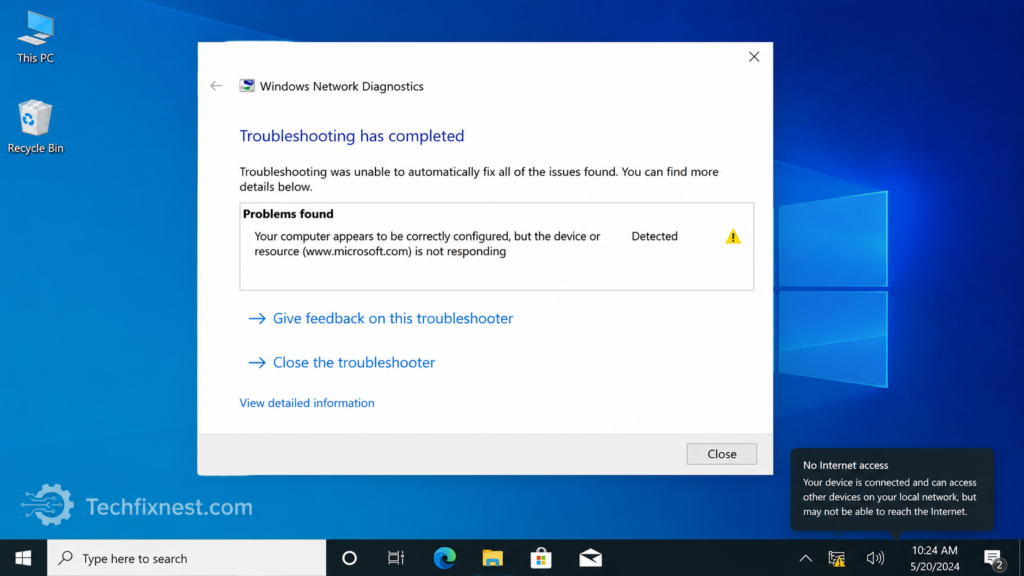
Go to Settings > Network & Internet > Status > Network Troubleshooter. Windows will automatically detect and often fix common issues.
2. Renew Your IP Address
Open Command Prompt as administrator and run:
ipconfig /release
ipconfig /renew
ipconfig /flushdns
This clears IP conflicts and refreshes your connection details.
3. Reset the Network Adapter
Go to Settings > Network & Internet > Advanced network settings > Network reset. This reinstalls network adapters and resets settings to default.
4. Update or Roll Back Network Drivers
Open Device Manager > Network Adapters, right-click your WiFi adapter, and select Update driver. If the problem started after a recent update, try Roll Back Driver instead.
Warning: A network reset will remove saved WiFi passwords, so have them ready before proceeding.
Fixes for Mac
1. Renew DHCP Lease
Go to System Settings > Network > WiFi > Details > TCP/IP, then click Renew DHCP Lease.
2. Remove and Re-Add the WiFi Network
Under System Settings > Network > WiFi, click the network, remove it, then reconnect and re-enter the password.
3. Reset Network Settings via SMC/NVRAM
Restart your Mac and reset the NVRAM by holding Option + Command + P + R during startup. This can resolve deeper connectivity issues on older Macs.
4. Check Third-Party Firewall or VPN Apps
Security software sometimes blocks internet traffic while allowing local network access. Temporarily disable any VPN or firewall app to test.
Fixes for Android
1. Forget and Reconnect to the Network
Go to Settings > WiFi, long-press the network name, select Forget, then reconnect.
2. Change DNS Settings
Go to WiFi settings > Network details > IP settings > Static, and set DNS to 8.8.8.8 and 8.8.4.4 (Google DNS).
3. Clear Network Settings Cache
Go to Settings > Apps > see all apps > Show system apps, find WiFi, and clear its cache.
4. Disable Smart Network Switch
Some Android phones automatically switch between WiFi and mobile data. Disable this under Settings > Connections > WiFi > Smart Network Switch to prevent conflicts.
Fixes for iPhone
1. Forget This Network
Go to Settings > WiFi, tap the (i) icon next to your network, and select Forget This Network. Reconnect and re-enter your password.
2. Reset Network Settings
Go to Settings > General > Transfer or Reset iPhone > Reset > Reset Network Settings. This clears saved WiFi passwords, VPN, and cellular settings.
3. Update iOS
Outdated iOS versions occasionally have known WiFi bugs. Check Settings > General > Software Update.
4. Disable Private WiFi Address
Go to Settings > WiFi, tap the (i) icon, and turn off Private Address. Some routers don’t handle this feature well, causing connection drops.
Router and ISP-Side Fixes
If the problem affects every device on your network, the issue is likely with your router or ISP.
- Check for an outage. Visit your ISP’s status page or contact support.
- Update router firmware. Log into your router’s admin panel (usually
192.168.1.1or192.168.0.1) and check for firmware updates. - Reduce connected devices. Too many devices can overload older routers.
- Change the WiFi channel. Interference from neighboring networks can cause instability; switching channels in your router settings can help.
- Factory reset the router as a last resort, then reconfigure it from scratch.
Troubleshooting Table
| Problem | Possible Cause | Solution |
|---|---|---|
| Only one device affected | Corrupted network driver or cache | Reset network adapter, forget and reconnect |
| All devices affected | Router or ISP outage | Restart router, check ISP status page |
| Connection drops repeatedly | WiFi channel interference | Change router channel or band |
| Internet works on ethernet, not WiFi | WiFi driver or router WiFi radio issue | Update drivers, restart router |
| Works on mobile data, not WiFi | Local network or router issue | Restart router, check WiFi settings |
| Error after router firmware update | Buggy firmware update | Roll back or reinstall firmware |
| Slow but working connection | Bandwidth congestion | Reduce connected devices, change channel |
Pro Tips
- Always restart the modem before the router — this order matters for re-establishing the ISP connection.
- Keep router firmware updated automatically if your router supports it.
- Use 5GHz band for less interference in crowded apartment buildings.
- Bookmark your router’s admin page for quick access during troubleshooting.
- Set a static DNS (like Google or Cloudflare) for more reliable resolution.
- Restart your router monthly to prevent memory buildup and slowdowns.
- Keep a backup list of your WiFi password stored securely, since resets often erase it.
- Position your router away from thick walls and metal objects for better signal.
- Check whether a recent OS update coincided with the issue — driver bugs are common after updates.
- If problems persist for days, call your ISP; a line-side issue may need a technician visit.
Common Mistakes to Avoid
- Resetting the router too quickly without checking if other devices are affected first.
- Ignoring firmware updates that often contain critical bug fixes.
- Assuming it’s always the device when it could be the router or ISP.
- Not writing down WiFi passwords before doing a network reset.
- Overlooking VPN or firewall software as a possible blocker.
- Placing the router in a closet or cabinet, which weakens signal and increases overheating.
Best Practices
- Restart your router and modem every few weeks to keep performance stable.
- Keep router firmware and device network drivers updated regularly.
- Use a wired connection for devices that need consistent uptime, like desktops or smart TVs.
- Limit the number of devices connected to older routers.
- Set up guest networks for visitors to reduce congestion on your main network.
- Monitor your ISP’s outage notifications if available through their app.
FAQ
This usually means your device joined the local network but isn’t getting a valid connection to the internet, often due to router issues, DNS problems, or a temporary ISP outage.
Yes, in most cases. Restarting clears temporary glitches and re-establishes the connection between your router and your ISP.
This points to a device-specific issue, such as an outdated network driver or a corrupted network adapter setting on the laptop.
If every device on your network loses internet at the same time, it’s likely your router or ISP. If only one device is affected, the issue is local to that device.
Yes. You’ll need to re-enter the WiFi password after reconnecting.
Yes. VPN apps sometimes block or reroute traffic incorrectly, especially after an app update or a change in server location.
Updates sometimes replace or reset network drivers, which can cause temporary compatibility issues until drivers are updated again.
Only as a last resort, after trying restarts, firmware updates, and channel changes. A factory reset erases all custom settings.
Some ISPs’ default DNS servers are slow or unreliable. Switching to a public DNS like Google (8.8.8.8) or Cloudflare (1.1.1.1) can resolve resolution failures.
Once every few weeks is a reasonable habit to prevent memory buildup and connectivity issues.
Yes, especially on older or budget routers with limited processing capacity.
Yes. Public networks often use captive portals or have stricter traffic filtering, which can trigger this exact error.
Conclusion
A “WiFi connected but no internet” error is frustrating, but it’s almost always fixable without professional help. Start with the basics — restarting your router and device — since this resolves most cases within minutes. If that doesn’t work, move to device-specific fixes like renewing your IP address, updating network drivers, or resetting network settings.
If the problem affects your entire household, the issue likely sits with your router or ISP rather than a single device. In that case, checking for outages, updating firmware, and adjusting your WiFi channel are your best next steps.
With the fixes in this guide, you should be back online quickly — and better equipped to handle it if the issue returns.