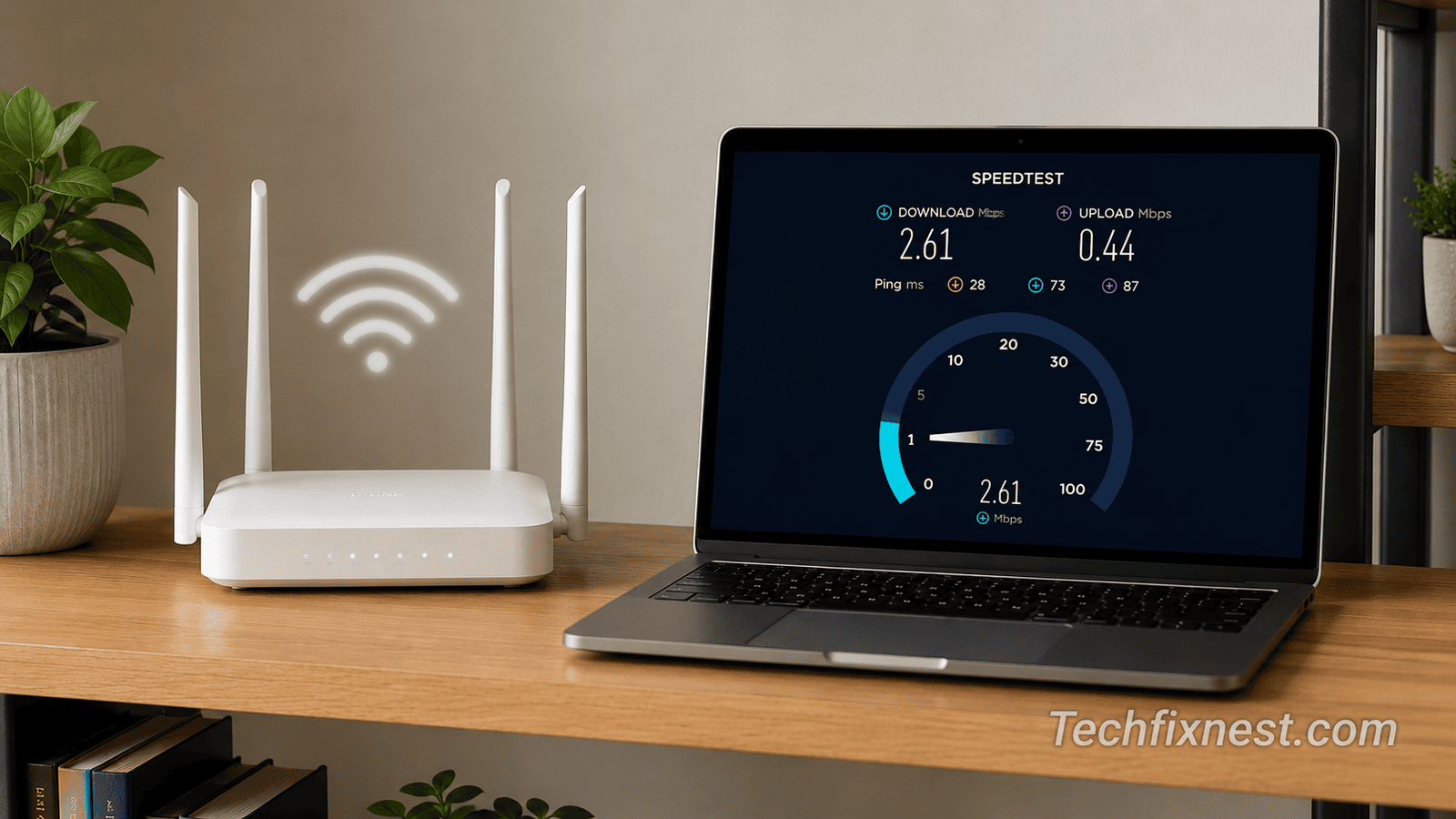
Router Restarted But Internet Is Still Slow: A couple of months ago, I spent almost an entire Sunday convinced my ISP was throttling me. I’d restarted my router three separate times, unplugged it, counted to thirty like some kind of tech ritual, plugged it back in and my internet was still crawling. Netflix kept buffering on 480p. Pages that used to load instantly were taking eight, ten seconds. I was about to call my provider and yell at someone who had nothing to do with it.
Turns out the problem wasn’t my ISP at all. It was a mix of three small things stacked on top of each other a background Windows update eating my bandwidth, a router firmware that hadn’t been updated in over a year, and (this one embarrassed me) a neighbor’s device that had somehow gotten onto my network. None of that gets fixed by a restart. A restart only clears temporary memory glitches on the router itself it doesn’t touch anything happening on your devices, your ISP’s line, or your network settings.
What made it worse was that everything on the router itself looked completely normal. All the lights were green, the connection was stable, my phone showed full bars of Wi-Fi. Nothing about it screamed “problem” it just felt slow, which is honestly the most frustrating kind of tech issue because there’s no obvious error message pointing you in the right direction. You’re basically troubleshooting a feeling.
That’s actually the trap most people fall into. A restart fixes the router’s short-term memory, so if the issue is something else entirely firmware, bandwidth hogging, DNS, interference a reboot changes nothing, and you end up restarting the same router five more times expecting a different result. I did exactly that before I sat down and actually worked through this systematically instead of guessing.
If you’re in the same spot right now router rebooted, lights all green, speed still garbage here’s the exact troubleshooting order I use, starting with the fastest checks and moving to the ones that actually solve stubborn cases.
Quick Answer
If restarting your router didn’t fix slow internet, the issue is usually one of these: too many connected devices, outdated router firmware, wrong Wi-Fi channel/band, background downloads eating bandwidth, DNS server lag, or a genuine ISP-side outage. Run a wired speed test first to rule out Wi-Fi interference, then work through firmware updates, band switching, and device audits before contacting your ISP.
Why a Restart Doesn’t Always Fix Slow Speeds
Restarting clears your router’s short-term memory and forces it to grab a fresh IP address from your ISP. That fixes connection drops and minor freezes. But it does nothing for firmware bugs, channel congestion from neighbouring networks, background apps hogging bandwidth on your own devices, or actual line issues from your provider. Slow speed after a restart almost always points to something ongoing, not something temporary which is exactly why the problem comes right back.
How to Tell If It’s Your Router or Your ISP
Before you spend an hour digging through settings, it helps to narrow down where the problem actually lives. There are really only three possible culprits: your router/modem, your home network (devices and Wi-Fi settings), or your ISP’s line coming into your house.
A simple way to separate these: check if the slowdown affects every device in the house or just one. If your phone, laptop, and smart TV are all struggling at the same time, the problem is upstream router, modem, or ISP. If it’s just one device crawling while everything else is fine, the issue is local to that device (outdated drivers, background apps, or a weak Wi-Fi antenna on that specific gadget).
It also helps to check if the slowdown is constant or comes and goes at certain times. Constant slowness from the moment you wake the device up usually points to a router or ISP issue. Slowdowns that appear only in the evening or at specific hours usually mean network congestion, either from your own household or from your ISP’s local network being busier during peak usage.
1. Test Speed on a Wired Connection First
Before touching any settings, plug a laptop directly into the router with an Ethernet cable and run a speed test (Speedtest.net or fast.com both work fine). This one step tells you everything.
If wired speed is close to what you’re paying for, your problem is Wi-Fi related interference, distance, or too many devices on wireless. If wired speed is also slow, the issue is upstream: your router, your modem, or your ISP.
I skipped this step the first time and wasted two hours adjusting Wi-Fi settings for a problem that turned out to be on the wired side. Don’t make my mistake this test takes ninety seconds and saves you from guessing blind.
2. Check How Many Devices Are Actually Connected
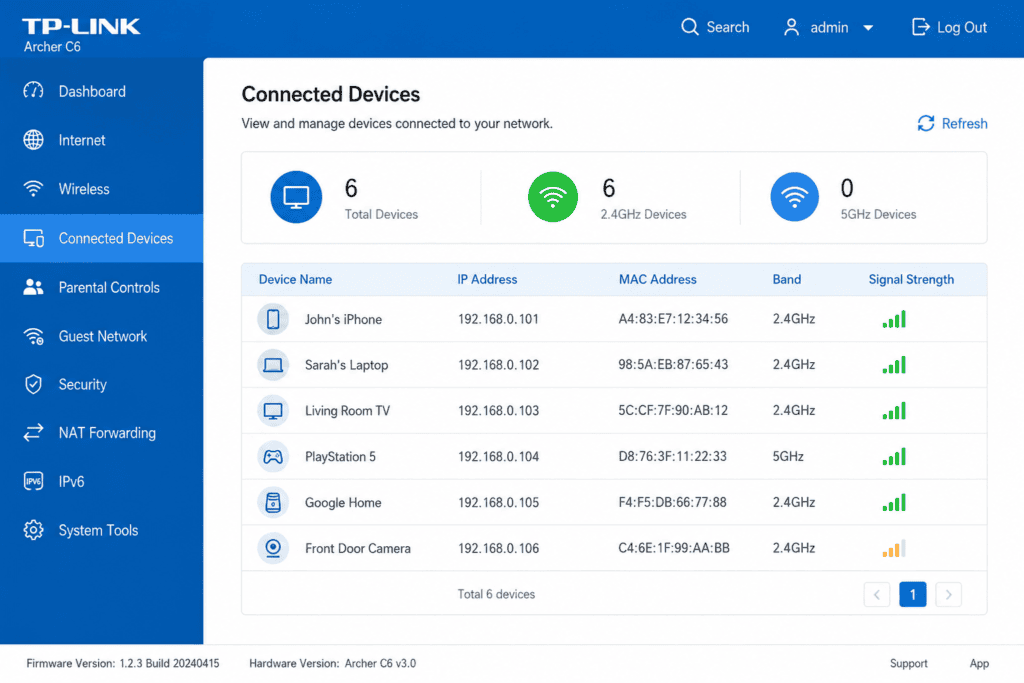
Open your router’s admin page (usually 192.168.1.1 or 192.168.0.1, check the sticker on the router) and look at the connected devices list. I once found fourteen devices on my home network when I expected six smart bulbs, an old tablet nobody used anymore, and yes, a device I didn’t recognize at all.
Every connected device shares your available bandwidth, and background syncing (cloud backups, smart home check-ins, auto-updates) adds up fast even when nothing looks “active” on screen.
What to do: Disconnect anything you don’t recognize, and set a strong WPA3 or WPA2 password if you haven’t already.
3. Update Your Router’s Firmware
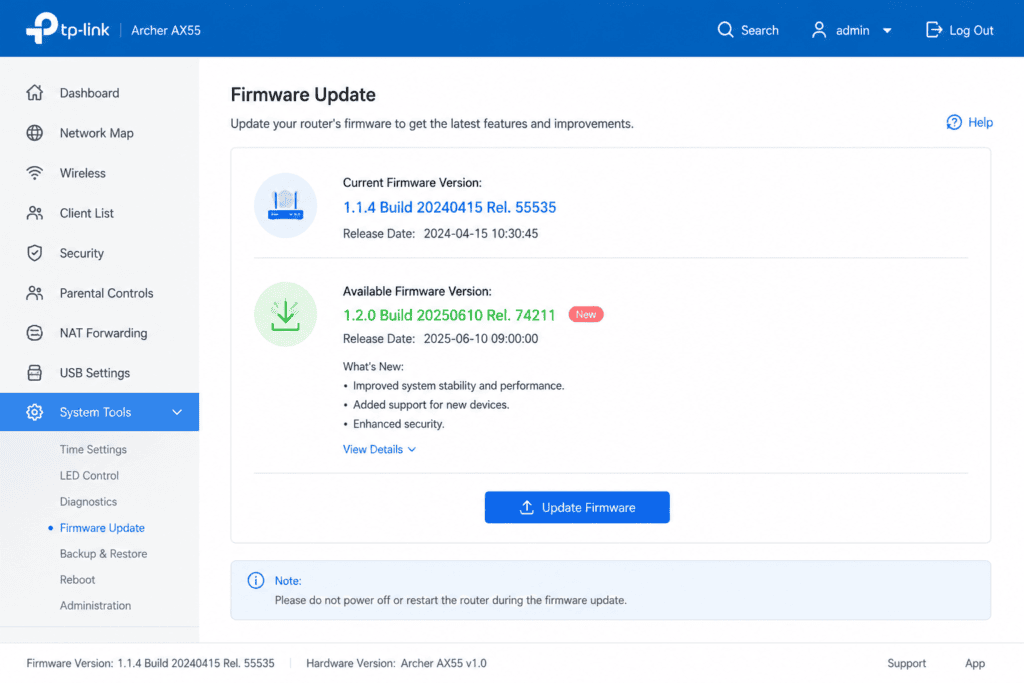
This is the fix that solved my case. My router hadn’t had a firmware update applied in over a year, and older firmware versions often have unpatched bugs that cause throttling, dropped packets, or poor channel management especially on routers over two years old.
How to update:
- Log into your router’s admin panel
- Look for “Firmware Update” or “Router Update” (usually under Administration or Advanced settings)
- Check for a new version and install it
- Let the router restart on its own after the update completes
Most routers check for updates automatically now, but plenty of ISP-provided routers don’t you have to trigger it manually.
In my case, the update log showed the last firmware install was over fourteen months old. After updating, I noticed the difference within the first evening pages loaded faster, and the connection stopped that weird pattern where it would run fine for ten minutes and then choke for thirty seconds. That stutter pattern, in hindsight, was a classic sign of a router struggling to manage connected devices efficiently with outdated software, not an actual bandwidth shortage.
If your router is provided by your ISP (a lot of bundled modem-router combos are), check whether updates are pushed automatically from their end or whether you need to log in and trigger them yourself. Some ISP routers hide the firmware option a few menus deep under “Advanced” or “Device Management” rather than the main dashboard.
4. Switch Wi-Fi Bands (2.4GHz vs 5GHz)
If your router is dual-band, you’re likely connected to one of two frequencies:
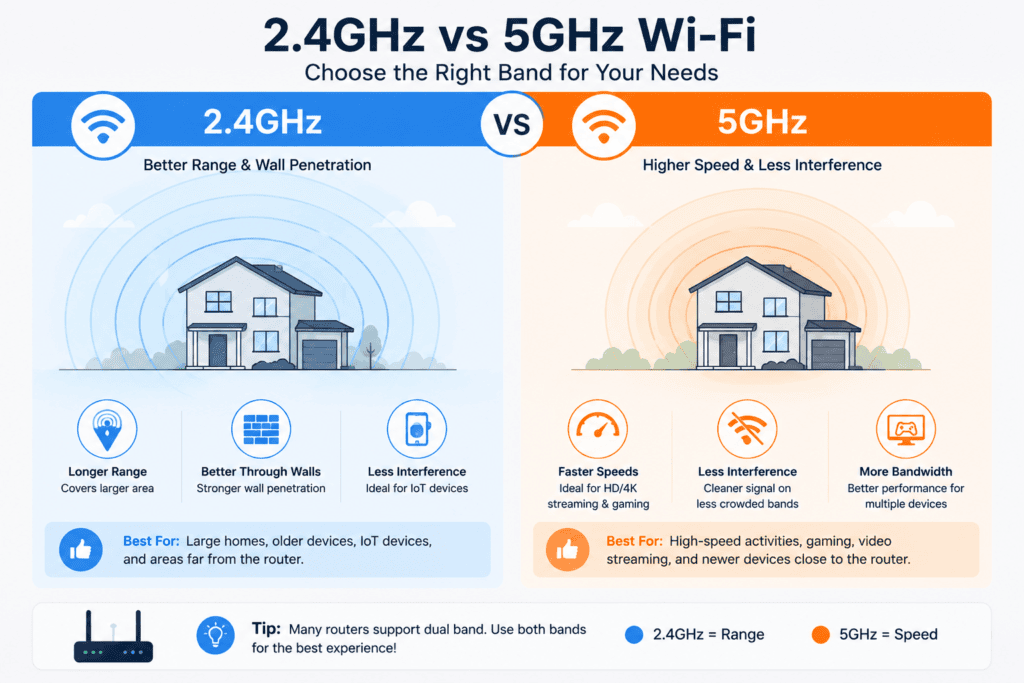
- 2.4GHz — longer range, goes through walls better, but slower and more prone to congestion since most smart home devices use it
- 5GHz — much faster, but shorter range and weaker through walls
If you’re near your router, switch to 5GHz for noticeably better speed. If you’re far from it and stuck on 2.4GHz, that congestion (from neighbors’ routers, baby monitors, microwaves, and Bluetooth devices all fighting for the same frequency) could be your entire problem.
5. Change Your Wi-Fi Channel
On 2.4GHz especially, if you live in an apartment building or dense neighborhood, dozens of nearby routers might be broadcasting on the same channel as yours, causing constant interference.
In your router settings, switch from “Auto” channel selection to a manual channel 1, 6, or 11 are the least likely to overlap with neighbouring networks. You may need to try each one and re-test speed to find what works best in your specific location.
6. Check for Background Downloads and Updates
This one catches almost everyone off guard. Windows updates, game downloads (Steam and Xbox apps are notorious for this), cloud backup software, and auto-playing video sites can silently eat most of your bandwidth while you think nothing is running.
On Windows, open Task Manager → Performance → open Resource Monitor → check the Network tab to see exactly what’s using bandwidth in real time. On a phone, check for pending app updates or cloud photo backups running in the background.
This was actually part of my own problem too. A Windows update had been silently downloading in the background for hours, and because it wasn’t showing any visible progress bar, I had no reason to suspect it. It was only when I opened Resource Monitor and saw one process eating almost 80% of available bandwidth that it clicked. If you share a network with roommates, family, or kids gaming or streaming, it’s worth checking their devices too one person’s 4K stream or large game download can noticeably slow things down for everyone else on the same connection.
7. Reset DNS Settings
Slow-loading websites (as opposed to slow downloads) often point to DNS lag rather than actual bandwidth issues. Your ISP’s default DNS servers can be slow, especially during peak hours.
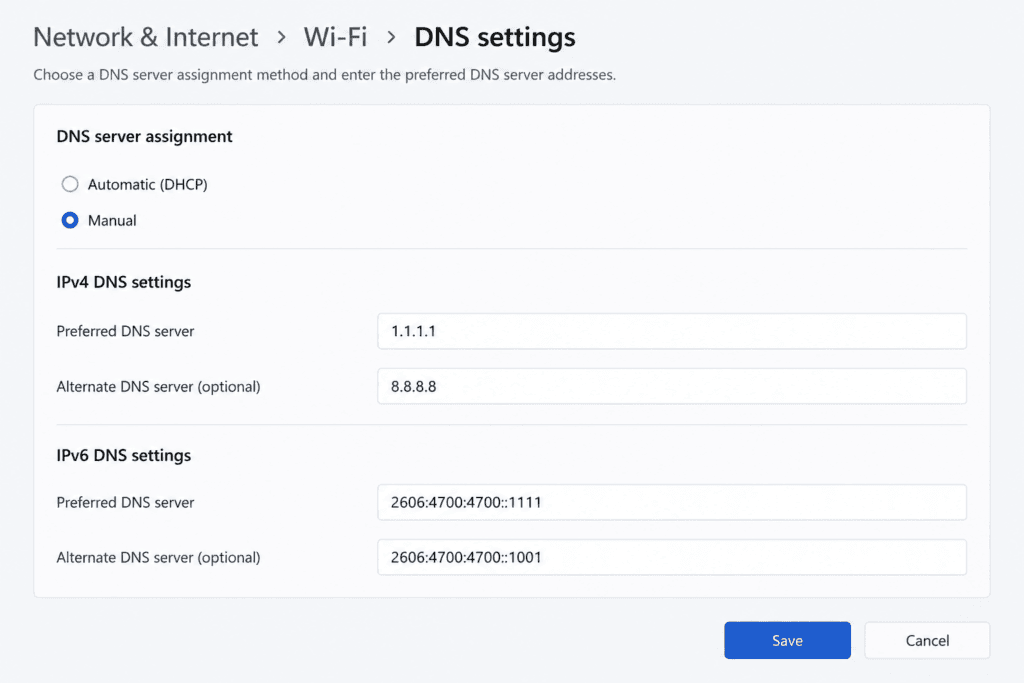
Try switching to a faster public DNS:
- Google DNS: 8.8.8.8 / 8.8.4.4
- Cloudflare DNS: 1.1.1.1 / 1.0.0.1
You can change this in your router settings (applies to your whole network) or individually on a device’s Wi-Fi settings.
8. Reposition Your Router
Router placement matters more than most people think. Keep it elevated, away from thick walls, metal objects, and other electronics like microwaves and cordless phones, which interfere with the signal. Centrally located and off the floor is ideal a router tucked inside a TV cabinet or behind a wall is going to underperform no matter how good it is.
9. Contact Your ISP (With Proof)
If you’ve worked through everything above and wired speeds are still well below what you’re paying for, it’s time to call your provider. Don’t just say “internet is slow” have your speed test results ready (screenshot the wired test specifically), and ask directly whether there’s a known outage or line issue in your area. This gets you past the basic script and to someone who can actually check line quality on their end.
Troubleshooting Table
| Symptom | Likely Cause | Fix |
|---|---|---|
| Slow on all devices, wired and wireless | ISP or modem issue | Test wired speed, contact ISP |
| Slow only on Wi-Fi, fast when wired | Band/channel congestion | Switch to 5GHz or change channel |
| Fine at first, slows down over time | Background downloads/updates | Check Task Manager / Resource Monitor |
| Slow only in certain rooms | Router placement/distance | Reposition router or add extender |
| Websites slow, downloads fast | DNS lag | Switch to 1.1.1.1 or 8.8.8.8 |
| Random unrecognized devices connected | Unauthorized access | Change Wi-Fi password, review device list |
Pro Tips
- Run speed tests at different times of day (evening peak hours often show the real bottleneck)
- Restart your modem too, not just the router they’re often separate devices even if bundled
- If your router is more than 4-5 years old, hardware limitations may be the real ceiling, not settings
- Keep firmware auto-update enabled if your router supports it, so you’re not doing this manually every time
Common Mistakes to Avoid
- Only testing speed over Wi-Fi and assuming it reflects your actual plan speed
- Ignoring firmware updates because “the router still works fine”
- Blaming the ISP before checking your own network for rogue devices or background usage
- Leaving the router on “Auto” channel in a crowded apartment building
FAQ
No. A router restart only clears temporary memory and reconnects to your ISP. Malware on a connected device needs to be removed separately with antivirus software.
This is usually network congestion either from your ISP’s local network being busier during peak hours, or from more devices in your own home being active in the evening.
If your router is over 4-5 years old and firmware updates and channel changes haven’t helped, yes older hardware simply can’t handle modern speeds and device loads efficiently.
Yes, VPNs can reduce speed since traffic is routed through an external server. Try disabling it temporarily to see if speed improves.