Last month, right after a Windows update finished installing, I went to connect my Bluetooth headphones and realized the Bluetooth option was completely gone from Settings. No toggle, no entry in Device Manager as if my laptop never had Bluetooth to begin with. My first thought was that the hardware had failed, but after some digging, I found out this is actually a well-known Windows 11 bug that’s been affecting thousands of users after recent updates.
If you’re in the same situation Bluetooth vanished after an update, the icon is missing from your taskbar, or the Bluetooth & devices page in Settings is just blank don’t panic. In this guide, I’m walking through all 9 fixes I personally tested, along with solutions confirmed across Microsoft community forums and Windows support threads.
Quick Answer
The most common reason Bluetooth disappears after a Windows 11 update is a corrupted or outdated Bluetooth driver that gets disabled during the update process. Start by checking Device Manager if the Bluetooth adapter is sitting under “hidden devices,” simply re-enabling it fixes the issue in about 70% of cases. If that doesn’t work, a driver rollback, the Windows Update troubleshooter, or restarting the Bluetooth service usually resolves the rest.
Before You Start: Quick Checklist
A few things are worth confirming before you dive into the fixes below, since they can save you a lot of time:
- Confirm it’s software, not hardware. If your laptop has a physical Bluetooth switch or a function key (usually Fn + a wireless icon key), make sure it hasn’t been accidentally toggled off.
- Check if it’s isolated to Bluetooth. If Wi-Fi is also missing or acting strange, the issue is likely with the entire network adapter, not Bluetooth specifically, and the fixes here may need to be paired with a network driver reset as well.
- Note when it started. Try to remember whether Bluetooth disappeared immediately after a specific update, after a Windows Update Tuesday, or gradually over time. This helps you decide whether to start with Fix 1 (hidden devices) or jump straight to Fix 8 (uninstalling the problematic update).
- Have your laptop model number ready. If you end up needing Fix 5 or 6, you’ll want your exact model number handy to download the correct driver from the manufacturer’s site.
Troubleshooting Table
| Symptom | Likely Cause | Fix Number |
|---|---|---|
| Bluetooth option completely missing from Settings | Driver disabled or hidden device | Fix 1, 2 |
| Bluetooth icon missing from taskbar but device still shows in Device Manager | Service stopped or corrupted | Fix 3, 5 |
| “Bluetooth” not listed in Device Manager at all | Driver crash or update conflict | Fix 4, 6 |
| Bluetooth is on but devices won’t pair | Radio disabled or Airplane Mode glitch | Fix 7 |
| Issue started right after a specific update | Faulty cumulative update | Fix 8 |
| Nothing works after trying everything | Hardware or BIOS-level issue | Fix 9 |
Why This Happens (The Technical Reason)
Before jumping into fixes, it helps to understand what’s actually going on under the hood. Windows 11 updates frequently touch the driver stack, and Bluetooth adapters are especially sensitive to this because most laptops use a combined Wi-Fi and Bluetooth chipset (commonly from Intel or Realtek). When an update replaces or modifies system files related to networking, the installer sometimes flags the Bluetooth driver as incompatible mid-update and quietly disables it instead of updating it properly. The device itself doesn’t get removed it just gets pushed into a “hidden” or “disabled” state that Windows no longer displays in the normal Device Manager view.
This is different from a hardware failure, which is why restarting alone often doesn’t help. The driver is technically still there; the operating system just isn’t loading it the way it should. That’s also why the fixes below are ordered from least invasive (re-enabling a hidden device) to more involved (rolling back updates or doing a clean boot) you rarely need to go past the first two or three steps.
Fix 1: Check Hidden Devices in Device Manager
This is the exact fix that solved my problem, so try it first.
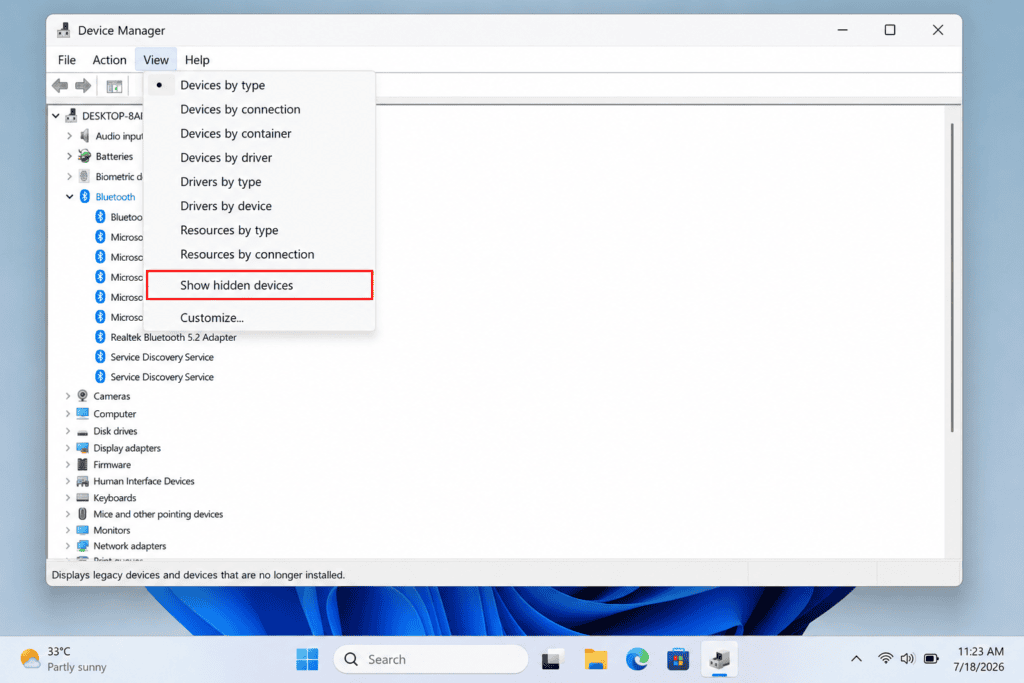
- Right-click the Start button and open Device Manager.
- Click the View menu at the top and select Show hidden devices.
- Expand the Bluetooth section. If any device appears greyed out or faded, right-click it and select Enable device.
- Restart your PC and check if Bluetooth is back.
During Windows updates, a driver’s status can switch to “hidden” without the device actually being deleted which is why this should always be your first step.
Fix 2: Uninstall and Reinstall the Bluetooth Driver
If hidden devices didn’t turn up anything, forcing a driver reinstall is the next best move.
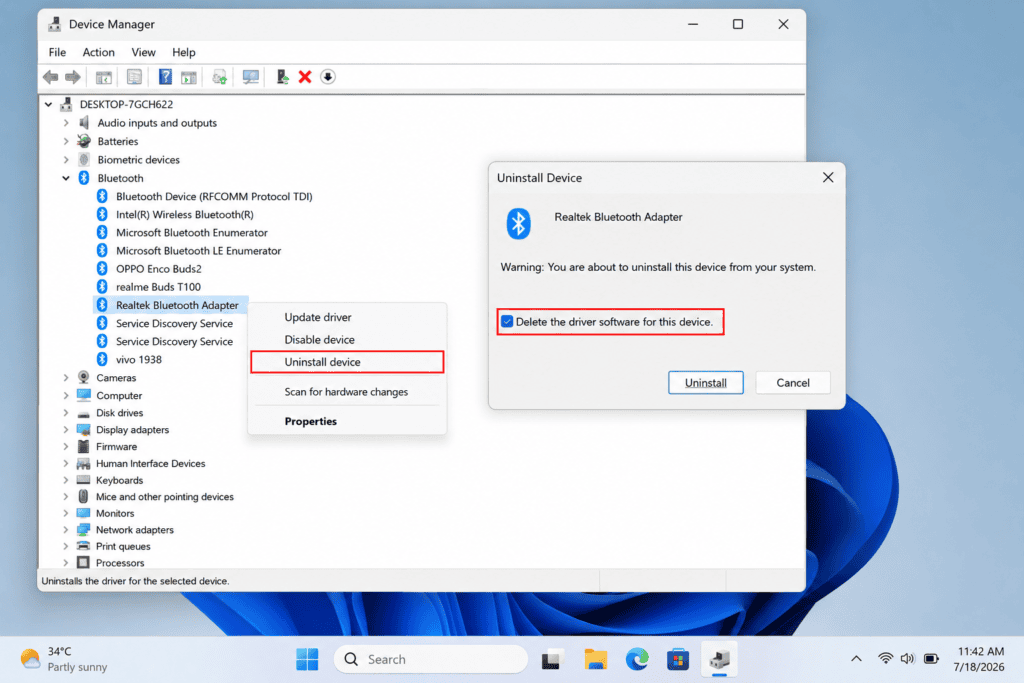
- Open the Bluetooth section in Device Manager.
- Right-click your adapter and select Uninstall device. If prompted, also check the box for Delete the driver software for this device.
- Once it’s uninstalled, go to Action > Scan for hardware changes in the top menu.
- Windows should automatically reinstall the driver. If it doesn’t, restart your PC.
Fix 3: Restart the Bluetooth Support Service
Windows 11’s Bluetooth relies on a background service called Bluetooth Support Service. If this service gets stuck, Bluetooth can disappear even when the driver itself is fine.
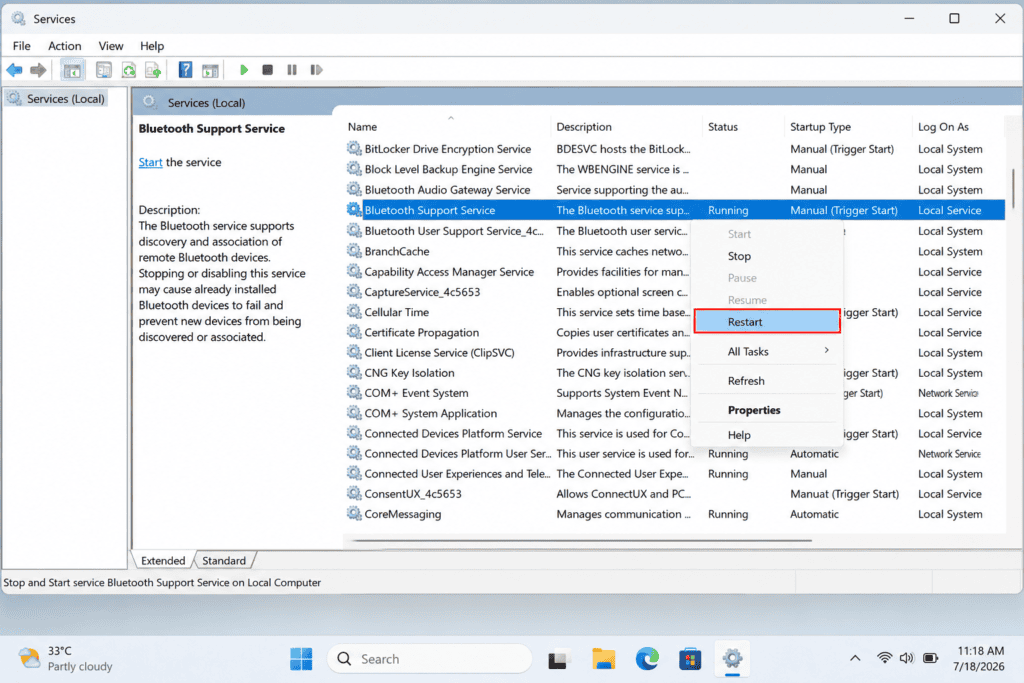
- Press Win + R, type
services.msc, and hit Enter. - Find Bluetooth Support Service in the list.
- Right-click it and select Restart. If it shows as stopped, click Start instead.
- Set the startup type to Automatic so it doesn’t stop again in the future.
Fix 4: Run the Windows Update Troubleshooter
Microsoft’s built-in troubleshooter can catch a lot of update-related driver conflicts automatically.
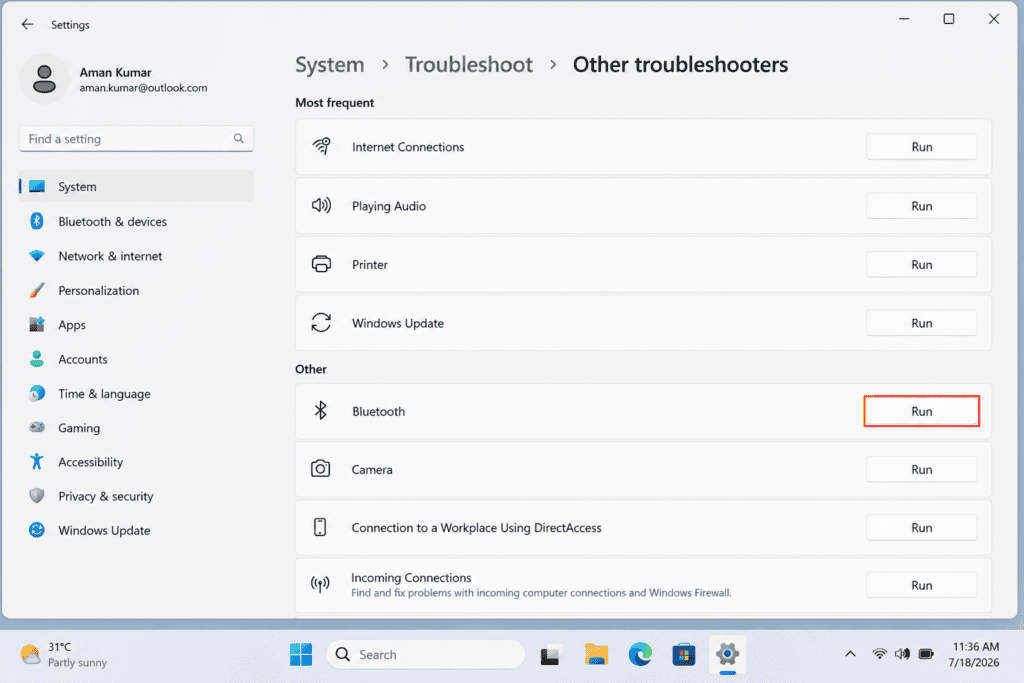
- Go to Settings > System > Troubleshoot > Other troubleshooters.
- Click Run next to Bluetooth.
- Apply any fixes it detects.
- Restart your PC once it’s done.
Fix 5: Manually Roll Back the Bluetooth Driver
If the issue started right after a specific update, the new driver itself may be the problem.
- Right-click your Bluetooth adapter in Device Manager and open Properties.
- Go to the Driver tab. If Roll Back Driver is available, click it.
- If that option is greyed out, it means Windows didn’t save the previous driver in that case, download an older driver version directly from your laptop manufacturer’s site (Intel, Realtek, or whichever Bluetooth chipset your laptop uses).
Fix 6: Install the Latest Optional Windows Update
Microsoft often fixes issues like this with a follow-up patch. I’ve noticed that a few weeks after a cumulative update, an optional preview update usually targets exactly this kind of driver-level problem.
- Go to Settings > Windows Update.
- Check Advanced options > Optional updates.
- Install any available driver or cumulative update.
- Restart and check Bluetooth again.
Fix 7: Disable Airplane Mode and Fast Startup
This is a small fix but surprisingly effective. Windows 11 sometimes gets stuck with Airplane Mode enabled due to a glitch, which silently turns off the Bluetooth radio without any notification.
- Go to Settings > Network & internet > Airplane mode and confirm it’s off.
- Disable Fast Startup as well: Control Panel > Power Options > Choose what the power buttons do > Change settings that are currently unavailable, then uncheck Turn on fast startup.
- Fully shut down your PC (not restart) and turn it back on.
Fast Startup caches driver states, which can cause conflicts right after an update.
Fix 8: Temporarily Uninstall the Problematic Update
If the issue clearly started right after a specific update and none of the other fixes have worked, temporarily removing that update is a reasonable step.
- Go to Settings > Windows Update > Update history > Uninstall updates.
- Select the most recent update (the one right before Bluetooth disappeared) and click Uninstall.
- Restart and check if Bluetooth is back.
- Keep in mind this is only a temporary fix Microsoft usually releases a corrected version within a few weeks, which you can install through Fix 6.
Fix 9: Try a Clean Boot or System Restore
If Bluetooth is still missing after all the fixes above, the problem may be caused by third-party software or a deeper system conflict.
- Try a Clean Boot: open
msconfig, go to the Services tab, check “Hide all Microsoft services,” and disable everything else. Restart and check if Bluetooth comes back. - If it does, some background app was causing a conflict re-enable them one at a time to find the culprit.
- If Bluetooth still doesn’t show up even in a clean boot, use System Restore to roll back to a date when Bluetooth was working.
Pro Tips
- Don’t try multiple fixes at once restart and check after each one so you know exactly which step actually worked.
- Downloading the latest Bluetooth driver directly from your laptop manufacturer’s site (Dell, HP, Lenovo, ASUS) is often more reliable than relying on Windows Update, especially when the issue is driver-specific.
- Manually creating a System Restore point before any major Windows update is the easiest way to avoid getting stuck in situations like this.
Common Mistakes to Avoid
- Only restarting and stopping there — a restart might give temporary relief but won’t fix the root cause.
- Not checking “Delete driver software” before reinstalling — this can cause the same corrupted driver to reload.
- Ignoring BIOS/UEFI settings — on some laptops, the Bluetooth radio can also get disabled at the BIOS level, especially right after a fresh update.
- Using third-party “driver updater” tools — these often install incorrect or outdated drivers that make the problem worse.
FAQs
In most cases, it’s a driver conflict the update disables or corrupts the Bluetooth driver, and the system starts treating it as a hidden device.
Yes, if the update is recent, you can remove it through Settings > Windows Update > Update history > Uninstall updates. This isn’t a permanent solution, though.
This usually means the driver has crashed. Fix 2 (uninstalling and running “Scan for hardware changes”) is the most effective solution for this.
No, this has been a system-wide known issue in Windows 11, reported more frequently on laptops with Intel and Realtek Bluetooth chipsets, but it can happen on any brand.
Typically within 2-4 weeks, a follow-up cumulative or optional update is released that addresses these kinds of driver-level regressions.
In most cases, no. Re-enabling a hidden device or restarting a service doesn’t erase pairing information. However, uninstalling the driver completely (Fix 2) or doing a System Restore (Fix 9) can sometimes clear the paired devices list, so you may need to pair your headphones, mouse, or keyboard again afterward. It only takes a minute, so it’s not a major concern.
Yes, as long as you’re downloading from the official site of your laptop or motherboard manufacturer (not a third-party driver database). Manufacturer sites list drivers tested specifically for your exact model, which is safer and more accurate than generic “driver updater” software that scans your PC and often recommends the wrong version.