I updated my iPhone 15 Pro to iOS 26 on a random Tuesday night, mostly because I was tired of seeing that little red badge on Settings. By Thursday afternoon, I was charging my phone three times a day. Three. I work from a coffee shop near Liberty Market a couple days a week, and I actually had to start carrying a power bank just to survive until evening something I hadn’t done since 2019.
At first I blamed my usage. Too much scrolling, too many tabs open in Safari, whatever. But when I checked Screen Time and saw my phone had lost 40% battery overnight while sitting untouched on the nightstand, I knew this wasn’t a “me” problem. It was an iOS 26 problem.
Turns out I wasn’t imagining it. A huge number of users reported the exact same thing after updating, and most of it traces back to how iOS 26 handles background re-indexing for the new Spotlight search and Apple Intelligence features. The system quietly chews through battery in the background for days after the update, and on top of that, the new “Liquid Glass” interface adds extra GPU load that older chips weren’t really built for.
Good news: you don’t need to factory reset your phone or live with this forever. Here’s exactly what I did, in the order I did it, and which steps actually moved the needle.
Quick Answer
If you’re in a hurry: go to Settings > General > Background App Refresh and turn it off for anything you don’t need updating in real time, then let your phone finish its post-update re-indexing overnight while plugged in (don’t touch it for a full charge cycle). Combine that with disabling Always-On Display and turning off “Reduce Transparency” under Accessibility, and most people see battery life return to normal within 2-3 days. If it doesn’t, the deeper fixes below will sort it out.
Why This Happens After iOS 26
Before jumping into fixes, it helps to actually understand what’s draining the battery, because that changes which fix matters most for your situation.
Every major iOS update triggers a background process where your phone re-indexes Spotlight search, rebuilds Siri suggestions, and new to iOS 26 downloads and configures on-device Apple Intelligence models (if your phone got stuck mid-download during this process, here’s how to fix that specifically). This isn’t a quick job. Depending on how much data is on your phone, this can run in the background for 24 to 72 hours, and it’s CPU-intensive the entire time.
On top of that, iOS 26’s redesigned interface (Apple calls it “Liquid Glass”) uses real-time translucency and layered animations throughout the system — Control Center, notifications, app switching, all of it. It looks great, but it’s genuinely more demanding on the GPU than the flatter design iOS had before, especially on anything older than an iPhone 15.
So you’re dealing with two separate drains stacked on top of each other: a temporary one (re-indexing, which settles down on its own) and a semi-permanent one (the new UI’s baseline resource usage, which you can partially offset but not fully eliminate).
Fix 1: Let the Re-Indexing Actually Finish
This is the fix nobody wants to hear because it requires patience, but skipping it is why a lot of people stay stuck on high battery drain for weeks instead of days.
- Plug your phone into power overnight
- Make sure it’s connected to Wi-Fi
- Leave it alone don’t lock-unlock it repeatedly, don’t force-quit apps thinking that’ll speed things up
- Give it one full uninterrupted charge cycle, ideally overnight for 2-3 nights in a row
I was guilty of checking my phone every twenty minutes “to see if it improved,” which honestly probably slowed the re-indexing down since every wake cycle interrupts background tasks. Once I actually left it charging overnight without touching it, my battery health report the next morning already looked noticeably better.
Fix 2: Turn Off Background App Refresh For Apps You Don’t Need
Go to Settings > General > Background App Refresh and tap into it. You’ll see a master toggle plus a list of every app with permission to run in the background.
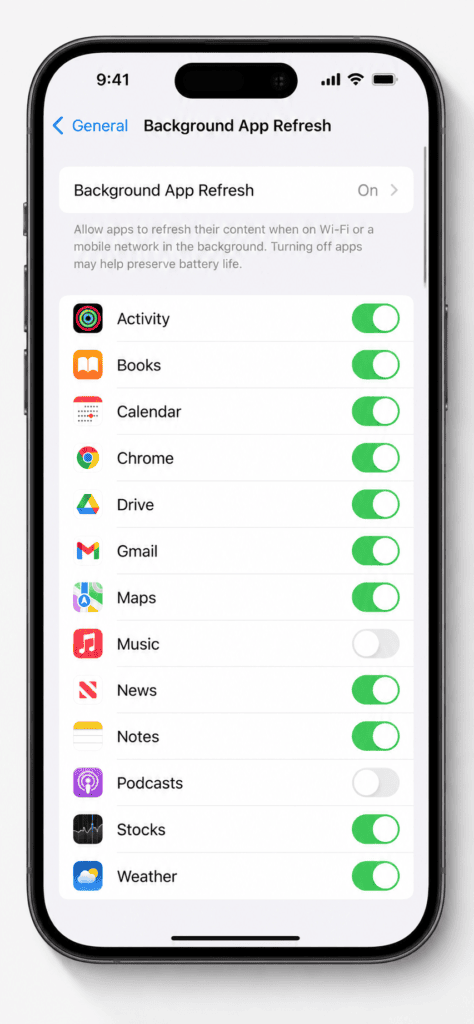
You don’t need to nuke this entirely turn off Wi-Fi & Cellular entirely if you want the aggressive route, or just go app by app and disable it for anything that doesn’t genuinely need to update in real time. For me that meant killing background refresh for Instagram, TikTok, and two shopping apps I barely open. I kept it on for WhatsApp and my banking app.
Fix 3: Disable Always-On Display
This one surprised me. Always-On Display keeps your screen faintly lit and processing even when it’s “off,” and combined with iOS 26’s new lock screen animations, it draws noticeably more power than it did pre-update.
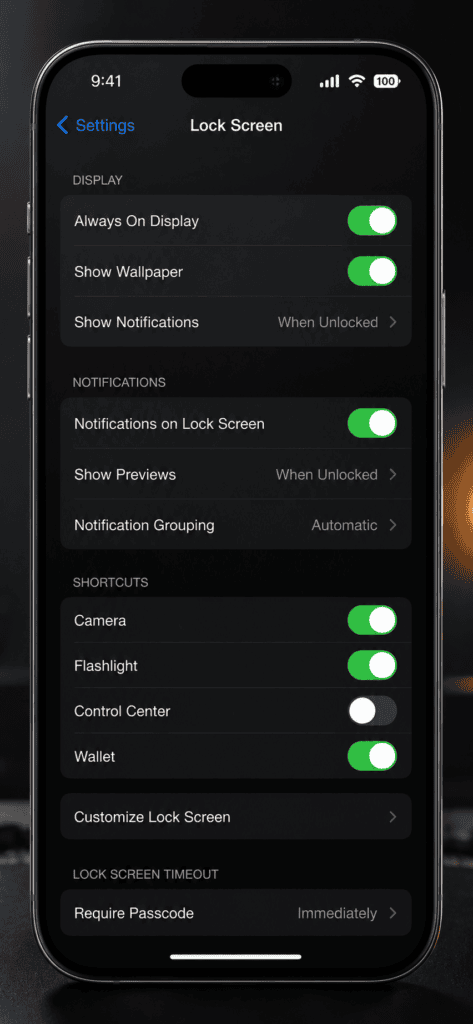
Go to Settings > Display & Brightness > Always On Display and switch it off. If you have a Pro model, you’ll feel this one the most, since the always-on panel is doing more visual work under iOS 26 than it used to.
Fix 4: Turn Off Reduce Transparency (Yes, Really — Turn It Off)
This sounds backwards, but stick with me. Under Settings > Accessibility > Display & Text Size > Reduce Transparency, most guides tell you to turn this ON to save battery. On iOS 26 specifically, several users myself included found the opposite: with Reduce Transparency ON, the system tries to simulate the transparency effect in software instead of skipping it, which paradoxically uses more processing power on some models.
Test both ways for a day each if you’re not sure. On my phone, having it OFF (so the native Liquid Glass rendering handles it directly via hardware) resulted in better battery life than forcing the reduced/simulated version.
Fix 5: Check Which Apps Are Actually Draining You
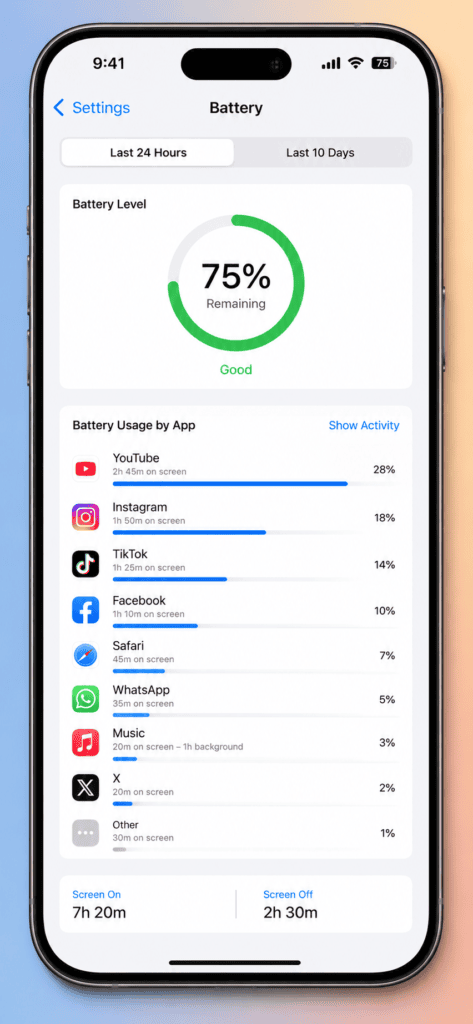
Go to Settings > Battery and scroll down to see the battery usage breakdown by app over the last 24 hours and 10 days. Right after my update, Photos and Spotlight-related system processes were eating a shocking amount over 20% combined which confirmed the re-indexing theory.
If you see one specific third-party app hogging way more battery than usual, that app probably hasn’t been updated for iOS 26 compatibility yet. Check the App Store for a pending update, or as a temporary measure, offload that app until the developer pushes a fix.
Fix 6: Reset Location & Privacy Settings (Only If Fixes 1-5 Don’t Help)
If your battery is still draining fast after three or four days, there’s a chance a specific permission or setting is stuck in a loop this happens occasionally after major iOS updates when location or notification permissions don’t migrate cleanly.
Go to Settings > General > Transfer or Reset iPhone > Reset > Reset Location & Privacy. This doesn’t erase any data or apps it just resets which permissions each app has, and you’ll need to re-approve things like location access and camera access the next time you open each app. Mildly annoying, but it’s non-destructive and has fixed stubborn drain issues for a lot of people, including a friend of mine whose iPhone 14 was randomly hitting 15% battery by lunchtime even with everything else disabled.
Fix 7: Install the Latest iOS 26 Point Update
This sounds obvious, but a surprising number of people stay on the exact build they updated to originally, thinking a second update will just cause more disruption. In reality, Apple’s point releases (26.0.1, 26.1, and so on) specifically target early battery and thermal complaints it’s usually the fastest fix available once one drops.
Go to Settings > General > Software Update and install anything available. If nothing’s listed, turn on Automatic Updates so you get the next patch the moment it ships instead of finding out weeks later.
Fix 8: Turn Off Live Activities You’re Not Using
Live Activities (the ones that sit on your Lock Screen and Dynamic Island sports scores, delivery trackers, ride shares) keep a background connection alive to refresh in real time. Under iOS 26, several of these kept running even after the event they were tracking had ended, silently draining battery for hours.
Go to Settings > Face ID & Passcode (or Settings > [App Name] > Live Activities for individual apps) and check what’s still active. If you see a Live Activity for a delivery that arrived yesterday or a game that finished last week, force-close it from the Lock Screen by pressing and holding it, then tapping the X.
Fix 9: Switch Off Precise Location for Apps That Don’t Need It
GPS is one of the most power-hungry components on your phone, and iOS 26 seems to poll location more aggressively for a subset of apps post-update, even ones that don’t obviously need pinpoint accuracy.
Go to Settings > Privacy & Security > Location Services, tap into individual apps, and turn off Precise Location for anything that only needs your general area weather apps, news apps, most social apps. They’ll still work fine with approximate location, and you’ll stop your GPS chip from working overtime in the background.
Fix 10: Check Battery Analytics for Apps With Excessive Wake-Ups
This is a more advanced diagnostic, but it’s worth the two minutes if the earlier fixes only partially helped. Go to Settings > Privacy & Security > Analytics & Improvements > Analytics Data, and search for a log file starting with “log_aggregated” from today’s date.
You don’t need to read the whole thing just search (Cmd+F if you’ve AirDropped it to a Mac, or use the on-device search) for your most-used third-party apps and look for unusually high “wake” counts. An app waking your phone up dozens of times per hour is a strong sign it has a bug that hasn’t been patched for iOS 26 yet, and it’s worth temporarily deleting until an update arrives.
Fix 11: Turn Off AirDrop Discoverability When Not in Use
Small one, but it adds up. Under iOS 26, having AirDrop set to “Everyone for 10 Minutes” or “Contacts Only” keeps a low-level Bluetooth and Wi-Fi radio scan running in the background so your phone can be discovered. Most people leave this on permanently without needing it.
Go to Settings > General > AirDrop and set it to Receiving Off unless you’re actively sharing something. It’s a small drain individually, but combined with everything else on this list, it’s an easy one to eliminate for free.
Troubleshooting Table
| Symptom | Likely Cause | Fix |
|---|---|---|
| Battery drains overnight while phone is idle | Background re-indexing not finished | Fix 1 — let it charge undisturbed |
| Drain during normal browsing/social media use | Background App Refresh left on for too many apps | Fix 2 |
| Lock screen drains battery even when not in use | Always-On Display under iOS 26’s new rendering | Fix 3 |
| Drain feels worse with accessibility settings on | Reduce Transparency forcing software simulation | Fix 4 |
| One specific app draining way more than usual | App not yet updated for iOS 26 | Fix 5 — check for app update |
| Drain persists after everything above | Stuck permission/location loop | Fix 6 — Reset Location & Privacy |
| Haven’t checked for a newer iOS build recently | Missing a targeted battery patch | Fix 7 — install latest point update |
| Lock Screen shows old/finished trackers | Stale Live Activities still running | Fix 8 |
| Drain even with location-light apps | Precise Location polling too often | Fix 9 |
| One app seems to wake the phone constantly | Buggy app not yet iOS 26 compatible | Fix 10 — check Analytics Data |
| Small but constant background drain | AirDrop discoverability left on | Fix 11 |
Pro Tips
- Check your Battery Health (Settings > Battery > Battery Health & Charging) before assuming iOS 26 is the sole culprit if your max capacity has already dropped below 85%, the update is amplifying an existing hardware issue, not creating a new one.
- Give the re-indexing process a realistic 48-72 hours before judging whether the update actually fixed itself. A lot of “iOS 26 ruined my battery” complaints online were posted within hours of updating, which is too soon to tell.
- If you’re traveling or need reliable battery for a specific day, enable Low Power Mode proactively rather than waiting until you hit 20% it’s more effective when turned on early.
Common Mistakes to Avoid
- Restoring as new / factory resetting immediately. This is the nuclear option and it’s rarely necessary. Try the steps above first most people don’t need to go this far.
- Constantly checking the battery percentage. Waking your screen repeatedly to monitor drain actually contributes to the problem you’re trying to diagnose.
- Downgrading iOS without saving SHSH blobs first. Once Apple stops signing the previous version (which usually happens within 7-10 days of a new release), downgrading isn’t possible anymore, so don’t count on this as a fallback unless you planned ahead.
- Ignoring third-party app updates. People blame iOS itself when sometimes it’s one outdated app running an inefficient background process.
FAQ
Yes, all of these settings exist across iOS 26 compatible devices. Older models will still see some improvement, though the baseline battery drain from the new interface will be slightly more noticeable since the hardware is older.
For most people, 2-3 days if you let the phone charge undisturbed overnight during that window. If it’s still bad after a week, something else is going on check Fix 6.
Not for push notifications those work through Apple’s notification service regardless. It only affects whether apps can silently update their content in the background before you open them.
For the vast majority of users, it’s software specifically the re-indexing process and the new UI’s baseline resource usage. If your battery health was already below 85% before updating, the update will make an existing hardware wear issue more obvious, but it’s not causing new hardware damage.