Introduction
I was in the middle of pulling files together for a client call when my Windows 11 taskbar stopped working completely. No Start button, no clock, no pinned apps just a blank strip at the bottom of my screen that didn’t respond to a single click. My first thought was that I’d have to restart the whole PC and lose my open work. Turns out, that wasn’t necessary at all.
If your Windows 11 taskbar is not working, frozen, or has vanished entirely, you’re dealing with one of the most common Windows 11 complaints right now especially after a recent system update. The good news is that in almost every case, this is fixable in a few minutes without reinstalling anything or losing your files.
This guide walks through the same 10 fixes I tried (in the order that actually makes sense), starting with the 30-second fix that solves most cases, all the way through to deeper repairs for stubborn situations.
Quick Answer
If your Windows 11 taskbar is not working, the fastest fix is to restart Windows Explorer via Task Manager. Press Ctrl + Shift + Esc, find “Windows Explorer” under the Processes tab, right-click it, and select Restart. This resolves the majority of taskbar issues instantly, without a full reboot.
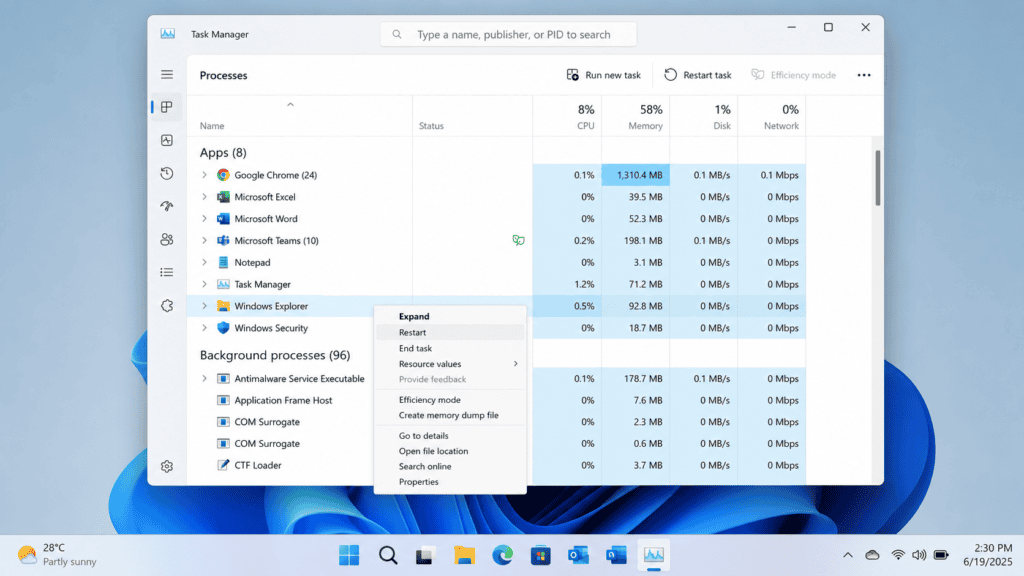
Table of Contents
- Why Is My Windows 11 Taskbar Not Working?
- Is This Related to the June 2026 Windows Update?
- Fix 1: Restart Windows Explorer
- Fix 2: Restart the Start Menu Service
- Fix 3: Run the Windows Troubleshooter
- Fix 4: Update Windows 11
- Fix 5: Re-register Taskbar via PowerShell
- Fix 6: Check for Corrupt System Files (SFC Scan)
- Fix 7: Disable Tablet Mode / Auto-Hide
- Fix 8: Delete Iris Service (Known Bug Fix)
- Fix 9: Create a New User Account
- Fix 10: Perform a System Restore
- Troubleshooting Table
- Pro Tips
- Common Mistakes to Avoid
- Best Practices
- FAQ
- Conclusion
Why Is My Windows 11 Taskbar Not Working?
Before jumping into fixes, it helps to understand what’s actually going on. The Windows 11 taskbar is powered by a process called Windows Explorer (explorer.exe). When that process crashes or gets stuck, the whole taskbar stops responding icons, Start button, clock, all of it.
Common causes include:
- Corrupted system files from a sudden shutdown or a failed update
- A buggy Windows Update that introduced a shell conflict
- Third-party software interfering with shell processes
- Outdated or missing drivers
- A known Windows 11 bug tied to the Iris service (more on this in Fix 8)
- Auto-hide taskbar settings making it look like the taskbar has disappeared
- A corrupted user profile
Now let’s fix it, starting with the fastest solution.
Is This Related to the June 2026 Windows Update (KB5094126)?
If your taskbar started acting up right after your PC installed updates, you’re not imagining things. The June 2026 cumulative update (KB5094126) has been linked to a wave of Windows 11 shell issues, and taskbar freezing is one of the more common ones. I’ve also seen the same update trigger BSOD errors on HP laptops and, in some cases, a BitLocker recovery loop on boot.
If your taskbar problem started right after installing this update, jump straight to Fix 4 (checking for a follow-up patch) or Fix 10 (System Restore) before working through the rest of the list there’s a good chance one of those two resolves it on its own.
Fix 1: Restart Windows Explorer
This is the first thing you should try. It takes less than 30 seconds and fixes the problem for most users.
Steps:
- Press Ctrl + Shift + Esc to open Task Manager.
- If Task Manager opens in compact mode, click More details.
- Under the Processes tab, scroll down and find Windows Explorer.
- Right-click on it and select Restart.
- Your screen will flicker for a moment this is normal.
- Check if the taskbar is working now.
Note: If you can’t open Task Manager with the keyboard shortcut, right-click on the desktop and select Task Manager from the context menu instead.
Fix 2: Restart the Start Menu Service
Sometimes only the Start menu service crashes, leaving the rest of the taskbar partially working.
Steps:
- Press Ctrl + Shift + Esc to open Task Manager.
- Go to the Details tab.
- Look for StartMenuExperienceHost.exe.
- Right-click on it and select End task.
- Confirm when prompted.
- Windows will automatically restart the Start menu service.
- Wait 10–15 seconds and try clicking the taskbar again.
Fix 3: Run the Windows Troubleshooter
Windows 11 has a built-in troubleshooter that can automatically detect and fix some shell-related issues.
Steps:
- Press Windows + I to open Settings.
- Go to System > Troubleshoot > Other troubleshooters.
- Find Search and Indexing and click Run.
- Follow the on-screen instructions.
- After the troubleshooter finishes, restart your PC.
Fix 4: Update Windows 11
Microsoft regularly releases patches for known shell bugs, including issues tied to KB5094126. A pending update may already contain the fix for your exact issue.
Steps:
- Press Windows + I to open Settings.
- Click on Windows Update.
- Click Check for updates.
- If updates are available, download and install them.
- Restart your PC after updates are installed.
- Check if the taskbar is working.
Tip: If the problem started right after a recent update, skip ahead to Fix 10 (System Restore) to roll back instead of waiting for a patch.
Fix 5: Re-register Taskbar via PowerShell
This fix re-registers all built-in Windows apps, including the taskbar shell. It’s very effective for stubborn taskbar issues that Fix 1 doesn’t resolve.
Steps:
- Press Windows + X and select Windows Terminal (Admin) or PowerShell (Admin).
- Copy and paste this command exactly:
powershell
Get-AppXPackage -AllUsers | Foreach {Add-AppxPackage -DisableDevelopmentMode -Register "$($_.InstallLocation)\AppXManifest.xml"}- Press Enter and wait for the process to finish (it may take 2–5 minutes).
- Some red error messages may appear this is normal, ignore them.
- Restart your PC when done.
Warning: Do not close the PowerShell window while the command is running.
Fix 6: Check for Corrupt System Files (SFC Scan)
Corrupted Windows system files are a very common cause of taskbar problems. The built-in System File Checker (SFC) can find and repair them.
Steps:
- Press Windows + X and click Windows Terminal (Admin).
- Type the following command and press Enter:
cmd
sfc /scannow- Wait for the scan to complete (it may take 10–15 minutes).
- After it finishes, run this second command for a deeper repair:
cmd
DISM /Online /Cleanup-Image /RestoreHealth- Restart your PC.
Note: Keep your PC connected to the internet while running the DISM command it downloads repair files from Microsoft’s servers.
Fix 7: Disable Tablet Mode / Auto-Hide
Windows 11 doesn’t officially have Tablet Mode like Windows 10, but auto-hide settings can make the taskbar behave the same way disappearing or becoming unresponsive until you hover in exactly the right spot.
Steps:
- Press Windows + I to open Settings.
- Go to Personalization > Taskbar.
- Scroll down to Taskbar behaviors.
- Make sure Automatically hide the taskbar is turned Off.
- Also check that Taskbar alignment is set to the position you prefer.
- Close Settings and check the taskbar.
Fix 8: Delete Iris Service (Known Windows 11 Bug Fix)
Microsoft has acknowledged a bug where the Iris service (tied to Windows Spotlight and lock screen features) causes the taskbar to become completely unresponsive. This fix removes that service entry.
Steps:
- Press Windows + X and open Windows Terminal (Admin).
- Type this command and press Enter:
cmd
reg delete HKCU\SOFTWARE\Microsoft\Windows\CurrentVersion\IrisService /f && shutdown -r -t 0- Your PC will automatically restart.
- After restarting, the taskbar should be working.
This is one of the most effective fixes for the taskbar freezing issue that has appeared across several Windows 11 updates.
Fix 9: Create a New User Account
If the problem is specific to your user profile, creating a new account will confirm it and fix it.
Steps:
- Press Windows + I to open Settings.
- Go to Accounts > Family & other users.
- Under “Other users,” click Add account.
- Select I don’t have this person’s sign-in information.
- Click Add a user without a Microsoft account.
- Create a username and password.
- Sign out of your current account and log in to the new account.
- Check if the taskbar works in the new account.
If it works there, the issue is with your old profile. You can transfer your files to the new account afterward.
Fix 10: Perform a System Restore
If nothing else has worked and the problem started recently right after an update or a new install System Restore can roll your PC back to a working state.
Steps:
- Press Windows + S and search for Create a restore point.
- Click on it to open System Properties.
- Click System Restore.
- Click Next and choose a restore point from before the problem started.
- Click Next > Finish to confirm.
- Your PC will restart and restore to the selected point.
Note: System Restore does not delete your personal files, but it will remove programs and updates installed after the restore point date.
Troubleshooting Table
| Problem | Possible Cause | Best Fix |
|---|---|---|
| Taskbar completely frozen | Windows Explorer crash | Fix 1: Restart Explorer |
| Taskbar icons missing | Shell registration error | Fix 5: PowerShell Re-register |
| Start button not working | Start menu service crash | Fix 2: Restart Start Menu |
| Taskbar disappeared | Auto-hide enabled | Fix 7: Check Taskbar Settings |
| Problem started after an update | Buggy update (e.g. KB5094126) | Fix 4: Update / Fix 10: Restore |
| Taskbar unresponsive after login | Iris service bug | Fix 8: Delete Iris Service |
| Works in new account, not yours | Corrupted user profile | Fix 9: New User Account |
| Nothing works | Deep system corruption | Fix 6: SFC + DISM Scan |
Pro Tips
- Always try Fix 1 first — restarting Windows Explorer solves the majority of taskbar issues.
- Keep Windows 11 updated — most bugs are patched within days of being reported.
- Create System Restore points regularly — before installing new software or major updates.
- Avoid third-party taskbar customization tools — many break with Windows 11 updates.
- Don’t force-shut down your PC — always use a proper shutdown to prevent file corruption.
- Run SFC scans monthly — it catches file corruption early, before it snowballs.
- Check Event Viewer if the problem keeps returning — Windows + X > Event Viewer > Windows Logs > Application.
- Use an admin account — some fixes above won’t run from a standard user account.
Common Mistakes to Avoid
- Reinstalling Windows immediately — extreme; try all 10 fixes above first.
- Downloading “taskbar fix” tools from unknown websites — these are often malware disguised as repair tools.
- Running the PowerShell command as a regular user — it must be run as Administrator.
- Ignoring pending Windows updates — skipping them means missing official bug fixes.
- Closing PowerShell mid-command — always let commands finish completely.
- Not restarting after a fix — most of these only take effect after a full reboot.
Best Practices
- Update Windows regularly — enable automatic updates under Settings > Windows Update.
- Avoid low-quality third-party software — stick to the Microsoft Store or official vendor sites.
- Keep disk space free — Windows needs at least 10–15 GB free to run shell processes reliably.
- Use a UPS or surge protector — sudden power cuts are a major cause of file corruption.
- Run regular antivirus scans — malware can target shell processes and cause taskbar failures.
- Restart your PC weekly — rather than leaving it on sleep indefinitely.
FAQ
Why is my Windows 11 taskbar not responding? The most common reason is that the Windows Explorer process has crashed or stalled. Restarting it via Task Manager (Ctrl + Shift + Esc > Windows Explorer > Restart) usually fixes this immediately.
Why did my taskbar disappear in Windows 11? It’s likely hidden due to the “Automatically hide the taskbar” setting. Go to Settings > Personalization > Taskbar > Taskbar behaviors and turn auto-hide off.
Is the June 2026 update (KB5094126) really causing taskbar problems? Yes — it’s been linked to several Windows 11 shell issues, including taskbar freezes. If your issue started right after this update installed, try Fix 4 or Fix 10 first.
Why is my Start button not working in Windows 11? The Start menu runs its own process, StartMenuExperienceHost.exe. If it crashes, the Start button stops responding. End the task in Task Manager’s Details tab and Windows will restart it automatically.
Can I fix the taskbar without restarting my PC? Yes. Restarting Windows Explorer (Fix 1) or the Start menu service (Fix 2) fixes many cases without a full restart.
Is it safe to run the PowerShell command in Fix 5? Yes it’s a standard Microsoft troubleshooting command that re-registers built-in apps. Just run it as Administrator and let it finish completely.
What is the Iris service and why does it break the taskbar? It manages Windows Spotlight and certain personalization features. A known bug causes it to interfere with the taskbar process. Removing it (Fix 8) resolves the issue without affecting core Windows functions.
My taskbar works in a new user account but not my main one what does that mean? Your user profile has corrupted settings. Creating a new account and transferring your files (Fix 9) is the most reliable solution.
Will System Restore delete my files? No. It only reverses system settings and installed programs your documents, photos, and videos are untouched.
How do I open Task Manager if my taskbar is completely frozen? Press Ctrl + Shift + Esc directly, or Ctrl + Alt + Delete and select Task Manager. You can also right-click the desktop and choose it from there.
Can malware cause Windows 11 taskbar issues? Yes. Some malware targets Windows shell processes directly. Run a full scan with Windows Defender (Settings > Windows Security > Virus & threat protection) to rule it out.
Conclusion
A non-working taskbar in Windows 11 is frustrating, but it’s almost always fixable without reinstalling the operating system. Start with Fix 1 (Restart Windows Explorer) it solves most cases in under a minute. If your issue started after the June 2026 update, jump to Fix 4 or Fix 10 first. For anything more stubborn, work through the rest of the list in order.
If you’re dealing with other post-update issues on the same PC, these guides might help too: BSOD after the June 2026 update, BitLocker recovery loop after an update, or Wi-Fi disconnecting on Windows 11.
For more background on known shell issues, Microsoft’s own support community has an active thread on this exact problem: Microsoft Q&A — taskbar not working.