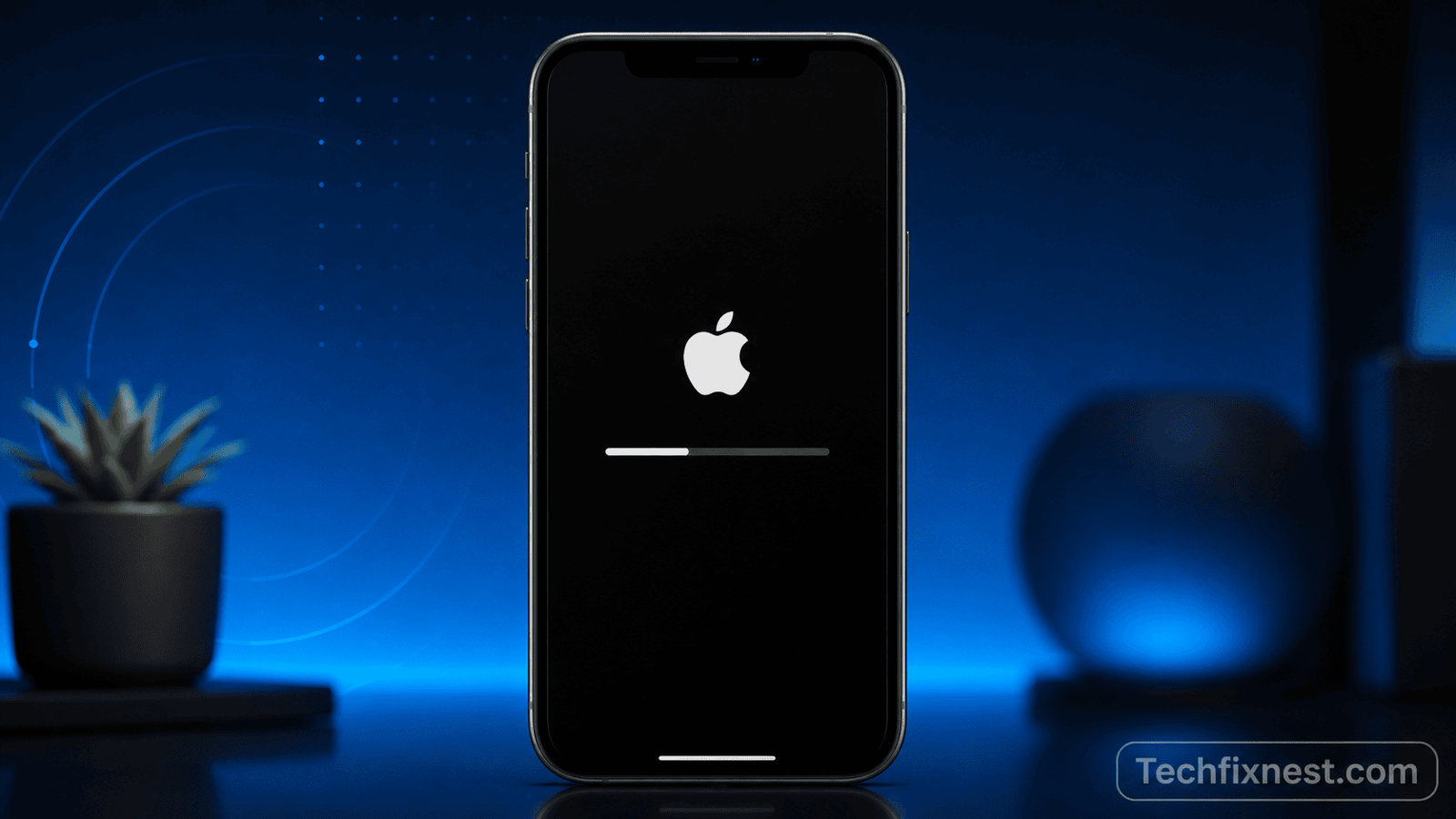
I still remember the first time this happened to me. I put my iPhone on charge before bed, expecting to wake up to a shiny new iOS version, and instead found it sitting on a black screen with “Preparing Update” and a progress bar that hadn’t moved an inch in over eight hours. No error message, no way to cancel it, and the phone wouldn’t respond to any button presses either. If you’re staring at the same screen right now after trying to install iOS 26, you’re not alone this is one of the most commonly reported iPhone update issues, and thankfully, it’s almost always fixable without losing your data.
In this guide, I’ll walk you through exactly how long you should actually wait before doing anything, and then every method that works to get your iPhone unstuck from the safest options to the last-resort fixes.
Quick Answer
If your iPhone has been stuck on “Preparing Update” for less than 30-45 minutes, just leave it alone this is normal, especially for major updates like iOS 26 that involve larger file downloads and verification steps. If it’s been stuck for over an hour with no progress at all, a force restart (not a regular restart) is the safest first step and resolves the issue in most cases. If that doesn’t work, you’ll need to move on to a computer-based recovery using Finder or iTunes, which is completely safe and won’t erase your data in Update mode.
Before You Start: How Long Is “Too Long”?
This is the question everyone has, and it’s a fair one because iPhones do legitimately take a while to prepare large updates. Here’s a rough guide based on what’s normal:
- 0-20 minutes: Completely normal. The phone is verifying the downloaded update package.
- 20-45 minutes: Still within normal range for iOS 26, especially on older devices like iPhone 12 or 13 that process updates slower.
- 45-90 minutes with a moving progress bar: Slow, but not stuck leave it alone.
- Over 60-90 minutes with zero movement on the progress bar or a completely frozen black screen: This is when it’s genuinely stuck, and it’s time to start troubleshooting.
The key indicator isn’t just time it’s whether the progress bar is moving at all, even slowly. A bar that creeps forward every few minutes is working. A bar that hasn’t budged in an hour, or a screen that’s gone completely black and unresponsive, is stuck.
Troubleshooting Table
| Symptom | Likely Cause | Fix Number |
|---|---|---|
| Progress bar stuck for over an hour, no response to buttons | Update process frozen | Fix 1 |
| Force restart doesn’t work, phone stays black | Deeper software hang | Fix 2 |
| Phone restarts but gets stuck on Apple logo | Corrupted update files | Fix 3 |
| Phone keeps restarting into “Preparing Update” loop | Insufficient storage during install | Fix 4 |
| None of the above fixes work | Update package needs full recovery | Fix 5, 6 |
| Update repeatedly fails even after recovery | iOS 26 compatibility or server issue | Fix 7 |
Fix 1: Force Restart Your iPhone
This is the single most effective fix and should always be your first move once you’ve confirmed the phone is genuinely stuck (not just slow).
For iPhone 8 or later (including all iPhones that support iOS 26):
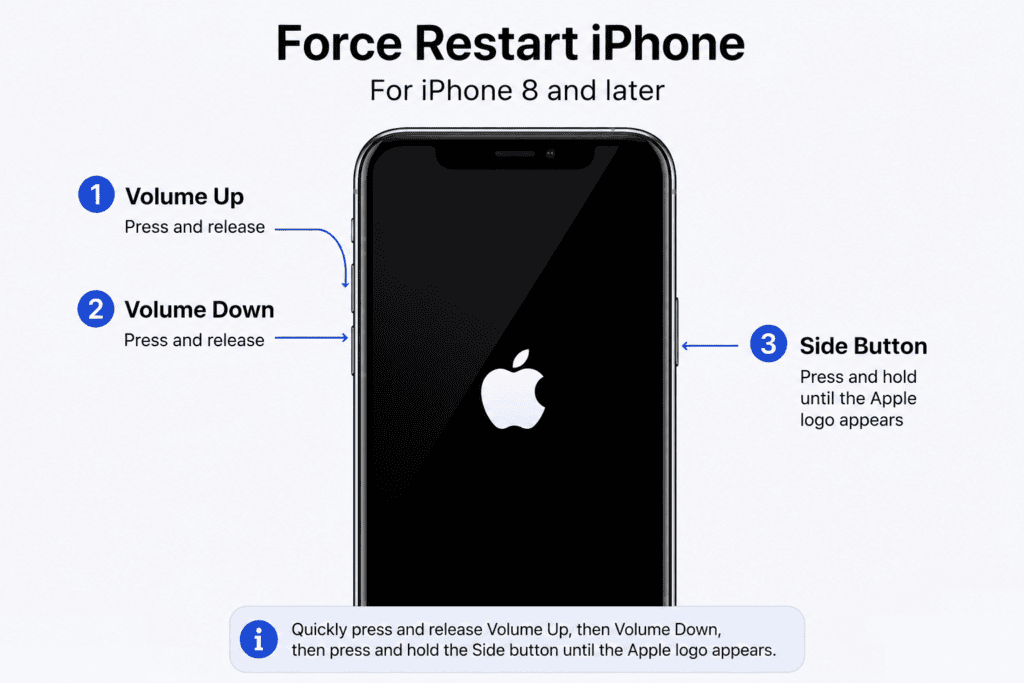
- Press and quickly release the Volume Up button.
- Press and quickly release the Volume Down button.
- Press and hold the Side button until you see the Apple logo appear.
- Let go of the button once the logo shows up don’t hold it longer, or you risk entering recovery mode accidentally.
A force restart doesn’t erase any data. It simply forces the device to reboot the way a battery pull would on an older phone. In the vast majority of “Preparing Update” freezes, this alone gets the phone moving again, either by completing the update or by kicking it back to the home screen so you can retry.
Fix 2: Check Your Charging Cable and Power Source
This sounds too simple to matter, but it’s a surprisingly common cause. iOS won’t let a large update proceed if it detects unstable or insufficient power, and sometimes it fails silently instead of showing a low battery warning.
- Make sure you’re using an official or MFi-certified Apple cable, not a cheap third-party one.
- Plug directly into a wall outlet rather than a laptop USB port, which often can’t supply enough power for the update process.
- Confirm the battery is above 50% before retrying the update. If it was low when the update started, that alone could be why it’s stuck.
Fix 3: Wait Out an Apple Logo Loop, Then Force Restart Again
If your force restart got the phone moving but it now shows the Apple logo with a slowly filling progress bar underneath it, this is actually a good sign the update is installing. Let it run for up to 30 minutes.
If the Apple logo stays completely static with no progress bar for more than 30 minutes, or the phone reboots back into the logo screen repeatedly without progressing, force restart one more time using the steps in Fix 1. Two force restarts in a row, spaced about 10-15 minutes apart, is often enough to break the loop completely.
Fix 4: Free Up Storage Space
iOS 26 needs a decent chunk of free storage to safely stage and install an update. If your phone was nearly full when the update started, it can get stuck mid-process because there isn’t enough space to complete the file swap.
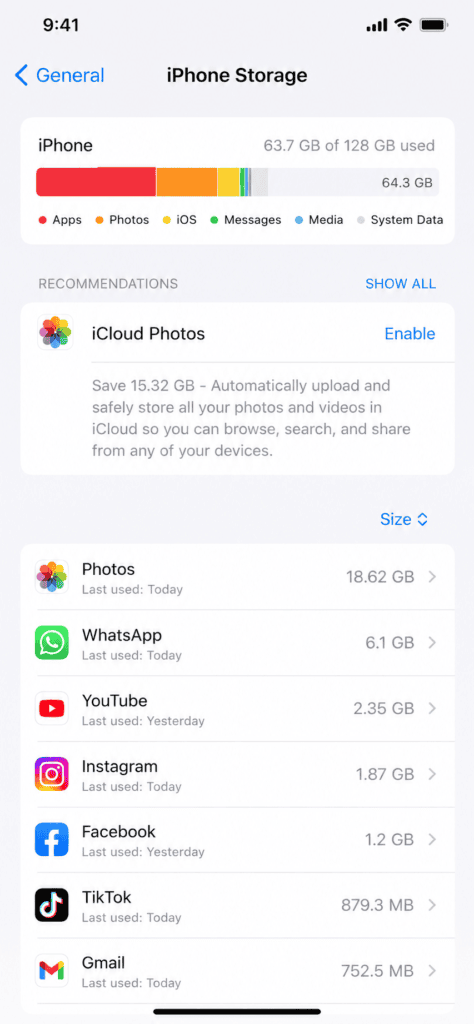
- If you can get back to the home screen at all (even briefly), go to Settings > General > iPhone Storage and check how much free space you have.
- Delete large apps you don’t use often, offload unused apps (which keeps their data but removes the app itself), or clear out old videos and photos temporarily.
- Aim for at least 5-10 GB of free space before attempting the update again.
If the phone is completely frozen and you can’t access Settings, skip ahead to Fix 5 and free up space once you’ve recovered access.
Fix 5: Update Using Finder or iTunes (Safe, No Data Loss)
If force restarting doesn’t resolve the freeze after two attempts, connecting to a computer is the next step. This method is completely safe for your data because it reinstalls the update itself, not the entire iOS from scratch.
On a Mac (using Finder):
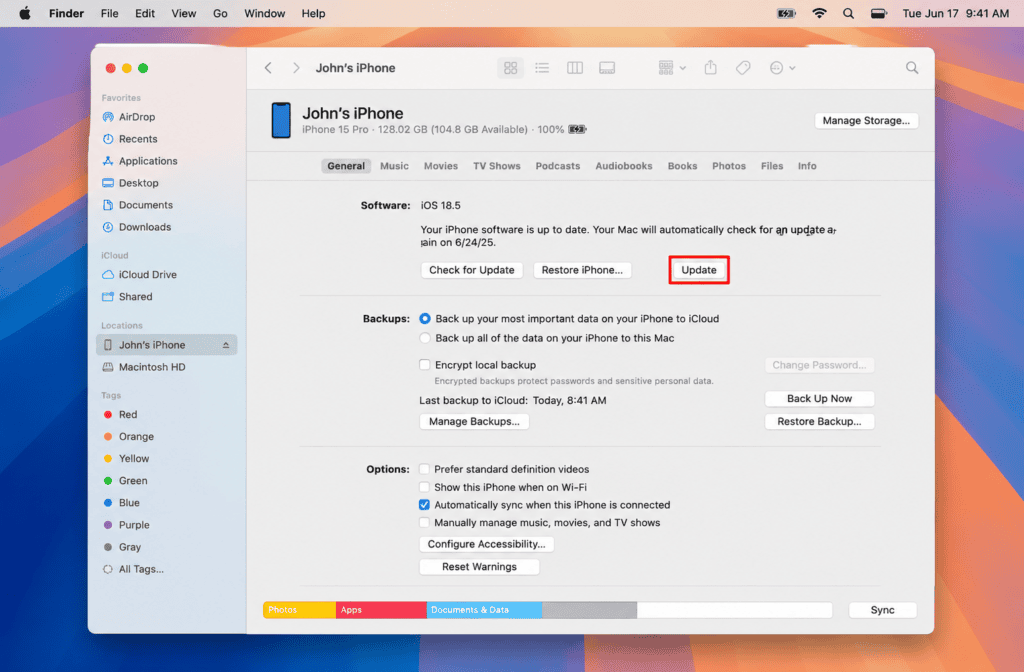
- Connect your iPhone to your Mac with a cable.
- Open Finder and select your iPhone from the sidebar.
- Click Update (not Restore) in the General tab.
- Finder will download a fresh copy of the update and reinstall it without touching your data.
On Windows or older macOS (using iTunes):
- Connect your iPhone and open iTunes.
- Select your device icon in the top-left corner.
- Go to the Summary tab and click Check for Update, then Update.
- Let the process run fully this can take 15-30 minutes depending on your internet speed.
If your phone is completely unresponsive to a force restart, you may need to put it into Recovery Mode first (Fix 6) before Finder or iTunes can detect it.
Fix 6: Recovery Mode (When the Phone Won’t Respond at All)
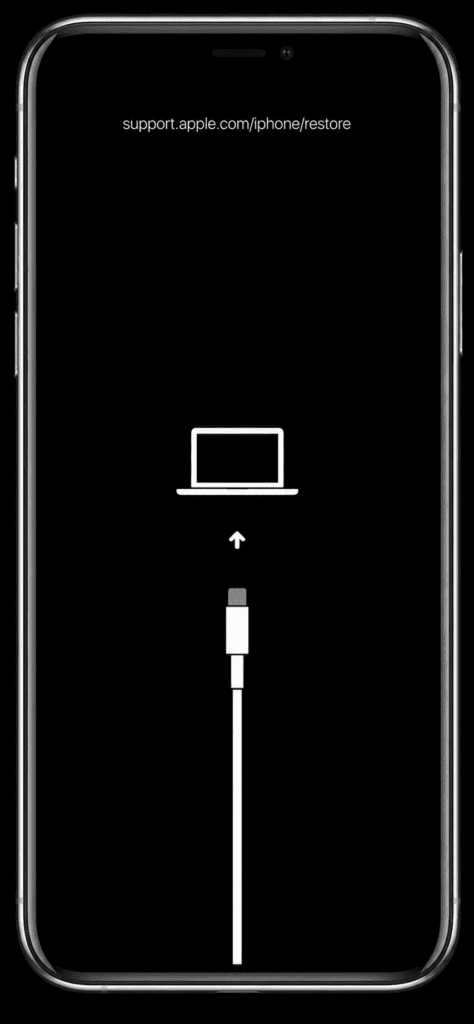
Recovery Mode is a step up from Fix 1 and is needed only if your phone is completely frozen and a force restart doesn’t bring it back at all.
- Connect your iPhone to a computer with Finder or iTunes open.
- Quickly press and release Volume Up, then quickly press and release Volume Down.
- Press and hold the Side button but this time, keep holding it even past the Apple logo, until you see the Recovery Mode screen (a cable and computer icon).
- Finder or iTunes will detect the phone in recovery mode and prompt you to Update or Restore. Always choose Update first, since this preserves your data. Restore should only be used as an absolute last resort.
Fix 7: If the Update Keeps Failing Even After Recovery
Occasionally, the issue isn’t the phone at all it’s a temporary problem with Apple’s update servers, which happens most often in the first few days after a major release like iOS 26, when millions of devices are downloading updates at once.
- Wait 24-48 hours and try again, ideally overnight when server traffic is lower.
- Try switching from Wi-Fi to a wired connection through Finder/iTunes, or vice versa, since one method sometimes succeeds where the other times out.
- Check Apple’s System Status page to confirm there isn’t a known outage affecting software updates.
Pro Tips
- Always back up your iPhone (via iCloud or Finder/iTunes) before attempting a major iOS update, especially in the first week after release when bugs are still being ironed out.
- If you’re on an older iPhone model, downloading updates overnight while charging on Wi-Fi tends to be far more reliable than updating during the day over cellular data.
- Keep at least 10-15% battery buffer and a stable charger connected throughout the entire update process, not just at the start.
Common Mistakes to Avoid
- Force-restarting too early. Doing this within the first 20-30 minutes can actually interrupt a normal (if slow) update process and create the very problem you’re trying to avoid.
- Holding the Side button too long during a force restart. This can accidentally trigger Recovery Mode or the power-off slider instead of a clean restart.
- Choosing “Restore” instead of “Update” in Finder/iTunes. Restore erases the device completely, while Update reinstalls just the iOS files. Always try Update first.
- Updating with very low storage or battery. Both are common silent causes of a stuck update that people overlook.
FAQs
No. A force restart doesn’t erase any data it simply reboots the device, similar to what would happen if the battery had died and you plugged it back in.
Give it at least 45-60 minutes if the screen is completely black and unresponsive. If the progress bar is visibly moving, even slowly, let it continue rather than interrupting it.
Yes, as long as you select Update and not Restore when prompted. Update mode reinstalls the operating system files without touching your personal data.
Major iOS releases involve larger update packages and more system-level changes than smaller point updates, which increases the chances of the process stalling, especially on older devices or unstable Wi-Fi connections during the first few days after release.
This usually means the downloaded update file itself is partially corrupted. Delete the update by going to Settings > General > iPhone Storage, finding the iOS update file, and deleting it, then re-download it fresh from Settings > General > Software Update.
Yes. If the update was still downloading in the background when it appeared to start “preparing,” an interrupted or weak Wi-Fi connection can leave the file incomplete, causing the preparation stage to hang indefinitely.
If you’ve tried Recovery Mode through Finder or iTunes and the update still fails or the phone remains unresponsive, it’s worth contacting Apple Support or visiting an Apple Store, as this could indicate a hardware-level issue unrelated to the software update itself