For almost two weeks, my WiFi dropped every evening around 8:15 PM. Not randomly — every single day, within a five-minute window. At first I blamed my ISP, then my router, then even the weather. I restarted the router, moved it to a new spot, and even called my ISP’s support line twice. Nothing fixed it, because I was treating it like a random dropout instead of what it actually was: a scheduled, predictable interruption with a specific trigger.
Once I started logging the exact drop time and cross-checking it against what else was happening in the house — dinner being cooked, a neighbor’s router restarting, my ISP’s peak-hour congestion — the real cause became obvious in under a day. A WiFi drop that happens at the same time every day is never random. Something on a schedule is causing it, and once you find that “something,” the fix is usually simple.
The mistake most people make is treating a time-based drop the same way they’d treat a random one — restarting the router, resetting the modem, or calling the ISP straight away. That approach works for one-off glitches, but it does almost nothing for a scheduled problem, because whatever is causing the interruption will simply happen again at the same time tomorrow. The real fix starts with pattern recognition, not troubleshooting steps. Once you know what else in your home (or your ISP’s network) runs on that same daily schedule, the cause usually reveals itself within a day or two of paying attention.
Quick Answer
If your WiFi drops at the exact same time daily, the cause is almost always one of these: your router overheating during a specific part of the day, your ISP throttling or performing maintenance during peak hours, a scheduled device (microwave, cordless phone, smart plug, or neighbor’s router) causing interference at that time, or your own router’s automatic reboot, firmware update, or parental control schedule kicking in. Match the drop time to what’s happening on that schedule, and you’ll usually find the cause without needing to call your ISP.
Why This Is Happening
1. Router overheating during a specific time window Routers sitting near a window, in a cabinet, or above other electronics can overheat once room temperature rises past a certain point — often in the afternoon or early evening when direct sunlight or ambient heat peaks. Clue/Sign: The drop happens later on hot days and earlier or not at all on cooler days, and the router body feels noticeably warm to the touch when it happens.
2. ISP peak-hour congestion or throttling Internet providers often experience the heaviest load between 7 PM and 11 PM when most households are streaming, gaming, or on video calls. Some ISPs also run scheduled maintenance or throttle bandwidth during these windows. Clue/Sign: The drop lines up almost exactly with peak usage hours, and other devices on the same network (phone, laptop, smart TV) all lose connection at once — not just one device.
3. A scheduled appliance or device causing interference Microwaves, cordless phones, baby monitors, and some smart plugs operate on the 2.4GHz band — the same band most WiFi routers use. If someone in the house uses the microwave at dinner time every day, or a smart device runs a daily schedule, it can knock out WiFi signal during that window. Clue/Sign: The drop only affects devices on the 2.4GHz network, while 5GHz-connected devices stay online, and it coincides with a daily household routine like cooking or a smart plug’s automation schedule.
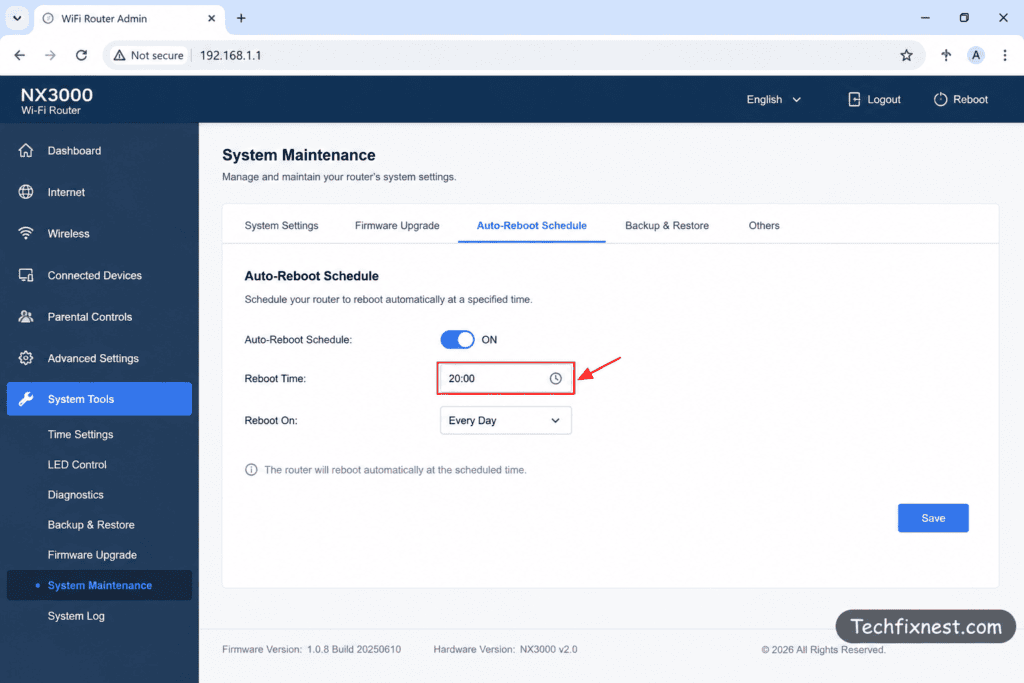
4. Router’s own automatic reboot or firmware update schedule Many modern routers (and ISP-provided modems) have a built-in “auto-reboot” or “auto-update” feature that runs at a fixed time daily or weekly to clear memory and apply patches. Clue/Sign: All router lights briefly go off and come back on during the drop, and the outage lasts roughly the same short duration (usually 1–3 minutes) each time.
5. Parental controls or a QoS/bandwidth schedule If parental controls, guest network schedules, or Quality of Service (QoS) rules are set up on the router, they can pause or throttle the connection automatically at a set time — sometimes without the user remembering they configured it. Clue/Sign: Only specific devices lose connection while others stay online, matching device groups you (or a previous user of the router) may have restricted in the router’s admin panel.
6. Neighbor’s router auto-switching channels If you’re on a crowded WiFi channel, a nearby router restarting or switching channels at a scheduled time (common with auto-updating mesh systems) can cause temporary interference on your network too. Clue/Sign: The drop is brief (30 seconds to 2 minutes), signal strength dips rather than disconnecting completely, and it’s more noticeable in apartments or densely populated areas.
Troubleshooting Table
| Symptom | Likely Cause | Quick Fix |
|---|---|---|
| Drop happens on hot days only, router feels warm | Overheating | Improve ventilation, relocate router |
| All devices drop at once during evening hours | ISP peak congestion | Contact ISP, check for outage reports |
| Only 2.4GHz devices affected during cooking/dinner time | Appliance interference | Switch to 5GHz band or change WiFi channel |
| Router lights blink off-on briefly, short outage | Auto-reboot/update schedule | Check router admin panel for schedule settings |
| Specific devices drop, others stay connected | Parental controls / QoS | Review schedule rules in router settings |
| Brief signal dip, more common in apartments | Neighbor’s router/channel switch | Change WiFi channel manually |
Fixes
1. Check your router’s temperature and airflow
Feel the router when the drop happens (or right after). If it’s warm or hot, move it to an open shelf away from direct sunlight, other electronics, and enclosed cabinets. Make sure vents on the router body aren’t blocked. Test: Monitor for the next 2–3 days at the usual drop time. If the router stays cooler and the drop doesn’t happen, overheating was the cause.
2. Confirm whether it’s an ISP-side issue
Log into your ISP’s app or website (or call support) and check for reported outages or maintenance windows around your drop time. Many providers now list scheduled maintenance publicly. Test: If an outage or maintenance window matches your drop time exactly, the issue is on the ISP’s end, not your equipment.
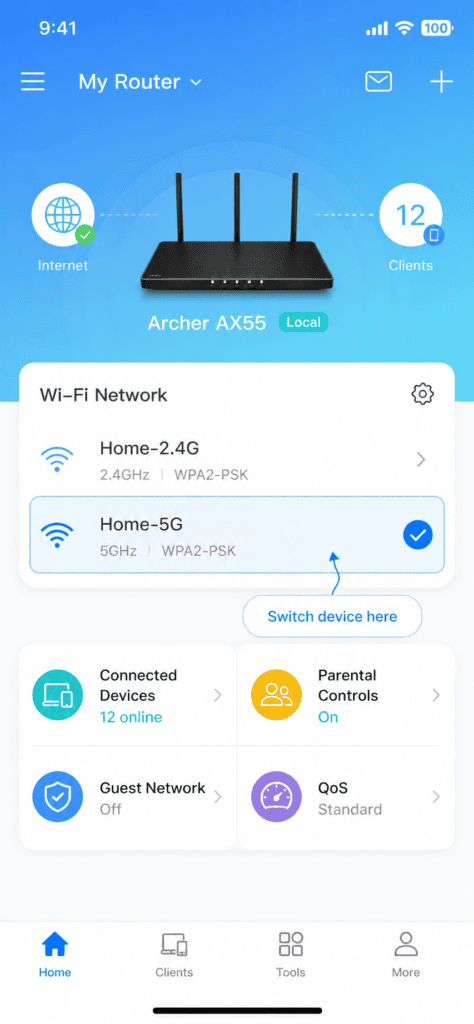
3. Switch affected devices to the 5GHz band
If only some devices drop, open your router’s app or admin panel and move devices to the 5GHz network instead of 2.4GHz. This avoids interference from microwaves, cordless phones, and similar appliances. Test: Repeat the daily routine that seems to trigger the drop (e.g., using the microwave) while connected to 5GHz. If the connection holds, interference was the cause.
4. Check for an auto-reboot or firmware update schedule
Log into your router’s admin panel (usually 192.168.1.1 or 192.168.0.1) and look for “Maintenance,” “System,” or “Firmware” settings. Disable or reschedule any automatic reboot or update feature to a time you’re not using the internet, like 3 AM. Test: If the drop no longer happens at the old time and instead (if you didn’t disable it) shifts to the new scheduled time, this confirms the cause.
5. Review parental controls and QoS rules
In the router’s admin panel, check “Parental Controls,” “Access Schedule,” or “QoS” sections for any time-based rules. Remove or adjust any schedule that matches your drop time. Test: Disable the rule temporarily and see if the drop stops occurring at that time the next day.
6. Manually set your WiFi channel
In the router’s wireless settings, switch from “Auto” channel selection to a manual, less congested channel (use a WiFi analyzer app to find the clearest one nearby). Test: If drops were caused by a neighboring router auto-switching channels, manually locking your channel should stop the daily interference pattern.
How to Build a Simple Drop-Time Log
Before jumping into fixes, spend a few days tracking the pattern properly — it saves you from guessing and re-testing fixes that were never going to work.
- Note the exact time the WiFi drops, down to the minute if possible, not just “around 8 PM.”
- Write down which devices lost connection — was it every device in the house, or just one phone or laptop? This single detail narrows the cause list dramatically.
- List what else was happening in the house at that exact time: cooking, a smart plug turning on/off, someone arriving home and connecting a new device, or simply a change in the room’s temperature.
- Check the weather for that day if the drop time shifts slightly — heat-related overheating issues often move earlier or later depending on how hot the day got.
- Compare weekday vs. weekend patterns. ISP congestion issues often show up daily including weekends, while household-routine causes (like dinner-time microwave use) may only show up on certain days.
After 3–4 days of this simple log, the cause is usually staring back at you from the pattern itself, and you can jump straight to the matching fix above instead of trying all six.
Pro Tips
- Keep a simple log for 3–4 days: note the exact drop time and anything happening in the house at that moment. Patterns become obvious fast.
- If you have a router with an app (like the Google Home, TP-Link Tether, or Netgear Nighthawk apps), check its built-in activity or health logs — many show reboot history and connection events with timestamps.
- Consider placing the router on a small stand or shelf rather than flat on a surface to improve airflow, especially in warmer climates.
Common Mistakes
- Restarting the router as the first step without checking if the drop is time-based — this wastes time if the real cause is a schedule, not a glitch.
- Assuming it’s always the ISP’s fault without checking the router’s own auto-reboot or firmware update settings first.
- Ignoring which specific devices are affected — this detail alone often points straight to the cause (all devices vs. only 2.4GHz devices vs. only certain restricted devices).
FAQ
Because something on a fixed schedule is triggering it — most commonly router overheating during a certain time of day, ISP peak-hour congestion, a scheduled appliance causing interference, or the router’s own auto-reboot or update feature.
Not necessarily. A router nearing the end of its life usually drops randomly and worsens over time, while a fixed daily drop points to a schedule-based cause that can usually be fixed without replacing the router.
Yes, some ISPs manage network load during peak hours, which can look like a brief drop or major slowdown. Checking your ISP’s app for outage or maintenance notices is the fastest way to confirm this.
Only after ruling out router-side causes (overheating, auto-reboot schedules, channel interference). If the drop matches your ISP’s peak hours or a listed maintenance window, contacting them is the right next step.
Three to four days is usually enough. A single day’s log can be a coincidence, but if the drop repeats within the same five-to-ten-minute window across several days, you can trust that it’s schedule-based and start matching it against the causes abov
Yes. Older routers are more prone to overheating and are more likely to struggle under peak-hour congestion since they weren’t built for today’s higher household device counts. If your router is more than 4–5 years old and you’ve ruled out the other causes, hardware age is worth considering as a contributing factor.