Discover the best free AI tools for YouTube thumbnail design in 2026 — compare features, pros, cons, and tips to boost your CTR without a designer.
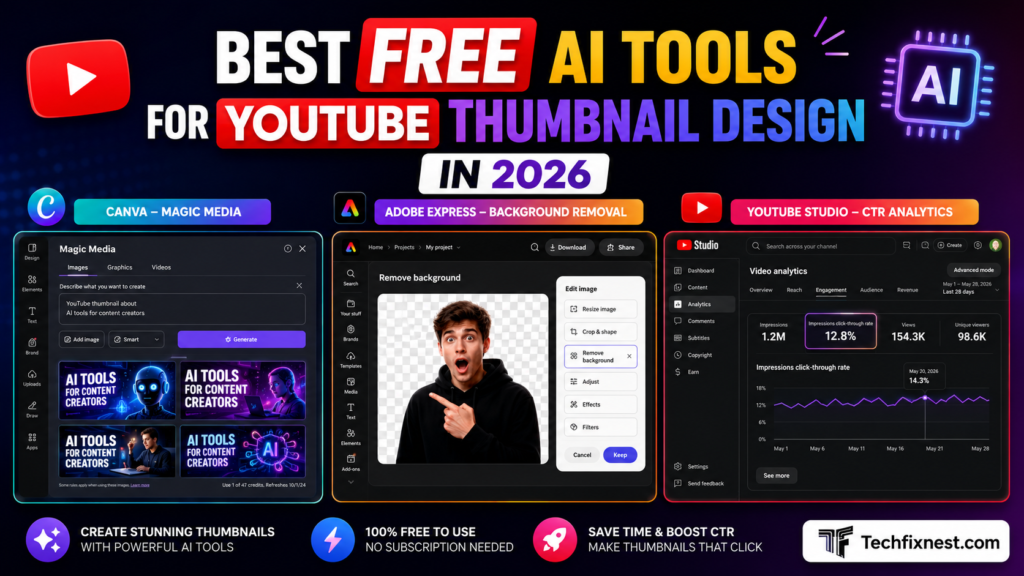
Quick Answer
The best free AI tools for YouTube thumbnail design in 2026 are Canva, Adobe Express, CapCut, Fotor, and vidIQ’s thumbnail tool. Each offers AI image generation, background removal, and text-overlay features at no cost. Canva remains the strongest all-around free option thanks to its template library and Magic Media AI generator.
Table of Contents
- Introduction
- What to Look for in a Free AI Thumbnail Tool
- Best Free AI Tools for YouTube Thumbnails in 2026
- Troubleshooting Table
- Pro Tips
- Common Mistakes to Avoid
- Best Practices
- FAQ
- Conclusion
Introduction
Your thumbnail is often the deciding factor in whether someone clicks your video or scrolls past it. YouTube’s own creator guidance has long emphasized that custom thumbnails outperform auto-generated frames, and most experienced creators treat thumbnail design as seriously as scripting or editing.
The problem is that professional thumbnail design used to require Photoshop skills, stock photo subscriptions, and hours of trial and error. In 2026, a new generation of free AI-powered design tools has closed that gap. You can now generate a polished, high-contrast, click-worthy thumbnail in a few minutes without ever opening a traditional photo editor.
This guide is for creators at any stage — from someone uploading their first video to a mid-sized channel owner looking to streamline production. You’ll learn which free AI tools are genuinely worth using, how they compare, what mistakes to avoid, and how to build a repeatable thumbnail workflow that doesn’t cost a cent.
What to Look for in a Free AI Thumbnail Tool
Before comparing specific tools, it helps to know which features actually matter:
- AI image generation – the ability to create a background or subject from a text prompt
- Background removal – isolating a face or product photo cleanly
- Text and font tools – bold, readable overlay text designed for small preview sizes
- Correct export dimensions – 1280×720px, under 2MB, in JPG, PNG, GIF, or BMP
- No forced watermark on the free tier
- Template libraries tailored to YouTube rather than generic social media graphics
Not every “free” tool delivers on all of these — some cap free downloads, others add a visible watermark, and some limit AI generations per month.
Best Free AI Tools for YouTube Thumbnails in 2026
1. Canva (Magic Media)
Canva remains the most complete free option for most creators. Its Magic Media feature generates images from text prompts, and the platform includes thousands of YouTube-specific thumbnail templates, one-click background removal, and a large stock photo library.
Strengths: Huge free template library, intuitive drag-and-drop editor, generous free tier, good typography controls. Limitations: AI image generation credits are limited on the free plan; premium templates and brand kits require Canva Pro.
2. Adobe Express
Built on Adobe Firefly, Adobe Express offers AI background removal and image generation with professional-grade output. It’s a strong choice if you’re already using other Adobe tools.
Strengths: Clean interface, unlimited free designs, solid typography, direct Adobe Stock access. Limitations: Some premium fonts and templates are locked behind a paid plan.
3. CapCut
Known primarily as a video editor, CapCut also includes AI thumbnail generation, photo editing, and templates as part of its generous free plan. It’s particularly convenient for creators who already edit their videos there.
Strengths: Seamless workflow if you already edit in CapCut, strong mobile app, batch processing. Limitations: Design depth is lighter than a dedicated thumbnail tool.
4. Fotor
Fotor’s AI thumbnail maker focuses on quick text-to-image generation plus a library of YouTube-sized templates. It’s a solid lightweight option for creators who want speed over depth.
Strengths: Fast generation, simple interface, decent free export quality. Limitations: Smaller template library than Canva; some AI features are capped on the free tier.
5. vidIQ’s AI Thumbnail Tool
If you already use vidIQ for keyword research and analytics, its built-in AI thumbnail feature is a convenient add-on rather than a replacement for a dedicated design tool.
Strengths: Trained on YouTube-specific performance data, useful competitor thumbnail analysis. Limitations: Limited design flexibility; better as a supplement to another tool.
6. Snappa
Snappa’s free plan allows a small number of downloads per month, which is enough for creators testing the waters. Its template library is curated specifically for high-CTR designs.
Strengths: Very beginner-friendly, fast resizing across platforms. Limitations: Free download limit makes it impractical for frequent uploaders.
7. Visme
Visme’s AI design assistant is particularly good for educational or data-driven channels, suggesting layouts based on content type.
Strengths: Strong for infographic-style thumbnails, brand kit consistency. Limitations: Less optimized specifically for the fast, high-contrast style typical of entertainment or gaming thumbnails.
A note of caution: searching for “best free AI thumbnail tool” in 2026 turns up a wave of near-identical articles promoting lesser-known, single-purpose apps as the definitive winner. Many of these posts are published by the tool’s own marketing team. Before trusting any “best of” list — including this one — check whether the free tier’s limits (watermarks, credit caps, export resolution) actually match what’s advertised, and prefer tools with a long track record and transparent pricing.
Troubleshooting Table
| Problem | Possible Cause | Solution |
|---|---|---|
| Thumbnail looks blurry after upload | Exported below 1280×720px | Re-export at the recommended resolution before uploading |
| AI-generated face looks unnatural | Prompt too vague or low-quality source photo | Use a clear, well-lit reference photo and a more specific prompt |
| Free plan won’t let you download | Monthly credit or download limit reached | Wait for the reset cycle or switch to a tool with a higher free cap |
| Watermark appears on export | Tool’s free tier includes branding | Check the tool’s free-tier terms before committing, or choose a watermark-free alternative |
| Text is unreadable on mobile | Font too thin or too much text | Use bold fonts and limit overlay text to 2–4 words |
| Colors look washed out in the feed | Low contrast against YouTube’s white/dark UI | Increase contrast and saturation slightly beyond what looks “normal” on your monitor |
Pro Tips
- Generate 3–5 variations before choosing one — most tools support this even on free plans.
- Always preview your thumbnail at a small size (around 150px wide) to simulate how it looks on mobile.
- Keep overlay text under four words; the thumbnail’s job is to tease, not explain.
- Match your thumbnail’s emotional tone to your actual video content — mismatched expectations hurt watch time even if they boost clicks.
- Reuse a consistent color palette and font across your channel so viewers recognize your videos instantly in their feed.
- Test high-contrast color combinations, since they stand out more in both light and dark mode YouTube layouts.
- Don’t rely solely on AI-generated faces; a real, well-lit photo of yourself often performs better than a synthetic one.
- Re-check your thumbnail’s file size and format against YouTube’s current requirements before publishing.
Common Mistakes to Avoid
- Accepting the first AI output without comparing alternate variations.
- Overusing exaggerated expressions — audiences have grown skeptical of the classic wide-mouth “shock face.”
- Cramming too much text onto the image, which becomes unreadable at small sizes.
- Ignoring brand consistency, making your channel harder to recognize in a subscriber’s feed.
- Using misleading or exaggerated imagery that doesn’t match the video, which can hurt retention even if it boosts initial clicks.
- Skipping the mobile preview step before publishing.
Best Practices
- Build a simple thumbnail template (font, color palette, layout) you reuse across videos for brand consistency.
- Batch-create thumbnails for several upcoming videos in one sitting to save time.
- Keep a swipe file of thumbnails you find effective (from any niche) for inspiration, without copying them directly.
- Periodically review which of your published thumbnails have the highest click-through rate in YouTube Studio, and refine your template accordingly.
- Stay updated on YouTube’s current thumbnail specifications, since recommended sizes and file limits can change.
FAQ
Canva is generally considered the strongest all-around free option because of its large template library, AI image generation, and background removal tools.
It depends on the tool. Some free tiers, particularly from smaller or newer platforms, add a visible watermark or limit export resolution. Established tools like Canva and Adobe Express generally do not watermark free exports.
The recommended size is 1280×720 pixels with a 16:9 aspect ratio, and the file should be under 2MB in JPG, PNG, GIF, or BMP format.
Yes, when used well. AI tools can apply proven design patterns like high contrast and clear text hierarchy, but the underlying image still needs to accurately represent your video’s content to sustain both clicks and watch time.
It’s generally safe from a technical standpoint, but many creators find that a genuine photo of themselves builds more trust with viewers than a synthetic AI face.
No. Most free AI thumbnail tools are built around text prompts and drag-and-drop editing specifically so that no design background is required.
Three to five variations is a reasonable range for most creators, giving enough options to compare without spending excessive time.
Many, including CapCut and Canva, have strong mobile apps. Others are primarily browser-based and work best on desktop.
Yes, if your channel qualifies for YouTube’s built-in thumbnail testing feature. Otherwise, you can manually track performance for the first 48 hours after publishing and swap the thumbnail if needed.
For most individual creators, free tiers are sufficient. Paid plans typically add value through higher generation limits, premium templates, or advanced brand kit features — useful mainly for high-volume or team-based channels.
Mostly, yes, though the ideal color palette, text style, and imagery vary by niche (gaming vs. finance vs. education, for example). Look at successful channels in your specific niche for style cues.
A shift away from exaggerated “shock face” expressions toward more genuine, subtle emotional cues, paired with high-contrast, minimal-text designs.
Conclusion
Free AI thumbnail tools have genuinely changed what’s achievable without a design background or budget. Canva and Adobe Express remain the most reliable all-around choices, while CapCut, Fotor, and vidIQ’s built-in tool serve more specific workflows. The right choice depends on whether you want an all-in-one design platform, a fast single-purpose generator, or a tool integrated into your existing editing process.
Whatever tool you choose, remember that AI is a starting point, not a substitute for understanding your audience. Test variations, watch your actual click-through data in YouTube Studio, and keep refining your visual style over time. A thoughtful, consistent thumbnail strategy — built on free tools — can meaningfully improve your channel’s discoverability without adding a new expense to your workflow.