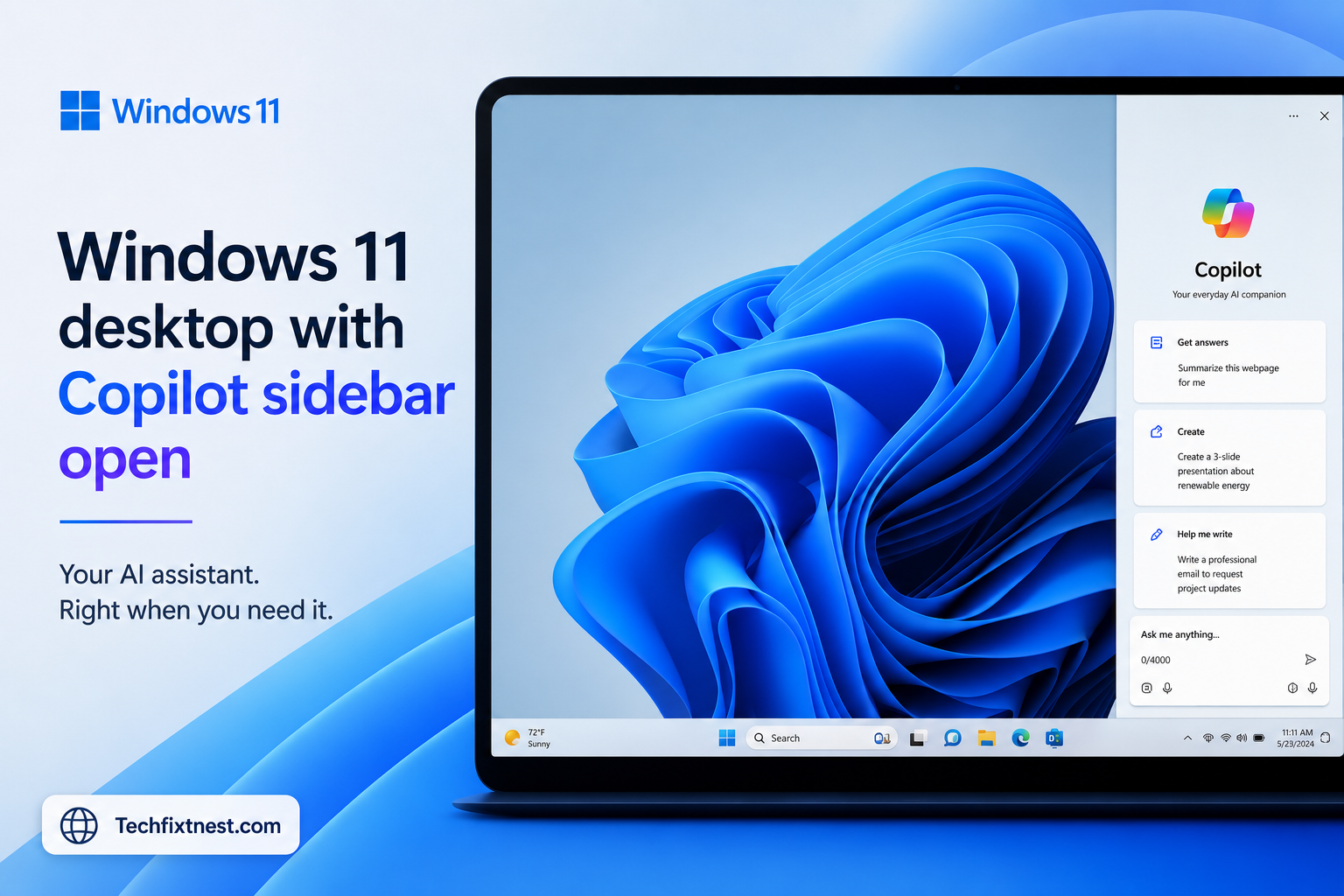
Learn how to use Microsoft Copilot on Windows 11 step by step. This beginner’s guide covers setup, features, tips, and common mistakes — all in one place.
Quick Answer
To use Microsoft Copilot on Windows 11, click the Copilot icon in the taskbar (or press Win + C) to open the sidebar. Type your question or request in the chat box. Copilot can help you write, summarize, search, adjust settings, and much more — all without leaving your desktop.
Table of Contents
- What Is Microsoft Copilot on Windows 11?
- How to Open Copilot on Windows 11
- Setting Up Copilot for the First Time
- What Can You Do with Copilot?
- How to Use Copilot to Write and Summarize
- How to Use Copilot to Control Windows Settings
- How to Use Copilot in Microsoft Edge
- Copilot vs. Cortana: What’s the Difference?
- Troubleshooting Common Copilot Issues
- Pro Tips for Getting the Most Out of Copilot
- Common Mistakes to Avoid
- Best Practices
- FAQ
- Conclusion
Introduction
Microsoft Copilot is one of the most exciting additions to Windows 11. It’s an AI-powered assistant built directly into your operating system — and it’s designed to make your daily tasks faster and easier.
Whether you want to draft an email, summarize a long document, change your display settings, or just ask a question, Copilot is ready to help. You don’t need to be a tech expert. You just need to know where to find it and how to talk to it.
This guide is written for complete beginners. If you’ve never used an AI assistant before — or you’ve tried Copilot but felt confused — this article will walk you through everything, step by step.
By the end, you’ll know how to open Copilot, what to ask it, how to use it for real work, and how to fix the most common problems. Let’s get started.
What Is Microsoft Copilot on Windows 11?
Microsoft Copilot is an AI assistant powered by the same technology behind ChatGPT (specifically, Microsoft’s partnership with OpenAI). It was integrated into Windows 11 starting with the 2023 Update (version 23H2).
Think of Copilot as a smart helper that lives in your taskbar. You can chat with it, give it instructions, and ask it questions — all in plain English.
Copilot in Windows 11 can:
- Answer general knowledge questions
- Help you write, rewrite, or summarize text
- Open and adjust Windows settings
- Search the web using Bing
- Generate images (via Bing Image Creator)
- Help you with Microsoft 365 tasks (Word, Excel, Outlook) if you have a Microsoft 365 subscription
Note: Some advanced Copilot features — like deep integration with Microsoft 365 apps — require a Microsoft 365 Copilot subscription. The free version built into Windows 11 is still very capable for everyday tasks.
How to Open Copilot on Windows 11
There are three easy ways to open Copilot:
Method 1: Keyboard Shortcut (Fastest)
Press Win + C on your keyboard. The Copilot sidebar will open on the right side of your screen.
Method 2: Taskbar Icon
Look at the bottom of your screen. You’ll see a small Copilot icon (it looks like a colorful circle or the Copilot logo). Click it to open the sidebar.
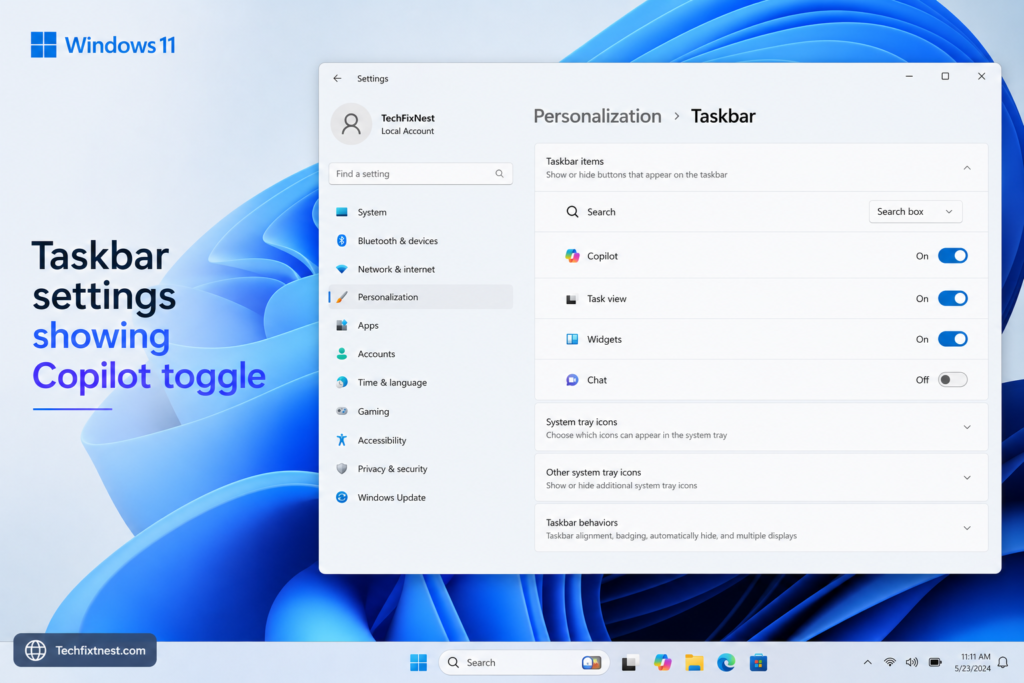
Don’t see the icon? Right-click your taskbar → select Taskbar settings → make sure Copilot is toggled On.
Method 3: Through Settings
- Click the Start button
- Go to Settings → Personalization → Taskbar
- Toggle Copilot to On
Once enabled, the icon appears in your taskbar immediately.
Setting Up Copilot for the First Time
The first time you open Copilot, you may be prompted to sign in with a Microsoft account. This is free and only takes a minute.
Steps to get set up:
- Open Copilot using one of the methods above
- Click Sign in if prompted
- Enter your Microsoft account email and password (or create a free account at account.microsoft.com)
- Choose a conversation style:
- More Creative – for imaginative, expressive responses
- More Balanced – a mix of accuracy and creativity (recommended for most)
- More Precise – for factual, direct answers
You can change the conversation style at any time by clicking the buttons at the top of the Copilot panel.
Tip: You do not need a paid subscription to use the basic features of Copilot on Windows 11. A free Microsoft account is enough.
What Can You Do with Copilot?
Here’s a quick overview of Copilot’s most useful capabilities:
| Category | What You Can Do |
|---|---|
| Writing | Draft emails, letters, blog posts, social captions |
| Summarizing | Paste text and ask Copilot to summarize it |
| Research | Ask questions; Copilot searches Bing for current answers |
| Settings | Ask Copilot to open specific settings pages for you |
| Image Generation | Ask Copilot to create an image based on your description |
| Translation | Translate text between languages |
| Coding Help | Get simple code snippets explained or written |
| Productivity | Set reminders, plan schedules, organize ideas |
The key is to just ask — in plain, everyday language. You don’t need to use special commands or keywords.
How to Use Copilot to Write and Summarize
This is one of Copilot’s most practical superpowers. Here’s how to use it:
Writing a Draft
- Open Copilot (Win + C)
- In the chat box, type something like: “Write a professional email to my client explaining that the project will be delayed by one week.”
- Press Enter or click the send button
- Copilot will generate a draft you can copy and edit
Summarizing Text
- Copy a long article, report, or email
- Open Copilot and type: “Summarize this:” then paste the text
- Copilot returns a short, clear summary in seconds
Rewriting or Improving Text
Paste your own writing and ask:
- “Make this more professional”
- “Simplify this for a 10-year-old”
- “Make this shorter”
- “Fix the grammar in this paragraph”
Generating Ideas
Ask things like:
- “Give me 5 ideas for a blog post about healthy eating”
- “What are some good names for a pet grooming business?”
Copilot is genuinely helpful here — especially when you’re stuck staring at a blank page.
How to Use Copilot to Control Windows Settings
This is a feature most beginners overlook — and it’s incredibly useful. Instead of digging through menus, you can just ask Copilot to do things for you.
Examples of what you can say:
- “Turn on dark mode”
- “Open Bluetooth settings”
- “Take a screenshot”
- “Open the volume mixer”
- “Show me battery saver settings”
- “Change my wallpaper”
- “Open Task Manager”
Copilot will either open the correct settings page directly or give you step-by-step instructions.
Note: Copilot cannot always execute every action automatically — sometimes it will just guide you. But it still saves a lot of time compared to searching through menus manually.
How to Use Copilot in Microsoft Edge
If you use Microsoft Edge as your browser, Copilot is also built in there — and it’s even more powerful in that context.
How to access it in Edge:
- Open Microsoft Edge
- Click the Copilot icon in the top-right corner of the browser (it looks like a small sidebar icon)
- The Copilot panel opens on the right
What you can do with Copilot in Edge:
- Summarize the webpage you’re on — ask “Summarize this page”
- Ask questions about the page — “What are the main points of this article?”
- Write content based on the page — “Write a tweet about this news story”
- Compare products — open a product page and ask “Compare this with similar products”
This is especially useful for research, reading long articles, or shopping online.
Copilot vs. Cortana: What’s the Difference?
Many Windows users remember Cortana, Microsoft’s older voice assistant. Copilot is different — and much more capable.
| Feature | Cortana | Copilot |
|---|---|---|
| AI Model | Rule-based / older AI | GPT-4 powered (OpenAI) |
| Conversation | Limited, scripted | Open-ended natural language |
| Writing Help | No | Yes |
| Image Generation | No | Yes |
| Web Search | Basic Bing search | Contextual Bing search |
| Windows Integration | Deep (reminders, calendar) | Settings and apps |
| Status in Windows 11 | Removed/optional | Built-in, actively developed |
In short: Copilot is smarter, more flexible, and much better at understanding what you actually mean.
Troubleshooting Common Copilot Issues
| Problem | Possible Cause | Solution |
|---|---|---|
| Copilot icon not visible in taskbar | Feature not enabled or Windows not updated | Go to Settings → Personalization → Taskbar → Enable Copilot |
| Copilot not responding | Poor internet connection | Check your Wi-Fi or Ethernet; Copilot requires internet |
| “Copilot isn’t available in your region” | Geographic restriction | Use a VPN or check Microsoft’s availability list |
| Copilot keeps giving wrong answers | Conversation style set to “Creative” | Switch to “Balanced” or “Precise” |
| Can’t sign in to Copilot | Account issue | Sign out and sign back in at account.microsoft.com |
| Copilot sidebar won’t open | Windows version too old | Update Windows 11 to version 23H2 or later |
| Image generation not working | Bing Image Creator limit reached | Wait 24 hours; daily limits reset automatically |
| Copilot forgets my conversation | No persistent memory (by default) | Start a new conversation and provide context again |
Pro Tips for Getting the Most Out of Copilot
- Be specific in your requests. Instead of “write an email,” say “write a polite follow-up email to a job interview I had on Monday.” The more detail you give, the better the result.
- Use follow-up messages. You don’t need to get it perfect in one message. Ask Copilot to “make it shorter” or “add a more friendly tone” in a follow-up.
- Try asking Copilot what it can do. Just type: “What can you help me with?” — it will surprise you.
- Use Copilot for research, not just writing. Ask it to explain a concept, compare two things, or break down a complex topic in simple terms.
- Switch conversation styles when needed. Use “Precise” for factual questions and “Creative” for brainstorming or storytelling.
- Pin the Copilot sidebar so it stays visible while you work. This makes it easy to reference without reopening it constantly.
- Paste directly into Copilot. You can copy text from anywhere — a Word doc, a website, a PDF — and paste it into Copilot to summarize, analyze, or improve it.
- Use Copilot to explain error messages. If your computer shows a confusing error, copy the message and ask Copilot: “What does this Windows error mean and how do I fix it?”
- Combine Copilot with Edge for research. Read an article in Edge, ask Copilot to summarize it, then ask follow-up questions — all without switching apps.
- Check Copilot’s sources. When it provides factual answers, it often includes links to Bing search results. Always verify important information from the source.
Common Mistakes to Avoid
- Being too vague. Saying “help me” without context gives you unhelpful responses. Always explain what you need.
- Trusting Copilot 100% for facts. Copilot can make mistakes — especially with numbers, dates, and recent news. Always double-check important facts.
- Ignoring the conversation style selector. Many beginners leave it on the default and get frustrated with results. Experiment to find what works best for your task.
- Not refreshing when Copilot seems stuck. If Copilot stops responding mid-answer, close and reopen it. This usually fixes the issue immediately.
- Expecting Copilot to remember past conversations. By default, each new session starts fresh. Don’t assume it knows what you discussed last week.
- Using it only for writing. Many users don’t realize Copilot can open settings, generate images, or help with coding. Explore the full range of features.
- Sharing sensitive personal information. Avoid entering passwords, financial details, or other private data into Copilot’s chat.
Best Practices
- Keep Windows 11 updated. Microsoft regularly improves Copilot through Windows Updates. Staying current ensures you get the latest features and bug fixes.
- Use a stable internet connection. Copilot works in the cloud, so a slow or unreliable connection leads to slow or failed responses.
- Sign in with your Microsoft account. While you can use Copilot without signing in, signing in unlocks more features and saves your conversation history within a session.
- Provide context when asking complex questions. If your request has background information — your role, your goal, your audience — include it. Better context = better answers.
- Start new conversations for new topics. Copilot works best within a focused conversation. Starting a fresh chat when switching topics prevents confusion.
- Explore Microsoft’s Copilot Lab (at copilot.microsoft.com/prompts) for a library of ready-to-use prompts across dozens of categories.
FAQ
Yes, the version of Copilot built into Windows 11 is free for anyone with a Microsoft account. Advanced features in Microsoft 365 apps (like Copilot in Word or Excel) require a paid Microsoft 365 Copilot subscription.
Go to Settings → Personalization → Taskbar and toggle Copilot to On. You can also press Win + C to try opening it directly. If it doesn’t appear, make sure your Windows 11 is updated to version 23H2 or later.
Copilot can open certain Windows settings pages and guide you through tasks, but it cannot take full control of your PC. It works more like a smart assistant that points you in the right direction than a remote control tool.
No. Copilot requires an active internet connection to function. It processes your requests in the cloud using Microsoft’s servers.
Both use similar AI technology (OpenAI’s GPT models), but Copilot is deeply integrated with Windows 11 and Microsoft products. It can interact with your OS settings and has access to real-time Bing search results. ChatGPT is a standalone web app focused purely on conversation.
Not yet. Microsoft has been rolling out Copilot in phases. Some regions may not have access yet. Check Microsoft’s official support page for the latest availability information.
Yes! You can ask Copilot to generate images using Bing Image Creator (powered by DALL-E). Just type something like: “Create an image of a sunset over a mountain lake in watercolor style.”
By default, Copilot does not carry memory between sessions. Each new conversation starts fresh. Within a single conversation, it does remember the context of your earlier messages.
Microsoft states that Copilot conversations are not used to train AI models for Microsoft 365 commercial customers. For personal users, review Microsoft’s privacy policy for the most up-to-date information. As a best practice, never share sensitive personal or financial information in any AI chat tool.
Yes. Copilot can write, explain, and debug simple code snippets in languages like Python, JavaScript, HTML, and more. For more advanced coding needs, consider using GitHub Copilot, which is specifically designed for developers.
Copilot supports dozens of languages, including English, Spanish, French, German, Arabic, Chinese, Japanese, and many more. You can type in your preferred language and it will respond accordingly.
After Copilot responds, you’ll see a thumbs up 👍 and thumbs down 👎 icon below the message. Click these to rate the response and help Microsoft improve the product.
Conclusion
Microsoft Copilot on Windows 11 is a genuinely powerful tool — and it’s easier to use than most people expect. Whether you need help writing an email, understanding a document, adjusting your PC settings, or just answering a question, Copilot is only a keyboard shortcut away.
The key is to start simple. Try pressing Win + C right now and ask Copilot one thing you’d normally Google. See how it responds. Then try asking a follow-up. You’ll quickly discover how natural the experience feels.
As Microsoft continues updating Copilot, it will only get smarter and more integrated into your daily workflow. The sooner you get comfortable with it, the more productive you’ll become.
Don’t be afraid to experiment — there are no wrong questions. Copilot is here to help.