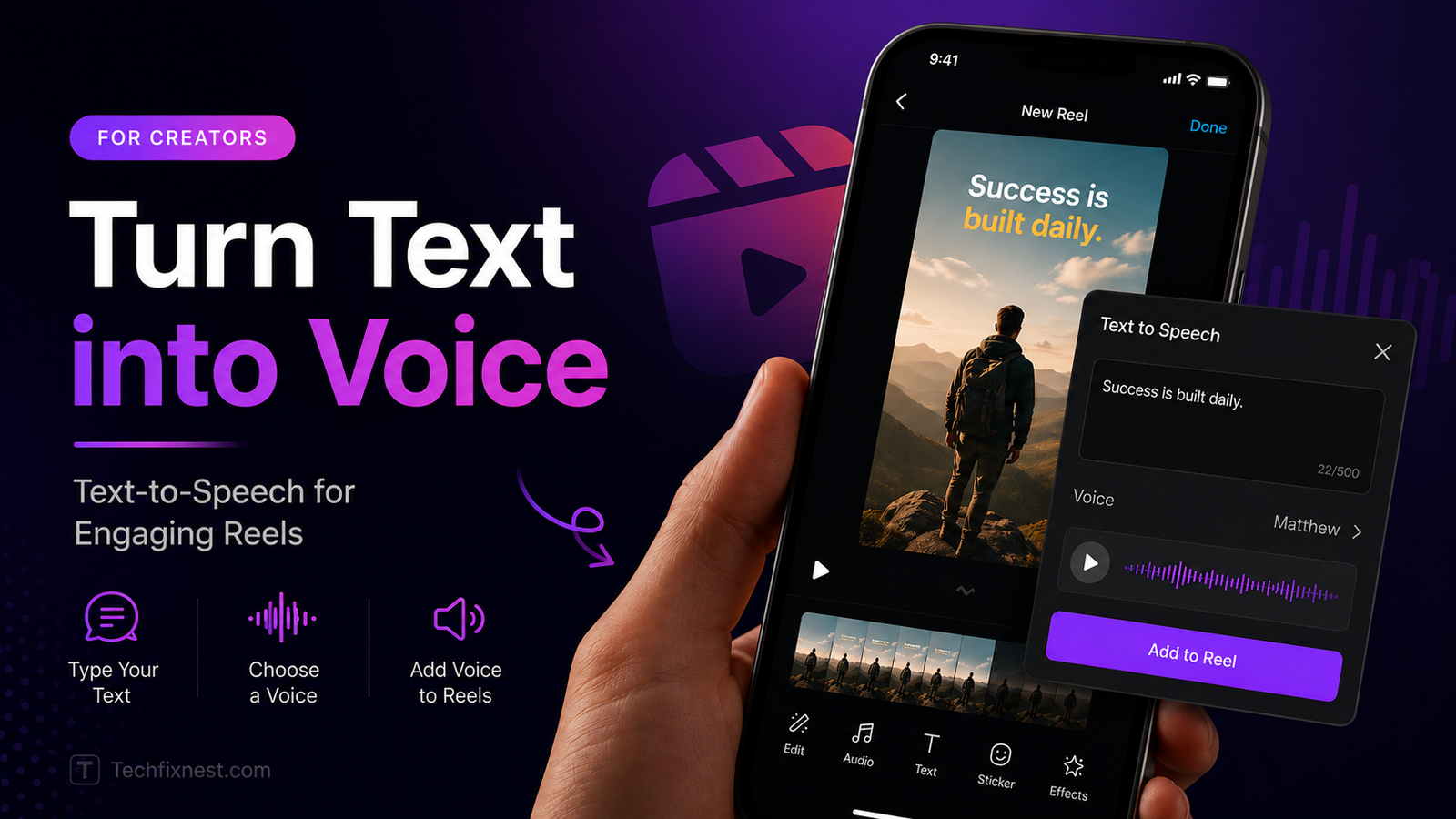
Discover the best free AI voice generator tools for Reels in 2026. Compare realistic voices, free limits, and step-by-step setup for TikTok, IG, and Shorts.
Quick Answer
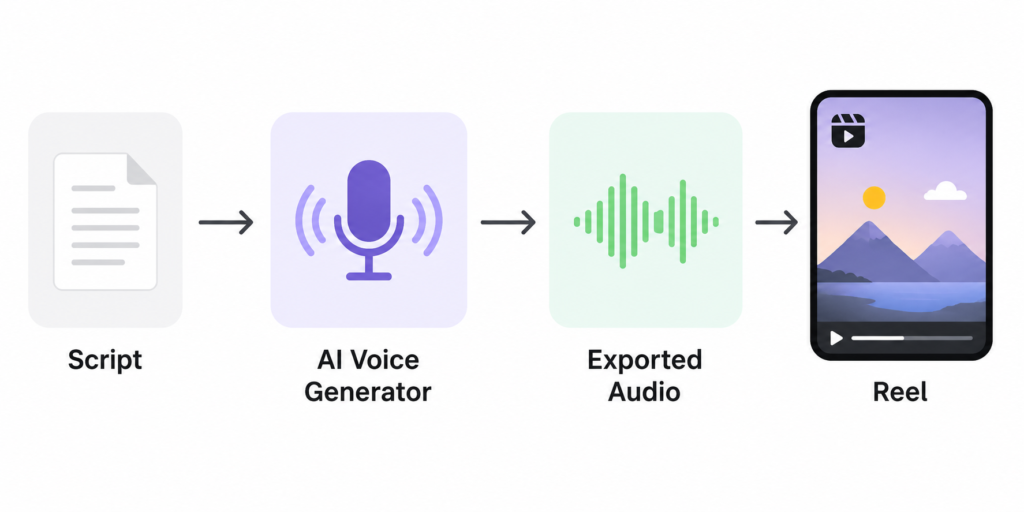
The best free AI voice generators for Reels in 2026 are CapCut (built-in editor, 200+ voices, no sign-up needed), ElevenLabs (most realistic tone, 10 minutes free monthly), and Fish Audio (best free voice cloning). For most creators, CapCut is the easiest starting point because it combines text-to-speech with video editing in one free app.
Table of Contents
- Introduction
- Why Reels Need a Realistic AI Voice
- What Makes an AI Voice Sound “Real”
- Best Free AI Voice Generator Tools for Reels
- How to Add an AI Voice to Your Reel (Step-by-Step)
- Troubleshooting Table
- Pro Tips
- Common Mistakes to Avoid
- Best Practices
- FAQ
- Conclusion
Introduction
You’ve probably scrolled past dozens of Reels today where the creator never says a word on camera — yet a smooth, natural voice tells the whole story. That’s an AI voice generator at work, and you don’t need a studio, a microphone, or even your own voice to use one.
AI voice generators turn typed text into spoken audio using machine learning models trained on real human speech. In 2026, the gap between “AI voice” and “real person” has nearly closed. The best free tools now produce natural pauses, emotional tone, and realistic pacing that used to require professional voice actors.
This guide is for creators, small business owners, and social media managers who want to add voiceover to Reels, TikToks, or Shorts without paying for expensive software. You’ll learn which free tools actually sound human, how to use them step by step, and how to avoid the mistakes that make AI voiceovers sound robotic.
By the end, you’ll know exactly which free tool fits your workflow — and how to get a polished voiceover onto your next Reel in minutes.
Why Reels Need a Realistic AI Voice
Short-form video lives or dies by the first two seconds. A flat, robotic voice makes people scroll past. A warm, natural-sounding one keeps them watching.
Voiceover on Reels also solves a few practical problems:
- You don’t have to be on camera or comfortable speaking. Many creators prefer writing a script over recording their own voice.
- It’s faster. No retakes, no background noise, no re-recording because you stumbled on a word.
- It’s more accessible. Viewers who scroll with the sound off still benefit from captions generated alongside the voice.
- It’s consistent. A branded AI voice can sound the same across every video, which helps audiences recognize your content instantly.
The tradeoff used to be quality — early text-to-speech sounded stiff and mechanical. That’s no longer the case with the tools below.
What Makes an AI Voice Sound “Real”
Before comparing tools, it helps to know what separates a natural-sounding voice from a robotic one. Look for:
- Prosody — natural rhythm, stress, and intonation instead of a flat monotone.
- Breathing and pacing — subtle breath sounds and varied speed that mimic how people actually talk.
- Emotional range — the ability to sound cheerful, serious, or calm depending on the script.
- Clean audio quality — no digital artifacts, hiss, or clipping, especially at higher volumes.
The tools featured below were chosen because they consistently score well on these factors, based on published comparisons and creator feedback from 2026.
Best Free AI Voice Generator Tools for Reels
1. CapCut (Best All-in-One for Reels)
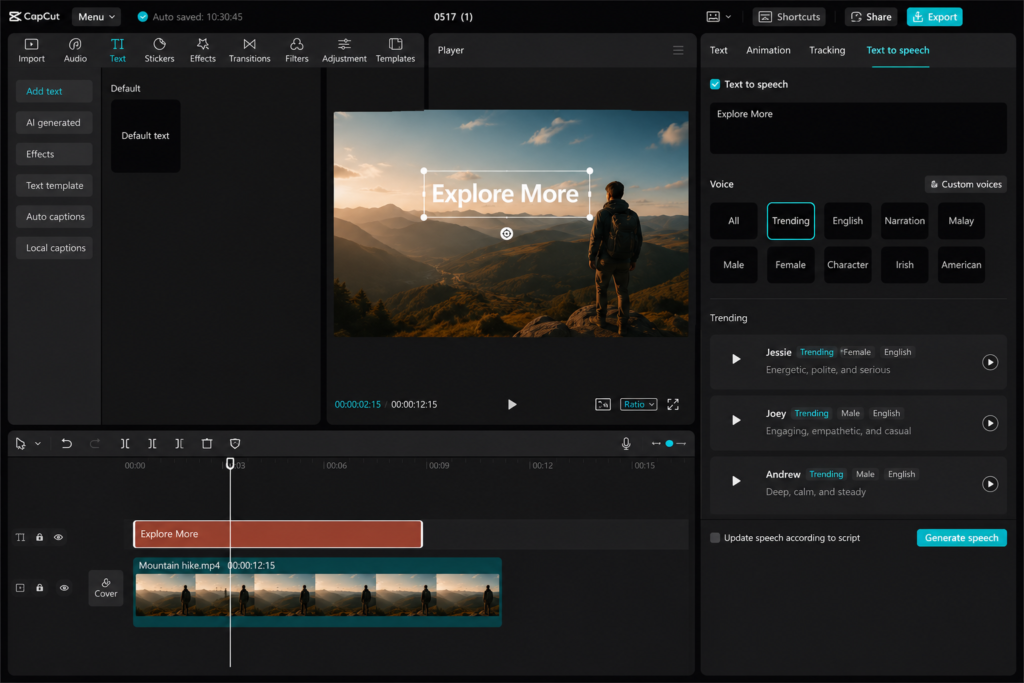
CapCut bundles text-to-speech directly into its free video editor, which makes it the fastest option if you’re already editing your Reel there. <cite index=”16-1″>It offers more than 200 AI-generated voices that you can choose based on gender, age, style, or language.</cite> <cite index=”12-1″>The text-to-speech engine mimics human tone, pitch, and rhythm, and you can adjust speed, gender, and emotional tone such as cheerful, serious, or dramatic.</cite>
- Best for: Creators who want voiceover and editing in one app, with zero switching between tools.
- Free tier: Free browser and desktop text-to-speech generation with exportable audio.
- Note: <cite index=”21-1″>Some advanced voice styles and export features, like watermark-free exports, may require a paid plan.</cite>
2. ElevenLabs (Best for Voice Realism)
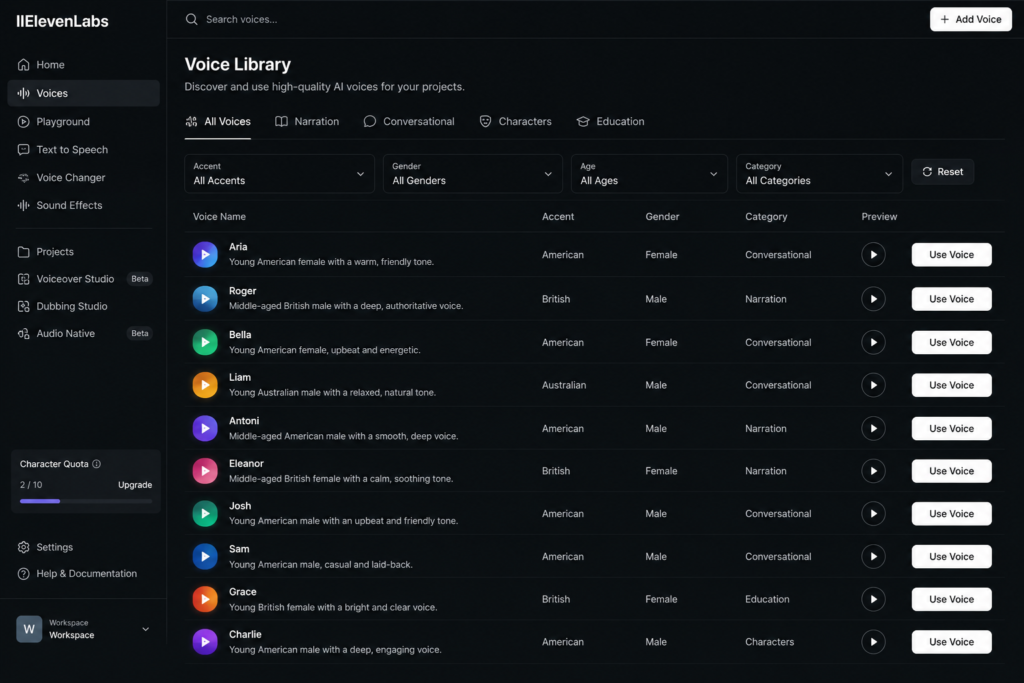
<cite index=”7-1″>ElevenLabs‘ free tier gives 10 minutes of voice generation per month with access to the entire voice library and voice cloning, and the quality is noticeably ahead of most other tools</cite> in terms of natural pauses and emotional inflection. <cite index=”11-1″>The free tier provides around 10,000 characters per month, enough for roughly 10–15 minutes of audio, and voices capture subtle emotional nuance and breathing patterns.</cite>
- Best for: Short, high-impact Reels where voice quality matters more than volume of content.
- Free tier: ~10 minutes or 10,000 characters per month.
- Note: Great for testing and short clips, but the free allowance runs out quickly if you post daily.
3. Fish Audio (Best Free Voice Cloning)
<cite index=”7-1″>Fish Audio’s free tier gives seven minutes per month of access to the full platform, including voice cloning from a 15-second sample, speech-to-text, sound-effect generation from text prompts, and a library of more than two million community voice models.</cite> <cite index=”5-1″>Its voices express emotion through phrasing, timing, and subtle tone shifts rather than exaggerated pitch, so long-form narration stays stable without drifting.</cite>
- Best for: Creators who want a cloned voice of their own without recording every video.
- Free tier: 7 minutes per month.
4. Quillbot AI Voice Generator (Best for Quick, No-Sign-Up Clips)
<cite index=”3-1″>Quillbot’s AI voice generator is free to use with zero hidden fees and no sign-up required, and it generates natural-sounding audio with human-like vocal tone and emotion in seconds.</cite> It’s a good option when you just need a quick voice clip without creating an account.
- Best for: One-off Reels or testing a script before committing to a longer project.
- Free tier: Fully free, no account needed.
5. Instagram’s Built-In Text-to-Speech
<cite index=”13-1″>Instagram has a built-in text-to-speech option that works directly inside Reels, and creators are encouraged to try this first before using third-party apps to keep the process simple.</cite> It won’t offer the voice variety of dedicated tools, but it’s the fastest option if you’re already recording inside the app.
- Best for: Fast, in-app Reels with no extra downloads.
- Free tier: Fully free, built into Instagram.
Comparison at a Glance
| Tool | Free Limit | Realism | Best For |
|---|---|---|---|
| CapCut | Free TTS, watermark on some exports | High | All-in-one Reels editing |
| ElevenLabs | ~10 min / 10,000 characters per month | Very High | Short, high-quality clips |
| Fish Audio | 7 minutes per month | High, stable on long clips | Voice cloning |
| Quillbot | Unlimited, no sign-up | Good | Quick one-off clips |
| Instagram TTS | Unlimited, in-app | Moderate | Speed and convenience |
How to Add an AI Voice to Your Reel (Step-by-Step)
Using CapCut as the example workflow, since it combines voice generation and editing:
- Open CapCut (desktop or web) and import your Reel footage or start a new project.
- Write or paste your script into the Text tool.
- <cite index=”16-1″>Open the “Text to speech” panel, choose a voice, and click “Generate speech” to create a natural-sounding voice.</cite>
- Adjust pitch, speed, and tone so the voice matches the mood of your video.
- Drag the audio clip onto your timeline and sync it with your visuals.
- Add captions for viewers watching without sound.
- Export at the resolution and frame rate you need, then upload to Instagram, TikTok, or YouTube Shorts.
Tip: Preview the voice in two or three different emotional tones before finalizing — the same script can sound completely different as “cheerful” versus “serious.”
Troubleshooting Table
| Problem | Possible Cause | Solution |
|---|---|---|
| Voice sounds robotic or flat | Wrong tone/emotion setting selected | Switch to a different emotional preset (e.g., “conversational” or “cheerful”) |
| Audio cuts off mid-sentence | Free character or minute limit reached | Split the script into shorter clips or switch tools for the remainder |
| Voice doesn’t match video pacing | Script too long for the clip length | Trim the script or increase playback speed slightly |
| Exported audio has a watermark or is low quality | Using a feature locked behind a paid plan | Check the tool’s free vs. paid feature list before exporting |
| Voice mispronounces names or brand terms | AI doesn’t recognize the word | Spell it phonetically in the script (e.g., “Nike” as “Nyk-ee” if needed) |
| Background noise in exported voice clip | Didn’t apply noise reduction | Use the “reduce noise” or “enhance voice” feature before exporting |
Pro Tips
- Keep sentences short — long run-on sentences make AI pacing sound unnatural.
- Use punctuation deliberately; commas and periods control where the AI pauses.
- Test the same script across two or three tools before choosing — tone varies more than you’d expect.
- Match the voice’s energy to your video’s visual pace; a slow, calm voice over fast cuts feels mismatched.
- Save your favorite voice settings so your channel sounds consistent across Reels.
- Layer light background music under the voice, but keep the voice clearly louder.
- Always add captions — many viewers watch Reels muted.
- Break scripts for multi-scene Reels into separate clips so each syncs cleanly with its own visual.
Common Mistakes to Avoid
- Using one flat tone for the entire video. Varying emotion keeps viewers engaged.
- Ignoring free-tier limits. Running out of minutes mid-project wastes editing time — check limits first.
- Skipping the preview step. Always listen before exporting; small wording changes can fix awkward pacing.
- Overlapping voice and music at equal volume. This buries the narration and hurts watch time.
- Forgetting commercial-use terms. Some free tiers restrict how generated audio can be used commercially — always check the tool’s terms.
Best Practices
- Pick one primary tool and voice for your channel to build audio brand recognition.
- Write scripts in short, punchy sentences designed for spoken delivery, not for reading.
- Regularly re-test your chosen tool — free tiers and voice libraries are updated often.
- Combine AI voice with captions and on-screen text for maximum accessibility and reach.
- Keep a swipe file of scripts that performed well, and reuse that pacing style for future Reels.
FAQ
Most offer a genuinely usable free tier, though limits vary. <cite index=”7-1″>ElevenLabs gives about 10 minutes per month, while Fish Audio offers 7 minutes per month</cite>, and CapCut and Quillbot offer free text-to-speech generation without strict monthly time caps.
<cite index=”4-1″>Fliki has been described as offering thousands of ultra-realistic AI voices</cite>, while <cite index=”7-1″>ElevenLabs is frequently rated as the most realistic free option available in 2026</cite>, especially for emotional inflection and natural pauses.
<cite index=”21-1″>The basic version lets you download videos without watermarks, but some advanced voice styles and export features may require a paid plan.</cite>
No — most tools only need a short sample. <cite index=”7-1″>Fish Audio can clone a voice from just a 15-second audio sample.</cite>
Yes. <cite index=”13-1″>Instagram has a built-in text-to-speech option that works directly in Reels, and it’s recommended to try this first before using third-party apps.</cite>
This varies by tool. <cite index=”16-1″>CapCut supports voice generation in multiple languages selectable from its AI voice library.</cite>
Not necessarily. Viewers respond to clarity, pacing, and content value more than the source of the voice. Many high-performing Reels use AI narration exclusively.
It depends on the platform’s terms. <cite index=”8-1″>Some tools explicitly state their voices can be used for commercial purposes</cite>, but always confirm the specific license before using a voice for paid or branded content.
Uncommon names, brand terms, or acronyms can trip up the model. Try spelling the word phonetically in your script for a more accurate pronunciation.
Yes. Text-to-speech uses a pre-built AI voice from the platform’s library, while voice cloning creates a synthetic version of a specific person’s voice — <cite index=”7-1″>Fish Audio, for example, clones from a 15-second sample</cite> rather than using a generic library voice.
Many do. CapCut and Instagram’s built-in TTS both work on mobile apps, making them convenient for creators who film and edit entirely on their phone.
This depends on the tool’s limit — <cite index=”11-1″>ElevenLabs’ free tier covers roughly 10–15 minutes of audio per month</cite>, which is more than enough for dozens of 15–30 second Reels.
Conclusion
Adding a realistic AI voice to your Reels no longer requires expensive software or professional recording gear. Tools like CapCut, ElevenLabs, Fish Audio, Quillbot, and Instagram’s own built-in feature all offer genuinely usable free tiers in 2026, each suited to a slightly different workflow — whether that’s all-in-one editing, top-tier realism, voice cloning, or pure speed.
The fastest way to find your fit is to test the same short script across two or three tools and listen for which one matches your content’s tone. Once you settle on a voice, keep it consistent across your channel to build recognition. With the right free tool and a few pacing tweaks, your next Reel can sound as polished as anything coming out of a professional studio — without spending a cent.