I updated my phone before bed like I always do, and by morning, Instagram wouldn’t open past the loading screen.
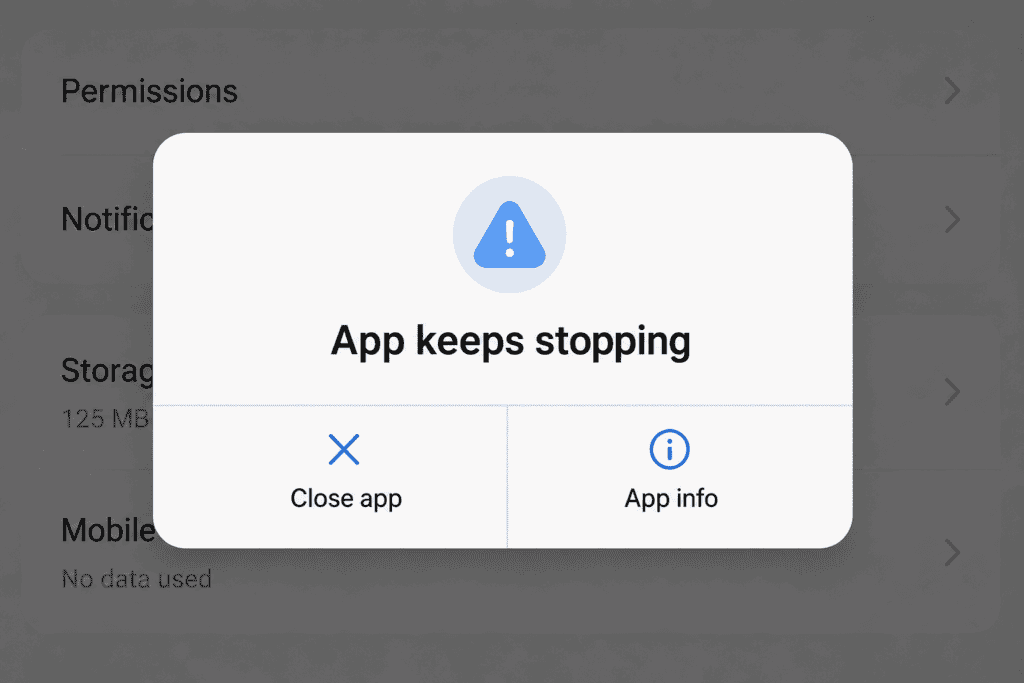
Then WhatsApp crashed the second I tapped a chat. Then my banking app gave me a generic “unfortunately, this app has stopped” message before I’d even logged in. I hadn’t installed anything new. The only thing that had changed overnight was the Android 16 update itself.
If the same thing is happening to you, you’re not dealing with a broken phone. This is a widespread pattern that’s shown up across Pixel, Samsung, and other Android devices since Android 16 rolled out. I went through nearly every fix out there over the course of two frustrating days, so I’m laying them out in the order that actually worked for me starting with the quick ones, ending with the more technical fixes I only needed for a couple of stubborn apps.
Why This Keeps Happening After Major Android Updates
Every time Google pushes a major version like Android 16, a huge number of background system components change at once permission handling, background process limits, and how apps talk to Google Play Services.
Most apps get updated by their developers to match these changes before or shortly after rollout. But there’s always a window where certain apps haven’t caught up yet. During that window, they crash on launch, freeze mid-use, or throw the “keeps stopping” error.
Google itself pushed maintenance patches specifically targeting app-crash bugs a few months after the initial Android 16 release, which tells you this wasn’t a handful of isolated complaints it was common enough that a dedicated stability patch was worth shipping.
There’s a layer to this that most quick-fix lists skip over: background process limits. Every major Android version tends to adjust how aggressively the system manages memory and battery in the background which apps get to keep running, for how long, and how much RAM they’re allowed to hold onto while minimized. Android 16 tightened some of these limits further as part of its battery efficiency push.
Apps that weren’t built with these tighter limits in mind can get killed mid-operation by the system instead of shutting down cleanly. When you reopen them, they crash trying to resume from a state that no longer exists. This is different from a straightforward compatibility bug it’s more like the app getting caught off guard by rules that changed underneath it overnight.
Pixel devices in particular saw a dedicated stability patch a few months after the Android 16 launch, aimed squarely at fixing crash reports rather than adding new features. That’s usually a sign a manufacturer is treating something as a real, widespread problem rather than a scattering of one-off complaints.
10 Easy Fixes (In the Order I’d Actually Try Them)
Fix 1: Restart Your Phone
I know, I know it’s the most obvious step on every list like this. But it genuinely resolved a couple of my crashes on its own, at least temporarily, so it’s worth ruling out before anything else.
Hold the power button, tap Restart, and give your phone a minute after it boots back up before testing the crashing apps again.
Fix 2: Update Google Play Services Manually
This was the biggest single fix for me. Play Services runs in the background for almost every app on your phone, and if it’s even slightly out of sync with a new Android version, it causes crashes across completely unrelated apps.
- Open the Google Play Store
- Search “Google Play Services”
- Tap Update if it’s available
- Restart your phone once it finishes
Roughly half my crashing apps stopped crashing after just this step.
Fix 3: Update the Crashing App Itself
Sounds obvious, but check that the app hasn’t just released a compatibility patch since your update. Developers often push fixes within days of a major Android release once crash reports start coming in.
Open the Play Store, go to Manage apps & device, and update anything showing a pending update not just the app you think is the problem.
Fix 4: Force Stop and Reopen
This clears whatever bad state the app got stuck in without touching any of your data.
- Settings > Apps > [App Name]
- Tap Force stop
- Reopen the app normally
On its own this didn’t permanently fix anything for me, but it’s a fast way to confirm the app can still run at all before moving to deeper fixes.
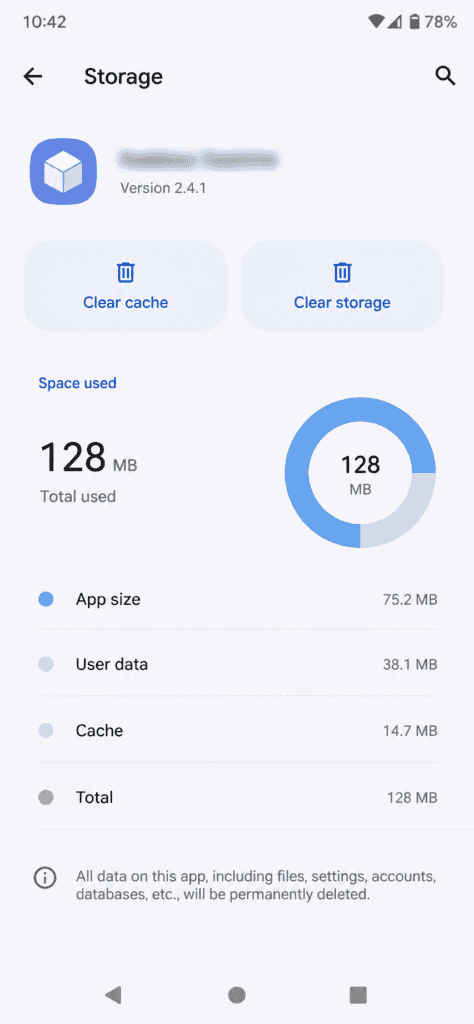
Fix 5: Clear Cache for the Affected App
This targets leftover files from before the update that can confuse an app trying to read data formatted for the older Android version. It’s safe clearing cache doesn’t touch your logins or saved data.
- Settings > Apps > [App Name] > Storage
- Tap Clear Cache
- Reopen and test
Fix 6: Clear App Data (For Anything Still Crashing)
If cache alone didn’t help, this goes a step further. It resets the app’s local settings and logs you out, so use it only on apps still misbehaving after Fix 5.
- Same path: Settings > Apps > [App Name] > Storage
- Tap Clear Data
- Reopen and log back in
Fix 7: Reset App Permissions
This is the fix most guides skip, and it’s the one that finally solved my banking app crash. Android 16 introduced stricter default handling for background location, notifications, and file access for apps that hadn’t been opened in a while and some permissions get silently restricted after the update.
- Settings > Privacy > Permission Manager
- Check Files and media, Location, and Notifications
- Look for the crashing app listed under “Not allowed” when it previously had access
- Re-grant the permission and reopen the app
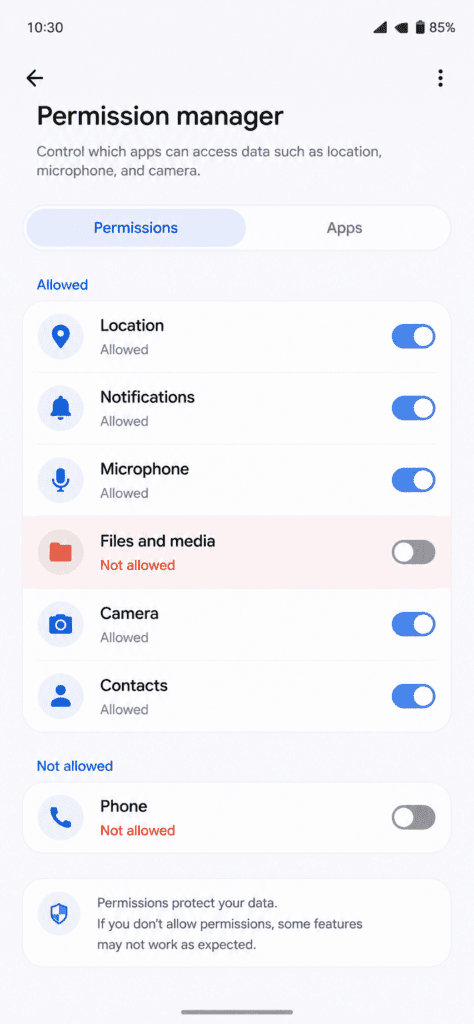
It turned out my banking app was crashing while silently checking for a permission it no longer had, instead of properly prompting me to re-grant it. Once I fixed the permission directly, the crash stopped completely.
Fix 8: Free Up Storage Space
Low storage makes crashes worse and slower to resolve, since the system can’t properly write temporary files during normal app operations. I’d recommend keeping at least 1–2GB free at all times.
Quick ways to claw space back:
- Delete apps you no longer use
- Clear old downloads and screenshots
- Back up photos to Google Photos, then remove local copies
- Empty your Files app’s trash folder
I’ll admit this was the fix I resisted the longest, mostly because “just free up space” sounds like generic advice that couldn’t possibly matter for something as specific as a crash after a major update. But my phone was sitting at under 500MB free at the time, and after clearing about 4GB, two apps that had been crashing intermittently not consistently enough to blame on anything else stopped acting up entirely. It’s easy to overlook because it doesn’t feel like a “real” fix, but low storage genuinely interferes with how cleanly the system can process temporary update-related files in the background.
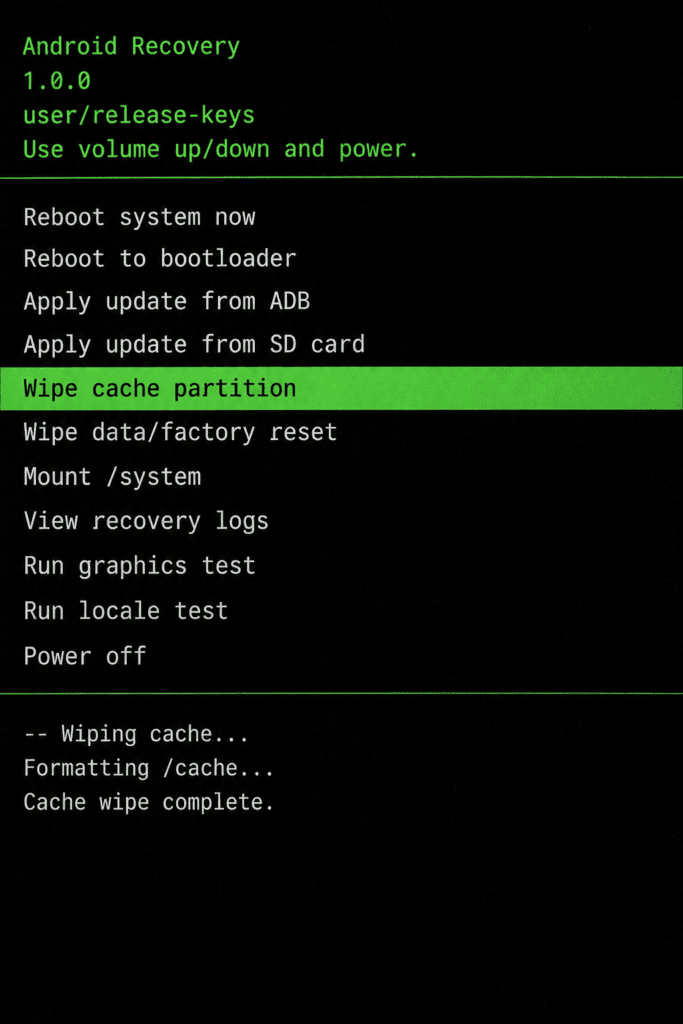
Fix 9: Wipe the System Cache Partition
This one’s more technical but fixed a couple of stubborn system-level crashes that individual app fixes didn’t touch. It clears temporary system files left over from the update process itself.
- Power off your phone completely
- Boot into recovery mode commonly Power + Volume Up on Samsung and Pixel devices, though it varies slightly by brand
- Navigate to Wipe Cache Partition using the volume buttons, select with the power button
- Reboot once it completes
Skip this one if you’re not comfortable in recovery mode Fixes 1 through 8 solve it for most people.
Fix 10: Reset App Preferences (Or Factory Reset as a Last Resort)
If crashes are scattered across several unrelated apps with no clear pattern, resetting app preferences clears background permission and default-setting conflicts across everything at once, without deleting personal data.
- Settings > Apps
- Tap the three-dot menu
- Select Reset App Preferences
- Restart your phone
A full factory reset should be the actual last resort only if crashes are happening across nearly every app, your phone is overheating or freezing constantly, and nothing above helped. Back up everything first, since this wipes the device completely.
Quick Reference Table
| Symptom | Likely Cause | Try This Fix |
|---|---|---|
| Apps crash immediately on open | Play Services out of sync | Fix 2 |
| One or two specific apps keep freezing | Leftover cache from before update | Fix 5 |
| App crashes even after clearing cache | Corrupted local app data | Fix 6 |
| App crashes silently without a permission prompt | Permission reset during update | Fix 7 |
| Multiple unrelated apps crash randomly | System-level leftover files | Fix 9 or 10 |
| Only apps from one developer crash | Developer hasn’t updated for new Android version yet | Fix 3, or wait for their patch |
How to Avoid This Next Time
Don’t update the moment a new Android version drops. I used to install updates same-day out of habit. Now I wait a week or two after a major release like Android 16, so app developers have time to catch up and early bugs surface in other people’s reports first.
Keep 1–2GB of free storage at all times, as covered in Fix 8 this alone prevents a good chunk of update-related instability.
Back up important app data regularly, especially before major OS updates, so clearing data or resetting something isn’t starting from zero.
Check your phone manufacturer’s community forum before assuming it’s just you. Samsung Members and the Google Pixel community forum are usually where these patterns get flagged and acknowledged first, often with an official fix timeline.
FAQs
No. Clearing cache only removes temporary files the app uses to load faster your photos, messages, and saved data stay untouched.
It depends on how recently each app’s developer updated it for the new Android version, and how heavily that app relies on Google Play Services in the background.
Usually no. Most manufacturers, including Samsung, disable downgrading after a major update installs, due to security policy changes tied to the new version.
Rarely. It’s genuinely a last resort try Fixes 1 through 9 first, since most people never need to go this far.
Most major apps release compatibility updates within one to three weeks of a new Android version’s rollout. Smaller or less actively maintained apps can take longer.
Early Android 17 features are rolling out gradually through Pixel Drops, and similar app-compatibility crashes have shown up during those staged rollouts too. The same 10 fixes above apply regardless of which version triggered it.
No everything described here is a software-level issue tied to the update transition, not a hardware fault. If your phone is also overheating constantly or running slow across the board even after these fixes, that’s worth looking into separately.
One last thing. By the time I’d worked through Fix 7, only my banking app was still occasionally acting up. It turned out their own support page already had a note acknowledging the Android 16 compatibility issue, with an official fix rolling out within the week. Sometimes the last piece really is just waiting on someone else’s patch, not something you’re missing on your end worth checking the app’s own support page before assuming you’ve done something wrong.