
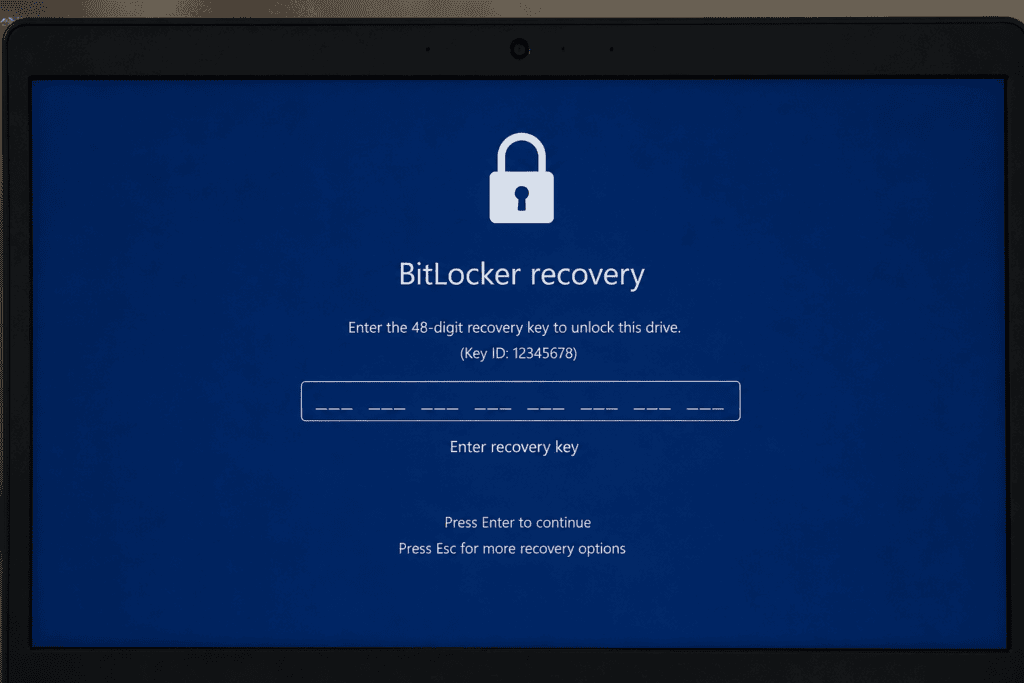
I woke up to a blue screen asking for a 48-digit recovery key I hadn’t looked at in two years.
My desktop had installed the June 2026 Windows update overnight, like it always does. Except this time, instead of booting normally, it dropped straight into BitLocker Recovery a locked screen demanding a key just to get past login. I entered what I thought was the right key from an old screenshot. Wrong. I rebooted, tried again, and landed right back on the same recovery screen. Three attempts later, I was fairly convinced my PC had eaten itself overnight.
It hadn’t. If you’re reading this because you’re stuck in the same loop, take a breath this is a known issue tied to a specific update, and in almost every case, it’s fixable without losing your files.
What’s Actually Happening
The update responsible is KB5094126, part of Microsoft’s June 2026 Patch Tuesday rollout. It’s a mandatory cumulative update covering a large batch of security fixes, so it installs automatically on most Windows 11 24H2 and 25H2 machines whether you click “install” or not.
For a subset of users, this update is triggering BitLocker to re-check the integrity of the boot process and failing that check. When BitLocker’s Trusted Platform Module (TPM) validation thinks something changed about how your PC boots (even something harmless), it locks the drive and asks for your recovery key as a safety measure.
Normally this is rare. But this particular update seems to interact badly with certain firmware configurations, causing BitLocker to flag a false positive. You didn’t do anything wrong, and in most reported cases, nothing is actually broken Windows is just being overly cautious.
Technically, what’s happening under the hood is called a measured boot mismatch. Your TPM chip records a set of values (called PCR values, short for Platform Configuration Registers) every time your PC boots, essentially a fingerprint of your boot process bootloader version, firmware settings, Secure Boot state, and so on. BitLocker compares that fingerprint against a known-good baseline each time you start up. If even one of those values shifts unexpectedly, BitLocker assumes someone or something tampered with the boot chain and locks the drive as a precaution.
The reason KB5094126 keeps triggering this is that the update itself modifies part of the boot process updating boot manager files, in some cases adjusting Secure Boot policy data which is exactly the kind of change that shifts a PCR value. On most machines, Windows handles this gracefully and quietly updates the baseline. On the affected subset, it doesn’t, and BitLocker treats a legitimate Microsoft update like a potential attack.
I found this oddly reassuring once I understood it. It meant my PC wasn’t corrupted or compromised it was doing exactly what BitLocker is designed to do, just reacting to the wrong trigger.
Which PCs Seem Most Affected
Reports on this bug span multiple manufacturers Dell, HP, Lenovo, and a handful of custom-built desktops with third-party motherboards all show up in the threads I read while troubleshooting my own machine. The common thread isn’t the brand so much as the TPM implementation: PCs using firmware TPM (fTPM), built into the CPU rather than a separate physical chip, seem to report this more often than machines with a discrete TPM module. AMD Ryzen systems using fTPM and some older Intel PTT (Platform Trust Technology) configurations both show up frequently in the reports.
If your PC is a few years old and you’ve never manually updated its BIOS, that combination older firmware plus fTPM appears to be the highest-risk profile for hitting this loop.
Why a “Loop” Specifically
What makes this version of the bug frustrating is that even after you enter the correct recovery key and get back into Windows, some machines trigger the same lock again on the very next restart. That’s the “loop” part you get access, thank goodness, but you’re not out of the woods until you fix the underlying trigger, not just unlock it once.
First, Find Your Recovery Key
Before anything else, you need the actual key. If you don’t have it memorized or written down, here’s where to look:
- Microsoft account: Go to
account.microsoft.com/devices/recoverykeyfrom any device (phone, another PC) and sign in with the Microsoft account linked to the locked PC - Printed copy: If you printed it during setup, check wherever you keep important documents
- USB drive: If you saved it to a USB drive during BitLocker setup, plug it into another computer to read it
- Azure AD / work account: If this is a work PC, your IT admin can pull the key from Azure AD or Intune
I’ll be honest I didn’t have mine memorized either. It took me longer to find the key than it did to actually fix the problem once I had it. If you take away one thing from this article, let it be this: go save your recovery key somewhere accessible right now, even if your PC is working fine today.
What I Tried First
Once I was back into Windows using the recovery key, my first instinct was to just… hope it wouldn’t happen again. It did, on the very next restart. So I tried a few things that didn’t fully solve it:
- Restarting normally a few more times, thinking it might resolve itself — it didn’t
- Running
chkdskto check for disk errors came back clean, no issues found - Temporarily suspending BitLocker through the Control Panel, which stopped the lock screen but re-enabled itself after the next major restart
None of these addressed the actual trigger. The real fix involves telling BitLocker to stop treating the update-related boot change as suspicious, and in some cases, updating your firmware so the conflict doesn’t happen again.
The Fix That Actually Worked
Step 1: Get Back Into Windows With Your Recovery Key
Enter your 48-digit recovery key exactly as shown, including the dashes. If it fails, double check you’re using the key tied to the correct drive some PCs generate a different key per drive if you have multiple.
Step 2: Suspend BitLocker Properly (Not Just Once)
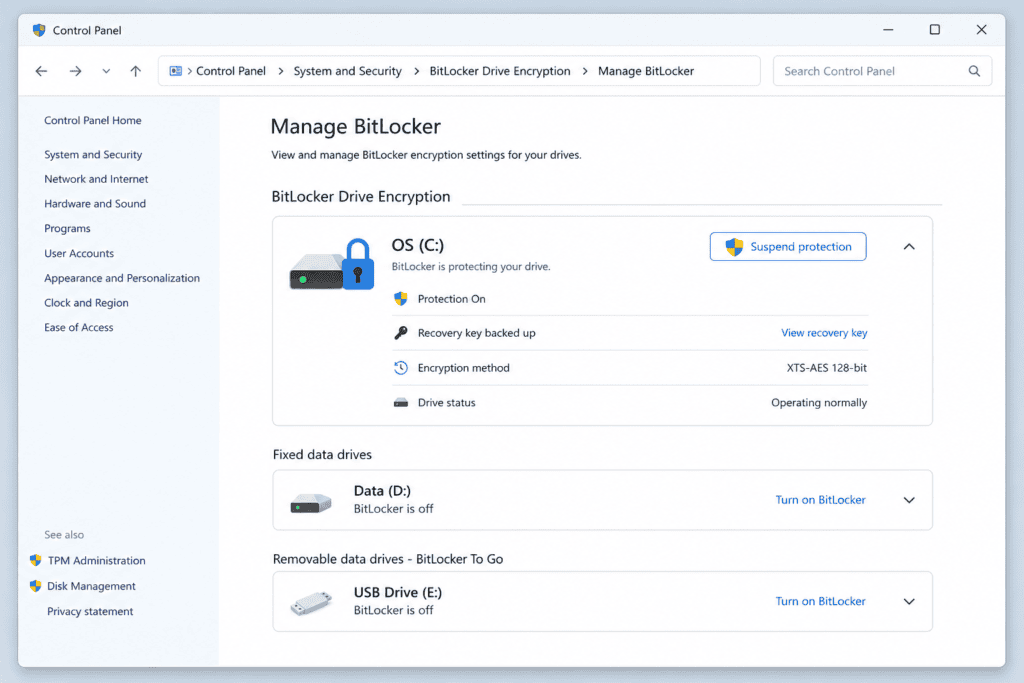
This is the step most people get wrong. Suspending it through the lock screen only fixes that one boot. You need to suspend it from inside Windows with enough reboots covered.
- Open the Start menu, search for “Manage BitLocker”, and open it
- Click Suspend protection next to your system drive
- When prompted, choose to suspend for a specific number of restarts — pick a higher number (at least 3) instead of just “1 restart,” since this bug can take more than one reboot to fully settle after firmware or driver updates finish applying
- Restart your PC once, and confirm you no longer see the recovery screen
Step 3: Check for a Firmware or Driver Update
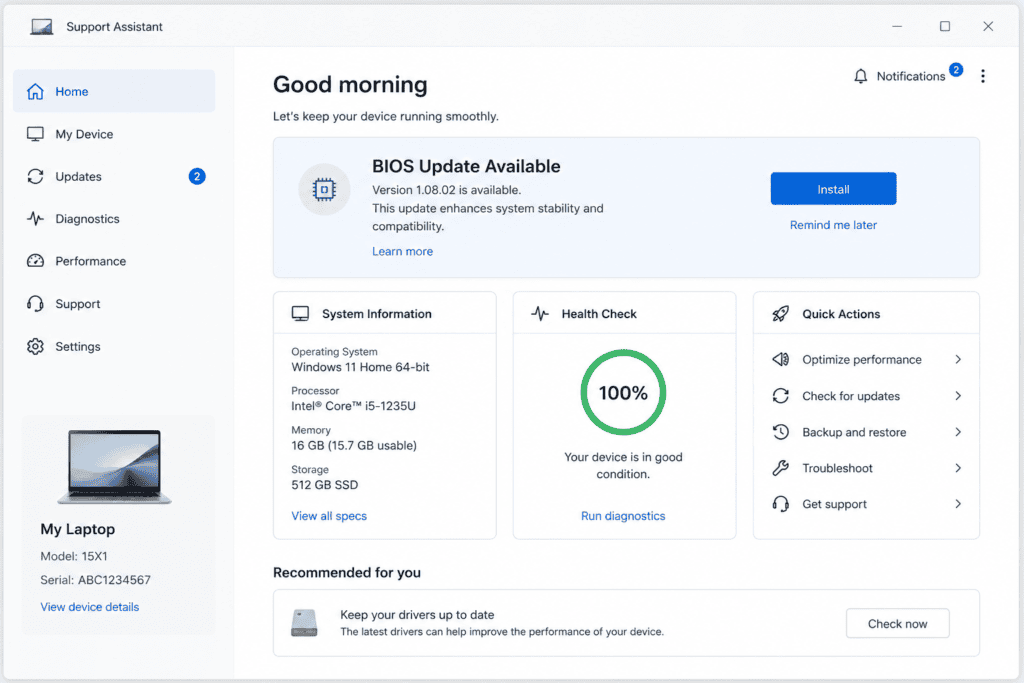
While BitLocker is suspended, this is the safe window to check whether your motherboard or laptop manufacturer has released a BIOS update addressing this conflict.
- Press
Win + R, typemsinfo32, and note your BIOS version and system model - Visit your manufacturer’s support page (Dell, HP, Lenovo, ASUS, etc.) and search for a BIOS update newer than June 2026
- Install it if available this is usually what stops the loop from coming back permanently
Step 4: Re-Enable BitLocker Protection
Once your firmware is updated and you’ve confirmed a couple of clean restarts, go back into Manage BitLocker and click Resume protection. This turns encryption checks back on without re-triggering the false lock, assuming the firmware conflict has been resolved.
Step 5: Save a Fresh Copy of Your Recovery Key
After resuming protection, BitLocker sometimes generates a refreshed key. Go back to account.microsoft.com/devices/recoverykey and confirm the key listed matches what’s currently active. Save a copy somewhere outside your PC printed, or in a password manager so you’re never caught without it again.
Quick Reference Table
| Symptom | Likely Cause | Fix |
|---|---|---|
| BitLocker recovery screen after June update | KB5094126 triggering false TPM integrity check | Enter key, suspend BitLocker for 3+ restarts |
| Lock screen returns after entering key once | BitLocker re-triggering on next boot | Suspend properly via “Manage BitLocker,” not just unlock once |
| Recovery key not accepted | Wrong key for the specific drive, or typo in dashes | Recheck account.microsoft.com/devices/recoverykey for the exact drive |
| Loop continues after suspending | Underlying firmware conflict unresolved | Update BIOS/firmware from manufacturer before resuming protection |
How to Prevent This Going Forward
Save your recovery key somewhere outside the PC itself. This sounds obvious after living through it, but most people only do this after their first lockout myself included. A password manager or a printed copy in a drawer both work fine.
Keep firmware updated proactively, not just when something breaks. Most manufacturers have a support assistant app (HP Support Assistant, Dell SupportAssist, Lenovo Vantage) that can auto-check for BIOS updates monthly.
Consider delaying feature and cumulative updates by a few days when you can, specifically so early bug reports surface before the update reaches your machine. Settings > Windows Update > Advanced Options lets you pause updates temporarily.
If you manage more than one PC, test major updates like this on one machine before letting the rest of your devices install it automatically.
Related Issues You Might Run Into
- “This drive is locked” error at boot with no recovery prompt usually the same root cause, just presenting differently depending on your TPM version
- BitLocker recovery key request every single restart, even after suspending typically means the suspend count ran out; repeat Step 2 with a higher restart count
- BSOD instead of a BitLocker screen — related to the same update, but a slightly different failure point; the firmware update in Step 3 addresses this too
FAQs
No. There’s no lockout-and-wipe mechanism tied to failed recovery key attempts. Take your time finding the correct key rather than rushing.
BitLocker’s integrity check doesn’t always trigger immediately it can take a couple of reboots or a sleep/wake cycle before it flags the change and locks the drive.
Yes, it’s still fully encrypted and protected. The recovery screen is BitLocker doing its job correctly, just in response to a false trigger this time.
No full disabling isn’t necessary. Suspending temporarily while you update firmware and resuming afterward keeps your data protected the whole time.
Check every Microsoft account that might be linked to the PC, including old or work accounts. If truly no key exists anywhere, unfortunately data on an encrypted drive can’t be recovered without it which is exactly why saving it now, even after resolving this, matters.
It’s connected. KB5094126 has caused a few different symptoms depending on hardware and firmware BSOD crashes on some machines, BitLocker recovery loops on others but the root trigger and the firmware-update fix are largely the same.
No, this specific issue is tied to KB5094126, which targets Windows 11 24H2 and 25H2 builds. Windows 10 machines on a different update track aren’t affected by this particular bug.
You could, but I wouldn’t recommend it unless your PC never leaves a secure location. BitLocker protects your files if the device is ever lost or stolen disabling it removes that protection entirely just to avoid an update-related bug that’s fixable another way.
Looking back, the whole ordeal took me under an hour once I had my recovery key in hand but only because I got lucky and still had access to the Microsoft account it was tied to. If that account had been an old work email I no longer had access to, this would have gone very differently. That’s really the core lesson here: the fix for the technical bug is straightforward, but the fix only works if you can actually reach your recovery key in the first place.
Last updated: July 2026, based on firsthand troubleshooting following the KB5094126 update rollout.