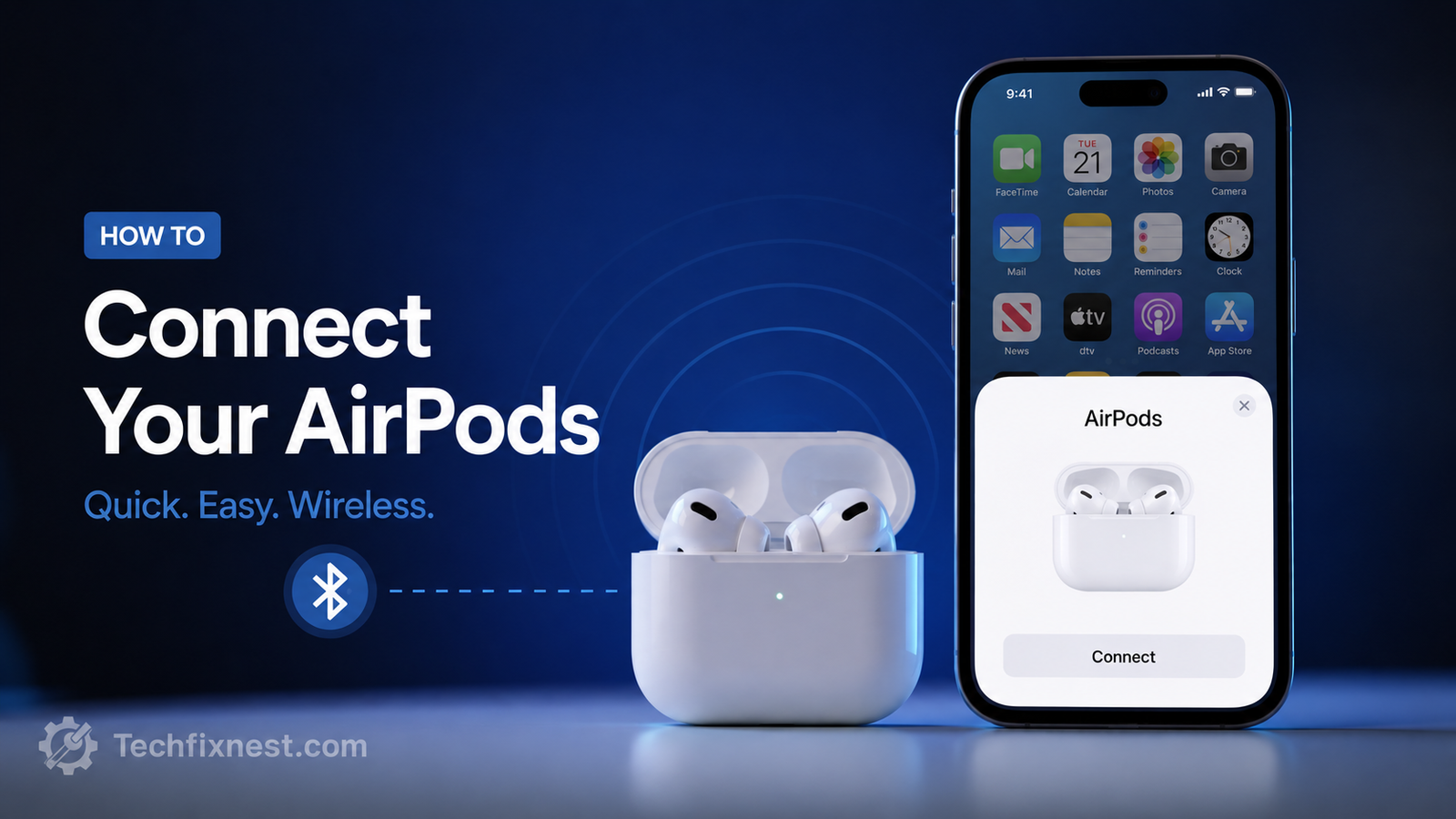
AirPods not pairing or randomly disconnecting after the iOS 26 update? Here are 11 proven fixes, from firmware checks to network resets, that actually solve it.
Quick Answer
If your AirPods won’t pair or keep disconnecting after updating to iOS 26, first forget the device in Settings > Bluetooth, reset the AirPods using the case button, then re-pair. Most cases stem from outdated AirPods firmware, a corrupted Bluetooth cache, or Automatic Ear Detection glitches — a forget-and-reset cycle resolves the majority of them.
Table of Contents
- Introduction
- Why AirPods Stop Pairing After an iOS Update
- Before You Start: Quick Checks
- Fix 1: Restart Both Devices
- Fix 2: Forget and Re-Pair Your AirPods
- Fix 3: Update AirPods Firmware
- Fix 4: Full AirPods Reset
- Fix 5: Reset Network Settings
- Fix 6: Turn Off Automatic Ear Detection
- Fix 7: Check Audio Output / AirPlay Routing
- Fix 8: Disable Interfering Bluetooth Devices
- Fix 9: Check Your Apple ID Sync
- Fix 10: Update to the Latest iOS 26 Point Release
- Fix 11: Contact Apple Support
- Troubleshooting Table
- Pro Tips
- Common Mistakes to Avoid
- Best Practices
- FAQ
- Conclusion
Introduction
Since Apple rolled out iOS 26, a noticeable number of AirPods users have reported the same frustrating pattern: AirPods that won’t pair at all, or ones that connect fine for a few minutes and then randomly drop the connection. Some people find audio unexpectedly rerouting to AirPlay or the iPhone speaker instead of their AirPods, even when no other device is nearby.
This usually happens because a major iOS update touches the Bluetooth stack, resets certain permissions, or expects updated AirPods firmware that hasn’t installed yet. Older AirPods models can also be more sensitive to these changes than newer ones.
This guide is for anyone running iOS 26 whose AirPods, AirPods Pro, or AirPods Max are refusing to pair, disconnecting on their own, or switching audio output unexpectedly. You’ll walk through eleven fixes in order of how likely they are to help, starting with the simplest and moving to deeper resets, so you can stop guessing and get your AirPods working reliably again.
Why AirPods Stop Pairing After an iOS Update
A few different things typically cause this after upgrading to iOS 26:
- Outdated AirPods firmware. Apple often ships new firmware alongside a major iOS release, and your AirPods may not have installed it yet.
- Corrupted Bluetooth pairing data. The update can leave behind a stale pairing record that confuses the connection.
- Automatic Ear Detection bugs. This feature decides when to route audio to your ears versus another output, and it can misfire after a system update.
- Distance and interference. Bluetooth 5.x connections are sensitive to physical obstacles and nearby wireless devices.
- Apple ID account mismatches. If AirPods were set up under a different Apple ID than the one currently signed in, some features and reconnections can fail.
- Low battery in the case or earbuds, which can prevent a stable handshake during pairing.
Knowing the likely cause helps you jump to the right fix instead of resetting everything blindly.
Before You Start: Quick Checks
Before diving into deeper fixes, confirm the basics:
- Your AirPods are charged (case and earbuds).
- Your iPhone is running the latest iOS 26 build (Settings > General > Software Update).
- Bluetooth is turned on.
- You’re within 1–2 meters of your iPhone with no walls or metal objects between you.
- No other Bluetooth speaker or AirPlay device is nearby that could be intercepting the connection.
If everything checks out and the problem persists, move through the fixes below.
Fix 1: Restart Both Devices
It sounds basic, but a simple restart clears temporary memory issues that build up after a system update.
- Turn off your iPhone completely and turn it back on.
- Put your AirPods back in the case, close the lid, wait 15 seconds, then open it again.
- Try reconnecting from Control Center or Bluetooth settings.
This alone resolves a surprising number of post-update glitches.
Fix 2: Forget and Re-Pair Your AirPods
A stale Bluetooth pairing record is one of the most common causes of failed connections after an iOS update.
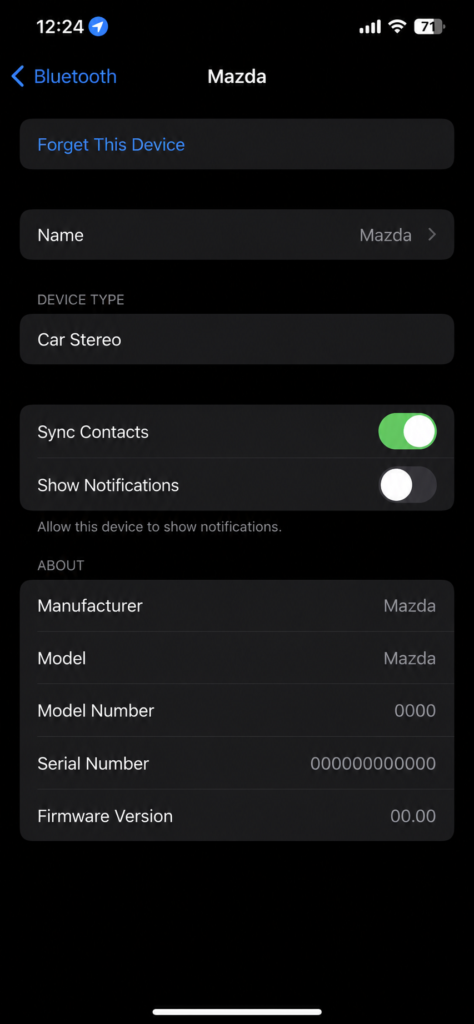
- Go to Settings > Bluetooth.
- Tap the (i) icon next to your AirPods.
- Tap Forget This Device, then confirm.
- Place your AirPods in the case, close the lid for 15 seconds, then reopen it near your iPhone.
- Follow the on-screen pairing prompt.
This refreshes the connection from scratch and clears out corrupted data tied to the old pairing.
Fix 3: Update AirPods Firmware
Apple frequently releases new AirPods firmware to match a major iOS release. If your AirPods haven’t picked it up yet, features and connection stability can suffer.
- Connect your AirPods to your iPhone.
- Go to Settings > Bluetooth, tap the (i) icon next to your AirPods.
- Scroll to Version under the About section to see your current firmware.
- Firmware updates install automatically when your AirPods are charging, in range, and connected to Wi-Fi — leave them near your iPhone for at least 30 minutes with the case open or during charging.
Note: Some older AirPods models — including the original AirPods (1st and 2nd generation) and AirPods Pro (1st generation) — do not receive new firmware updates for the newest features, so full functionality may be limited even after updating iOS.
Fix 4: Full AirPods Reset
If forgetting and re-pairing doesn’t help, a full reset is the next step.
- Put your AirPods in the charging case and close the lid for 30 seconds.
- Open the lid and press and hold the setup button on the back of the case for about 15 seconds.
- Watch for the status light: it will flash amber, then white.
- With the lid open, bring the case near your iPhone and follow the pairing steps on screen.
This wipes all stored pairing information on the AirPods themselves, not just on your phone.
Fix 5: Reset Network Settings
When AirPods still won’t connect after a reset, the issue may sit deeper in your iPhone’s Bluetooth and Wi-Fi configuration.
- Go to Settings > General > Transfer or Reset iPhone.
- Tap Reset, then Reset Network Settings.
- Enter your passcode if prompted.
- Your iPhone will restart. Reconnect to Wi-Fi and re-pair your AirPods afterward.
Warning: This also removes saved Wi-Fi passwords and VPN configurations, so make sure you know your Wi-Fi credentials before doing this.
Fix 6: Turn Off Automatic Ear Detection
Automatic Ear Detection is convenient, but after an iOS update it can sometimes cause AirPods to disconnect or fail to route audio correctly.
- Go to Settings > Bluetooth, tap the (i) icon next to your AirPods.
- Toggle Automatic Ear Detection off.
- Test your AirPods for a day. If the disconnections stop, the feature was likely the culprit — you can try re-enabling it later once Apple issues a fix.
Fix 7: Check Audio Output / AirPlay Routing
Some users on iOS 26 have reported audio unexpectedly routing to AirPlay instead of their AirPods, even with no AirPlay device active nearby.
- Open Control Center and tap the audio output icon (top-right of the now-playing card).
- Manually select your AirPods from the list.
- If AirPlay devices you don’t recognize appear in the list, this may indicate interference from a nearby smart speaker or TV — try moving away from it.
Fix 8: Disable Interfering Bluetooth Devices
Multiple active Bluetooth connections — smartwatches, car systems, other headphones — can compete for the connection and cause dropouts.
- Go to Settings > Bluetooth.
- Temporarily turn off or forget devices you’re not actively using.
- Reconnect only your AirPods and test for stability.
Fix 9: Check Your Apple ID Sync
AirPods settings and reconnection features are tied to your primary Apple ID. If you’re signed into a secondary or family Apple ID on your device, some sync features can misbehave.
- Go to Settings > [Your Name] and confirm you’re signed into the correct Apple ID.
- If AirPods were originally paired under a different Apple ID, consider forgetting and re-pairing them under your primary account.
Fix 10: Update to the Latest iOS 26 Point Release
Apple typically ships incremental point updates (like iOS 26.1, 26.2) that patch early bugs, including Bluetooth-related ones.
- Go to Settings > General > Software Update.
- Install any available update.
- Restart your iPhone and test your AirPods again.
Since connectivity bugs are commonly flagged by users right after a major release, a point update is often the actual long-term fix.
Fix 11: Contact Apple Support
If none of the above works, the issue could be hardware-related or tied to a bug Apple hasn’t patched yet.
- Use the Apple Support app or support.apple.com to chat with an advisor.
- Book a Genius Bar appointment to have your AirPods diagnosed.
- Ask about a battery or hardware diagnostic, especially if your AirPods are more than 2–3 years old.
Troubleshooting Table {#troubleshooting-table}
| Problem | Possible Cause | Solution |
|---|---|---|
| AirPods won’t appear in Bluetooth list | Stale pairing data | Forget device, reset AirPods, re-pair |
| AirPods connect but audio plays from iPhone speaker | Wrong output selected / AirPlay routing bug | Manually select AirPods in Control Center |
| AirPods disconnect a few minutes after connecting | Automatic Ear Detection glitch | Disable Ear Detection, retest |
| Pairing screen never pops up | Bluetooth cache issue or distance | Reset network settings, move closer |
| One AirPod disconnects, the other stays connected | Firmware mismatch or low battery | Fully charge both, update firmware |
| Audio randomly switches to AirPlay device | Nearby AirPlay-capable device interference | Turn off/move away from other AirPlay devices |
| AirPods won’t update firmware | Not connected long enough or low battery | Keep charging and connected for 30+ minutes |
Pro Tips
- Always fully charge your AirPods case before attempting a firmware update — a low charge can silently block the update from completing.
- Keep Bluetooth and Wi-Fi both turned on; AirPods firmware updates and some pairing handshakes rely on Wi-Fi being active too.
- If you use AirPods across multiple Apple devices (iPhone, iPad, Mac), forget them on all devices before re-pairing on one, then let iCloud sync handle the rest.
- Label repeated disconnect timestamps if the issue is intermittent — this pattern is genuinely useful if you end up contacting Apple Support.
- Test your AirPods with a different iPhone or iPad if you have one available. If they behave normally there, the issue is likely software-side on your original device.
- Avoid pairing new Bluetooth accessories immediately after fixing an AirPods issue, since this can reintroduce interference while your connection is still stabilizing.
Common Mistakes to Avoid
- Skipping the firmware check. Many users reset AirPods repeatedly without realizing outdated firmware was the actual cause.
- Not fully draining the pairing cache. A quick reconnect attempt often isn’t enough — the full forget-and-reset cycle matters.
- Resetting network settings first. This is a heavier fix and should come after simpler steps, not before.
- Ignoring Apple ID mismatches. Especially common in shared family devices.
- Assuming it’s a hardware fault too early. Most post-update issues are software-related and resolve with the fixes above.
Best Practices
- Update AirPods firmware and iOS together whenever a major release drops, rather than delaying one.
- Periodically forget and re-pair AirPods every few months, especially if you switch between multiple Apple devices often.
- Keep Automatic Ear Detection on unless you notice specific disconnect issues tied to it.
- Store your AirPods case somewhere it can charge regularly, since a depleted case can quietly interfere with updates and pairing stability.
FAQ
This is usually caused by outdated AirPods firmware, a corrupted Bluetooth pairing record, or an Automatic Ear Detection glitch introduced by the update.
Yes. AirPods firmware updates automatically in the background when they’re charging, connected, and near your iPhone, but it doesn’t always trigger immediately after an iOS update.
Yes, resetting network settings removes saved Wi-Fi networks, passwords, and VPN configurations, so be ready to re-enter them.
Older models like the original AirPods (1st/2nd generation) can still connect, but they may not support newer software features and firmware updates the same way newer models do.
This has been reported as an intermittent bug on iOS 26 where audio output defaults to AirPlay. Manually selecting your AirPods in Control Center usually fixes it for that session.
Check Settings > Bluetooth > (i) icon next to your AirPods > About > Version and compare it to Apple’s current published firmware version for your model.
If you use AirPods across multiple devices, it’s often cleanest to forget them everywhere, then re-pair on your primary device and let iCloud sync the pairing to the rest.
Apple regularly patches Bluetooth-related issues in point releases (like iOS 26.1 or 26.2), so keeping your software updated is one of the most reliable long-term fixes.
Choppy audio is often related to Bluetooth interference or distance rather than pairing itself. Try Fix 8 (removing interfering devices) and Fix 1 (restart) first.
This is commonly a battery or firmware mismatch between the two earbuds. Fully charge both together and check that both show the same firmware version.
Yes, AirPods Max can be affected by the same Bluetooth and firmware-related issues, though the physical reset process differs slightly — check the noise control button sequence in Apple’s support documentation.
Yes. A low-battery case can interrupt the pairing handshake and block firmware updates, so always charge the case fully before troubleshooting.
Conclusion
AirPods pairing and disconnection issues after the iOS 26 update are frustrating, but they’re rarely permanent. In most cases, the fix comes down to clearing out old pairing data, making sure your AirPods firmware is current, and checking that features like Automatic Ear Detection aren’t misfiring.
Start with the simple steps — restarting your devices and forgetting/re-pairing your AirPods — before moving to deeper resets like network settings. If the problem persists after working through all eleven fixes, it’s worth checking for a newer iOS point release or reaching out to Apple Support directly, since Bluetooth bugs are commonly patched in the weeks following a major release.
Work through the list in order, and your AirPods should be back to pairing reliably in no time.