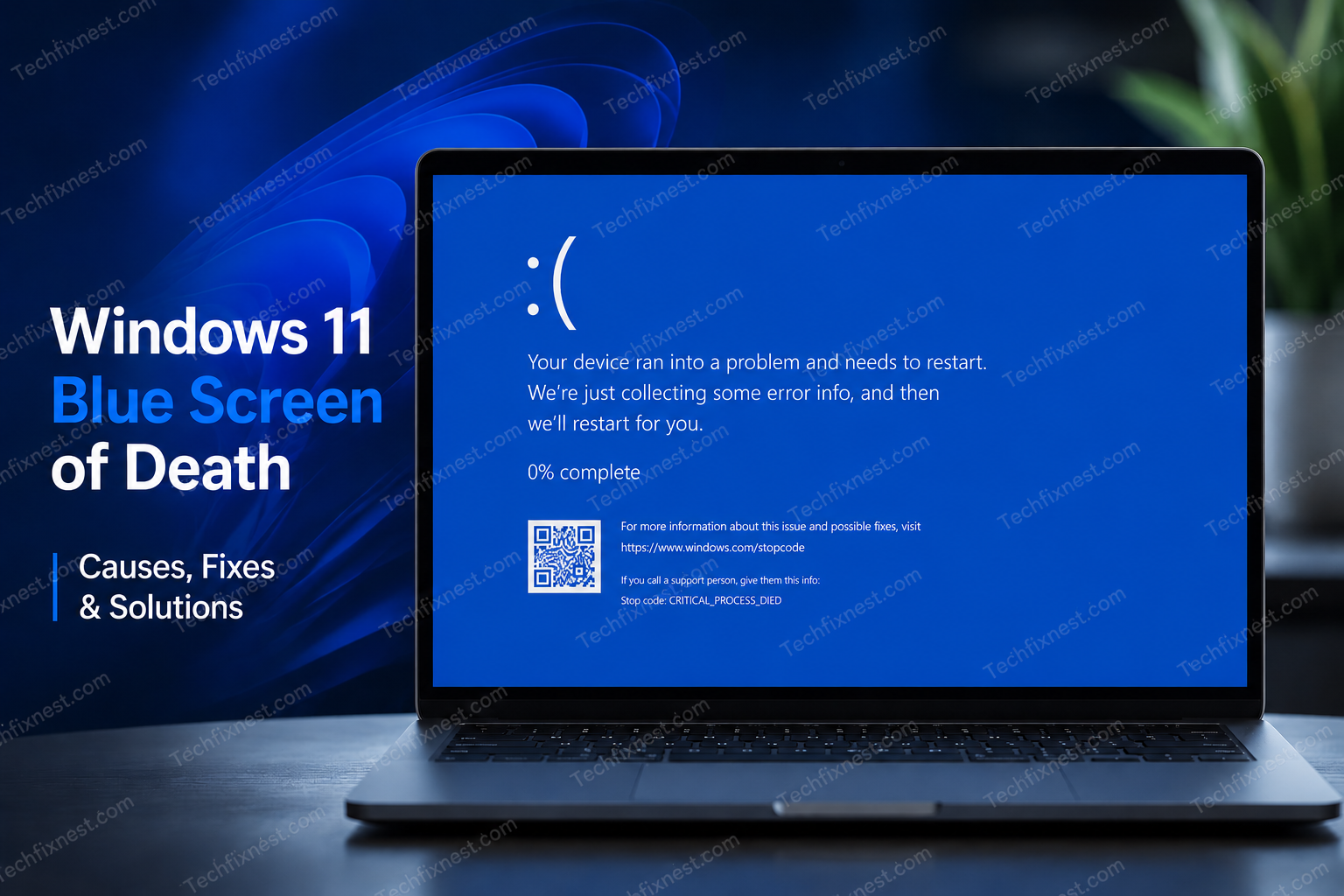
Getting the DRIVER_IRQL_NOT_LESS_OR_EQUAL blue screen on Windows 11? Follow these 6 proven methods to fix it fast and stop the BSOD for good.
Quick Answer
The DRIVER_IRQL_NOT_LESS_OR_EQUAL error is a Blue Screen of Death (BSOD) caused by a faulty or outdated driver trying to access restricted memory. To fix it, update or roll back your network/graphics drivers, run Windows Memory Diagnostic, and scan for corrupted system files using SFC and DISM commands.
Table of Contents
- What Is the DRIVER_IRQL_NOT_LESS_OR_EQUAL Error?
- What Causes This BSOD on Windows 11?
- Method 1: Identify the Faulty Driver
- Method 2: Update or Roll Back Drivers
- Method 3: Run SFC and DISM Scans
- Method 4: Run Windows Memory Diagnostic
- Method 5: Disable Fast Startup
- Method 6: Perform a Clean Boot
- Troubleshooting Table
- Pro Tips
- Common Mistakes to Avoid
- Best Practices
- FAQ
- Conclusion
What Is the DRIVER_IRQL_NOT_LESS_OR_EQUAL Error?
If your Windows 11 PC suddenly crashes with a blue screen showing DRIVER_IRQL_NOT_LESS_OR_EQUAL, you are not alone. This is one of the most common Blue Screen of Death (BSOD) errors Windows users encounter — and it can be both confusing and frustrating.
The error typically appears without warning. Your screen turns blue, Windows displays the stop code, and your system restarts. Sometimes it happens once; sometimes it keeps repeating and makes your PC nearly unusable.
The good news? In most cases, this error is fixable. You do not need to reinstall Windows or buy new hardware.
This guide is for Windows 11 users who are seeing this BSOD — whether it appeared after a Windows update, a new driver installation, adding new hardware, or seemingly out of nowhere. You will learn exactly what causes it and six methods to fix it permanently.
What Causes This BSOD on Windows 11?
The error name tells you a lot. “DRIVER” points to a device driver. “IRQL” stands for Interrupt Request Level — a priority system Windows uses to manage hardware operations. “NOT_LESS_OR_EQUAL” means a driver tried to access a memory address at the wrong permission level.
In plain language: a driver on your system is misbehaving and accessing memory it is not supposed to touch.
Common triggers include:
- Outdated or corrupted drivers — especially network adapters, graphics cards, or USB controllers
- Incompatible drivers after a Windows 11 update
- Faulty RAM or memory errors
- Corrupted system files
- Fast Startup conflicts
- Third-party antivirus software interfering with system drivers
- Recently installed hardware with unsigned or buggy drivers
The BSOD often comes with a specific .sys file name (like nvlddmkm.sys for NVIDIA or tcpip.sys for network drivers). That filename is your first clue.
Method 1: Identify the Faulty Driver
Before you fix anything, find the culprit. Windows 11 leaves a crash dump file every time a BSOD occurs. Reading it points you directly to the problem driver.
Step 1: Open Event Viewer
- Press Windows + X and click Event Viewer.
- In the left panel, expand Windows Logs and click System.
- Look for entries with a red error icon close to the time of the crash.
- Click the entry and read the description — it often names the driver.
Step 2: Use WinDbg or WhoCrashed (Recommended)
The free tool WhoCrashed by Resplendence Software makes reading crash dumps much easier than Event Viewer.
- Download and install WhoCrashed from the official Resplendence website.
- Open it and click Analyze.
- It will display the exact driver filename and a plain-English explanation of the crash.
Step 3: Note the .sys File Name
If you see a filename like:
nvlddmkm.sys→ NVIDIA graphics driver issuetcpip.sys→ TCP/IP network driver issuentfs.sys→ File system corruptionatikmdag.sys→ AMD graphics driver issue
Use that filename to guide which driver you update or roll back in the next method.
Method 2: Update or Roll Back Drivers
This is the most effective fix for the majority of cases.
Option A: Update the Faulty Driver
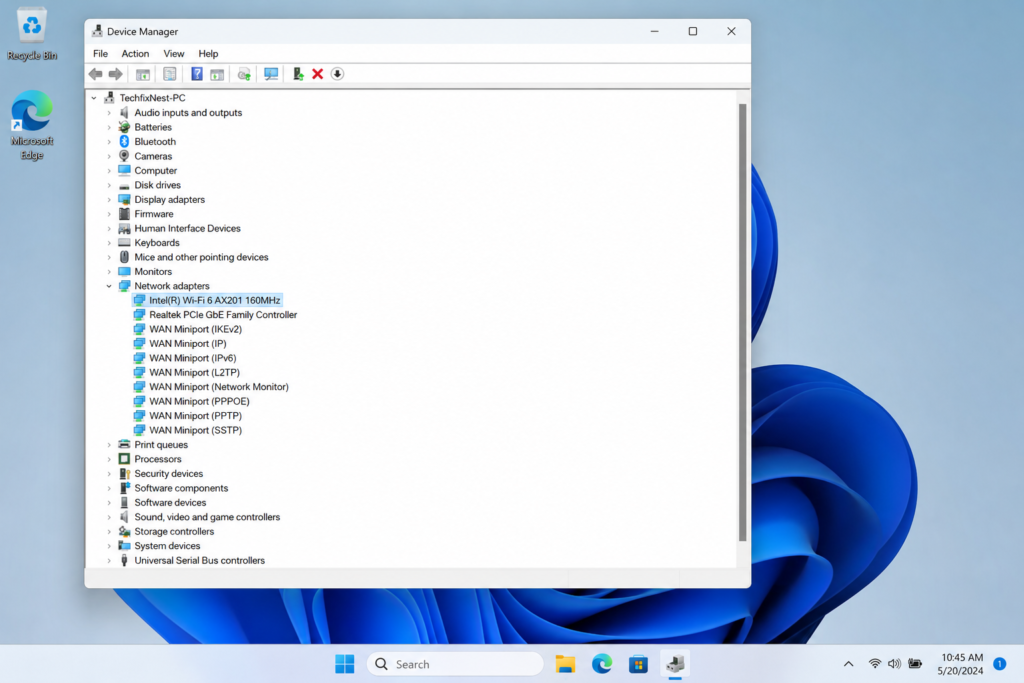
- Press Windows + X and open Device Manager.
- Look for any device with a yellow warning icon. Also expand categories like Display Adapters, Network Adapters, and Universal Serial Bus controllers.
- Right-click the device linked to the
.sysfile you identified. - Click Update driver → Search automatically for drivers.
- Restart your PC after the update.
If Windows cannot find a newer driver, visit the manufacturer’s website directly:
- NVIDIA drivers: nvidia.com/drivers
- AMD drivers: amd.com/en/support
- Intel drivers: intel.com/content/www/us/en/support/detect.html
Option B: Roll Back the Driver
If the BSOD started after a Windows Update or a driver update, rolling back often solves it instantly.
- Open Device Manager.
- Right-click the problematic device.
- Click Properties → Driver tab.
- Click Roll Back Driver.
- Follow the prompts and restart.
Note: If Roll Back Driver is greyed out, no previous driver version is saved on your system. Proceed to the other methods.
Method 3: Run SFC and DISM Scans {#method-3}
Corrupted Windows system files can trigger this BSOD. The built-in SFC (System File Checker) and DISM (Deployment Image Servicing and Management) tools can detect and repair them.
Step 1: Run SFC
- Click Start, type cmd, right-click Command Prompt, and select Run as administrator.
- Type the following and press Enter:
sfc /scannow- Wait for the scan to complete. It can take 10–15 minutes.
- If it finds issues, it will repair them automatically. Restart your PC.
Step 2: Run DISM (If SFC Fails)
If SFC reports it could not fix some files, run DISM next:
DISM /Online /Cleanup-Image /RestoreHealthThis command downloads fresh system files from Windows Update servers and repairs the image. Requires an active internet connection.
After DISM finishes, run sfc /scannow one more time.
Method 4: Run Windows Memory Diagnostic
Faulty RAM is a surprisingly common cause of this BSOD. Windows 11 includes a built-in memory test tool.
- Press Windows + R, type
mdsched.exe, and press Enter. - Click Restart now and check for problems (recommended).
- Your PC will restart and run the memory test before Windows loads.
- After the test, Windows boots normally and shows the results in the notification area.
If errors are found, one or more of your RAM sticks may be defective. Try removing one RAM stick at a time and testing to isolate the bad one.
Tip: For a more thorough memory test, use the free tool MemTest86, which runs outside of Windows and performs multiple passes.
Method 5: Disable Fast Startup
Windows 11’s Fast Startup feature can sometimes leave drivers in an inconsistent state, which triggers BSODs on the next boot.
- Open Control Panel → Power Options.
- Click Choose what the power buttons do on the left.
- Click Change settings that are currently unavailable.
- Under Shutdown settings, uncheck Turn on fast startup (recommended).
- Click Save changes.
Restart your PC and check if the BSOD returns.
Method 6: Perform a Clean Boot
A clean boot starts Windows with only essential Microsoft services. This helps identify whether a third-party application or service — such as antivirus software or an overlay tool — is causing the driver conflict.
- Press Windows + R, type
msconfig, and press Enter. - Go to the Services tab.
- Check Hide all Microsoft services.
- Click Disable all.
- Go to the Startup tab and click Open Task Manager.
- Disable every startup item.
- Close Task Manager and click OK in System Configuration.
- Restart your PC.
If the BSOD does not appear after a clean boot, re-enable services and startup items in small groups to find the conflict. Once identified, uninstall or update that software.
Troubleshooting Table
| Problem | Possible Cause | Solution |
|---|---|---|
| BSOD after Windows Update | Incompatible driver installed by update | Roll back the updated driver in Device Manager |
| BSOD after installing new hardware | Unsigned or buggy driver | Download the driver directly from the manufacturer |
BSOD with nvlddmkm.sys | NVIDIA graphics driver issue | Reinstall NVIDIA driver using DDU (Display Driver Uninstaller) |
BSOD with tcpip.sys | Corrupted network driver | Update or reinstall network adapter driver |
| BSOD at random with no pattern | Faulty RAM | Run MemTest86 and replace defective stick |
| BSOD on every startup | Corrupted system files | Run SFC and DISM scans |
| BSOD after antivirus install | Antivirus driver conflict | Temporarily disable or uninstall the antivirus |
BSOD with ntfs.sys | File system or drive error | Run chkdsk /f /r in Command Prompt as admin |
Pro Tips
- Use DDU for graphics driver issues. Display Driver Uninstaller (DDU) completely removes old NVIDIA or AMD driver files before reinstalling. This eliminates remnants that Windows’ built-in uninstaller misses.
- Check Windows Update history. Go to Settings → Windows Update → Update history. If the BSOD started after a specific update, that update may have pushed a bad driver.
- Create a System Restore Point before updating drivers. If the new driver causes more problems, you can roll back your entire system state in minutes.
- Keep only one antivirus active. Running multiple security programs causes serious driver conflicts that often result in BSODs.
- Update BIOS/UEFI firmware. An outdated BIOS can cause compatibility issues with Windows 11 drivers. Check your motherboard manufacturer’s website for firmware updates.
- Check your drive health. Use CrystalDiskInfo (free) to check your SSD or HDD for health warnings. A failing drive can cause corrupted system files and BSODs.
- Reseat your RAM. Physical RAM that is slightly loose in its slot can cause intermittent memory errors. Power off, unplug, and firmly reseat your RAM sticks.
- Use a UPS or surge protector. Power fluctuations can cause sudden BSODs and even corrupt drivers or system files.
- Look for the
.sysfile name on the BSOD screen. Photographing the blue screen with your phone gives you the exact driver filename to search online. - If nothing works, consider a Windows 11 Repair Install. It reinstalls Windows over itself while keeping your files and apps, and often fixes persistent BSOD issues.
Common Mistakes to Avoid
- Ignoring the
.sysfilename. Most people skip this clue. The.sysfile on the BSOD screen tells you exactly which driver is responsible. - Updating all drivers blindly. Using third-party “driver updater” tools often installs incompatible or even fake drivers. Always download drivers from the official manufacturer’s website.
- Reinstalling Windows immediately. This is a last resort, not a first step. Most DRIVER_IRQL_NOT_LESS_OR_EQUAL errors are fixable without losing your data.
- Forgetting to restart after driver updates. Some users update a driver and do not restart. The new driver only takes full effect after a reboot.
- Running SFC without admin rights. The SFC scan must be run from an elevated Command Prompt (Run as administrator) or it will not work properly.
- Disabling antivirus and leaving the PC unprotected. If you disable antivirus software during troubleshooting, re-enable it immediately after identifying the problem.
- Skipping the memory test. RAM errors are easy to miss because they cause random, hard-to-reproduce crashes. Always test your RAM if other fixes do not work.
Best Practices
Following these habits keeps your Windows 11 system stable and reduces the chance of future BSODs:
- Keep Windows 11 updated. Microsoft regularly releases patches that fix driver compatibility issues and system vulnerabilities.
- Update drivers through Device Manager or manufacturer sites — not third-party tools.
- Create regular System Restore Points, especially before major updates or driver changes.
- Monitor your PC’s temperature. Overheating can cause instability and crashes. Use HWMonitor or MSI Afterburner to check CPU and GPU temperatures.
- Avoid installing unsigned drivers. Unsigned drivers skip Microsoft’s compatibility testing and are a frequent cause of BSODs.
- Clean your PC physically. Dust buildup causes overheating, which leads to hardware errors and crashes. Clean the internals every 6–12 months.
- Back up your data regularly. A BSOD can sometimes precede a hardware failure. Regular backups protect you from data loss.
FAQ
It means a device driver tried to access a memory location at an inappropriate interrupt request level (IRQL). The driver violated Windows’ memory access rules, causing the system to crash for safety.
Network adapter drivers, graphics card drivers (NVIDIA and AMD), and USB controller drivers are the most common culprits. The .sys filename shown on the blue screen identifies the specific driver.
Yes. Windows Updates sometimes push driver updates that are incompatible with specific hardware configurations. Rolling back the affected driver in Device Manager usually resolves it.
Usually software — specifically a driver. However, faulty RAM or a failing hard drive can also trigger it. If driver fixes do not help, test your hardware.
Boot into Safe Mode by restarting your PC and pressing F8 or F11 during startup (or using a Windows 11 boot media). In Safe Mode, uninstall or roll back the problematic driver.
Yes. Defective RAM modules can cause drivers to read incorrect data from memory, triggering this BSOD. Run Windows Memory Diagnostic or MemTest86 to check.
Some antivirus programs install kernel-level drivers that can conflict with Windows 11 system drivers. If the BSOD started after installing a new security tool, try disabling or uninstalling it temporarily.
Minidump files are stored at C:\Windows\Minidump. You can open them with WinDbg or the free WhoCrashed tool, which translates the technical data into plain language.
A Repair Install (keeping files and apps) often fixes persistent BSODs caused by corrupted system files. A full clean install always fixes it, but you lose your apps. Try other methods first.
Keep your drivers updated from official sources, run regular SFC scans, test your RAM periodically, and create System Restore Points before making system changes.
Yes. Overclocking your CPU, GPU, or RAM pushes hardware beyond its tested limits and can cause memory errors that trigger this stop code. Reverting to stock clock speeds can resolve it.
A BSOD itself does not damage your hardware — it is a safety mechanism. However, repeated crashes can corrupt files. If it is happening frequently, fix it promptly to avoid data loss.
Conclusion
The DRIVER_IRQL_NOT_LESS_OR_EQUAL BSOD on Windows 11 looks scary, but it is almost always fixable. The error comes down to one thing: a driver accessing memory it should not. Once you identify the faulty driver — using the .sys filename on the blue screen or the WhoCrashed tool — the fix becomes straightforward.
Start with Method 1 to identify the driver, then try Method 2 (update or roll back the driver). If that does not solve it, work through the remaining methods: SFC/DISM scans, memory testing, disabling Fast Startup, and clean booting. At least one of these six methods resolves the issue for the vast majority of Windows 11 users.
You do not need to reinstall Windows. You do not need to buy new hardware. Take it step by step, and you will have your PC running smoothly again.
If you found this guide helpful, bookmark it and share it with anyone else facing this BSOD. Have a question or a method that worked for you? Leave it in the comments.