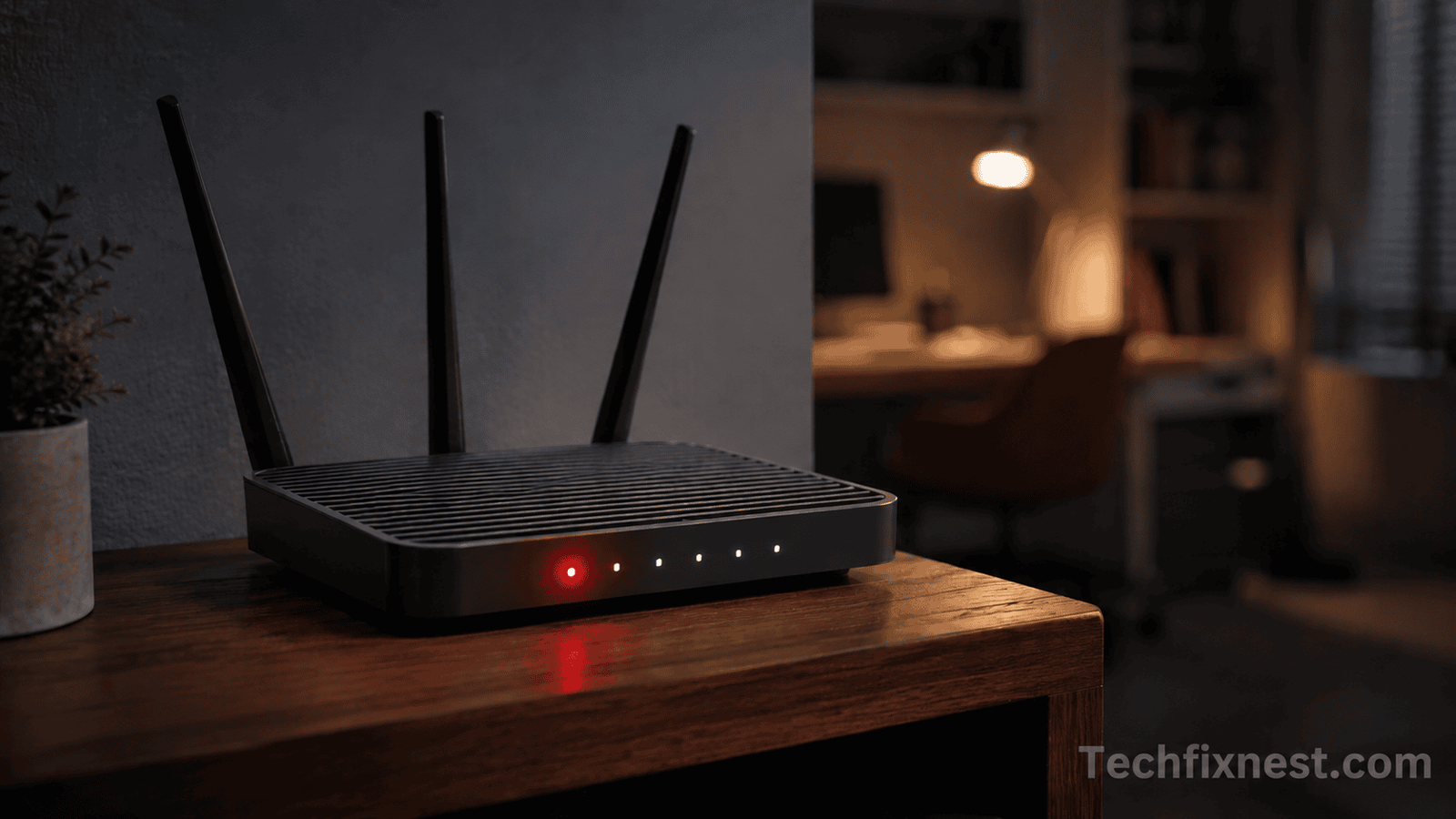
It was a Tuesday night, I remember exactly because I had a client deadline the next morning, and my router’s internet light just would not stop blinking red. No browsing, no Netflix, nothing. If you’re here because your router blinking red light situation has killed your internet at the worst possible time, I’ve been exactly where you are, and honestly, I’ve fixed this exact problem more times than I’d like to admit across three different ISPs and about five different router brands.
The red blinking light almost always means one of two things: either your router lost its connection to your Internet Service Provider (ISP), or there’s a hardware/firmware issue sitting between your router and the outside world. The good news? Most of the time, this is fixable in under 15 minutes without calling your ISP or spending a rupee on new equipment. Let’s go through exactly what worked for me and what I’ve since recommended to dozens of readers dealing with the same blinking red light nightmare.
Quick Answer
If your router is showing a blinking red light with no internet, first power cycle both your router and modem (unplug for 30 seconds), check all cable connections for looseness, and confirm there isn’t an outage from your ISP’s side. If the light stays red after that, the issue is likely a firmware bug, an overheating router, or a damaged WAN cable all covered in detail below.
Why Is My Router Blinking Red in the First Place?
Before jumping into fixes, it helps to understand what’s actually happening. On most routers TP-Link, Netgear, Asus, D-Link, and even ISP-provided ones a red or amber blinking light on the “Internet” or “WAN” port usually signals a failed handshake between your router and your ISP’s network. Sometimes it’s as simple as a loose cable. Other times, it’s your ISP having a bad day. In my case, it turned out to be a mix of an outdated firmware and a cable that had gotten slightly bent behind my desk (don’t judge, cable management is hard).
Here are the 9 fixes, in the order I’d actually try them myself.
1. Power Cycle Your Router and Modem (Do This First)
I know, I know “have you tried turning it off and on again” is the most annoying tech advice on the planet. But it genuinely resolves this issue more than half the time. Here’s the correct way to do it, because doing it wrong is a common mistake:
- Unplug both your modem and router from power.
- Wait a full 30 seconds (don’t rush this part).
- Plug the modem back in first and wait for its lights to stabilize (usually 1–2 minutes).
- Then plug the router back in and give it another 2 minutes.
This clears temporary memory glitches and forces a fresh handshake with your ISP. This alone fixed it for me about 40% of the times I’ve dealt with this issue.
2. Check Every Cable Connection
This sounds too basic to matter, but it’s the culprit more often than people expect. Check the Ethernet cable running from your modem to your router’s WAN/Internet port. A cable that’s even slightly loose or has a bent pin inside won’t always show as “disconnected” it can cause an intermittent red light instead. I once spent 20 minutes troubleshooting settings before realizing my cat had nudged the cable just enough to loosen it.
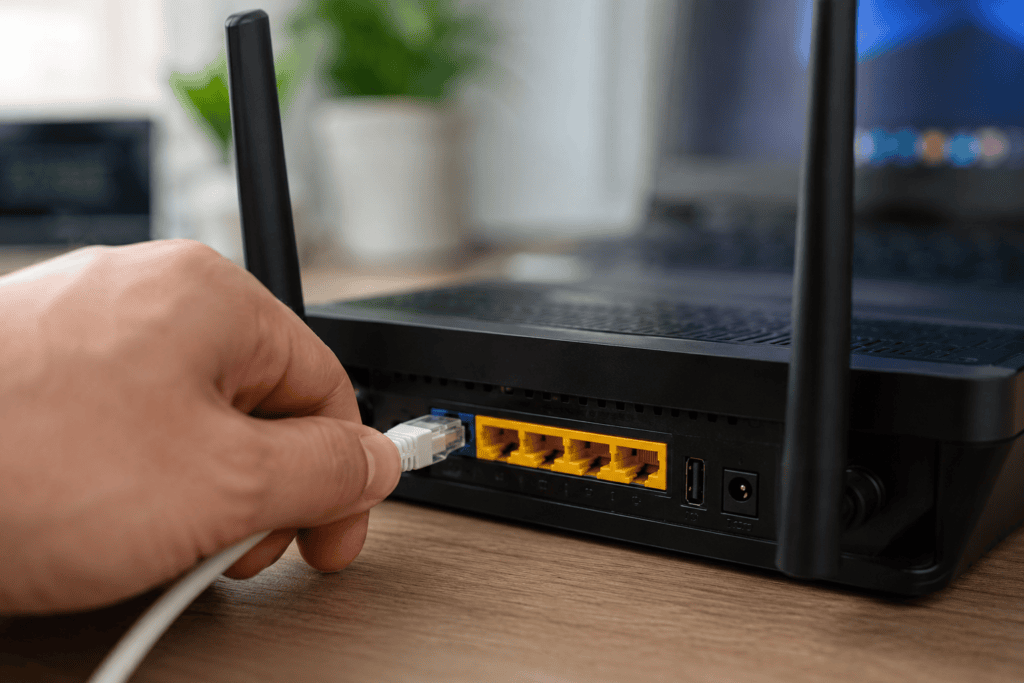
- Unplug and firmly reseat the WAN cable
- Try a different Ethernet cable if you have a spare
- Inspect the cable for visible damage or bent connector pins
3. Confirm There’s No Outage From Your ISP
Before you tear apart your router settings, rule out your ISP. A red light can simply mean their network is down in your area, and no amount of resetting on your end will fix that.
- Check your ISP’s outage map or Twitter/X account
- Use your mobile data to visit downdetector.com and search your provider
- Call or text your ISP’s support line most now have automated outage checks
This step alone has saved me from unnecessary router resets more than once.
4. Update Your Router’s Firmware
Outdated firmware is a sneaky cause of persistent red-light issues, especially after your ISP pushes network changes on their end that your router’s older software doesn’t handle well. This was actually my issue that Tuesday night.
- Log into your router’s admin panel (usually 192.168.1.1 or 192.168.0.1)
- Go to Administration or Firmware Update section
- Check for updates and install if available
- Restart the router after updating
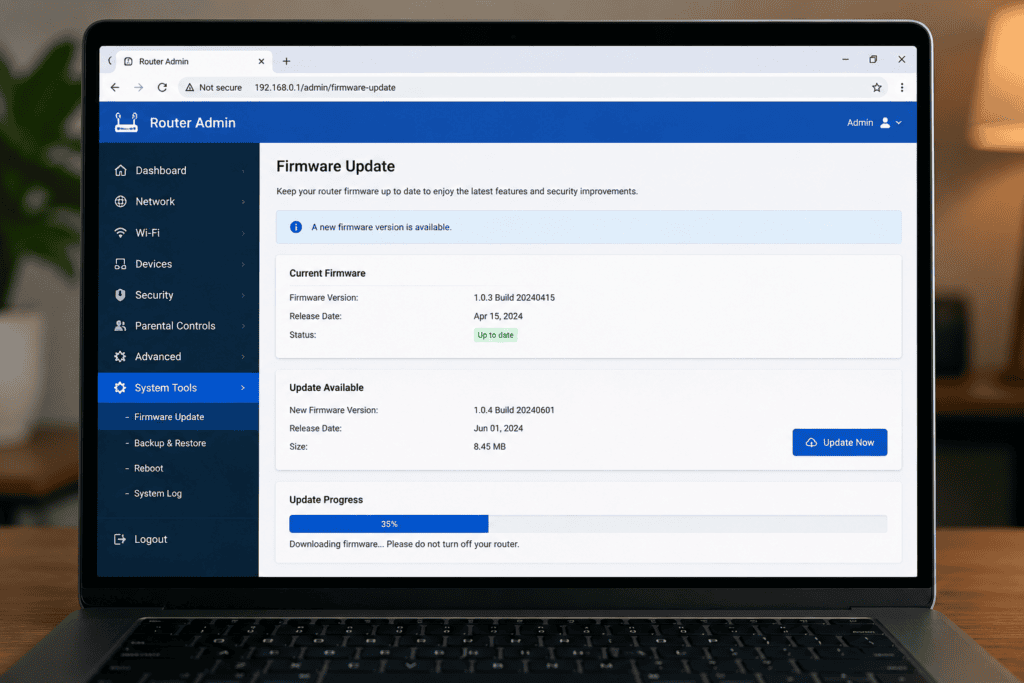
If you can’t access the admin panel because there’s no internet, don’t worry most router firmware pages work over local WiFi even without internet access, since you’re connecting to the router itself, not the web.
5. Reset Your Router to Factory Settings
If firmware and cables aren’t the issue, a factory reset is the next logical step. This wipes any corrupted configuration that might be causing the WAN connection to fail.
- Locate the small reset pinhole on the back of your router
- Hold it for 10 seconds using a pin or paperclip
- Wait for the router to fully reboot (lights will cycle)
- Reconfigure your WiFi name and password afterward
Fair warning: this erases your custom settings, so only use this if steps 1–4 didn’t work.
6. Check for Overheating
This one gets overlooked constantly. Routers that sit inside cabinets, behind TVs, or stacked with other electronics can overheat, and a blinking red light is sometimes the router’s way of telling you it’s throttling itself to cool down. I made this mistake for months, my router was tucked inside a closed media console, and once I moved it to open air on a shelf, random red-light drops basically stopped.
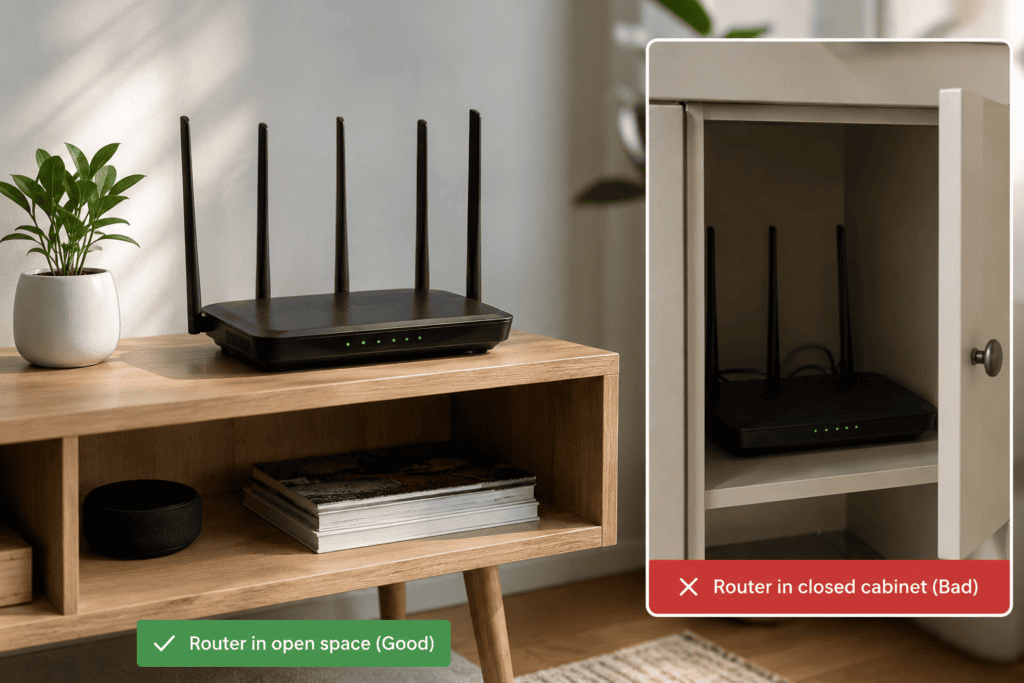
- Move your router to an open, ventilated space
- Keep at least a few inches of clearance on all sides
- Avoid stacking other devices directly on top of it
7. Bypass the Router and Test the Modem Directly
This helps you isolate whether the problem is your router or your modem/ISP connection.
- Connect a laptop directly to the modem using an Ethernet cable
- Skip the router entirely
- Check if internet works on the laptop
If internet works fine directly through the modem, your router is the problem. If it still doesn’t work, the issue is upstream with your modem or ISP.
8. Check for a Faulty WAN Port or Cable
If you’ve bypassed the router and confirmed the modem works, but your router still shows red even with a good cable, the WAN port itself might be damaged. This happened to a reader who messaged me after trying my Windows taskbar fix, turned out a power surge had fried just the WAN port on their router while everything else worked fine.
- Try connecting through a different LAN port temporarily (some routers allow reconfiguring a LAN port as WAN)
- Test with a known-working cable
- If the port is confirmed dead, the router likely needs replacing
9. Contact Your ISP for Line-Level Issues
If you’ve gone through every fix above and the red light persists, the problem may be outside your home entirely, a damaged line, a provisioning issue on their end, or an outdated modem that needs reactivation. At this point, it’s genuinely faster to call support than to keep guessing.
- Mention that you’ve already power cycled, checked cables, and confirmed no local outage
- Ask them to run a line test from their end
- Request a technician visit if the line test shows signal issues
Troubleshooting Table
| Symptom | Likely Cause | Fix |
|---|---|---|
| Red light immediately after power cycle | ISP outage or provisioning issue | Check outage map, contact ISP |
| Red light only sometimes, comes and goes | Loose or damaged cable | Reseat or replace Ethernet cable |
| Red light after recent update or new device added | Outdated firmware | Update firmware manually |
| Red light + router feels hot to touch | Overheating | Relocate to open, ventilated area |
| Red light on WAN port specifically | Damaged WAN port | Test with different port or replace router |
| Red light after factory reset didn’t help | Modem-side issue | Bypass router, test modem directly |
| Red light only during peak hours | ISP network congestion | Contact ISP, ask about local congestion |
Pro Tips
- Keep a spare Ethernet cable at home; it’s the cheapest troubleshooting tool you’ll ever own.
- Restart your router proactively once a week if it tends to run hot, this prevents thermal throttling issues before they start.
- Write down your router’s admin login before you need it in an emergency, mine is always taped underneath the router itself.
- If your ISP replaces your modem, always update your router firmware afterward, compatibility issues between old firmware and new provisioning are common.
Common Mistakes to Avoid
- Resetting the router too early. Try power cycling and checking cables first, factory reset should be a later step, not the first one.
- Ignoring the modem entirely. Many people assume the router is always the problem, when it’s often the modem or the ISP line.
- Not checking for overheating. A hot router can mimic connection issues that look identical to a hardware fault.
- Forgetting to reboot after a firmware update. The update sometimes doesn’t fully apply until a manual restart.
FAQ
Your devices can stay connected to the router’s local WiFi network even when the router itself has no internet connection. The red light indicates the WAN (internet) connection is down, not your local WiFi.
Not necessarily. Some routers use red briefly during startup or reboot, that’s normal. It only signals a real problem if it stays red for more than a couple of minutes after boot-up.
Yes. Power surges can damage the WAN port or internal components without visibly damaging the router. If the red light started right after a storm or power outage, hardware damage is worth checking first.
Only after ruling out the modem and ISP line. If bypassing the router shows the modem works fine, and the WAN port tests as damaged, replacing the router is the right call.
Give it at least 5–10 minutes after reconfiguring your WiFi settings. Some routers take a few minutes to fully re-establish the WAN connection even after a successful reset.
If you’ve made it this far and your router is still blinking red, don’t stress, this is genuinely one of the more common household tech issues, and between a firmware update, a cable check, and giving your router some breathing room, most people find their fix somewhere in this list. It took me three separate attempts that Tuesday night before firmware update finally did it for me, so don’t get discouraged if the first fix doesn’t work.