I almost missed a client deadline because of this.
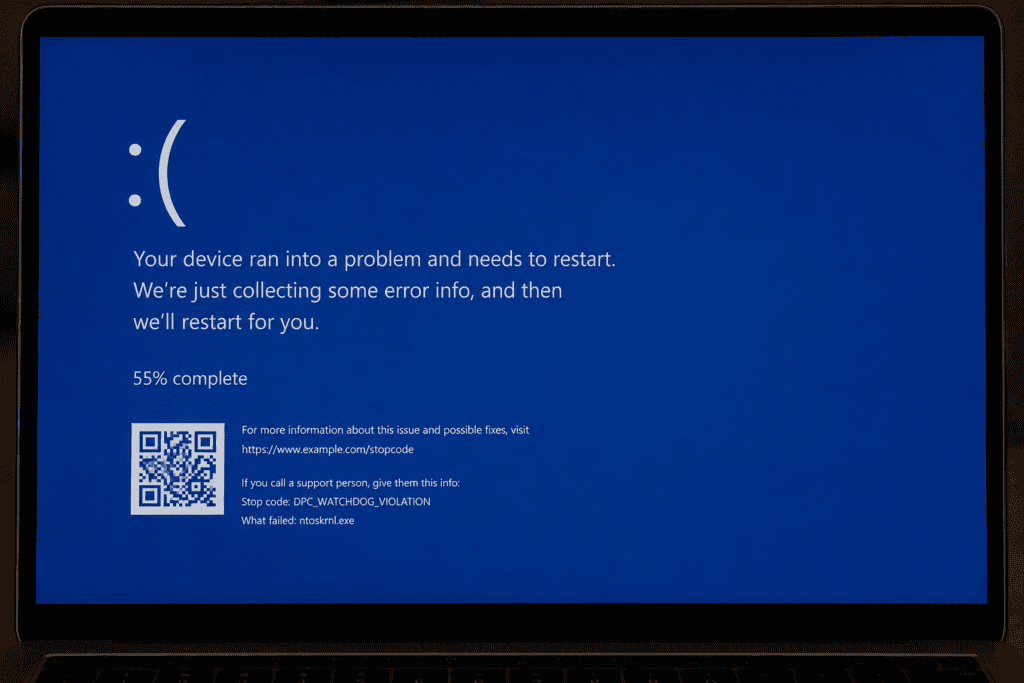
Two days after installing the June 2026 Windows update, my HP EliteBook started doing something it had never done in three years freezing mid-task, then dropping into a blue screen with DPC_WATCHDOG_VIOLATION written across it.
The first time it happened I was exporting a file. The second time, it happened while I had six Chrome tabs open and Outlook running in the background. By the third crash in one afternoon, I stopped assuming it was a coincidence and started digging.
Turns out I wasn’t alone. If you’ve landed here, you’re probably staring at the same blue screen, on a similar HP machine, wondering whether your laptop is dying or whether this is a Microsoft problem. Short answer: it’s almost certainly the update, not your hardware. Here’s everything I did to fix it, in the order that actually worked.
What’s Actually Causing This
The update in question is KB5094126, released as part of June 2026’s Patch Tuesday, which bumped affected machines to Build 26200.8655 or 26100.8655. It’s a mandatory security update, so if you’re on Windows 11 24H2 or 25H2, it installed itself whether you wanted it to or not.
The DPC_WATCHDOG_VIOLATION error means a driver took too long to respond to a system request, and Windows killed the process to protect itself from a deeper crash. On its own, that’s a fairly generic BSOD cause. What makes this round unusual is how concentrated the reports are on HP hardware EliteBook, ProBook, ZBook, and even HP’s Engage One Pro POS units are showing up repeatedly in Microsoft’s Feedback Hub and on Reddit threads from IT admins managing HP fleets.
The working theory, and the one that matched my own troubleshooting, is a mismatch between the update and older BIOS/UEFI firmware specifically around Secure Boot verification and, in some cases, a cramped EFI system partition that doesn’t have enough room to work with during the update process.
I spent a good chunk of one evening reading through the Feedback Hub reports and a couple of long Reddit threads from sysadmins managing 50+ HP units across their offices. A pattern kept showing up: machines that had gone the longest without a manual BIOS update were the ones crashing hardest.
Laptops that had been auto-updating firmware through HP Support Assistant seemed to fare noticeably better, even if they weren’t fully immune. That lines up with what Microsoft’s own advisory hints at this isn’t a flaw in Windows itself so much as an edge case that only shows up when the update meets a specific, slightly outdated firmware configuration.
Why This Hits HP Machines Specifically
It’s also worth understanding why this matters more on HP hardware than on, say, Dell or Lenovo machines running the same update. HP’s Sure Start and Sure Boot security layers add an extra verification step during boot that some other manufacturers don’t implement in quite the same way.
Normally that’s a good thing it’s part of why HP business laptops are popular in enterprise environments. But when a Windows update changes how Secure Boot validation happens at the kernel level, that extra HP-specific layer can end up double-checking something it wasn’t expecting. The result: the DPC (Deferred Procedure Call) watchdog times out waiting for a response that takes just a fraction too long.
What I Tried First (and Why It Didn’t Work)
Before I found the actual fix, I wasted about an hour on the usual suspects:
- Ran the built-in Windows Update troubleshooter came back clean, no errors detected
- Rolled back to the previous build using “Go back to the previous version of Windows 11” — this bought me about six hours before the crash returned after the update reinstalled itself
- Updated my graphics driver, thinking it was GPU-related no change
None of these addressed the root cause, which is the BIOS-level conflict. If you’re on an HP machine and seeing this specific error after June, don’t waste time on driver updates unless you’ve already ruled out the firmware angle.
The Fix That Actually Worked
Step 1: Check Your BIOS/UEFI Version First
Before touching anything else, check whether HP has released a newer BIOS for your exact model.
- Press
Win + R, typemsinfo32, and hit Enter - Note your BIOS version and your exact model number (System Model field)
- Go to HP’s official Support page, search your model, and check the BIOS/firmware section for anything released after June 2026
If there’s a newer BIOS available, install it before doing anything else. In my case, HP had already pushed a firmware update for my EliteBook model by the time I checked installing it alone reduced the crash frequency, though it didn’t eliminate it completely.
Step 2: Turn Off Secure Boot Temporarily
This was the step that actually stopped my crashes.
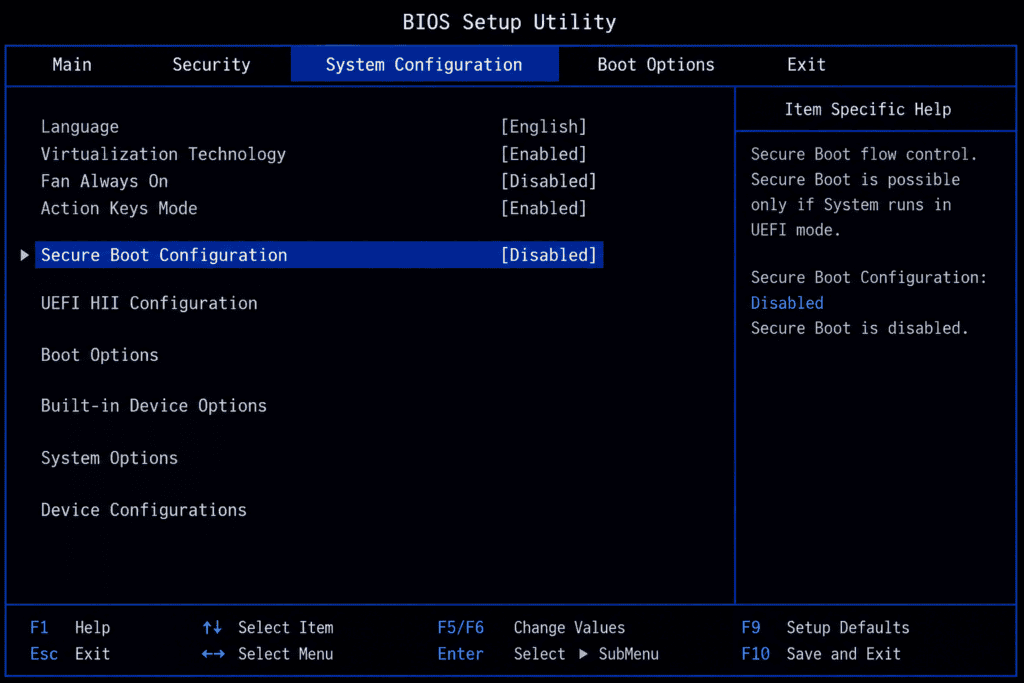
- Restart your PC and enter BIOS setup (usually
F10orEscon HP machines it’ll flash a prompt on the boot screen) - Navigate to the Security tab
- Find Secure Boot Configuration and set it to Disabled
- Save and exit (usually
F10) - Let Windows boot normally and reinstall the update if it hadn’t completed
I know disabling Secure Boot makes some people nervous, and I don’t love leaving it off long-term either. Think of this as a temporary workaround while Microsoft and HP sort out the actual compatibility fix not a permanent setting change.
Step 3: Check and Expand Your EFI Partition
If crashes continue after Step 2, low EFI partition space might be the culprit. This one’s trickier and I’d only recommend it if you’re comfortable with Disk Management, or you’re willing to follow along carefully.
- Open Disk Management (
Win + X, then select Disk Management) - Locate your EFI System Partition it’s usually small, under 300MB, and won’t have a drive letter
- If it’s showing as nearly full, you’ll need third-party partition software (like MiniTool Partition Wizard, since Windows’ native Disk Management won’t resize EFI partitions) to shrink an adjacent partition and expand the EFI space
Honestly, most home users won’t need to go this far. Steps 1 and 2 resolved it for me and for most of the reports I’ve seen from other HP owners.
Step 4: Re-Enable Secure Boot Once Microsoft Patches It
Microsoft has acknowledged multiple issues tied to this update and has said fixes are expected in the following patch cycle. Once you’ve confirmed a follow-up update has installed cleanly (check Settings > Windows Update > Update history), go back into BIOS and re-enable Secure Boot. Don’t leave it off indefinitely it’s an important security feature, especially if you handle client work or sensitive files like I do.
How to Prevent This From Happening Again
Once I got my machine stable, my next question was how to avoid going through this again with the next mandatory update. A few things I’ve since built into my routine:
Turn on HP Support Assistant’s automatic firmware updates. By default, a lot of HP machines only prompt you occasionally, or not at all if it’s a business-managed device.
Go to Settings > Update & Security (or Windows Update on newer builds) > Advanced Options, and make sure “Receive updates for other Microsoft products” is on. This also pulls in some driver and firmware updates through Windows Update itself.
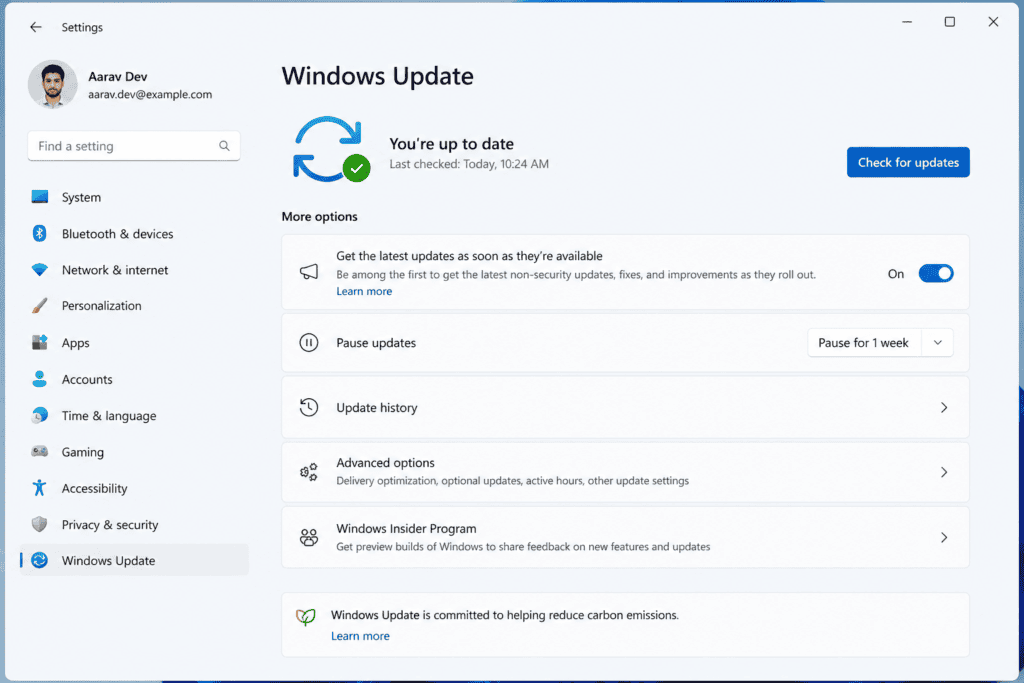
Delay feature updates by a few days when you can. I used to install Windows updates the moment they showed up, thinking I was staying “secure” faster. Now I wait 3–5 days unless it’s a critical security patch, specifically so I can see whether other users are reporting problems first.
Settings > Windows Update > Advanced Options lets you pause updates for up to a set number of days.
Keep a system restore point active before major updates. This wouldn’t have fixed the underlying issue, but it would’ve saved me the six hours I lost trying the “go back” option. Search for “Create a restore point” in the Start menu and make sure System Protection is turned on for your main drive.
Save your BitLocker key somewhere you can actually reach it during a crash. I mentioned this above, but it deserves repeating the worst part of dealing with this bug wasn’t the crash itself, it was almost not being able to get back into my own laptop because I’d forgotten where my recovery key was saved.
Related Errors You Might See Instead
Not everyone hitting this bug sees the exact same stop code. Depending on your specific HP model and how far the firmware conflict has progressed, you might instead run into:
- CRITICAL_PROCESS_DIED usually points to the same underlying firmware conflict, just triggered at a different point in the boot process
- IRQL_NOT_LESS_OR_EQUAL more commonly driver-related, but has shown up on a handful of affected HP units alongside DPC_WATCHDOG_VIOLATION
- BitLocker recovery screen with no visible BSOD this is actually the same root issue, just caught earlier by the firmware before Windows fully loads
If you’re seeing any of these instead of DPC_WATCHDOG_VIOLATION specifically, the same BIOS-update-and-Secure-Boot fix above should still apply, since the trigger is the same firmware/update mismatch.
Quick Reference Table
| Symptom | Likely Cause | Fix |
|---|---|---|
| BSOD with DPC_WATCHDOG_VIOLATION after June update | Outdated BIOS + Secure Boot conflict | Update BIOS, then disable Secure Boot temporarily |
| PC boots into BitLocker recovery screen | Same firmware conflict, more severe | Enter recovery key, then follow Steps 1–2 below |
| Random freezes before full crash | Driver timeout triggered by firmware mismatch | Update BIOS first, monitor for 24–48 hours |
| Crash returns after rollback | Update auto-reinstalling | Complete the BIOS fix instead of relying on rollback |
A Few Things I Learned the Hard Way
Don’t just uninstall the update and call it done. Since this is a mandatory security update patching around 200 vulnerabilities, Windows will keep trying to reinstall it. You’re better off fixing the underlying cause than fighting the reinstall cycle.
Back up your BitLocker recovery key before you do anything. I keep mine saved in my Microsoft account, and it saved me a genuine headache when my machine dropped into recovery mode once during testing. If you don’t already have it saved, go to account.microsoft.com/devices/recoverykey and check now, before you’re staring at a locked screen at 11pm.
If you manage multiple HP devices, it’s worth holding off deploying this update to your full fleet until you’ve confirmed the BIOS fix on a test machine first. I wish someone had told me that before it hit three of our office machines in the same afternoon.
FAQs
No this is a software/firmware conflict between the June 2026 Windows update and certain HP BIOS versions. Your laptop isn’t failing.
Temporarily, yes, slightly but it’s a reasonable short-term tradeoff to stop repeated crashes. Re-enable it once HP and Microsoft release compatible firmware and update patches.
In almost all cases, no. This is fixable through BIOS updates and settings changes, not a reinstall.
Models most frequently reported include the EliteBook 840 G10, ProBook 460 G11, EliteBook 860 G10, and various ZBook and Engage One Pro units but any HP device running the June 2026 update (KB5094126) with older firmware could be at risk.
Move to Step 2 (disabling Secure Boot). If crashes persist even after that, check your EFI partition size in Step 3, or contact HP support directly with your exact BSOD stop code.
Not really, and I wouldn’t recommend it. Since it’s a security patch fixing a large number of vulnerabilities, pausing it only delays the problem and you lose protection against the issues it’s actually meant to fix. It’s a better trade-off to fix the firmware conflict than to stay unpatched.
Between checking the BIOS version, updating firmware, and disabling Secure Boot, it took me about 40 minutes total once I knew what I was actually looking for most of the time I lost earlier was from trying the wrong fixes first.
Yes if your device is still under warranty, this qualifies as a software/firmware support issue, and HP support has been actively aware of and responding to reports tied to this update
Last updated: July 2026, based on firsthand troubleshooting following the KB5094126 update rollout.