Is your Windows 11 WiFi keeps disconnecting randomly? Try these 7 proven fixes — from driver updates to power settings — to stop the drops for good. (158 chars)
Quick Answer
Windows 11 WiFi disconnects most often due to outdated or corrupt network drivers, aggressive power-saving settings that turn off the adapter, or IP/DNS conflicts. To fix it fast: update your WiFi driver, disable “Allow the computer to turn off this device to save power” in Device Manager, and flush your DNS cache.
Table of Contents
- Why Does Windows 11 WiFi Keep Disconnecting?
- Fix 1: Update or Reinstall Your WiFi Driver
- Fix 2: Disable Power Management for the Network Adapter
- Fix 3: Change Your Network Adapter’s Power Plan
- Fix 4: Flush DNS Cache and Reset TCP/IP Stack
- Fix 5: Disable WiFi Sense and Auto-Connect Features
- Fix 6: Change Your DNS Server
- Fix 7: Modify the Roaming Aggressiveness Setting
- Troubleshooting Table
- Pro Tips
- Common Mistakes to Avoid
- Best Practices
- FAQ
- Conclusion
Introduction
Few things are more frustrating than a WiFi connection that drops every few minutes — especially when you are in the middle of a video call, uploading files, or gaming. If you are on Windows 11 and your WiFi keeps disconnecting, you are definitely not alone.
This is one of the most-reported issues since Windows 11 launched, and it has gotten worse for some users after major updates. The good news? In the vast majority of cases, the problem is fixable without any specialist knowledge or new hardware.
Windows 11 WiFi disconnections usually come down to one of a few root causes: network driver bugs, overly aggressive power-saving settings, IP address conflicts, or DNS resolution failures. Sometimes a Windows update itself introduces the bug.
This guide is for anyone — beginner or intermediate — who is experiencing random WiFi drops on Windows 11. Whether it happens every few minutes or only when the computer idles, you will find a solution here. We will walk through 7 proven fixes in order from simplest to most advanced, so you can stop the disconnections and get back to a stable connection.
Fix 1: Update or Reinstall Your WiFi Driver
Why This Happens
Your WiFi adapter relies on a driver — software that lets Windows communicate with the hardware. If that driver is outdated, corrupt, or incompatible with a recent Windows 11 update, your connection will drop unpredictably.
This is the single most common cause of random WiFi disconnections in Windows 11.
How to Fix It
Option A — Update via Device Manager:
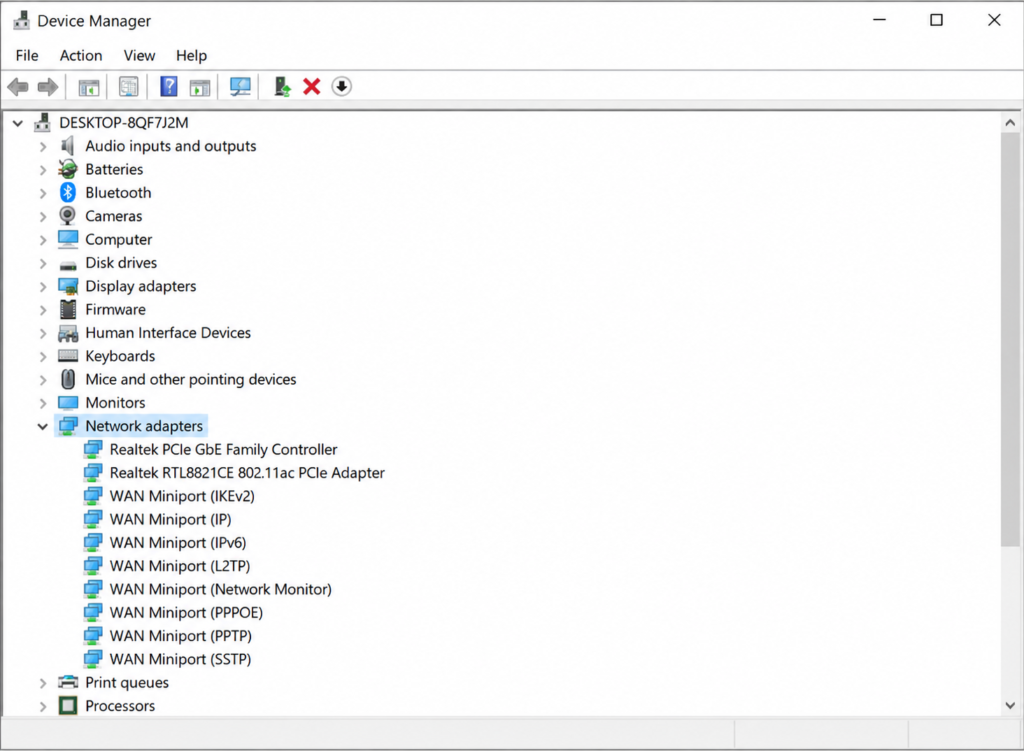
- Right-click the Start button and select Device Manager.
- Expand Network Adapters.
- Right-click your WiFi adapter (usually named something like “Intel Wi-Fi 6” or “Realtek Wireless LAN Adapter”).
- Click Update driver → Search automatically for drivers.
- Follow the prompts and restart your PC.
Option B — Download from the manufacturer’s website (recommended):
- Identify your adapter brand. In Device Manager, right-click your adapter and choose Properties → Details → Hardware IDs to see the exact model.
- Go to the manufacturer’s site (Intel, Realtek, Qualcomm, etc.) and download the latest driver for your specific model.
- Run the installer and restart.
Option C — Reinstall the driver (use if updates don’t help):
- In Device Manager, right-click the adapter and choose Uninstall device.
- Check the box to “Delete the driver software for this device.”
- Restart your PC. Windows will reinstall a fresh driver automatically, or you can install the one downloaded from the manufacturer.
Tip: Intel users can use the Intel Driver & Support Assistant tool to auto-detect and install the correct driver.
Fix 2: Disable Power Management for the Network Adapter
Why This Happens
Windows 11 has an aggressive power-saving feature that can turn off your WiFi adapter when it thinks you are not using it. This is meant to save battery life but frequently causes the connection to drop — even on desktop PCs plugged into the wall.
How to Fix It
- Open Device Manager (right-click Start → Device Manager).
- Expand Network Adapters and right-click your WiFi adapter.
- Click Properties.
- Go to the Power Management tab.
- Uncheck the box that says “Allow the computer to turn off this device to save power.”
- Click OK and restart your PC.
This single change fixes the issue for a huge number of users. It is always worth trying before anything else.
Fix 3: Change Your Network Adapter’s Power Plan
Why This Happens
Even if you disable power management in Device Manager, Windows 11’s overall power plan can still throttle your network adapter. If your PC is set to “Power Saver” or even “Balanced,” it may reduce the adapter’s performance during idle periods.
How to Fix It
- Press Win + R, type
powercfg.cpl, and press Enter. - Select High Performance or Ultimate Performance (if available).
- If you do not see “Ultimate Performance,” open Command Prompt as administrator and run:
powercfg -duplicatescheme e9a42b02-d5df-448d-aa00-03f14749eb61- Then refresh the Power Options window.
- Click Change plan settings → Change advanced power settings.
- Expand Wireless Adapter Settings → Power Saving Mode.
- Set it to Maximum Performance.
- Click Apply → OK.
Fix 4: Flush DNS Cache and Reset TCP/IP Stack
Why This Happens
Sometimes Windows 11 WiFi connects fine but loses internet access because of a stale or corrupt DNS cache, or because the TCP/IP stack has gotten into a bad state. This causes the connection to appear to drop when actually only name resolution or routing is failing.
How to Fix It
- Open Command Prompt as Administrator (search “cmd” → right-click → Run as administrator).
- Run these commands one at a time, pressing Enter after each:
netsh winsock reset
netsh int ip reset
ipconfig /release
ipconfig /flushdns
ipconfig /renew- Restart your PC.
This resets your network stack to a clean state and forces Windows to get a fresh IP address and DNS cache.
Fix 5: Disable WiFi Sense and Auto-Connect Features
Why This Happens
Windows 11 includes a feature called WiFi Sense that can cause your PC to switch between saved networks automatically. If you have multiple networks saved — say, a neighbor’s open network or a public hotspot — Windows may switch to one with a stronger signal but no internet access.
How to Fix It
Disable Auto-Connect for specific networks:
- Open Settings → Network & Internet → WiFi.
- Click Manage known networks.
- Click your primary network.
- Toggle off Connect automatically when in range and re-enable only for your main network.
Remove old or unknown saved networks:
- In Manage known networks, click Forget on any networks you no longer use.
Disable WiFi Sense (optional):
- Go to Settings → Network & Internet → WiFi → WiFi preferences.
- Turn off “Connect to suggested open hotspots” and “Connect to networks shared by my contacts.”
Fix 6: Change Your DNS Server
Why This Happens
Your ISP’s default DNS servers can be slow or unreliable, causing name resolution to fail and making it look like your WiFi dropped. Switching to a faster, more reliable public DNS server often eliminates these interruptions.
How to Fix It
- Open Settings → Network & Internet → WiFi.
- Click your connected network name.
- Scroll down and click Edit next to DNS server assignment.
- Switch from Automatic (DHCP) to Manual.
- Toggle on IPv4 and enter:
- Preferred DNS:
8.8.8.8(Google) or1.1.1.1(Cloudflare) - Alternate DNS:
8.8.4.4(Google) or1.0.0.1(Cloudflare)
- Preferred DNS:
- Click Save.
Cloudflare’s 1.1.1.1 is widely regarded as the fastest public DNS resolver and a solid first choice.
Fix 7: Modify the Roaming Aggressiveness Setting
Why This Happens
If you have multiple WiFi access points or repeaters in your home or office, your PC may constantly search for a “better” signal and disconnect from the current one while doing so. The Roaming Aggressiveness setting controls how eagerly your adapter roams between access points.
How to Fix It
- Open Device Manager → Network Adapters.
- Right-click your WiFi adapter → Properties.
- Go to the Advanced tab.
- Find Roaming Aggressiveness (or similar — it may be called “Roaming Tendency” on some adapters).
- Change the value to Lowest or 1 (Lowest) to prevent the adapter from unnecessarily jumping between networks.
- Click OK and test your connection.
Note: This option may not appear on all adapters. If you don’t see it, skip to the next fix.
Troubleshooting Table {#troubleshooting}
| Problem | Possible Cause | Solution |
|---|---|---|
| WiFi drops every few minutes | Power management turning off adapter | Fix 2: Disable power management in Device Manager |
| WiFi drops when PC is idle | Power plan throttling adapter | Fix 3: Set Power Saving Mode to Maximum Performance |
| Connected to WiFi but no internet | DNS cache corruption or TCP/IP issue | Fix 4: Flush DNS and reset TCP/IP stack |
| PC randomly switches to a different network | WiFi Sense or auto-connect | Fix 5: Disable auto-connect for unwanted networks |
| Slow connection that drops intermittently | ISP DNS server unreliable | Fix 6: Switch to Google or Cloudflare DNS |
| WiFi drops in offices with multiple access points | High roaming aggressiveness | Fix 7: Set Roaming Aggressiveness to Lowest |
| Drops started after a Windows update | Corrupt or incompatible driver | Fix 1: Reinstall driver from manufacturer |
| WiFi drops on battery but not when plugged in | Battery power plan reducing adapter speed | Fix 3: Set High Performance plan |
Pro Tips
- Always check for Windows Updates first. Sometimes Microsoft pushes a patch that fixes a known driver incompatibility. Go to Settings → Windows Update and install all pending updates before troubleshooting manually.
- Use a wired connection while troubleshooting. Plug in an Ethernet cable to maintain internet access while you reinstall drivers or reset network settings — otherwise you may lose access mid-fix.
- Check your router, not just your PC. A firmware bug in your router can cause all devices to drop randomly, not just your Windows 11 machine. Log into your router admin panel and check for firmware updates.
- Test on 2.4 GHz vs 5 GHz. The 5 GHz band is faster but has shorter range. If your adapter is on the edge of 5 GHz range, it may drop more frequently. Try connecting to the 2.4 GHz band to see if stability improves.
- Check for interference. Microwaves, cordless phones, and baby monitors all operate on the 2.4 GHz band and can interfere with your WiFi signal. Try changing your router’s channel (channels 1, 6, or 11 are non-overlapping for 2.4 GHz).
- Run the built-in network troubleshooter. Go to Settings → System → Troubleshoot → Other troubleshooters → Internet Connections. It is not always definitive, but it sometimes catches obvious issues instantly.
- Check Event Viewer for clues. Press Win + X → Event Viewer → Windows Logs → System. Filter for errors around the time of a disconnection. Look for entries from “WLAN-AutoConfig” — these often reveal the exact reason for the drop.
- Consider a USB WiFi adapter as a temporary test. If all else fails and you suspect faulty hardware, a cheap USB WiFi dongle lets you test whether the problem is your built-in adapter.
- Roll back the driver if the problem started recently. In Device Manager → right-click adapter → Properties → Driver tab → Roll Back Driver. This restores the previous driver version, which can help if a recent update broke things.
- Factory reset network settings as a last resort. Go to Settings → System → Recovery → Reset this PC is too drastic, but Settings → Network & Internet → Advanced network settings → Network reset will wipe all saved networks and adapters cleanly.
Common Mistakes to Avoid
- Restarting the router and assuming the problem is solved. A router restart gives temporary relief but does not fix driver or power management issues on the PC side.
- Only updating drivers through Windows Update. Windows Update often delivers older, generic drivers. Always go directly to the chip manufacturer (Intel, Realtek, Qualcomm) for the latest and most stable version.
- Skipping the power management fix on desktops. Many people assume this is only a laptop issue. Desktop PCs can also have power management enabled for their network adapters by default.
- Adding more DNS servers without removing the ISP defaults. If you add Google DNS but leave your ISP’s DNS in the list too, Windows may still use the slow one first. Remove or move the ISP DNS to the bottom.
- Ignoring router firmware. A router running old firmware can have bugs that cause random disconnections for all connected devices. Always check for router updates before deep-diving into PC settings.
- Disabling roaming aggressiveness in single-router setups. If you only have one router, roaming aggressiveness is irrelevant. Focus on power management and driver fixes instead.
- Running multiple WiFi troubleshooting tools simultaneously. Third-party network repair tools can conflict with each other or with Windows’ own settings. Stick to one approach at a time.
Best Practices
Follow these habits to prevent WiFi disconnections from coming back:
- Keep drivers updated regularly. Set a reminder to check your WiFi driver manufacturer’s site every few months, or use a trusted driver updater tool.
- Use a static IP address if you always use the same network. This eliminates IP conflicts entirely. Assign your PC a fixed IP in your router’s DHCP reservation settings.
- Reboot your router monthly. A periodic reboot clears its memory and maintains stability, especially for routers that run 24/7.
- Reduce WiFi congestion. Disconnect devices you are not using, especially those streaming in the background. Fewer connected devices means fewer conflicts.
- Use a mesh network if your home is large. Mesh systems handle roaming between nodes far more gracefully than a router-plus-repeater setup, which is a common source of mid-session drops.
- Keep Windows 11 updated. Microsoft regularly patches network-related bugs. Do not delay major updates indefinitely.
- Avoid using public WiFi for critical work. Public networks often have unstable infrastructure. Use a personal hotspot or VPN on public networks for more reliable and secure access.
FAQ
The most common causes are outdated or corrupt WiFi drivers, Windows power management turning off the adapter to save energy, DNS cache corruption, or IP address conflicts. Start with Fix 1 (update drivers) and Fix 2 (disable power management) — these resolve the majority of cases.
This is almost always a power management issue. Windows is configured to turn off the WiFi adapter during idle periods to save battery. Disable this in Device Manager (Fix 2) and set your power plan to High Performance (Fix 3).
No. Updating or reinstalling your WiFi driver only affects the software that controls the hardware. Your saved WiFi networks and passwords are stored separately in Windows and will not be affected.
Yes. Some Windows 11 cumulative updates have introduced driver incompatibilities that cause random drops. If the problem started right after an update, try rolling back the driver in Device Manager or check Microsoft’s support forums for known issues with that specific update.
Connect another device (phone, tablet, or another laptop) to the same WiFi network. If that device also drops frequently, the problem is your router or ISP. If only your Windows 11 PC drops, the issue is PC-side — work through the fixes in this guide.
It depends. The 5 GHz band offers faster speeds and less congestion in busy areas, but it has a shorter range. If your PC is close to the router, 5 GHz can be more stable. If you are far away, 5 GHz signals drop more easily and 2.4 GHz will be more reliable.
Yes. Go to Settings → Network & Internet → WiFi → Manage known networks, click each unwanted network, and turn off “Connect automatically when in range.” You can also forget networks you no longer use entirely.
Rarely, but it is possible. Some malware interferes with network settings or generates so much background traffic that the connection becomes unstable. If you have tried all the fixes above and nothing helps, run a full scan with Windows Defender or Malwarebytes.
This usually means your device is connected to the router but the router cannot reach the internet, or there is a DNS resolution failure. Run the commands in Fix 4 (flush DNS and reset TCP/IP) and also try restarting your router and modem.
Setting it to “Lowest” means your PC will hold onto the current access point longer before switching. This improves stability in most home setups, but in environments where you physically move around (offices, warehouses), a higher setting helps your adapter switch to a stronger access point as you roam.
Open Device Manager → Network Adapters → right-click your WiFi adapter → Properties → Driver tab. You will see the driver version and date. Compare this to the latest version on the manufacturer’s website.
Both are excellent, fast, and free. Cloudflare (1.1.1.1) consistently ranks as the fastest globally. Google (8.8.8.8) is slightly slower on average but is extremely reliable with strong global infrastructure. Either is a major improvement over most ISP-provided DNS servers.
Conclusion
Random WiFi disconnections on Windows 11 are incredibly frustrating, but they are almost always fixable. The root cause almost always comes down to one of three things: a misbehaving driver, an over-eager power management setting, or a network configuration issue like DNS or IP conflicts.
Start with the simplest fix: update your WiFi driver from the manufacturer’s website and disable power management for the network adapter in Device Manager. These two steps alone resolve the problem for the majority of users.
If the drops continue, work through the remaining fixes — resetting your network stack, changing your DNS server, adjusting your power plan, and modifying roaming aggressiveness. At least one of these will solve even the most stubborn disconnection issues.
If you are still stuck after trying all seven fixes, the problem may lie with your router firmware or your ISP. Test on another device to narrow it down, and do not hesitate to contact your ISP’s support line if all other options are exhausted.
A stable WiFi connection on Windows 11 is absolutely achievable — follow this guide step by step and you will get there.