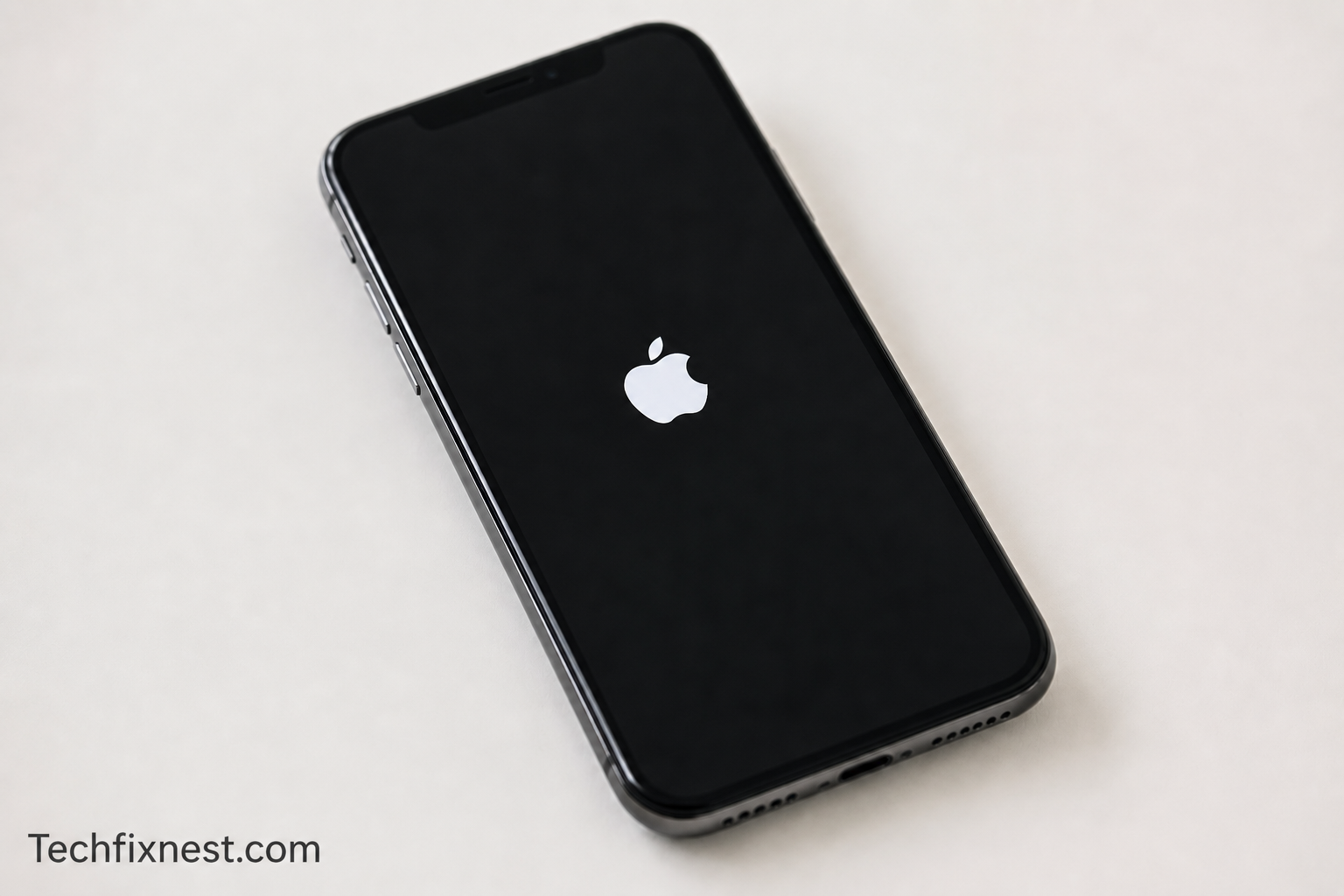
Is your iPhone stuck on the Apple logo after an update? Don’t panic. Follow these proven fixes to get your iPhone working again in minutes — no data loss required.
Quick Answer
If your iPhone is stuck on the Apple logo after an update, force restart it first by pressing and quickly releasing Volume Up, then Volume Down, then holding the Side button until the Apple logo disappears and the phone restarts. If that doesn’t work, use Recovery Mode or DFU Mode via iTunes or Finder to restore the device.
Table of Contents
- Introduction
- Why Does This Happen?
- Fix 1: Force Restart Your iPhone
- Fix 2: Charge Your iPhone
- Fix 3: Use Recovery Mode
- Fix 4: Use DFU Mode
- Fix 5: Restore iPhone via iTunes or Finder
- Fix 6: Check for Apple Server Issues
- Fix 7: Contact Apple Support
- Troubleshooting Table
- Pro Tips
- Common Mistakes to Avoid
- Best Practices
- FAQ
- Conclusion
Introduction
Few things are more frustrating than eagerly installing the latest iOS update — only to find your iPhone frozen on the Apple logo. The screen just sits there. Nothing happens. You wait and wait, but the phone never fully boots.
This issue is more common than you might think. Many iPhone users experience it after major iOS updates, especially when the installation gets interrupted or something goes wrong in the process.
The good news? In most cases, this problem is fixable — and you don’t have to lose your data or visit an Apple Store to do it.
This guide is for anyone whose iPhone is stuck on the Apple logo screen after an iOS update. Whether you have an iPhone 8, iPhone 12, iPhone 14, or the latest iPhone 16, these steps apply to you.
By the end of this article, you’ll know exactly what causes this issue, how to fix it step-by-step, and how to prevent it from happening again.
Why Does This Happen?
Your iPhone gets stuck on the Apple logo during or after an update for several reasons:
- Interrupted update: If your iPhone lost power or Wi-Fi during the update, the installation may be incomplete.
- Corrupted software: A glitch or corrupted file during the iOS installation can prevent your iPhone from booting.
- Insufficient storage: If your iPhone didn’t have enough free storage, the update may have failed mid-way.
- Hardware issues: In rare cases, aging hardware or a failing flash memory component can cause boot loops.
- Third-party tweaks (jailbroken devices): Jailbreak modifications are often incompatible with new iOS versions.
Understanding the cause helps you choose the right fix. Let’s walk through each solution from the simplest to the most advanced.
Fix 1: Force Restart Your iPhone
This is always your first step. A force restart clears temporary software glitches without erasing your data.
For iPhone 8 and later (including iPhone X, 11, 12, 13, 14, 15, 16):
- Quickly press and release the Volume Up button.
- Quickly press and release the Volume Down button.
- Press and hold the Side button (power button on the right).
- Keep holding even when the Apple logo appears.
- Release when you see the Apple logo disappear and return — this means the phone is restarting.
For iPhone 7 and iPhone 7 Plus:
- Press and hold the Volume Down button and the Sleep/Wake button simultaneously.
- Hold both until the Apple logo disappears and reappears.
For iPhone 6s and earlier:
- Press and hold the Home button and the Sleep/Wake button together.
- Hold until the device restarts.
Tip: If the phone restarts normally and loads your home screen, you’re done. If it goes back to the Apple logo, move to the next fix.
Fix 2: Charge Your iPhone
Sometimes, the issue is simply a drained battery. If the battery died during the update, your iPhone may appear frozen when it’s actually just out of power.
- Plug your iPhone into a charger using the original cable and adapter.
- Leave it for at least 15–30 minutes without touching it.
- Try a force restart after charging.
Note: Use a wall charger, not a computer USB port. Wall chargers deliver more power.
Fix 3: Use Recovery Mode
If a force restart doesn’t work, Recovery Mode is your next option. This mode lets you update or restore your iPhone using iTunes (Windows/older Mac) or Finder (macOS Catalina and later) without fully erasing your data — though it may prompt you to restore if the update is too corrupted.
What you need:
- A Mac or Windows PC with the latest version of iTunes or macOS Finder
- A USB cable (Lightning or USB-C depending on your iPhone model)
Steps:
On your computer: Open iTunes (Windows or older Mac) or Finder (macOS Catalina and later).
Connect your iPhone to the computer using a USB cable.
Put your iPhone in Recovery Mode:
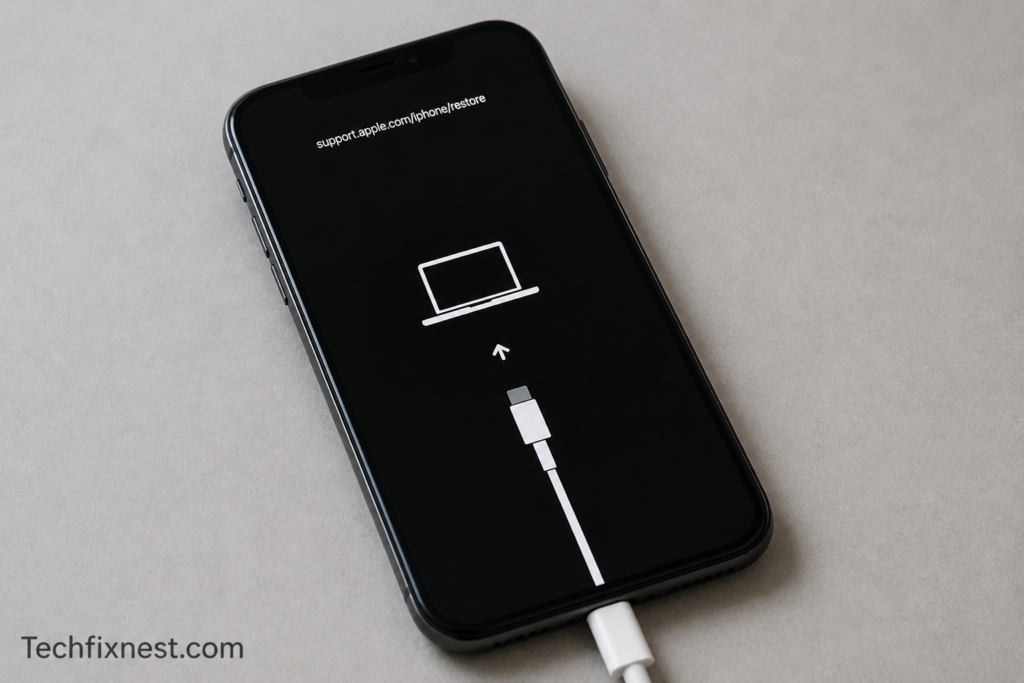
- iPhone 8 and later: Press and quickly release Volume Up → Volume Down → then hold the Side button until you see the Recovery Mode screen (a cable and computer icon).
- iPhone 7/7 Plus: Hold Volume Down + Sleep/Wake together until the Recovery Mode screen appears.
- iPhone 6s and earlier: Hold Home + Sleep/Wake until the Recovery Mode screen appears.
On your computer, you’ll see a prompt saying your iPhone needs to be updated or restored.
Choose “Update” first — this reinstalls iOS without erasing your data.
Wait for the process to complete. It may take 15–20 minutes.
Warning: If the Update option fails or the download takes too long (more than 15 minutes), iTunes/Finder will exit Recovery Mode automatically. Repeat the steps and try “Restore” instead.
Fix 4: Use DFU Mode
DFU (Device Firmware Update) Mode is a deeper restore method that bypasses the bootloader. It’s the most powerful software-level fix available.
Use this if Recovery Mode didn’t work.
How to enter DFU Mode:
iPhone 8 and later:
- Connect your iPhone to the computer.
- Quickly press and release Volume Up.
- Quickly press and release Volume Down.
- Hold the Side button for 10 seconds.
- While still holding Side, also press and hold Volume Down for 5 seconds.
- Release the Side button but keep holding Volume Down for another 5 seconds.
- If the screen stays black and iTunes/Finder detects the device, you’re in DFU Mode.
iPhone 7/7 Plus:
- Connect to computer.
- Hold Volume Down + Sleep/Wake for 10 seconds.
- Release Sleep/Wake but keep holding Volume Down for 5 more seconds.
iPhone 6s and earlier:
- Connect to computer.
- Hold Home + Sleep/Wake for 10 seconds.
- Release Sleep/Wake but keep holding Home for 5 more seconds.
Once in DFU Mode, iTunes or Finder will ask you to restore your iPhone. Follow the on-screen instructions.
Note: DFU Mode will erase all content on your device. Make sure you have a backup if possible. If you don’t, Recovery Mode update is always preferable to try first.
Fix 5: Restore iPhone via iTunes or Finder
If Recovery Mode and DFU Mode both require a restore, here’s how to complete the process:
- With your iPhone connected in Recovery or DFU Mode, iTunes or Finder will show a prompt.
- Click Restore iPhone.
- Confirm the action.
- Wait for the restore to download and install. This can take 20–40 minutes depending on your internet speed.
- Once complete, your iPhone will restart and show the setup screen.
- Sign in with your Apple ID and restore from a backup (iCloud or local backup) if available.
Fix 6: Check for Apple Server Issues
In rare cases, if many people are updating at once, Apple’s update servers can experience delays or errors. This can cause update failures that result in the frozen Apple logo.
Check Apple’s System Status page at apple.com/support/systemstatus to see if iOS Software Update shows any issues.
If there’s a known outage, wait a few hours and try again after Apple resolves it.
Fix 7: Contact Apple Support
If none of the above fixes work, your iPhone may have a hardware problem — especially if it overheated during the update or was dropped recently.
Options:
- Visit an Apple Store or Apple Authorized Service Provider.
- Contact Apple Support via the Support app or apple.com/support.
- Check if your device is covered under AppleCare+ warranty.
Troubleshooting Table
| Problem | Possible Cause | Solution |
|---|---|---|
| Stuck on Apple logo after update | Corrupted iOS installation | Force restart or Recovery Mode |
| Force restart doesn’t work | Deeper software corruption | Use Recovery Mode or DFU Mode |
| Recovery Mode shows “Restore” not “Update” | Severe iOS corruption | Restore and set up from backup |
| DFU Mode not detected by computer | Wrong button timing | Repeat steps carefully; try different USB port |
| Apple logo loops repeatedly | Boot loop caused by corrupt update | DFU restore required |
| Screen is black, not just Apple logo | Battery dead or hardware fault | Charge for 30 min; try force restart |
| Update stuck at progress bar | Installation frozen | Force restart; re-enter Recovery Mode |
| iTunes not recognizing iPhone | Driver or cable issue | Update iTunes; try different cable/port |
Pro Tips
- Always back up before updating. Use iCloud or connect to your Mac/PC and back up via Finder or iTunes before every iOS update.
- Charge to at least 50% before updating. Apple recommends this to avoid battery-related interruptions.
- Update over stable Wi-Fi only. Never update using cellular data or a public hotspot.
- Keep enough free storage. iOS updates need 2–4 GB of free space. Clear photos, apps, and cache before updating.
- Don’t force restart during an active update. If the progress bar is moving, let it finish — even if it seems slow.
- Update iTunes or macOS before using Recovery Mode. Outdated software can cause recognition issues.
- Try a different USB cable. Faulty or third-party cables often fail to establish a reliable connection in Recovery Mode.
- Use a direct USB port on your computer. Avoid USB hubs, as they can cause connection drops during restore.
- Let the battery drain completely before DFU Mode. If you’re struggling to enter DFU Mode, some users find it easier on a low-battery device.
- Check Apple’s release notes. Known bugs in certain iOS versions are sometimes acknowledged by Apple with guidance on workarounds.
Common Mistakes to Avoid
- Holding down buttons too long or too short during force restart — timing matters, especially on iPhone 8 and later.
- Choosing “Restore” immediately when Recovery Mode gives you the “Update” option — always try Update first to save your data.
- Using a third-party or frayed USB cable that can’t maintain a stable connection during the restore.
- Not having a backup before attempting a restore — DFU Mode erases everything.
- Assuming the phone is broken and giving up too early — most frozen Apple logo issues are software problems, not hardware.
- Skipping the charging step — a drained battery can mimic a frozen boot screen.
- Interrupting the restore process by disconnecting the phone or closing iTunes midway.
- Not updating iTunes or Finder before using Recovery Mode — outdated software often fails to recognize the device.
Best Practices
Follow these habits to prevent your iPhone from getting stuck on the Apple logo in the future:
- Back up regularly using iCloud (Settings → Your Name → iCloud → iCloud Backup) or your computer.
- Update iOS only when you have time and stable Wi-Fi — not right before bed or when you’re about to travel.
- Keep 3–5 GB of free storage at all times so updates have room to install.
- Charge your phone fully before starting any major iOS update.
- Wait a week or two after a major iOS release before updating — early adopters often encounter more bugs.
- Keep iTunes or macOS updated so Recovery Mode works correctly when you need it.
- Avoid jailbreaking if you want to update to new iOS versions without issues.
FAQ
This usually happens because the iOS update was interrupted, the installation file became corrupted, or your iPhone ran out of battery or storage during the process. A force restart fixes it in most cases.
No. A force restart is the same as pulling the battery out on older phones — it reboots the device without erasing anything. Your apps, photos, and settings remain intact.
If your iPhone has been on the Apple logo for more than 10–15 minutes with no progress bar movement, it’s safe to attempt a force restart.
Recovery Mode lets iTunes/Finder reinstall iOS while keeping your data if possible. DFU Mode is a deeper restore that bypasses the iOS bootloader entirely and always erases the device. Try Recovery Mode first.
A force restart can be done without a computer and works in many cases. However, Recovery Mode and DFU Mode require a Mac or Windows PC with iTunes or Finder.
Yes. A full restore (not an update in Recovery Mode) erases all content. This is why having a recent backup is critical. If you have an iCloud or computer backup, you can restore your data afterward.
You’ll see a screen showing a cable pointing toward a computer icon (or the iTunes/Finder logo). Your computer will also display a prompt saying it has detected an iPhone in Recovery Mode.
Try a different USB cable, a different USB port on your computer, and make sure iTunes or Finder is updated. Also try restarting your computer before reconnecting.
If your iPhone is within the standard one-year warranty or you have AppleCare+, Apple may repair or replace it at no cost — especially if the issue is hardware-related. Contact Apple Support to check your coverage.
Possibly. iPhones generate heat during large updates. If the device overheated, it may have throttled performance or shut down mid-update. Let it cool down completely before trying any fixes.
Jailbroken iPhones are more prone to this issue when updating. DFU Mode restore will remove the jailbreak and install clean iOS. After that, the phone should work normally as a non-jailbroken device.
This is called a boot loop and usually signals a hardware problem — often failing NAND storage. Contact Apple Support or visit an Apple Store for diagnosis.
Conclusion
An iPhone stuck on the Apple logo after an update is frightening, but it’s rarely a sign of permanent damage. In most cases, a simple force restart is all it takes to get your phone working again. If that doesn’t work, Recovery Mode and DFU Mode give you powerful options to reinstall iOS and recover your device.
The most important thing to remember: start with the least invasive fix (force restart), and only move to more drastic options (restore, DFU Mode) if needed. Always try the Update option in Recovery Mode before choosing Restore, as it gives you the best chance of keeping your data.
Going forward, make regular backups a habit. A backup turns a potentially devastating situation into a minor inconvenience. Charge your phone before updating, keep storage free, and you’ll dramatically reduce the chance of this ever happening again.
If you’ve tried every fix in this guide and your iPhone still won’t boot, reach out to Apple Support. They have additional diagnostic tools and can determine if there’s an underlying hardware issue.