Is your Android phone overheating? Discover 10 proven fixes to cool it down fast, protect your battery, and prevent damage — no tech skills required.
Quick Answer
Your Android phone overheats when the processor, battery, or software pushes too hard without enough cooling. To fix it fast: close background apps, lower screen brightness, remove the case, turn on Airplane Mode for 2–3 minutes, and restart your device. For persistent overheating, check for rogue apps or a failing battery.
Table of Contents
- Why Is My Android Phone Overheating?
- Is It Normal for Android Phones to Get Warm?
- Fix 1: Close Background Apps and Processes
- Fix 2: Lower Screen Brightness
- Fix 3: Remove the Phone Case
- Fix 4: Stop Charging While Using the Phone
- Fix 5: Check for Rogue or Misbehaving Apps
- Fix 6: Update Android and Your Apps
- Fix 7: Reduce Gaming and Streaming Sessions
- Fix 8: Turn Off Unused Connectivity Features
- Fix 9: Factory Reset as a Last Resort
- Fix 10: Check the Battery or Visit a Technician
- Troubleshooting Table
- Pro Tips
- Common Mistakes to Avoid
- Best Practices
- FAQ
- Conclusion
There are few things more alarming than picking up your Android phone and feeling like it just came out of an oven. A warm phone during a video call is one thing. A phone that’s genuinely hot to the touch — or one that throttles performance and shuts down — is a real problem.
Android phones overheat for many reasons: heavy gaming, background apps draining resources, a swollen battery, faulty chargers, direct sunlight, or even buggy software running loops you can’t see. Left unchecked, chronic overheating can permanently damage your battery, shorten your phone’s life, and in rare cases, pose a safety risk.
This guide is for anyone whose Android phone runs hot — whether it’s a Samsung Galaxy, Google Pixel, OnePlus, Xiaomi, or any other Android device. You don’t need to be a tech expert. Each fix is explained clearly, step by step.
By the end, you’ll know exactly why your phone overheats, how to fix it right now, and how to prevent it from happening again.
Why Is My Android Phone Overheating?
Your phone is essentially a small computer. It has a processor (CPU/GPU), a battery, a display, radios for Wi-Fi and cellular, and more — all packed into a thin slab of glass and metal with no fan.
When any of these components work harder than usual, they generate heat. The phone manages this through passive cooling (the metal frame acts as a heat spreader), but there’s a hard limit.
Common causes of Android overheating include:
- Running processor-heavy apps like 3D games or video editors
- Charging while simultaneously using the phone intensively
- Too many background apps or services running at once
- A misbehaving app stuck in a processing loop
- Outdated software with bugs that cause excess CPU usage
- Hot environments (direct sunlight, hot cars, etc.)
- A degraded or swollen battery
- Using a counterfeit or low-quality charger
- Poor signal areas, which force the phone’s radios to work harder
Is It Normal for Android Phones to Get Warm?
Yes — warm is normal. Hot is not.
A phone running at 35–40°C (95–104°F) during gaming or video calls is perfectly normal. Once temperatures push past 45–50°C (113–122°F), that’s when you should be concerned.
Android phones have built-in thermal throttling, which slows the processor to reduce heat. You may notice lag, slower charging, or a dim screen. These are the phone protecting itself — not a bug.
If your phone is getting uncomfortably hot during basic tasks like texting or idle use, something is wrong and needs to be fixed.
Fix 1: Close Background Apps and Processes
Background apps are the most common culprit behind Android overheating. Even when you’re not actively using an app, it may still be running — refreshing data, checking for notifications, or stuck in a processing loop.
How to close background apps:
- Tap the Recent Apps button (the square icon, or swipe up and hold on newer Android).
- Swipe away all open apps, or tap Close All.
- Alternatively, go to Settings > Apps > See all apps, tap each app, and select Force Stop for any app you suspect is misbehaving.
For deeper control:
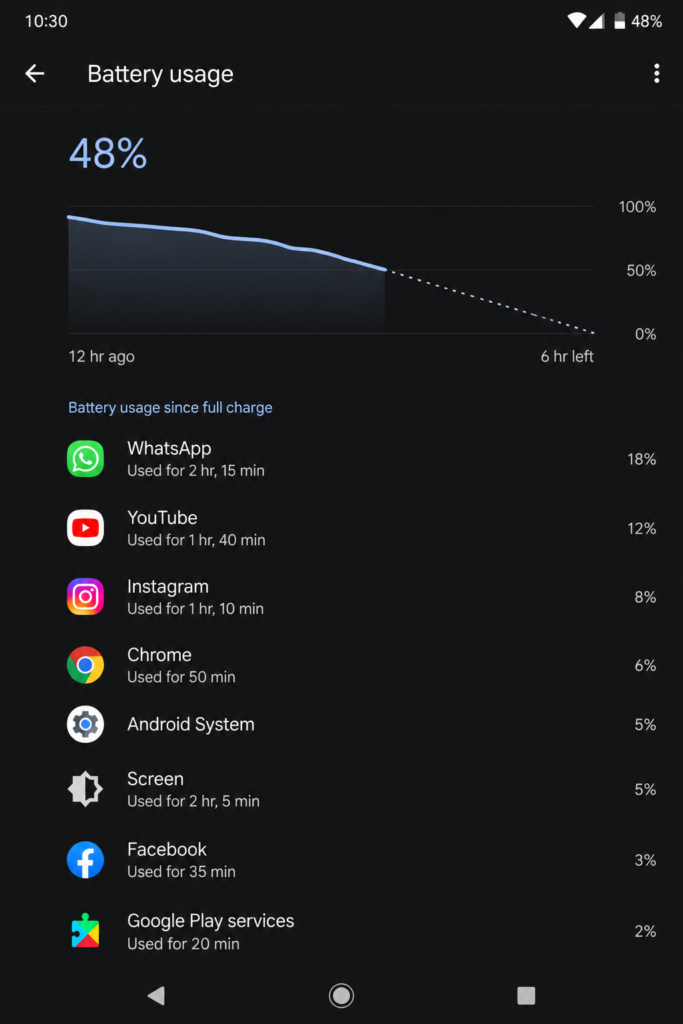
- Go to Settings > Battery > Battery Usage.
- Check which apps are consuming the most battery.
- Any app showing unusually high usage when you haven’t used it is a red flag.
Tip: Social media apps (Facebook, TikTok, Instagram) and navigation apps are notorious for running constantly in the background.
Fix 2: Lower Screen Brightness
Your phone’s display is one of the biggest power drains — and power drain means heat. A screen set to maximum brightness while outdoors is like leaving your car’s engine at full rev while sitting still.
How to lower brightness:
- Swipe down from the top of the screen to open the Quick Settings panel.
- Drag the brightness slider to 50% or lower.
- Enable Adaptive Brightness (also called Auto Brightness) so the phone adjusts automatically based on ambient light.
Also consider:
- Shortening your screen timeout (Settings > Display > Screen Timeout) to 30 seconds or 1 minute.
- Switching to Dark Mode (Settings > Display > Dark Mode), which reduces power usage on OLED screens.
Fix 3: Remove the Phone Case
Phone cases — especially thick rubber or leather ones — are excellent insulators. That’s great for drops, terrible for heat. They trap heat against the phone and prevent it from escaping naturally.
What to do:
- Remove the case when gaming, charging, or doing anything intensive.
- Let the metal back panel of the phone breathe — it acts as a natural heat sink.
- If you’re in a hot environment, keeping the case off can make a meaningful difference.
If your phone overheats even without a case, the issue is internal and you’ll need to try other fixes.
Fix 4: Stop Charging While Using the Phone
Charging your phone generates heat on its own because chemical reactions inside the battery produce energy and warmth. Using the phone heavily while charging — gaming, streaming 4K video, video calling — doubles the heat load.
Best practice:
- Let your phone charge while the screen is off or during light use.
- Avoid wireless charging during heavy use (wireless charging is inherently less efficient and generates more heat than wired charging).
- Use the original charger that came with your phone — third-party chargers, especially cheap ones, can cause irregular voltage that leads to excess heat.
Fix 5: Check for Rogue or Misbehaving Apps
Sometimes a single app is the entire problem. A buggy app can get stuck in an infinite processing loop, eating CPU resources and generating heat constantly — even when you’re not using it.
How to identify rogue apps:
- Go to Settings > Battery > Battery Usage.
- Look for any app consuming a disproportionately high percentage of battery since last charge.
- If you recently installed a new app around the same time the overheating started, it’s a prime suspect.
What to do:
- Force stop the suspicious app: Settings > Apps > [App Name] > Force Stop.
- Clear the cache: Settings > Apps > [App Name] > Storage > Clear Cache.
- Uninstall and reinstall the app if the issue persists.
- If the heat disappears after uninstalling, you’ve found your problem.
Fix 6: Update Android and Your Apps
Software bugs can cause the processor to run at unnecessarily high loads. Manufacturers and app developers regularly release updates that fix these kinds of issues.
How to update Android:
- Go to Settings > System > System Update (path may vary by manufacturer).
- Tap Check for Updates.
- Install any available updates.
How to update apps:
- Open the Google Play Store.
- Tap your profile icon > Manage apps and device.
- Tap Update All.
Keeping software up to date is one of the simplest and most overlooked solutions to overheating.
Fix 7: Reduce Gaming and Streaming Sessions
Graphic-intensive games and HD/4K video streaming push your phone’s processor and GPU to their limits. Extended sessions generate significant heat — this is expected, but it can become a problem in warm environments or with an aging device.
Practical tips:
- Take breaks of 10–15 minutes every hour of gaming.
- Play in a cool, air-conditioned room when possible.
- Lower in-game graphics settings (resolution, frame rate, shadow quality).
- In video streaming apps, lower playback quality from 4K to 1080p or 720p.
- Use Game Mode (available on Samsung, OnePlus, and others) to balance performance and temperature.
Fix 8: Turn Off Unused Connectivity Features
Your phone’s wireless radios — Wi-Fi, Bluetooth, NFC, GPS, and mobile data — all consume power and generate heat, especially when they’re scanning or struggling to maintain a signal.
What to turn off when not needed:
- Bluetooth: Off when you’re not using wireless earbuds or speakers.
- GPS/Location: Settings > Location > Toggle off, or use “Device Only” mode instead of high-accuracy.
- NFC: Settings > Connected Devices > NFC > Toggle off.
- Wi-Fi scanning and Bluetooth scanning: Settings > Location > Location Services > Turn off Wi-Fi and Bluetooth scanning.
- Mobile Hotspot: Turn off if not actively being used.
In areas with weak signal, your phone works harder to maintain a cellular connection, which generates extra heat. Enabling Airplane Mode for 2–3 minutes in low-signal areas can give the radios a rest.
Fix 9: Factory Reset as a Last Resort
If you’ve tried everything else and your phone still overheats consistently, a corrupt system file or deeply embedded software issue may be the cause. A factory reset wipes the phone clean and starts fresh.
Before you reset:
- Back up all your data: contacts, photos, app data, etc. (use Google Backup or Samsung Cloud).
- Write down any app logins or 2FA codes you’ll need after the reset.
How to factory reset:
- Go to Settings > General Management > Reset (Samsung) or Settings > System > Reset Options > Erase all data (stock Android).
- Tap Factory Data Reset.
- Confirm and wait for the process to complete.
If the phone still overheats after a factory reset, the problem is hardware — not software.
Fix 10: Check the Battery or Visit a Technician
A degraded, swollen, or failing battery can generate significant heat even during light use. Lithium-ion batteries lose capacity over time, and an old battery may run hotter than a new one.
Signs your battery may be the issue:
- The phone overheats even when idle or on light tasks.
- The battery drains unusually fast.
- The back of the phone feels warped or the screen is slightly pushed up (a sign of battery swelling — stop using the phone immediately if you notice this).
What to do:
- Check battery health: Settings > Battery > Battery Health (available on some Android versions and manufacturers like Samsung).
- Use an app like AccuBattery to estimate battery wear.
- If battery health is below 80%, consider a battery replacement at an authorized service center.
- If you’re still under warranty, contact the manufacturer.
Troubleshooting Table
| Problem | Possible Cause | Solution |
|---|---|---|
| Phone hot during charging | Cheap/faulty charger or heavy use while charging | Use the original charger; don’t use the phone heavily while it charges |
| Phone hot while gaming | CPU/GPU running at maximum load | Lower graphics settings, take breaks, remove case |
| Phone hot while idle | Rogue background app | Check battery usage, force stop or uninstall suspicious apps |
| Phone hot in the sun | Environmental heat absorption | Move to shade; never leave phone in direct sunlight or a hot car |
| Phone hot after an update | Buggy update or post-update indexing | Wait 30 minutes; if it persists, check for a follow-up patch |
| Phone hot and lagging | Thermal throttling triggered | Let phone cool down in a cool place; reduce workload |
| Phone hot with swollen back | Battery swelling | Stop using immediately; visit a repair center |
| Phone hot and battery draining fast | Degraded battery or rogue app | Check battery health; run in Safe Mode to isolate apps |
Pro Tips
- Use Safe Mode to isolate third-party apps. Hold the power button, then long-press “Power Off” and tap “Safe Mode.” If the phone stays cool in Safe Mode, a third-party app is the cause.
- Keep your phone out of your pocket during gaming. Body heat combined with the heat from gaming adds up fast.
- Never put an overheating phone in the fridge or freezer. Rapid temperature changes can cause condensation inside the device and damage electronics. Let it cool at room temperature.
- Charge to 80% when possible. Keeping the battery between 20–80% reduces stress on the cells and generates less heat during charging.
- Use Performance Mode wisely. Many Android phones have a Performance Mode in battery settings that pushes the CPU harder. Switch to Balanced or Power Saving mode during non-intensive tasks.
- Monitor temperature with an app. Apps like CPU-Z or AIDA64 can show you real-time CPU temperature so you can see exactly when and why it spikes.
- Enable Data Saver mode when on mobile data. It reduces background data usage from apps, which lowers CPU and radio activity.
- Check for malware. In rare cases, malware running in the background can cause severe overheating. Run a scan with a trusted antivirus app like Malwarebytes.
- Avoid phone use during extreme heat. Most Android phones are rated for operation between 0°C and 35°C (32°F–95°F). Using them outside that range accelerates wear.
- Get your phone serviced yearly if it’s over 3 years old. Dust can accumulate around the internal components, reducing the phone’s ability to dissipate heat.
Common Mistakes to Avoid
- Putting the phone in the freezer or on ice. Condensation from rapid cooling can short-circuit the motherboard.
- Ignoring the warning signs. A phone that overheats regularly is telling you something is wrong. Don’t dismiss it.
- Buying cheap replacement chargers. Counterfeit chargers can deliver unstable voltage, stressing the battery and causing heat.
- Not updating apps for months. Outdated apps often contain bugs — including ones that cause CPU loops and overheating.
- Continuing to use a swollen battery. This is a genuine safety hazard. A swollen battery can rupture and cause a fire. Stop using the phone and replace the battery immediately.
- Assuming a case “fixes” everything. Thick cases trap heat. They protect from drops, not from thermal damage.
- Only doing a partial fix. Overheating often has more than one cause. If you close background apps but still charge while gaming in direct sunlight, you haven’t solved the problem.
Best Practices
To keep your Android phone running cool long-term:
- Keep Android and all apps up to date at all times.
- Regularly check battery usage in settings and uninstall apps you no longer use.
- Charge your phone overnight using the original cable and charger — let it charge with the screen off.
- Avoid leaving your phone in hot cars, on sunny windowsills, or in direct sunlight.
- Take gaming breaks and lower graphics settings on older devices.
- Replace your battery every 2–3 years or when health drops below 80%.
- Use Dark Mode to reduce display power consumption on OLED screens.
- Keep auto-brightness enabled so the screen isn’t unnecessarily bright indoors.
- Periodically restart your phone (at least once a week) to clear memory and reset background processes.
- If your phone is over 3 years old and consistently overheats, it may be time for an upgrade — older processors are less efficient and generate more heat for the same tasks.
FAQ
Even when idle, your phone may be running background app refresh, syncing data, scanning for networks, or a buggy app may be looping. Check battery usage in Settings > Battery to identify what’s consuming power when the phone seems idle.
Yes. Chronic overheating degrades your battery faster, can warp internal components, and may cause permanent processor damage over time. Occasional warmth is fine; consistent high heat is harmful.
Modern Android phones have overcharge protection and stop drawing power when full. The main concern is heat — if your phone gets warm while charging and is under a pillow or blanket, that’s a problem. Charge in a cool, open area.
Anything above 45°C (113°F) is concerning. At these temperatures, Android will throttle performance to protect the hardware. Above 50°C (122°F), the phone may shut itself off. Normal operating temperature is 35–40°C during moderate use.
Sometimes. If a software bug or corrupted system file is the cause, a factory reset will fix it. If the problem is hardware (degraded battery, physical damage), a reset won’t help.
Not if done in moderation on a well-maintained phone. However, extended gaming sessions daily on an older phone with a degraded battery can accelerate wear. Use Game Mode, take breaks, and keep the phone cool.
Wireless charging is less energy-efficient than wired charging — some power is lost as heat. Using the phone heavily while wirelessly charging compounds this effect. Stick to wired charging for intensive use.
Yes. Thick silicone, rubber, or leather cases trap heat against the phone. If you notice your phone running hot, remove the case and see if the temperature drops.
Direct sunlight heats the dark glass and metal of your phone rapidly, far above the phone’s thermal limit. Even if the phone isn’t doing anything demanding, solar heat can push it into overheat territory quickly. Keep it in the shade or in a bag.
Signs include: heat during idle use, fast battery drain, a back panel that feels warped, or a screen that appears slightly raised. Check battery health in your phone’s settings or use an app like AccuBattery.
Phone cooling fans (clip-on semiconductor coolers) can help during long gaming sessions and are generally safe to use. They’re most useful for enthusiast gamers who push their phones hard. They’re not a substitute for fixing underlying software issues.
Power it off immediately. Remove the case. Place it on a flat, hard surface in a cool room (not the fridge). Do not charge it. Wait until it returns to room temperature before turning it back on. If it overheats again quickly, visit a repair center.
Conclusion
An overheating Android phone is frustrating — but in most cases, it’s fixable. The majority of overheating issues come down to software: background apps, outdated firmware, or too many tasks running at once. Start with the simplest fixes first — close background apps, lower brightness, remove the case, and stop charging while gaming — and work your way down the list.
If software fixes don’t work, the problem is likely hardware. A degraded battery is the most common culprit in phones that are 2–3 years old. Don’t ignore a swollen battery — it’s a safety issue that needs immediate attention.
The best defense against overheating is prevention: keep your software updated, manage your apps, use the right charger, and don’t push your phone past its limits in hot environments. Follow the best practices in this guide and your Android phone should run cooler, last longer, and perform better for years to come.
If your phone continues to overheat despite trying every fix, it’s time to contact the manufacturer or visit an authorized repair center. Some problems are beyond a DIY fix — and that’s okay.