OneDrive Not Opening in File Explorer After Windows 11 Update? 9 Fixes That Actually Work (2026)
Last Tuesday, right after installing a Windows 11 update, I clicked on OneDrive in File Explorer like I do a dozen times a day and nothing happened. No window, no error, no spinning cursor. Just silence. I checked the system tray and the OneDrive icon wasn’t even there anymore. My first thought was that I’d lost access to months of synced project files.
After digging through this for a few hours (and talking to a few readers who hit the exact same wall after their own Windows 11 updates), I found that this is a fairly common side effect of recent cumulative updates. Something in the update process either kills the OneDrive process, corrupts its File Explorer integration, or resets its startup permissions. The good news is that in almost every case, your files are completely safe they’re just sitting in your OneDrive folder on disk, untouched. The problem is purely about File Explorer losing its connection to the OneDrive app.
Below are the 9 fixes that resolved this for me and for readers who reported the same issue, ordered from the fastest checks to the deeper repairs.
Quick Answer
If OneDrive won’t open in File Explorer after a Windows 11 update, first restart the OneDrive process from Task Manager and check if it’s set to run at startup. If that doesn’t work, reset OneDrive using the built-in reset command, re-link your account, and repair the app through Windows Settings. As a last resort, unlink and reinstall OneDrive completely. Most cases are fixed within the first three steps without any data loss.
Troubleshooting Table
| Fix | What It Does | Time Needed |
|---|---|---|
| 1. Restart OneDrive process | Kills and relaunches the background app | 1 minute |
| 2. Check startup settings | Ensures OneDrive launches on boot | 2 minutes |
| 3. Reset OneDrive via Run command | Clears cache and restarts sync engine | 5 minutes |
| 4. Repair OneDrive from Settings | Uses Windows’ built-in repair tool | 3 minutes |
| 5. Re-register OneDrive DLL files | Fixes broken File Explorer integration | 5 minutes |
| 6. Update or reinstall OneDrive | Replaces corrupted app files | 10 minutes |
| 7. Check Windows Update history | Identifies and rolls back a bad update | 10 minutes |
| 8. Rebuild File Explorer indexing | Fixes broken folder linking | 10 minutes |
| 9. Unlink and relink your account | Full reset without losing files | 15 minutes |
Fix 1: Restart the OneDrive Process from Task Manager
Before anything else, check whether OneDrive is actually running in the background. Open Task Manager (Ctrl+Shift+Esc), go to the Processes tab, and look for Microsoft OneDrive. If you don’t see it, that’s usually your answer the update killed the process and it never restarted.
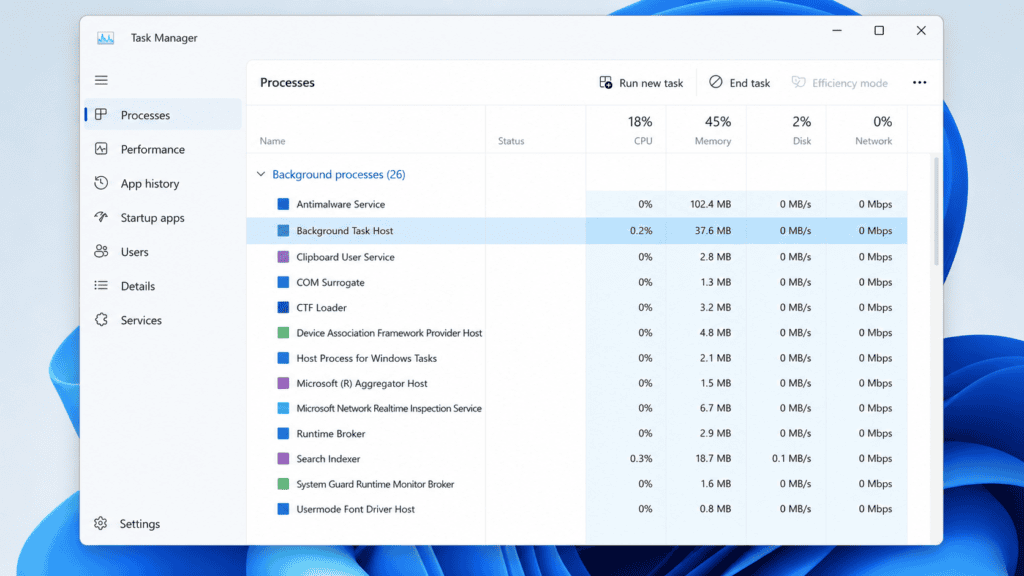
Open the Start menu, type OneDrive, and launch it manually. Give it 20 to 30 seconds to initialize. In most cases, this alone brings back the icon in File Explorer’s left sidebar. If OneDrive was already running but File Explorer still wouldn’t show it, right-click the process in Task Manager, select End Task, then relaunch it from the Start menu. This forces a clean restart of the connection between OneDrive and File Explorer.
Fix 2: Make Sure OneDrive Is Set to Start Automatically
Windows updates occasionally reset startup app permissions, which can quietly disable OneDrive from launching when you log in. Go to Settings > Apps > Startup, and scroll down to find Microsoft OneDrive. If the toggle next to it is off, switch it on.
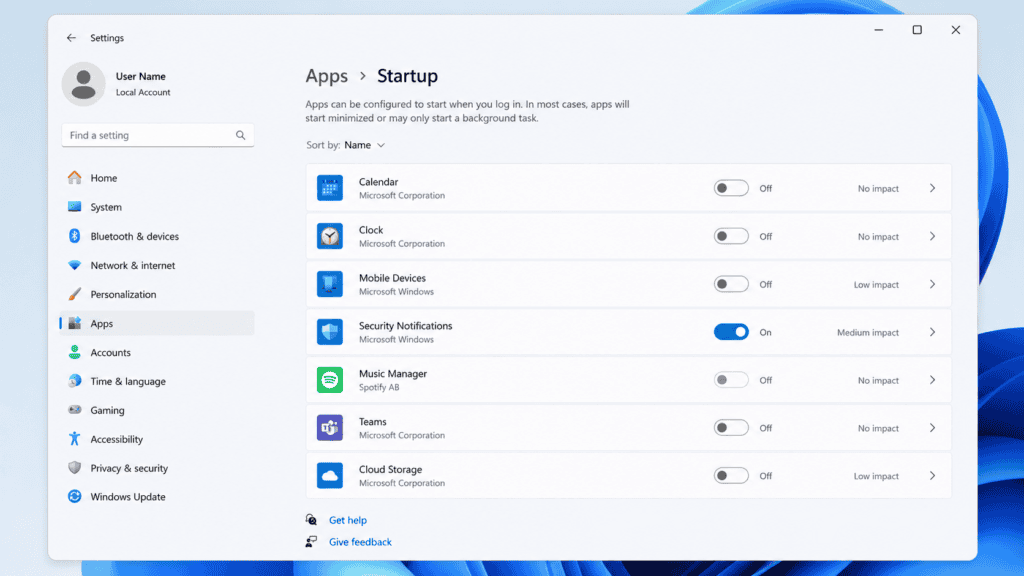
You can also check this from inside the OneDrive app itself. Click the OneDrive icon in the system tray, select Help & Settings, then Settings, and under the General tab confirm that “Start OneDrive automatically when I sign in to Windows” is checked. This prevents the same issue from happening again after your next restart.
Fix 3: Reset OneDrive Using the Run Command
If restarting the process doesn’t help, a full reset usually does. This clears OneDrive’s cached state without touching your actual files. Press Windows key + R to open Run, then paste this command exactly:
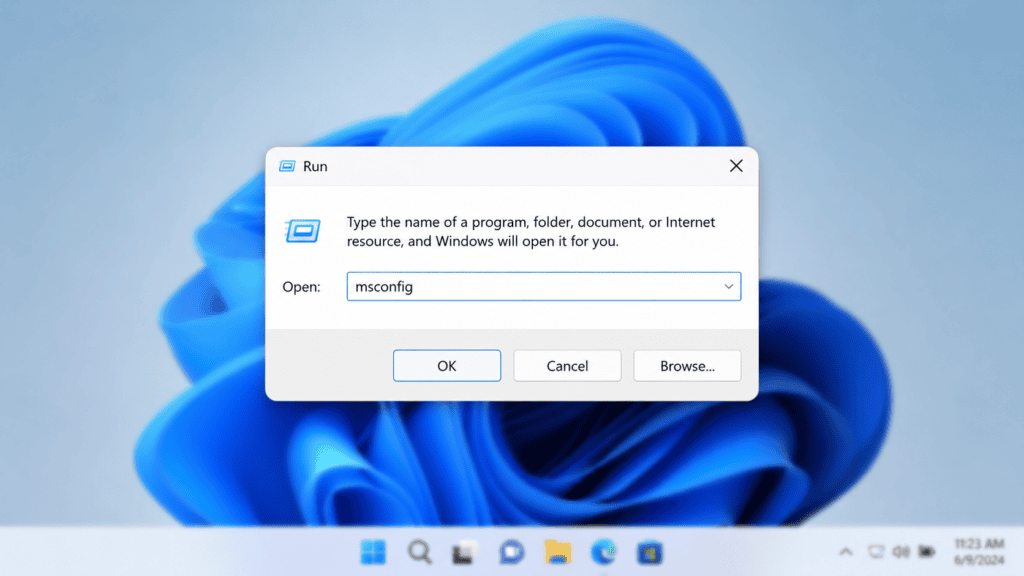
%localappdata%\Microsoft\OneDrive\onedrive.exe /reset
Press Enter and wait. The OneDrive icon will disappear from the system tray for a minute or two while it resets this is normal. If nothing happens automatically after a couple of minutes, open the Run dialog again and type onedrive.exe to relaunch it manually. This single command resolves the File Explorer integration issue for a large share of users who report this problem after an update.
Fix 4: Repair OneDrive Through Windows Settings
Windows 11 includes a built-in repair option for installed apps that can fix corrupted files without a full reinstall. Go to Settings > Apps > Installed Apps, search for Microsoft OneDrive, click the three-dot menu next to it, and select Advanced Options. Scroll down and click Repair.
This process checks OneDrive’s installation files against Microsoft’s servers and replaces anything that got corrupted during the update. It typically takes a couple of minutes and doesn’t require you to sign in again afterward. If File Explorer still doesn’t show OneDrive after the repair completes, restart your PC before moving to the next fix.
Fix 5: Re-register OneDrive’s File Explorer Integration Files
Sometimes the actual issue isn’t OneDrive itself but the DLL files that let File Explorer display it in the sidebar. These can get unregistered during a Windows update. To fix this, open Command Prompt as Administrator and run these two commands one at a time:
regsvr32 /s ondemandconnectedcache.dll
taskkill /f /im explorer.exe && start explorer.exe
The first command re-registers OneDrive’s shell integration, and the second restarts File Explorer so the change takes effect immediately. Your desktop icons will briefly disappear and reappear — that’s expected. This fix specifically targets cases where OneDrive is running fine in the background but simply refuses to show up in the File Explorer sidebar.
Fix 6: Update or Completely Reinstall OneDrive
If the built-in repair didn’t work, you’re likely dealing with a more serious version mismatch between OneDrive and the Windows 11 update. Check whether an update is available by opening OneDrive, going to Help & Settings, and looking for an “About OneDrive” option that shows the current version number.
If reinstalling is necessary, go to Settings > Apps > Installed Apps, find Microsoft OneDrive, and uninstall it. Then download the latest installer directly from Microsoft’s official OneDrive page and run it fresh. This replaces every system file associated with OneDrive, which resolves integration issues that a simple repair sometimes misses. Your files remain untouched in the OneDrive folder throughout this process since uninstalling the app doesn’t delete your synced data.
Fix 7: Check Your Windows Update History for a Faulty Patch
Occasionally, the real culprit isn’t OneDrive at all it’s a specific Windows update that shipped with a bug affecting File Explorer integrations broadly. Go to Settings > Windows Update > Update History, and note the date of the most recent cumulative update, especially if it lines up with when OneDrive stopped opening.
If you suspect this is the cause, click Uninstall Updates from the same page and remove the most recent one. Restart your PC and check if OneDrive opens normally again. If it does, pause updates temporarily from Settings > Windows Update > Pause Updates until Microsoft ships a fix, which usually happens within one to two weeks for widely reported issues.
Fix 8: Rebuild File Explorer’s Folder Indexing
File Explorer relies on an internal index to know which folders and shortcuts to display, including pinned locations like OneDrive. After a major update, this index can become outdated or corrupted. To rebuild it, open Settings > Privacy & Security > Search Windows, and click Advanced Indexing Options.
In the window that opens, click Advanced, then go to the Index Settings tab and click Rebuild. This process can take anywhere from a few minutes to an hour depending on how much content is on your PC, and it runs in the background so you can keep using your computer. Once it finishes, restart File Explorer and check if OneDrive reappears in the sidebar.
Fix 9: Unlink and Relink Your OneDrive Account
If none of the above fixes worked, a full unlink and relink resolves the vast majority of remaining cases. This does not delete any files everything already synced to your PC stays exactly where it is on your hard drive. Open OneDrive settings, go to the Account tab, and click “Unlink this PC.”
Once unlinked, relaunch OneDrive from the Start menu. It will walk you through signing in again and choosing your sync folder location. Point it back to your existing OneDrive folder rather than creating a new one, and it will re-index your existing files without re-downloading them from the cloud. This gives OneDrive a completely fresh connection to both your Microsoft account and File Explorer.
Pro Tips
Keep OneDrive updated manually every few weeks instead of relying solely on automatic updates, since sync clients sometimes lag behind Windows feature updates. Before installing any major Windows update, it’s worth checking Microsoft’s OneDrive status page for known issues, since integration bugs are often reported within the first 48 hours of a rollout. If you manage multiple Microsoft accounts on one PC, unlink any unused OneDrive accounts, as leftover linked accounts can sometimes interfere with File Explorer’s ability to display the active one. It’s also worth creating a quick backup of your most critical files to an external drive before attempting a reset or reinstall, not because the process is risky, but because it gives you peace of mind while troubleshooting. Finally, if you rely on OneDrive for work, consider enabling Files On-Demand under OneDrive settings once everything is working again, since it reduces local storage use while still keeping every file just a click away.
Common Mistakes to Avoid
A lot of people panic and delete their local OneDrive folder thinking it will force a clean resync, but this can cause partial file loss if the deletion happens before Windows confirms everything’s already backed up in the cloud. Others skip straight to uninstalling OneDrive without trying the reset command first, which takes far longer and is rarely necessary. Also avoid running multiple repair or reset commands back to back without restarting in between, since OneDrive’s background processes need a full restart cycle to apply each change properly.
Frequently Asked Questions
No. Your files remain safely stored on your hard drive in the OneDrive folder regardless of whether the app or File Explorer integration is working. This issue only affects visibility and syncing, not the files themselves.
Windows updates sometimes reset app permissions, unregister shell integration files, or interrupt OneDrive’s background process mid-update, any of which can cause this. It’s a known pattern with certain cumulative updates rather than something specific to your PC.
Usually yes. The reset command clears cached credentials along with the sync cache, so you’ll need to sign back in with your Microsoft account afterward. This takes less than a minute.
Yes, completely safe. Uninstalling OneDrive only removes the application itself, not your synced files, which stay on your hard drive in the OneDrive folder throughout the process.
Try Fixes 1 through 5 first, since they resolve most cases within 15 minutes combined. Only move to reinstalling if OneDrive still won’t appear in File Explorer after those steps.
Related Reads on TechFixNest
For more Windows 11 troubleshooting guides, check out our articles on Windows 11 Bluetooth issues after updates and Windows 11 taskbar problems. If you’re dealing with broader sync or connectivity issues, our Wi-Fi troubleshooting category covers common router and internet problems that can also affect cloud sync tools like OneDrive.